Does a specific part of your Windows PC screen not refreshing? There are different sorts of display issues a Windows user may run into. One of these issues is where parts of the screen becomes frigid, while the other parts refresh properly, the stuck portion remains constant. You can get out of this problem by following these easy steps on your computer.
Fix 1 – Check the display cable connection
The main display cable connection on your system is needed to be inspected properly.
Step 1 – Check the display cable that is connecting your monitor and your system. If the cable has worn out, or you can see patches of damages here and there, get a new cable.
Step 2 – Another important thing you must check is where it is connected. Connecting the monitor to the motherboard will use up the integrated graphics unit, leading to inferior performance.
Step 3 – If that is the case, you must switch the connection to the GPU unit, to use its maximum capabilities.
Check if this works out for you!
Fix 2 – Run a registry script
It seems that the Multiple Plane Overlay or MPO is the reason behind the issue. We have a registry fix for this.
NOTE – Before you make your way to apply the registry patch, it is a prerequisite that you create a backup of your existing system registry. These few very easy steps can be a lifesaver for you later. Follow these steps here.
Step 1 – Download the AntiflickerMPO@TGP file.
Step 2 – This is a compressed zip file. So, extract the contents into a folder of your choice.
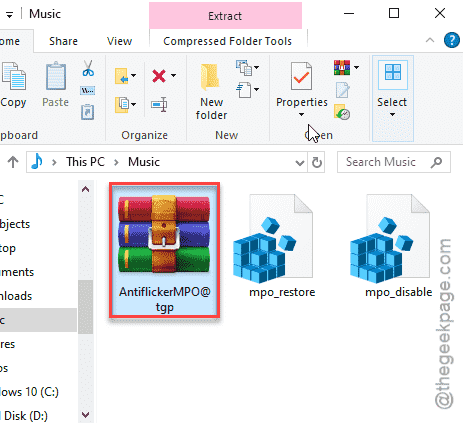
Step 3 – You shall find two individual scripts inside. One of the scripts, when run, fixes the flicker or stutters that you are getting on the display by adding a registry key.
Step 4 – So, to do that, right-click the “mpo_disable” registry script and tap “Merge” to merge the registry script to your system registry.
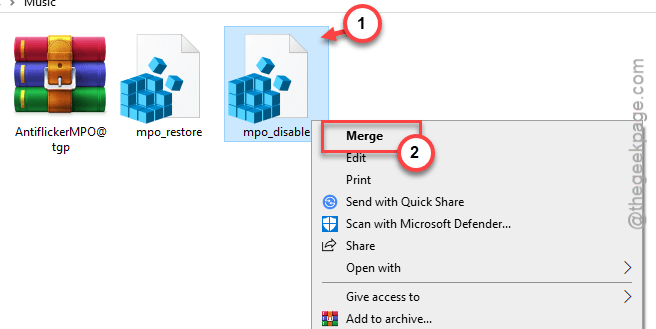
Step 5 – A warning message will flash up. Ignore that and confirm the merge.
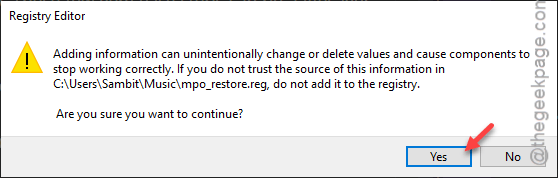
You won’t get to see the improvement until the device gets a reboot. After rebooting, all the parts of the display will get refreshed normally.
NOTE – If you continue to experience the stutter problem on the part of the display or run into other sort of issues after applying the registry fix, you must disable the effects of the fix.
1. To do that, return to the folder where you had extracted the compressed file.
2. This time, right-click the “mpo_restore” script and, tap “Merge“.
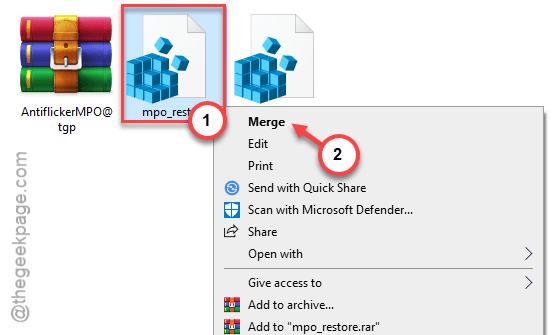
3. Ignore any warning prompts this time as well.
4. But, don’t forget to reboot the device.
This will replenish any residual effects of the registry script from your device.
Fix 3 – Execute a workaround
Some of the users have claimed to fix this by refreshing the graphics driver. You can easily restart your graphics driver.
Step 1 – It is a very simple method. Just hit the Ctrl+Shift+Win+B these four keys of the keyboard together.
Step 2 – Instantaneously, the display will turn dark and become normal within a few seconds.
See if this has fixed the parts of the stuck display on your computer. Go for the next fix, if this one doesn’t work out.
Fix 4 – Update the display driver
Using an older graphics driver for too long can have some side effects on the display as well. Update the graphics driver, irrespective of the type of graphics card that you are using.
For NVIDIA Cards –
Step 1 – Open up the NVIDIA App or GeForce Experience.
Step 2 – Go to the “Drivers” panel there.
Step 3 – Next, tap the “Download” button to download the graphics driver.
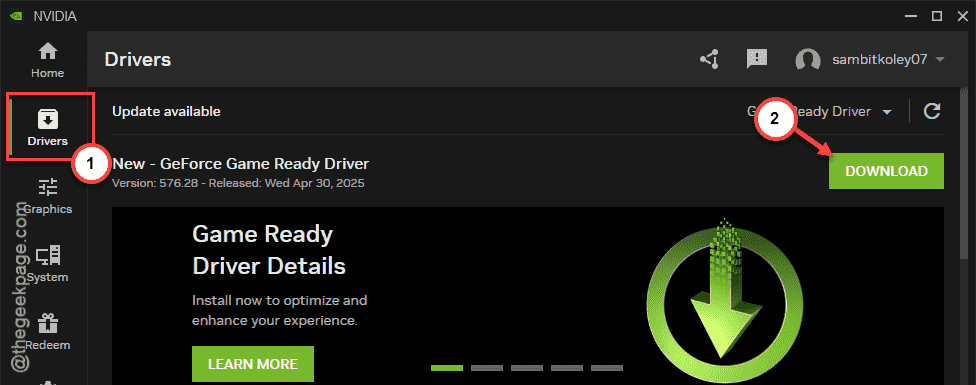
After downloading and installing the GPU driver, the display won’t stutter.
For AMD Cards –
If you are using an AMD card, you can use the AMD Adrenalin to update your card.
Step 1 – Launch the AMD Adrenalin App.
Step 2 – You can now install the latest version of the graphics driver for the AMD card.
Restart your computer, even if it is not required.
For Integrated graphics card users –
The update for these cards comes directly with the streams of Windows Update.
Step 1 – Open the Settings page.
Step 2 – Then, go to the “Windows Update” page from the left-tab.
Step 3 – Next, on the right-hand tab, reach the “Advanced Options” section.
Step 4 – Open up the “Optional updates“.
Step 5 – Install any display driver update you may find there.
This way, you can update the display driver. None of the parts of the screen will remain frozen anymore.