Does some of the widgets on your iPhone are not refreshing after installing the iOS 26 update? Don’t worry. The app widgets are nothing but a useful extension of an installed app. But, the app must be running in the background for the widget to show up updated information. This can cause such disturbances on your iPhone. Here are some fixes that will help you resolve the issue.
Fix 1 – Remove the Widget and add it
Remove the widget from the iPhone screen, restart your device, and then add it again.
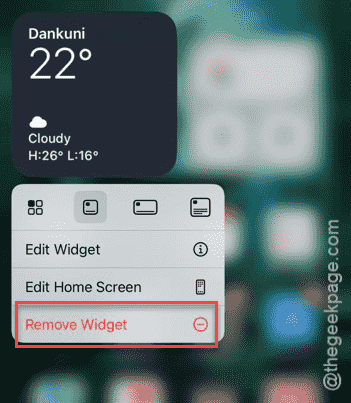
Step 1 – Hold the widget on the screen for a few seconds. Next, tap the Remove widget button to remove it. If it is a stack of widgets, remove it one-by-one.
Step 2 – Now, hold any space on the iPhone screen. Next, tap Edit ⇾ Add widget.
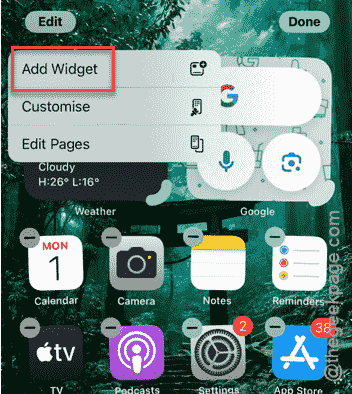
Step 3 – Select the widget that was there and add it to screen.
After restoring the widget, it will refresh correctly and show you the updated information.
Fix 2 – Turn on the Background App Refresh for widget app
The app does need to refresh automatically in the background for the widget to reflect the updated information correctly.
Step 1 – In the iPhone Settings page, proceed to the General tab.
Step 2 – Next, open the Background App Refresh feature.
Step 3 – Make sure the Background App Refresh is turned on. Locate the app (which has the widget) in that list and turn it on, if this feature is disabled for the app.
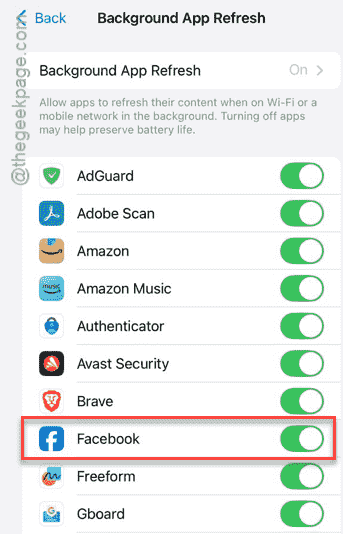
The widgets will function correctly and show you the updated information in the widget on the iPhone.
Fix 3 – Update the widget-app from App Store
Many app developers have patched their apps (and their widgets) for the iOS 26 or later builds.
Step 1 – Open the App Store.
Step 2 – Then, tap the profile icon in the top-right corner to view all the pending app updates.
Step 3 – Now, find if any update is pending for that widget-app. Update it from the same list of apps.
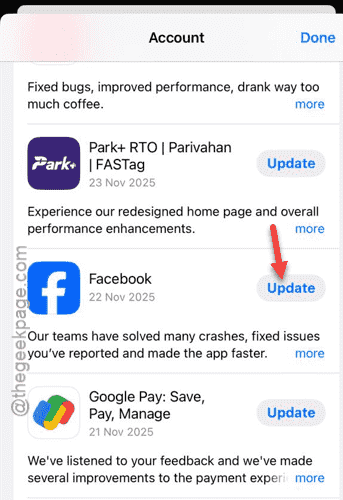
After updating the app, the issue with the widget will be fixed.
Fix 4 – Reset the Home Screen Layout
You should reset the home screen layout and start the entire process from scratch.
Step 1 – In the iPhone Settings window, go to Settings console.
Step 2 – Next, reach the General section. Later, proceed to the Transfer or reset iPhone settings.
Step 3 – Further, tap the Reset option.
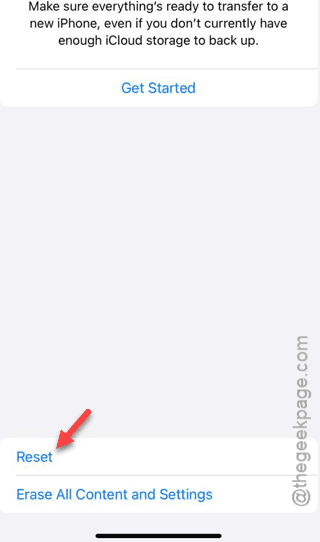
Step 4 – Then, use the Reset Home Screen Layout settings option.
Step 5 – A standard warning message will show up there. Tap the Reset Home Screen option.
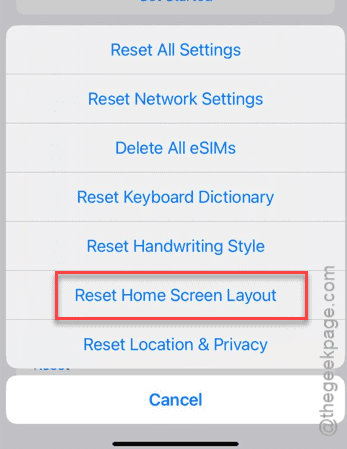
This will reset the home screen layout to the default version, and remove any modifications, such as widgets, app icons. Once the default home screen is retrieved, set up new widgets in the home screen.
Check whether the widgets function properly.
Fix 5 – Turn off the Low Power Mode
The Low Power mode of iOS 26 has advanced restrictions placed on app widget refresh system, like pausing the widget refresh mechanism to save power.
Step 1 – Load up the iPhone Settings and go to the Battery section.
Step 2 – Next, turn off the Low Power Mode from there.
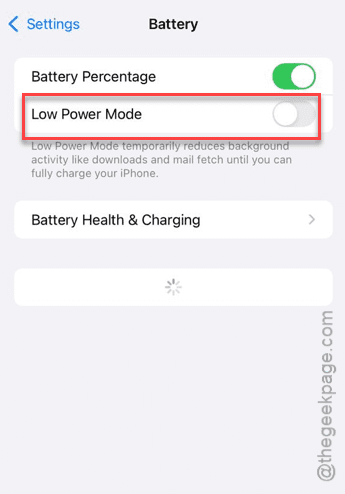
Once the device returns to normal mode, there won’t be any restrictions over the background app refresh of the app widget.