Does some of the drives on your computer are changing the drive letter automatically? Drive letters are not just limited to some individual letters assigned to different parts of the storage devices. Drive letter carries the identity of a whole section of the storage media drive. So, if the drive letters start to change automatically on their own, there is a bit of a problem for you.
Why Windows is changing drive letters on its own?
Whenever you plug a new USB device, Windows recognizes the drive and assigns a new drive letter to it. The USB device gets assigned the same drive letter even if you unplug and plug it right back in. Windows doesn’t automatically change the existing drive letters of the drives.
But, if you are plugging the USB device on separate devices or computers, the assigned drive letter may get overwritten during the initial setup process. Sometimes, Windows automatically assigns a free drive letter to a new USB device, while the older storage media is unplugged. This dynamic allocation can cause the drive letters to change even for the assigned drives.
Fix 1 – Assign a higher letter to the drive
You can assign a higher letter or least used drive letter (like – Z, W) to avoid the aforementioned scenarios.
Step 1 – Press the Win+X keys together.
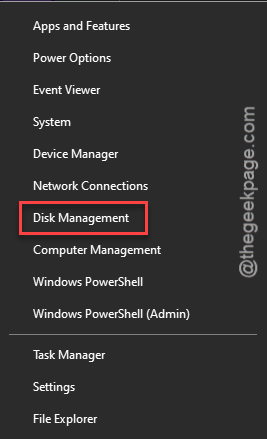
Step 2 – Next, tap the “Disk Management” to load up the program.
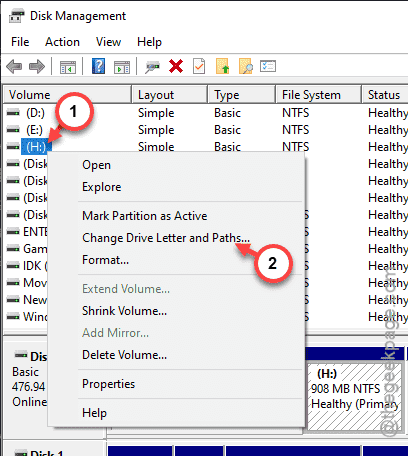
Step 3 – Then, find the problematic device on the list of drives.
Step 4 – Right-click such drive and click “Change Drive Letter and Path” option.
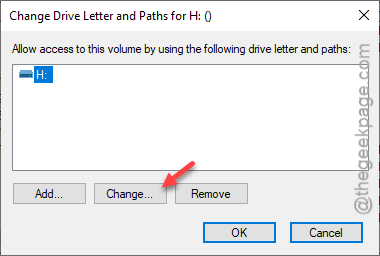
Step 5 – Tap the “Change” button once again.
Step 6 – Assign a drive letter that is least used by other devices. Like – W, Y.
Step 7 – Tap “OK” to set it to that drive letter.
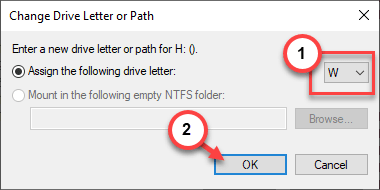
This new drive letter won’t change automatically. You can check it out yourself.
Fix 2 – Attach the drive before booting
The drives that are attached to the Windows, like the internal storage drives, retains the individual drive letters at the boot. You can just attach the drives to the device and, then, restart your computer to check whether the assigned drive letters remain the same or not.
Fix 3 – Problem of corrupted drive
A corrupted drive or a drive of a different storage format won’t get assigned a drive letter by Windows. If Windows can’t recognize a drive, it won’t give a drive letter to it. You can only see such a drive from the Disk Management page, but can’t access it.
In such cases, formatting the drive is the way to follow.
Step 1 – Open up the Disk Management.
Step 2 – On the Disk Management page, right-click that drive and tap “Format“.
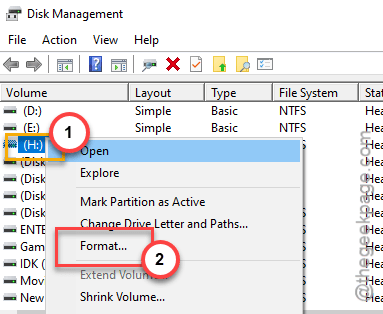
Step 3 – Select a suitable format to format the drive and complete the process.
Once you have formatted the drive, you can just follow the steps of Fix~1 to assign a fresh drive letter to the device.
Fix 4 – Do not use the drive on other PC/laptop
We have already conversed about this scenario where you are plugging in the USB drive on the other device and using a new, fresh USB device on the older system. This scrambles up the assigned drive letters. Try to limit the usage of the removable drive to one or two of your systems where the assigned drive letter is fixed.
These are the ways you can mitigate the drive letter change issues on the removable drives.