Windows Security throws up a red warning. “Local Security Authority protection is off. Your device may be vulnerable.” So you flip the toggle on. Restart. And the warning comes right back. Annoying doesn’t cover it.
Why This Happens
So the warning matters.
A lot of the time, the protection is already on. The system just doesn’t notice it turned on, so it keeps nagging you. A false alarm, basically.
Why? The toggle in Windows Security sometimes fails to write the setting properly. Or it writes it, but the warning banner doesn’t refresh after you restart.
And sometimes the toggle is genuinely stuck off, and clicking it does nothing at all. Different cause, same red banner.
So there are really two jobs here. Actually turn the protection on. And clear the warning if it’s just being stubborn.
Fix 1 – Turn the Toggle On and Restart Twice
The basic route. And the double restart matters more than you’d think.
1 – Click Start, type Windows Security, and open it.
2 – Click Device security in the left menu.
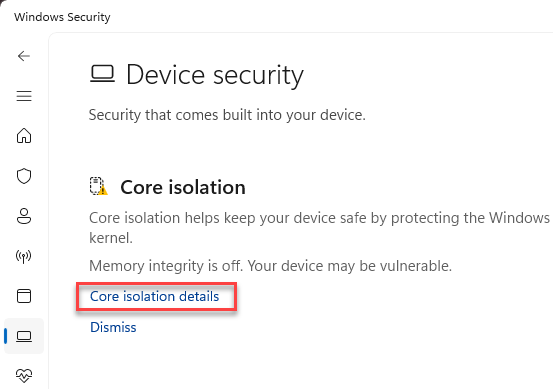
3 – Click Core isolation details.
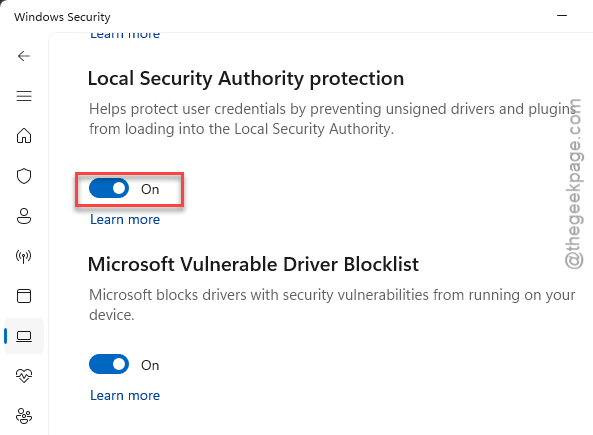
4 – Turn the Local Security Authority protection toggle to On.
5 – Restart your PC.
6 – Once you’re back at the desktop, restart a second time.
That second restart is the trick.
Fix 2 – Force It On Through the Registry
Try this registry hack to address this problem yourself.
Back up first. In Registry Editor, click File, then Export, and save a copy somewhere safe.
1 – At first, press Windows + R, type regedit, and press Enter.
2 – Then, paste this into the address bar at the top, and press Enter:
HKEY_LOCAL_MACHINE\SYSTEM\CurrentControlSet\Control\Lsa
3 – In the right pane, look for a value named RunAsPPL. Then, double-click it and set the number to 2.
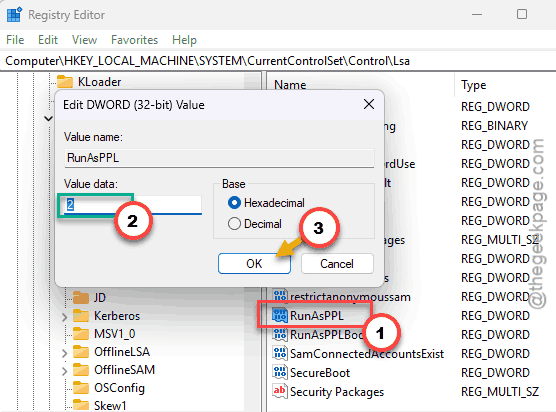
4 – If RunAsPPL isn’t there, right-click the empty space. Then, choose New>, then DWORD (32-bit) Value, and name it RunAsPPL.
Then set it to 2.
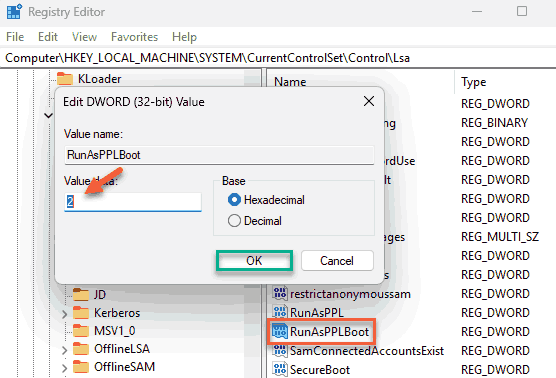
5 – Do the same for a value named RunAsPPLBoot. Set it to 2 as well, creating it the same way if it’s missing.
6 – Close the registry and restart your PC twice, like in Fix 1.
Fix 3 – If You Have Windows 11 Pro
Pro, Enterprise, and Education have a policy editor that overrides the flaky toggle cleanly.
1 – At first, hit the Windows + R keys together.
2 – Type gpedit.msc, and press Enter.
2 – In the left pane, expand Computer Configuration, then Administrative Templates, then System.
3 – Scroll down and click Local Security Authority.
4 – Now, on the right pane, double-click Configure LSASS to run as a protected process policy to tweak it.
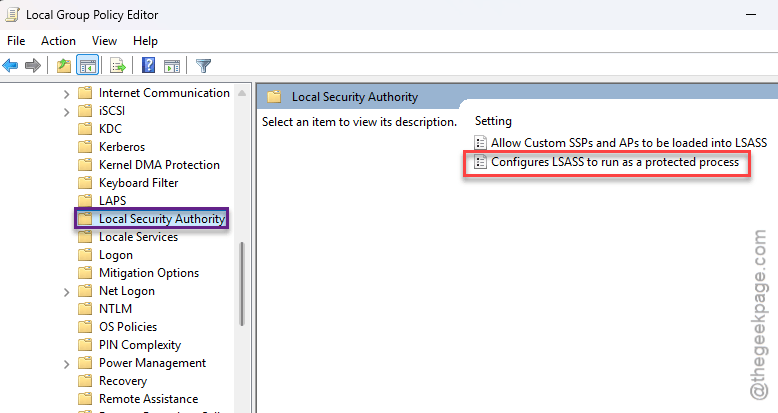
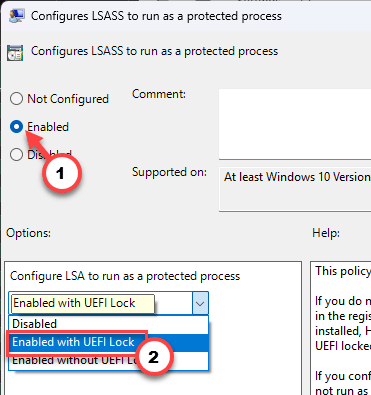
5 – Select Enabled.
6 – In the options box below, pick Enabled with UEFI Lock if it’s offered.
7 – Click OK and restart.
Check if this works.
Fix 4 – Dismiss the False Warning
Confirmed the registry says RunAsPPL is 2, but the banner won’t quit? Then it’s just a stale alert, and you can safely wave it off.
1 – Open Windows Security
2 – Go to Device security,
3 – Look for a Dismiss link under the LSA warning. Click it.
The banner disappears and stops bugging you.
Fix 5 – Update Windows if the Warning Won’t Die
This warning showing up when protection is already on? That’s a known bug that shipped with certain Windows 11 builds. Microsoft has patched versions of it in later updates.
1 – Press Windows + I to open Settings.
2 – Click Windows Update at the bottom of the left sidebar.
3 – Click Check for updates.
4 – Install anything it finds, then restart.
If a buggy build was causing the false alarm, a newer update usually makes it stop on its own.
How to Prevent This
– Always restart twice after turning LSA protection on. One reboot often isn’t enough, and that’s what makes people think it failed.
– Don’t turn LSA protection off to make the warning go away. That leaves your passwords exposed. Fix the alert, not the protection.
– Keep Windows updated. Several of these false-warning bugs were squashed in later patches.
– If you use the registry method, keep that backup file. Handy if a value ever gets wiped by an update.
People Also Ask
How do I fix Local Security Authority protection is off?
Turn the toggle on under Windows Security > Device security > Core isolation details, then restart your PC twice. Two reboots, not one — LSA loads early and needs that. If the toggle is stuck, set RunAsPPL and RunAsPPLBoot to 2 in the registry and reboot again.
Is it okay to turn off Local Security Authority protection?
Not really. LSA protection guards your saved passwords and login tokens from theft. Turning it off to silence the warning leaves that door open. If the warning is a false alarm, dismiss the alert instead — that hides the banner without lowering your security.