Notepad got tabs a while back. Handy. One window, lots of files. But now every file you open spawns its own separate window. So your taskbar fills up with Notepads, and the whole point of tabs is gone.
Why This Happens
Basically? A Windows update poked Notepad and knocked its layout setting back to the old behavior.
Notepad has a preference that decides what happens when you open a file. New tab, or new window. And an update can quietly flip it to “new window” without asking.
But sometimes the setting looks correct and Notepad ignores it anyway. That’s when the app’s saved state has gone corrupt. It remembers the wrong window layout and keeps repeating it.
So you’ve got two situations. The setting is just wrong, which is a two-click fix. Or the setting is right but Notepad won’t obey, which needs a bit more digging.
Start simple and work down.
Fix 1 – Check the Opening Files Setting
Most of the time this is all it takes.
1 – Open Notepad.
2 – Tap the gear icon (Settings) in the top-right corner.
3 – Find the Opening files option.
4 – Click the dropdown next to it and choose Open in a new tab.
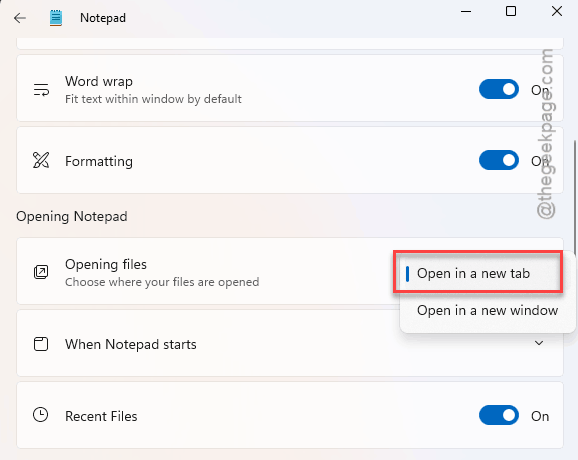
Open a file to test. If it lands in a tab, you’re finished.
Fix 2 – Toggle the Setting to Wake It Up
Setting already says “new tab” but files still fly out into their own windows? The preference is stuck. Forcing it off and back on can jog it loose.
1 – In Notepad’s Settings (the gear icon), find Opening files again.
2 – Switch it to Open in a new window.
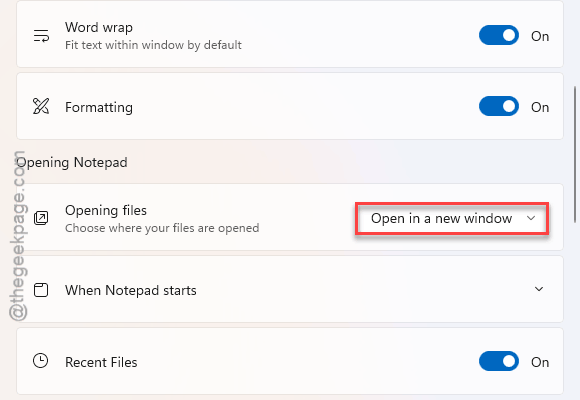
3 – Close Notepad completely.
4 – Now, go ahead and reopen Notepad.
5 – Go back into Settings, and switch it back to Open in a new tab.
Try opening a file now.
Fix 3 – Force Tabs Through the Registry
Still fighting you? You can hard-code the tab behavior so Notepad has no choice. This overrides the app’s own confused state.
1 – At first, press Windows + R together.
2 – Type regedit, and press Enter.
2 – Paste this into the address bar at the top and press Enter:
HKEY_CURRENT_USER\Software\Microsoft\Notepad
3 – Then, right-click the empty space in the right pane. After this, go this way – New>, then DWORD (32-bit) Value.
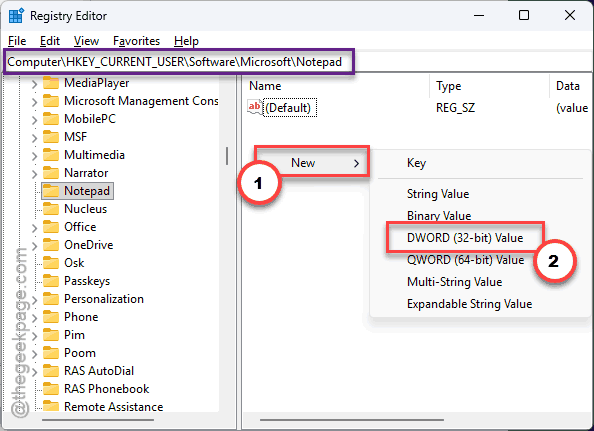
4 – Name it AlwaysOpenInNewTab.
5 – Double-click it and set the value to 1. Click OK.
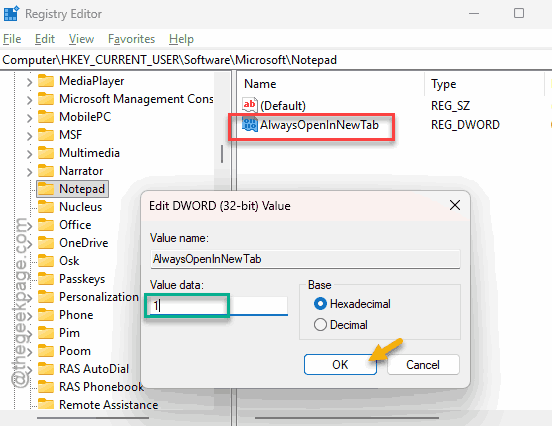
6 – Close the registry and reopen Notepad.
Fix 4 – If a Background Notepad Is Stuck
Notepad sometimes leaves a hidden copy of itself running, and that ghost copy holds the broken layout in place. Killing it, then repairing, clears the jam.
1 – Press Ctrl + Shift + Esc to open Task Manager.
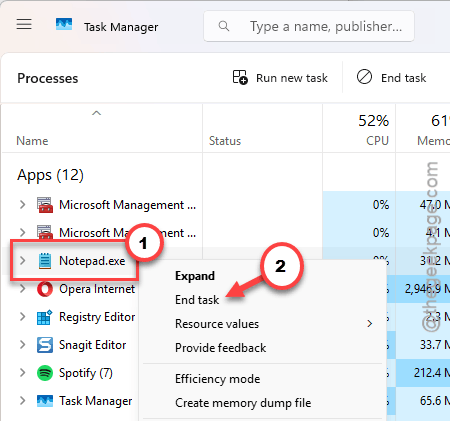
2 – Find every Notepad entry in the list. Right-click each one and choose End task.
3 – Press Windows + I to open Settings.
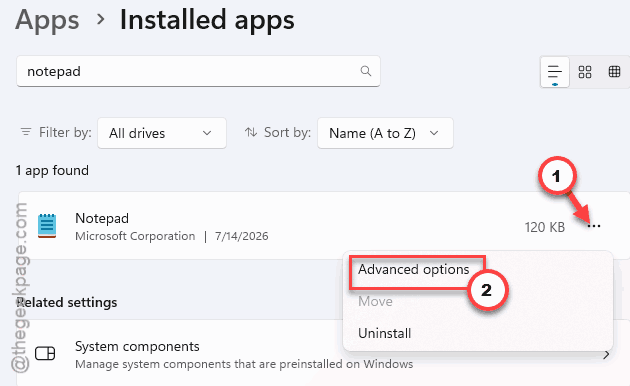
4 – Go to Apps, then Installed apps.
5 – Type Notepad in the search box, click the three dots (⋯), and choose Advanced options.
6 – Scroll to the Reset section and click Repair. Wait for the checkmark.
7 – Still broken? Click Reset right below Repair.
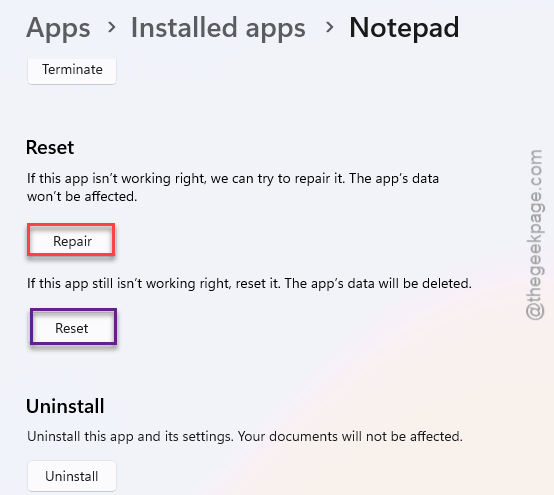
This clears the app’s saved state — your text files are untouched.
Fix 5 – Wipe the Saved Window Layout
Quick and surgical. Notepad stores its window memory in one folder, and deleting it forces a clean rebuild.
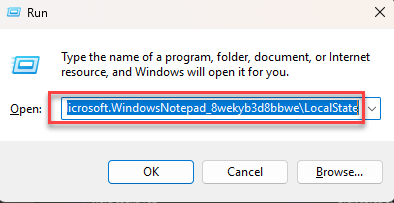
1 –Press Windows + R keys together.
2 – Then, paste this address, and press Enter.
%localappdata%\Packages\Microsoft.WindowsNotepad_8wekyb3d8bbwe\LocalState
3 – Delete the WindowStates folder inside.
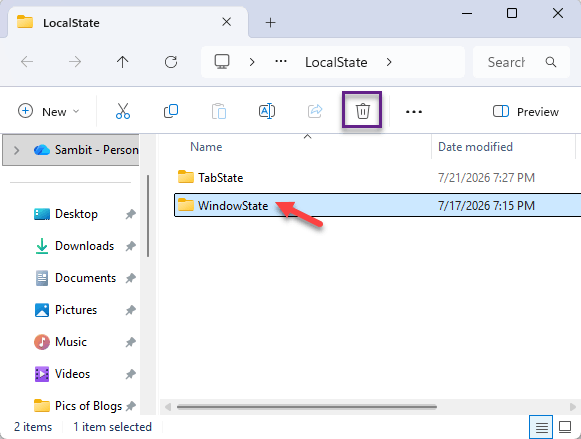
Reopen Notepad and it builds a fresh layout that respects your tab setting.
Fix 6 – Rebuild Notepad With PowerShell
Last resort. If the app package itself is damaged, re-registering it gives you a clean copy without losing anything.
1 – Right-click Start and choose Terminal (Admin). Click Yes if Windows asks.
2 – Type this and press Enter:
Get-AppxPackage *Microsoft.WindowsNotepad* | Remove-AppxPackage
3 – Then paste this and press Enter:
Get-AppxPackage -AllUsers -Name Microsoft.WindowsNotepad | Foreach {Add-AppxPackage -DisableDevelopmentMode -Register "$($_.InstallLocation)\AppXManifest.xml" -ForceApplicationShutdown}
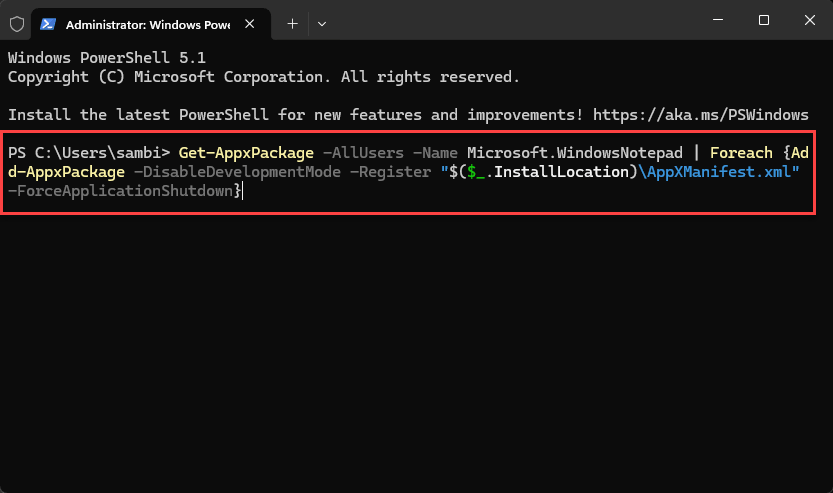
4 – Restart your PC when it finishes.
How to Prevent This
– After a big Windows update, pop into Notepad’s settings and confirm the tab option didn’t reset. Takes five seconds.
– The registry value from Fix 3 sticks around through updates. Set it once and the behavior holds.
– Don’t force-close Notepad with unsaved files open. That’s one way its saved state gets corrupted in the first place.
People Also Ask
Why does my Notepad not have tabs?
Tabs only come with the modern Notepad app on Windows 11. If yours has none, you might be running the old classic version, or the app package is damaged. Check for Windows updates, and if that doesn’t help, re-register Notepad through PowerShell to restore the tabbed version.
Does resetting Notepad delete my saved files?
No. Repair and Reset only wipe the app’s own settings and saved layout — things like your font choice and window state.