You log into Windows 11 25H2 and get a black screen. Just a mouse cursor floating on nothing.
You can move the pointer. But nothing else responds. No desktop, no icons, no taskbar. Just stuck.
Why This Happens
Short version? 25H2 shipped with a timing bug, and it trips on cold boots.
When Windows starts, a background service called SessionEnv has to finish before your desktop can load. On the June and July 2026 cumulative updates — KB5094126 among them — the login sequence waits on that service forever. So the shell never draws. You get a cursor and nothing behind it.
There’s a second culprit too. The NPU driver. That’s the chip that handles AI tasks on newer PCs. Windows Update keeps pushing an old version that doesn’t play nice with 25H2, and it can hang the graphics on startup.
And weirdly? Some USB audio gadgets make it worse. They lock up a system service during the hang and turn a slow boot into a frozen one.
So the fixes split two ways. Get past the freeze right now. Then stop it coming back.
Fix 1 – Force a Graphics Reset
Try this the second it freezes.
AT first, press Windows + Ctrl + Shift + B all at once. The screen blinks, you’ll hear a short beep, and Windows rebuilds the display.
This is the fastest thing to try, and sometimes it’s all you need to get the desktop back.
Fix 2 – Restart the Desktop Shell
Screen still blank after the reset? The desktop process may have stalled. You can restart just that piece without rebooting.
1 – Press Ctrl + Alt + Del.
2 – Click Task Manager.
3 – In the list of running apps, find Windows Explorer.
4 – Right-click it and choose Restart.
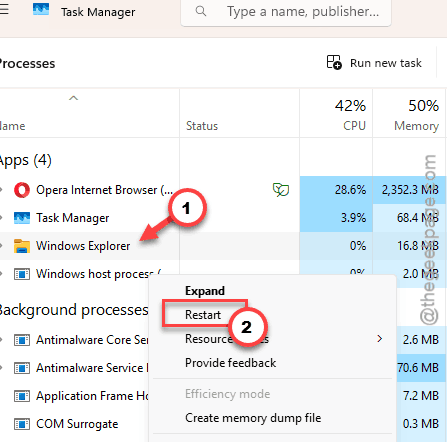
The screen flickers, and your taskbar and icons should snap back into place.
Fix 3 – Set the SessionEnv Service to Automatic
This is the real fix for the 25H2 bug. Forcing that stalling service to start automatically stops the login sequence waiting on it forever.
1 – While you’re stuck on the black screen, press Ctrl + Shift + Esc to open Task Manager.
2 – Click File, then Run new task.
3 – Type services.msc, check the box for Create this task with administrative privileges, and press Enter.
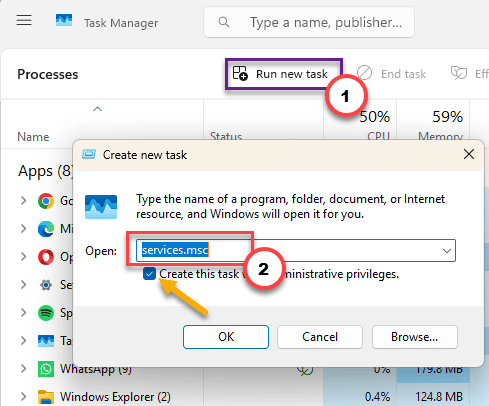
4 – Scroll down and find SessionEnv — its full name is Remote Desktop Configuration or Multi-User Connection Configuration.
5 – Right-click it and choose Properties.
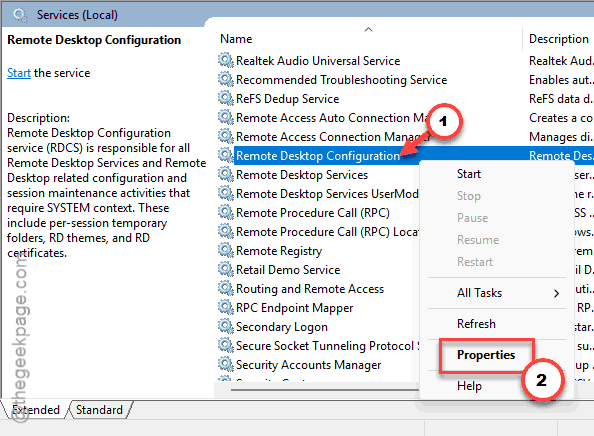
6 – Change Startup type to Automatic.
7 – Click Apply, then OK, and restart your PC.
Cold boots should reach the desktop normally now instead of hanging.
Fix 4 – Update the Intel NPU Driver
Windows Update hands out an outdated NPU driver that crashes 25H2. Grabbing the current one straight from Intel skips that stale version.
1 – Once you’re at the desktop, open your browser and go to Intel’s support site.
2 – Search for Intel NPU Driver for Windows.
3 – Download the latest version listed.
4 – Run the installer and follow the prompts.
5 – Restart your PC when it’s done.
Get it from Intel directly, not Windows Update — that’s the whole point. The version Windows offers is the one causing trouble.
Fix 5 – If a USB Device Is Locking the Boot
Got a USB DAC, a headset, or an external sound card plugged in? Those can jam a system service during the hang. Booting into Safe Mode lets you disable them and test.
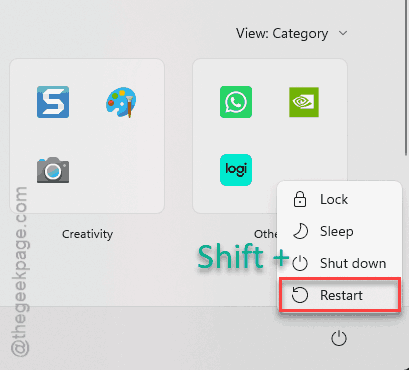
1 – At first, hold Shift and click Restart from the power menu to reach the recovery screen.
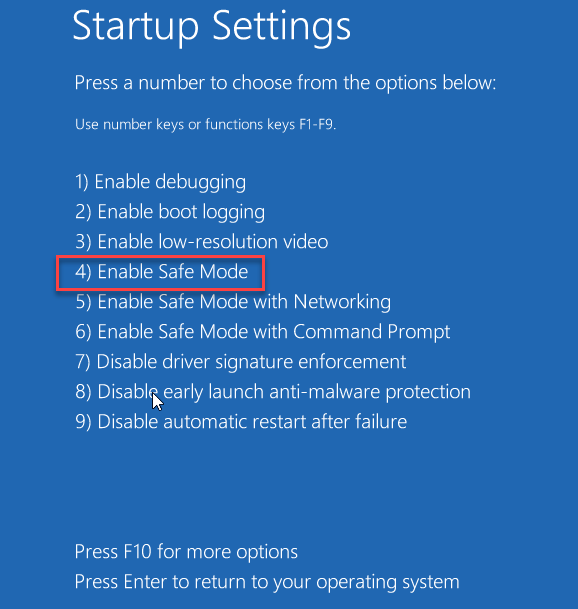
2 – Go to Troubleshoot, then Advanced options, then Startup Settings, and click Restart.
3 – When the list appears, press 4 to boot into Safe Mode.
4 – Right-click Start and open Device Manager.
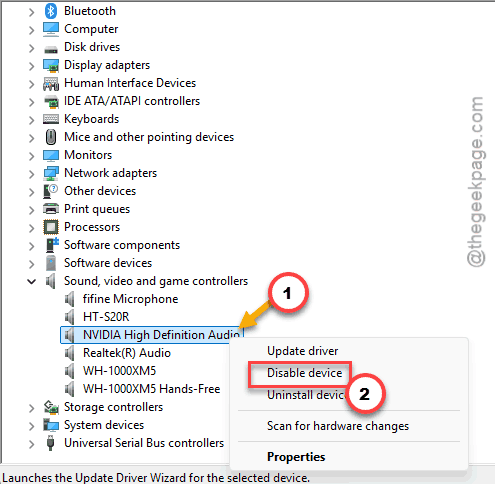
5 – Expand Sound, video and game controllers.
6 – Right-click any secondary USB or NVIDIA audio device and choose Disable device.
7 – Restart normally and see if the freeze is gone.
If a normal boot works now, that device was the trigger. You can re-enable it once a driver update lands.
How to Prevent This
– Set SessionEnv to Automatic and leave it there. It’s the one change that stops the cold-boot freeze for good.
– Pull NPU and graphics drivers from Intel or NVIDIA directly, not Windows Update. The bundled ones lag behind and cause exactly this.
– Unplug USB audio devices before a restart if you’ve had freezes. Plug them back in once you’re at the desktop.
– Keep checking Windows Update. Microsoft flagged this in the 25H2 rollout, and a proper patch is the long-term answer.
People Also Ask
What causes the Windows 11 25H2 freeze on startup?
A timing bug in the mid-2026 cumulative updates, including KB5094126, makes the login wait forever on the SessionEnv service. An outdated Intel NPU driver pushed through Windows Update adds to it. Together they leave you staring at a cursor on a blank screen after login.
Will these fixes delete my files?
No. Resetting the graphics, restarting Explorer, changing a service startup type, or updating a driver all leave your personal files alone. You’re only changing how Windows starts up, not touching your documents, photos, or apps.