Windows Updates are not completely immune to occasional bugs or glitches. Screen tearing is one of such serious issues that a group of users have noticed after receiving the recent 24H2 updates on their machines. They are experiencing this problem with multiple apps, and hence noted that the issue is generating from the OS itself. So, we have listed these solutions that should help you in fixing the problem.
Fix 1 – Turn off the optimization for windowed games
The automatic optimization for running windowed games can be causing this screen tearing issue.
Step 1 – So, open up the Settings page.
Step 2 – Select the “System” settings and go to the “Display” settings.
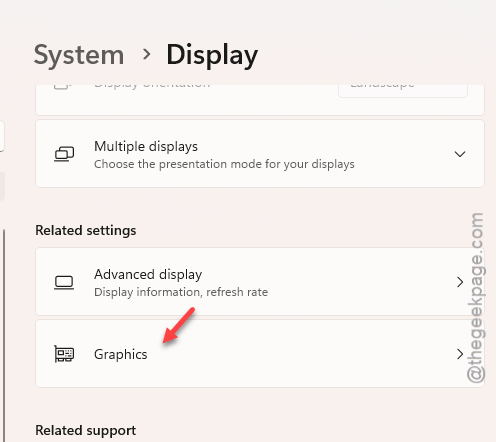
Step 3 – Then, open up the “Graphics” settings.
Step 4 – Finally, turn off the “Optimization for windowed games” option from there.
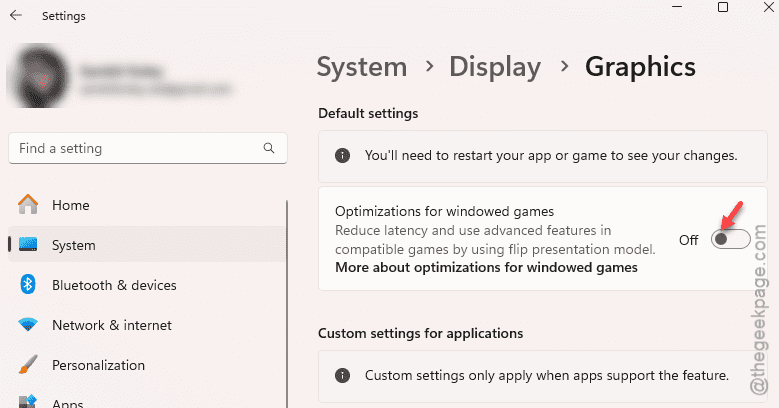
Check if this solves the screen tearing problem for you.
Step 5 – Or, you may decide to turn this feature off for some specific apps where you have experienced the screen tearing issues.
Step 6 –To counter this, find the name of the app in the list.
Step 7 – Then, turn off the “Optimization for windowed games” option there.
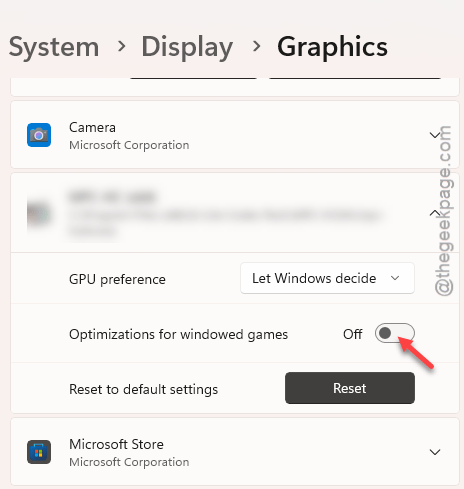
This should take care of the screen tearing problem for you.
Fix 2 – Turn off the Multi-Plane Overlay system
It seems that the MPO system can have an influence on the display issues in the recent Windows 11 24H2 update.
NOTE – Make sure to create a registry backup of your system, before you proceed. This particular post should help you with that.
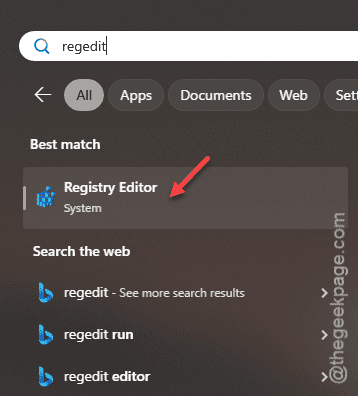
Step 1 – Hit the Windows button once. Search for the “regedit“.
Step 2 – Next, tap the “Registry Editor” to load up the Registry Editor.
Step 3 – Proceed to this registry location –
Computer\HKEY_LOCAL_MACHINE\SOFTWARE\Microsoft\Windows\Dwm
Step 4 – Right-click on the space and tap “New>” and tap “DWORD (32-bit) Value“.
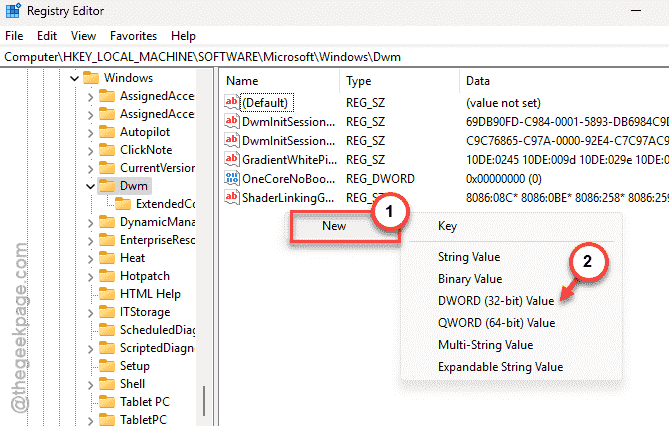
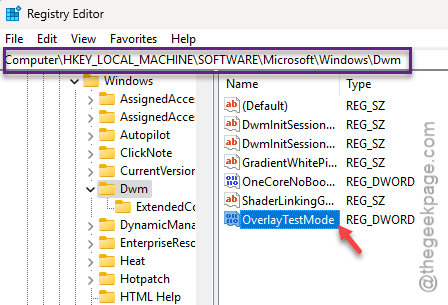
Step 5 – Name the value as “OverTestMode“.
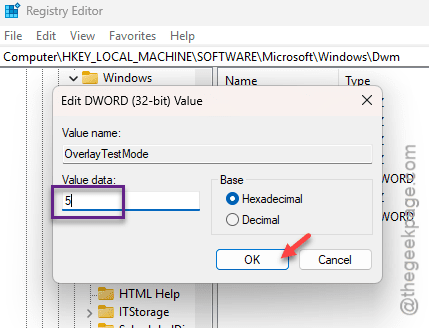
Step 6 – Double-tap that value.
Step 7 – Set the value to “5“. Click “OK” to save that.
Step 8 – Next, visit this location –
HKEY_LOCAL_MACHINE\SYSTEM\CurrentControlSet\Control\GraphicsDrivers.
Step 9 – Create a new DWORD(32-bit) value. Name this “DisableMPO” value.
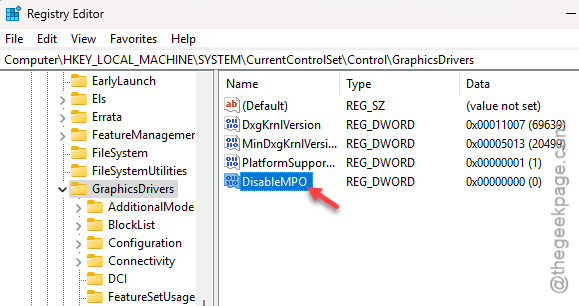
Step 10 – Set this to “1” and hit Enter.
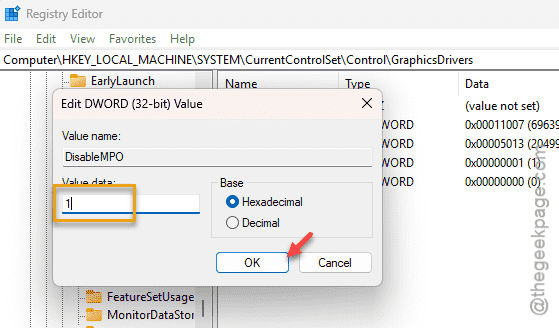
Later, close the Registry Editor. Restart your system, later. Test if this works.
Fix 3 – Uninstall the 24H2 update
Returning to the previous version of Windows, like 23H2, is the best choice for you to avoid this scenario.
Step 1 – Load up the Windows Settings and reach the “Windows Update” section.
Step 2 – Next, open up the “Update history” page.
Step 3 – In the Update history page, open up the “Uninstall Updates” panel.
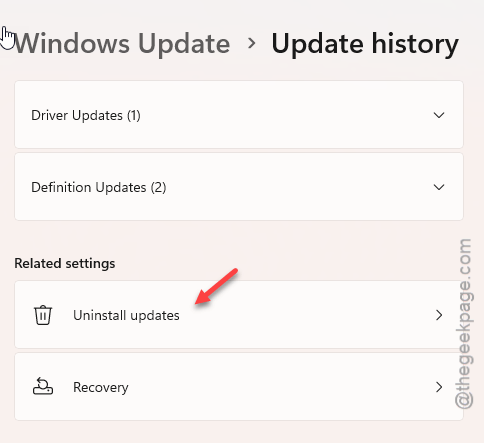
Step 4 – Find the Windows 24H2 update. You may track it via the KB number or the date it was installed.
Step 5 – Tap the “Uninstall Update” option to uninstall the update from your device.
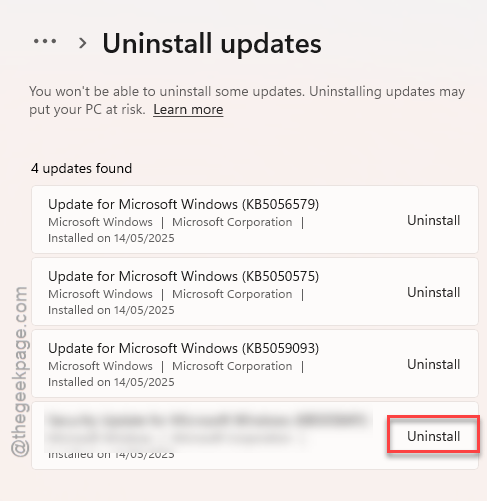
Uninstalling a big update such as 24H2 is a lengthy process. So, it will take it’s fair share of time. Your computer may restart a few times during the process.
Once you are back to the 23H2 version, the screen tearing issues will be gone.
Fix 4 – Add the effected programs to optimized list
Some users have solved the problem simply by adding the affected program to the list of programs optimized in windowed mode.
Step 1 – To do this, simply reach out to the Settings page.
Step 2 – Next, go this way –
System > Display
Step 3 – Later, load up the “Graphics” option.
Step 4 – Now, find the ‘Custom settings for applications‘ panel.
Step 5 – Tap the “Add desktop app” or “Add Microsoft Store app” option, according to the origin of the problematic program.

Step 6 – Now, reach the location of the application executable manually.
Step 7 – Then, select the application and tap “Add” to add the program.

Step 8 – Later, expand the application in the list.
Step 9 – Set the “Optimization for windowed games” to “On” mode.
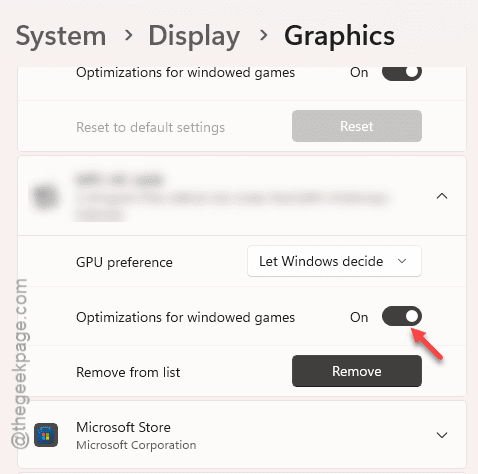
After this, you won’t experience any screen tearing problem.
Hope this works out for you!