Running into a Blue Screen of Death just after you have finished cloning your SSD? Cloning a SSD is a very easy process and normally doesn’t inflict any changes to the system, rather than causing the entire system failure! It seems that this problem is generating from the BIOS mode of the OS after the cloning process is complete on the SSD. These procedures will be helpful in troubleshooting this simple thing.
Fix 1 – Enable the AHCI mode in BIOS
Does your SSD utilize the NVMe mode to transfer files? If that is the case, you must enable the AHCI mode in the SATA controller system in the system BIOS.
Step 1 – At first, restart your computer.
Step 2 – While the device is restarting and the manufacturer’s logo is showing up on your screen, use the particular key to boot into the BIOS mode.
[NOTE – The actual button that lets you into the BIOS mode can differ manufacturer to manufacturer. Usually, it is these keys – F1, F2, F12, Delete, End etc. You may not be able to enter into the BIOS at the first attempt. Keep repeating the step to open it up.]
Step 3 – Press that button repeatedly until the device lets you into the BIOS mode.
Step 4 – In the BIOS page, go to the “Storage Condition” or “SATA mode”. Or, you may go to the “Advanced” part of the BIOS section to find the “IDE/AHCI” mode.
Step 5 – Toggle this to the “AHCI” mode and save the changes.
Now, you may just save the changes on the storage controllers, quit the BIOS page and restart your computer.
After the device restarts, complete the cloning process and check again.
Fix 2 – Use the UEFI BIOS mode
You have to change the UEFI mode, if you are using the legacy boot mode.
Step 1 – Open the Win+I buttons together.
Step 2 – Next, load up the “Update & Security” settings.
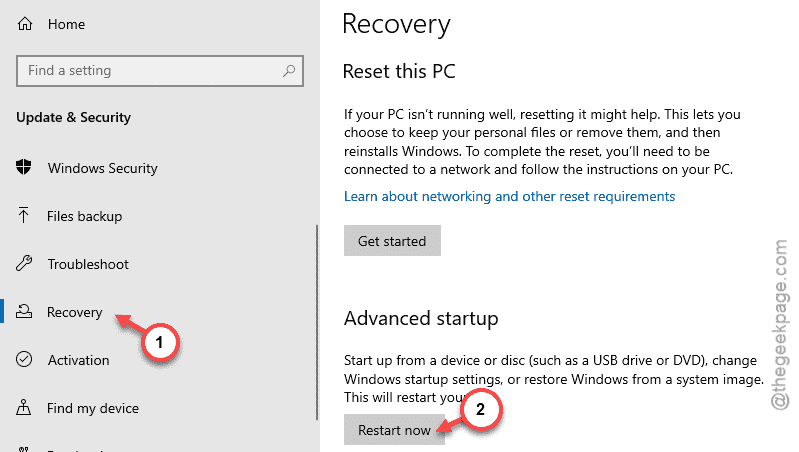
Step 3 – Later, open up the “Recovery” tab.
Step 4 – Find the ‘Advanced startup’ section. Tap “Restart now” to restart your computer into the recovery environment.
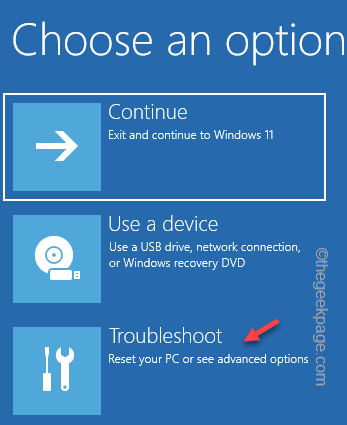
Step 5 – Once you are in the Recovery Environment page, open up the “Troubleshoot” category.
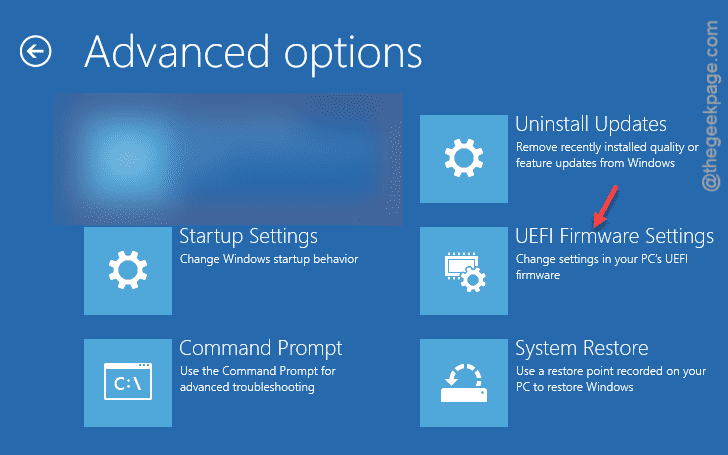
Step 6 – Next, open up the “Advanced options“.
Step 7 – Load up the “UEFI Firmware Settings” to load up the UEFI settings on your device.
Step 8 – Your computer will ask you to restart your device to load up the BIOS settings page.
Step 9 – Once you are in the BIOS page, look for the “Legacy/UEFI” option in the “Boot” category. If you can’t find it there right away, you may do that in the ‘Advanced‘ category in there.
Step 10 – Set it to “UEFI” mode from there, and save the changes.
Once you have booted the device in UEFI mode, cloning the SSD won’t just cause a BSOD error message.
Fix 3 – Rebuild the BCD using cmd
After cloning the SSD, you may rebuild the boot configuration directory (BCD) on your device.
[Important Tip – After cloning the entire OS drive, you can just remove the UEFI boot partition. Later, you can manually create the boot partition using the command line tools.
Step 1 – We can only do this in Windows Recovery event. So, open up the Settings and go this way –
Windows Update > Recovery > Advanced Startup
Step 2 – Tap the “Restart” option to boot into the Windows RE.
Step 3 – Later, follow this path –
Troubleshoot > Advanced Options > Command Prompt
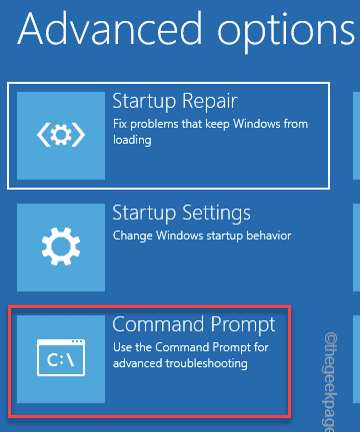
Step 4 – You may have to use your account password to use the command line.
Step 5 – Write this command in the terminal and, hit Enter. This will rebuild the boot configuration directory.
bootrec /rebuildbcd
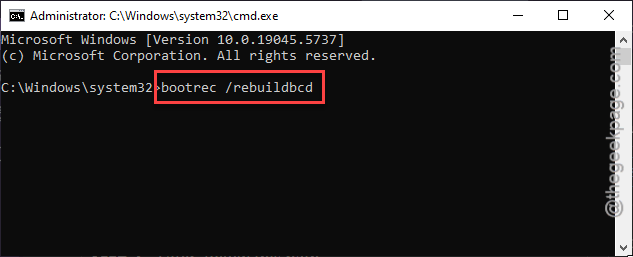
Windows will now rebuild the boot configuration directory.
Once it is finished, quit the CMD panel and let the device restart normally.
After this, you won’t get into this problem anymore.
Fix 4 – Run a simple disk checking scan
There can be some problem with the target SSD where you are cloning the drive.
Step 1 – Note down the drive letter of the destination SSD from the File Explorer.
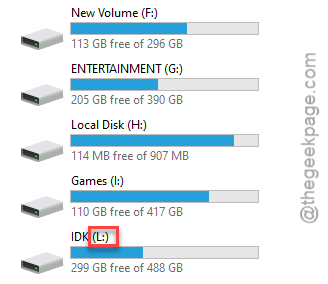
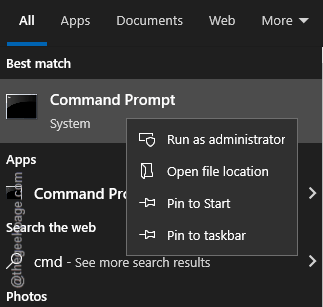
Step 2 – Load up the CMD as an administrator.
Step 3 – Next, execute this code after changing the code with your drive letter.
chkdsk drive letter: /f /r
[Replace the “drive letter:” with the drive letter of the SSD that you want to clone.
chkdsk l: /f /r
]
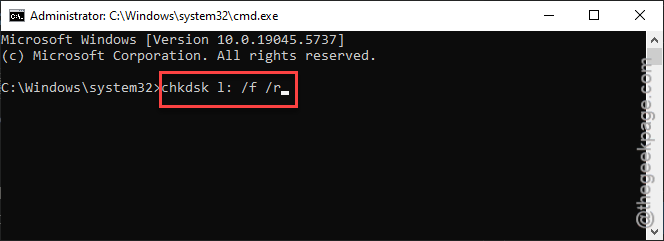
After running the disk checking scanning tool, close the terminal and try the cloning process again.
Fix 5 – Alternative method of using Linux
If you have a Linux distro sideloaded on your device, you can use the “dd” command to copy or clone the SSD very easily. It won’t produce such erratic results like, BSOD or any other problem.
Step 1 – Use this code to detect the SSDs.
lbsk
Step 2 – The basic ‘dd’ command module to transfer the files from one drive to another is this –
sudo dd if=/dev/source_disk of=/dev/destination_disk
While you have to replace the “source_disk” and “destination_disk” with the actual name of the SSD that you have got from the lbsk code.
This won’t cause any errors.
Fix 6 – Use Veeam to clone the drive
You can use the free version of the Veeam to clone the drive. Instead of cloning the drive, you can restore the backup of the existing SSD directly into the new drive.
Check if this works out for you!