There is a common misconception even among the veteran Microsoft Excel users that the Pivot Tables behave like any other normal cell formulas. While the formulas are designed to update automatically, pivot tables are built on cache, which requires a manual or programmed trigger to produce complete results.
Quick Fix Guide –
| Issue | Recommended Action |
| Data added but not showing | Use Format as Table (Ctrl+T) for source data |
| New rows are ignored | Change Data Source range to include the new rows |
| Too many manual refreshes | Enable Refresh data when opening the file in Excel Options |
Fix 1 – Format Source Data as a Table (Ctrl+T)
If you simply opt for a particular range (like A1:C500), the pivot table won’t look at row 501. Formatting it as an Excel table makes the range dynamic.
Step 1 – Select your source data, and press the Ctrl+T buttons.
Step 2 – Now, proceed to the Pivot Table. Use the PivotTable Analyze feature. Then, use the Change Data Source.
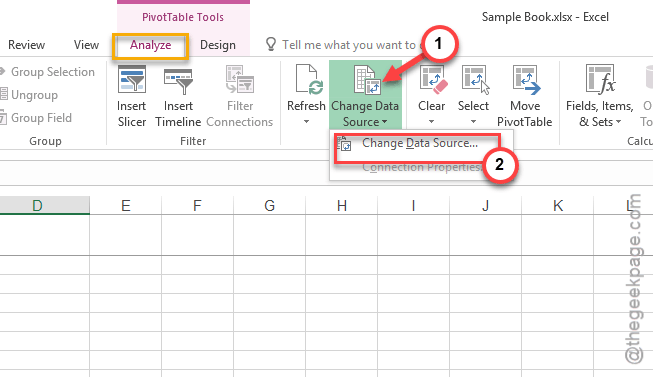
Step 3 – Now, provide the name of the table (e.g., Table1) instead of the cell co-ordinates.
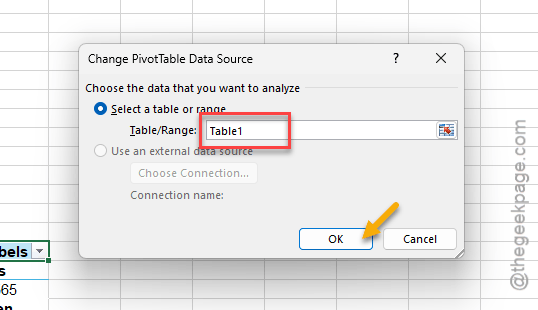
Now, any rows you add are automatically added to the pivot range.
Fix 2 – Enable Refresh On Open Feature
You can configure the Pivot Table to refresh the data the next time you open the file; that may fix the issue.
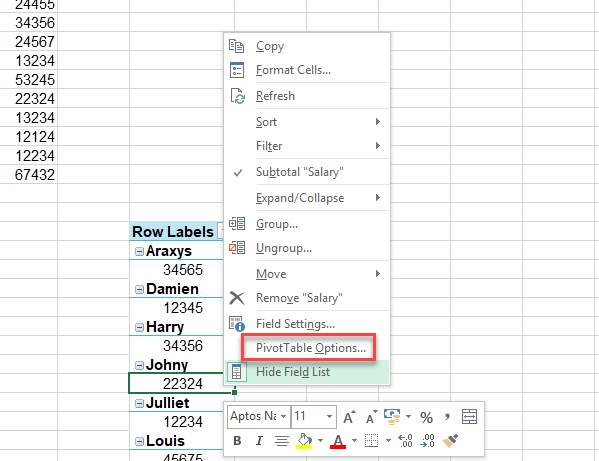
Step 1 – Right-click anywhere inside your Pivot Table.
Step 2 – Choose the PivotTable Options.
Step 3 – Proceed to the Data tab. Then, check the Refresh data when opening the file feature.
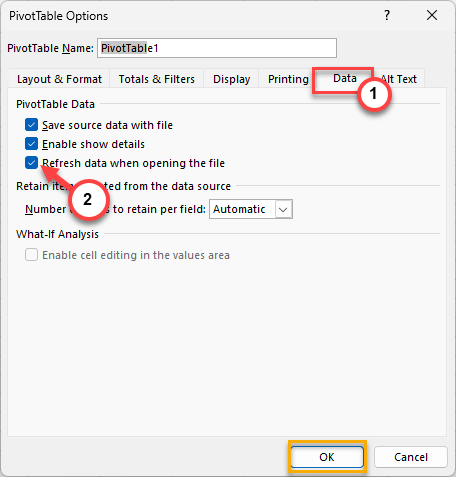
This will automatically refresh the Pivot Table data as soon as you have opened up the document.
Fix 3 – Disable Background Refresh for External Connections
If your Pivot Table pulls data from any external source (CSV, SQL, or any other workbook), disabling the background refresh should fix the issue.
Step 1 – Proceed to the Data tab. Open the Queries & Connections feature.
Step 2 – Right-click the connection and tap Properties.
Step 3 – Uncheck the Enable background refresh feature.
This should set the pivot table to refresh the data only when the data entry has been finished at the source.
Fix 4 – Use a VBA worksheet trigger
If you want an instantaneous update in your main Pivot Table from the original source, you have to add a simple tweak in the sheet code.
Step 1 – Right-click the Sheet tab name at the bottom of the worksheet, and tap View Code.
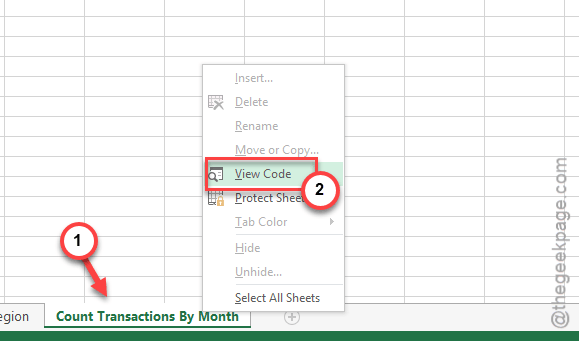
Step 2 – Paste this code there –
Private Sub Worksheet_Change(ByVal Target As Range)
    ThisWorkbook.RefreshAll
End Sub
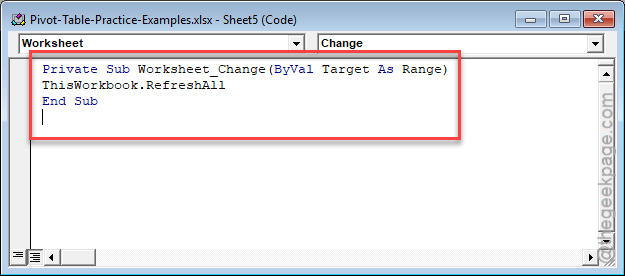
Every time a cell is updated in the sheet, the Pivot Table will be updated automatically.
Fix 5 – Find & Remove Pivot Cache Conflicts
Due to a corruption in the Pivot Cache or disconnection from the source, the Pivot Table may not be refreshing automatically.
Step 1 – Choose the source data, and press the Ctrl+T buttons.
Step 2 – Now, proceed to the Pivot Table. Use the PivotTable Analyze feature. Tap the Refresh button. Use the Refresh Status button.
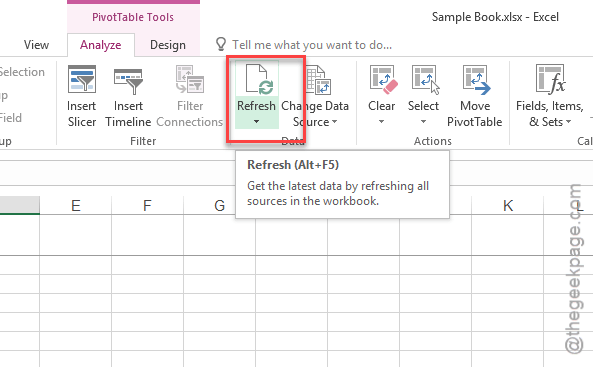
Step 3 – Use the Change Data Source and point the Pivot Table to the source data.
This should clear up any blockage that is causing such issues.