You picked a nice icon for a folder. Looked great. Then you rebooted, or just came back an hour later, and it’s the plain yellow folder again.
So you set it again. And it resets again. Maddening.
Why This Happens
Your custom icon isn’t stored in some settings database. It lives in a tiny hidden text file inside the folder, called desktop.ini.
And Windows 11 does not trust that file by default.
Here’s the logic. A random text file that can change how a folder looks is a nice trick for malware. So Windows only obeys desktop.ini when two conditions are true: the folder itself is marked Read-only or System, and the desktop.ini file inside it is marked Hidden and System. Miss either one and Windows silently ignores the whole thing. No error. Just the default icon back.
But the real trap is the Properties window. When you untick “Read-only” on a folder, or Windows unticks it for you during an update, the trust flag goes with it. Your icon dies and nothing tells you why.
There’s a second cause too. Windows caches folder icons to draw them fast, and that cache goes stale. Sometimes the icon is set correctly and you’re just looking at an old picture of it.
Fix 1 – Mark the Folder Read-Only With a Command
This is the fix for most people. And it has to be done from Command Prompt — the checkbox in the folder’s Properties window handles this attribute wrong on folders, so it won’t stick.
1 – Open File Explorer and go to your folder.
2 – Click once in the address bar at the top. The path turns into text you can copy. Copy it.
3 – Press the Windows key, type cmd, and press Enter.
4 – Type attrib +r followed by a space, then paste your folder path inside quotes. Like this:
attrib +r "C:\Users\You\Documents\Projects"
5 – Press Enter. Nothing prints. That means it worked.
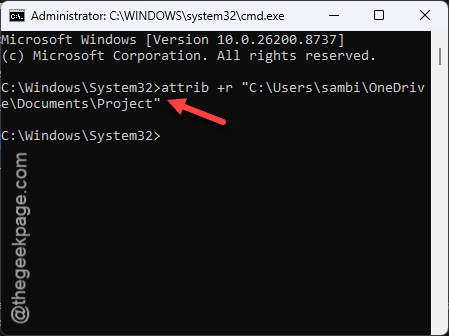
Don’t panic about “Read-only” — on a folder it doesn’t stop you from editing the files inside. Windows only uses that flag as a signal that the folder is customized. Odd design, but that’s what it is.
Fix 2 – Fix the desktop.ini File’s Own Attributes
The little file also needs its own two flags, or Windows revokes its trust and ignores it.
1 – Open Command Prompt again, the same way as in Fix 1.
2 – Run this, swapping in your folder path:
attrib +h +s "C:\Users\You\Documents\Projects\desktop.ini"
3 – Press Enter.
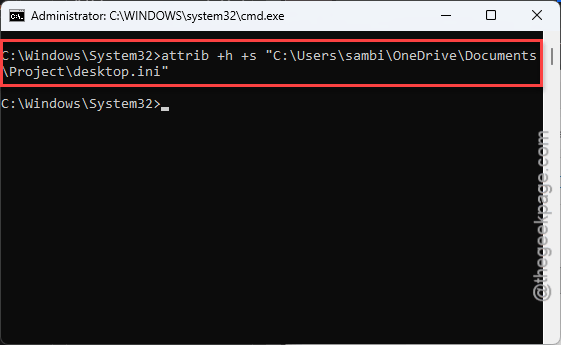
The +h hides the file and +s marks it as a system file. Both are required. If the command answers with “File not found,” the folder has no desktop.ini yet — set the icon once through Properties > Customize > Change Icon, then come back and run this.
Fix 3 – Clear the Old Flags Before Setting New Ones
If the folder came from a zip file, a network share, or a downloaded pack of icons, Windows may have tagged it as untrusted. Adding flags on top of that goes nowhere.
So you must strip the attributes first, then rebuild them.
1 – Open Command Prompt as administrator. Press the Windows key, type cmd, right-click Command Prompt, and choose Run as administrator.
2 – Remove the existing flags from the ini file:
attrib -r -s "C:\Users\You\Documents\Projects\desktop.ini"
3 – Now put the correct ones back, exactly as in Fix 2.
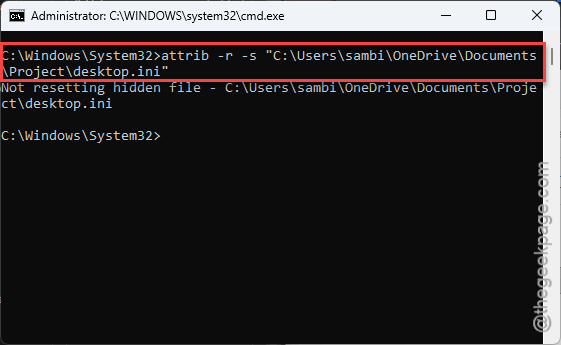
4 – Then re-apply the folder flag from Fix 1.
Order matters here. Clear, then set. Doing it backwards leaves the old flag in place.
Fix 4 – Rebuild the Icon Cache
Sometimes the icon is already correct and Windows is showing you a stale copy. Quick test.
1 – Open Command Prompt.
2 – Run this line, and press Enter:
ie4uinit.exe -show
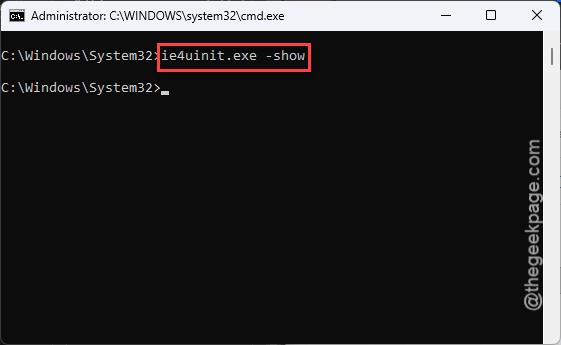
Your desktop icons will flicker for a second while Windows redraws them all. Then press F5 in the folder. If your icon comes back, that’s all it ever was.
Fix 5 – Rebuild the Folder From Scratch
Nothing sticking? The folder’s customization data is probably corrupt. Starting over is faster than repairing it.
1 – Create a brand new folder next to the old one. Give it a temporary name.
2 – Select everything inside the old folder with Ctrl + A, then drag it into the new one.
3 – Delete the old folder.
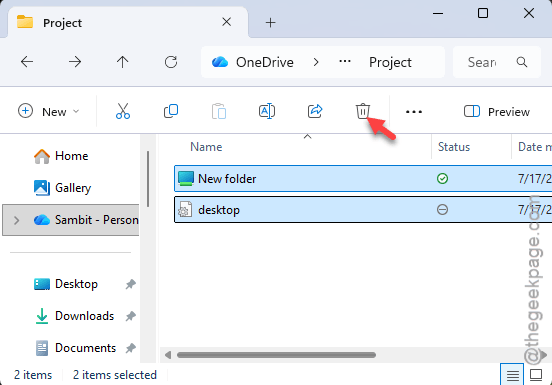
4 – Rename the new folder to the original name.
5 – Right-click it and choose Properties.
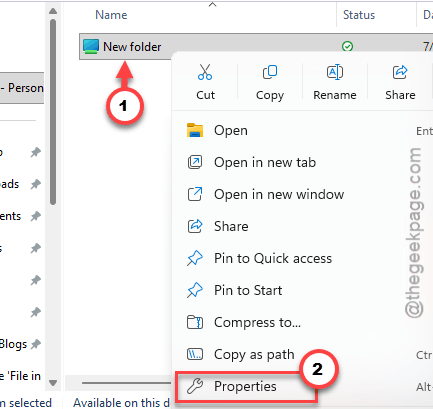
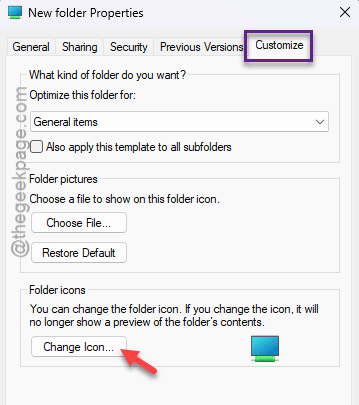
6 – Click the Customize tab at the top right.
7 – Click Change Icon near the bottom, pick your icon, and click OK twice.
8 – Now apply Fix 1 and Fix 2 to this fresh folder, in that order.
Fix 6 – Check That Your Icon File Is Still There
Overlooked one. The desktop.ini file doesn’t contain your icon — it contains the path to your icon. Move that .ico file, rename its folder, or empty the Downloads folder you left it in, and the path breaks. Windows falls back to the default folder.
1 – Right-click the folder and choose Properties.
2 – Click the Customize tab.
3 – Click Change Icon. The box at the top shows the file path Windows is looking for.
4 – Check whether a file actually exists at that path.
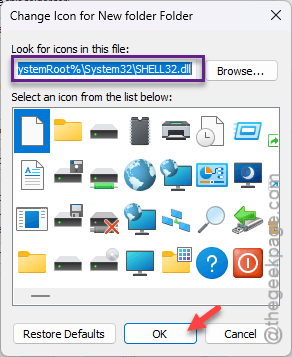
5 – If it doesn’t, browse to your icon’s real location, pick it, and click OK twice.
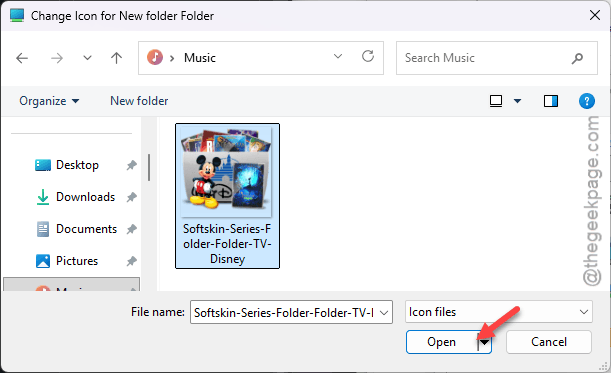
Then move your .ico files somewhere permanent — make a C:\Icons or C:\Windows\System32\shell32.dll folder and keep them all there.
Icons stored on the desktop or in Downloads get cleaned up eventually, and every folder pointing at them breaks the same day.
How to Prevent This
– Never untick Read-only on a customized folder. That single checkbox is what keeps your icon alive.
– Set attributes with attrib, not the Properties window. The GUI gets folder attributes wrong. It just does.
– After a big Windows update, check your customized folders. Updates love to reset these flags.
– Keep your .ico files in one permanent place, like C:\Icons. Move the source file and the icon reverts.
– Don’t customize folders inside OneDrive. Sync rewrites desktop.ini and strips the flags right back off.
People Also Ask
Is it okay to delete desktop ini files?
Yes, it’s safe — nothing breaks. But you’ll lose that folder’s custom icon, its custom name and any special view settings, because that’s exactly what the file stores. Delete it and the folder goes back to the plain default look. Windows rebuilds it the next time you customize the folder.
Why is desktop ini on my desktop?
Because you turned on “Show hidden files” in File Explorer, and desktop.ini is normally hidden. It’s a genuine Windows file, not malware, and every customized folder has one. Hide it again under View, Show, and untick Hidden items. Don’t delete it.
How to refresh folder icons in Windows 11?
Press F5 in the folder first. Still wrong? Open Command Prompt and run ie4uinit.exe -show, which rebuilds the icon cache. Your icons flicker and redraw. If that doesn’t do it, restart Windows Explorer from Task Manager, or just reboot.