Windows does automatically assign an unoccupied, random drive letter to any drive that you plug in to your system. But, if Windows starts to assign drive letter even to recovery partition on your computer, it will be problematic. The Recovery Partition, as the name suggests, used by the Windows at the time of the system failure and recovery procedure. It is a hidden partition that should not appear on the File Explorer page, as the users are not supposed to interact with the drive. These solutions should help you troubleshoot the issue.
Fix 1 – Delete the DosDevices registry value
Removing the particular ‘DosDevices’ value associated to the drive letter of the recovery partition drive should help fix the issue on your computer.
NOTE – Before you remove the subsequent DosDevices value, backup your system registry. You may follow the steps mentioned here.
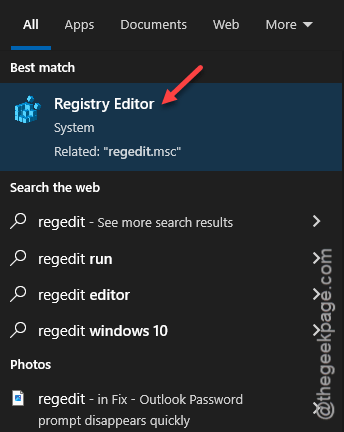
Step 1 – Start by searching for “regedit” from the search box.
Step 2 – Next, tap to load up the “Registry Editor” panel.
Step 3 – Then, go straight to this registry location –
Computer\HKEY_LOCAL_MACHINE\SYSTEM\MountedDevices
Step 4 – You will find several “\DosDevices\<drive letter>” entries on the right-hand tab. Each drive that you have plugged into your computer and has a drive letter associated to it, generates a separate ‘\Dosdevices\’ value.
You can distinguish each drive from the name of the ‘\Dosdevices\‘ value itself.
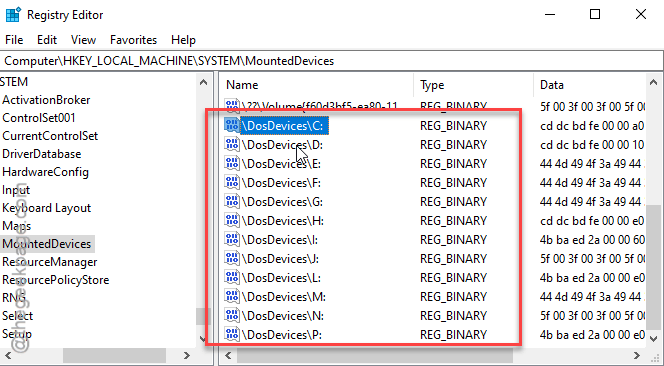
Step 5 – Once you have found the particular DosDevices value associated to the Recovery Partition, right-click that drive and tap “Delete” to delete that value.
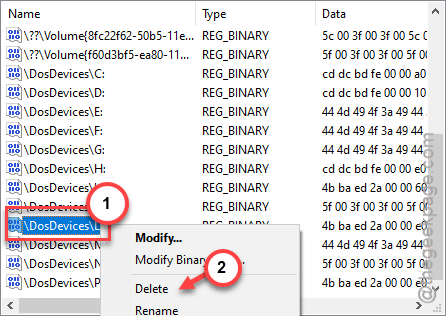
Close the Registry Editor page and restart your computer. When the device restarts, you won’t find any drive letter associated to the Recovery Partition.
Fix 2 – Delete the volume mount point
You can use the mountvol command to delete the Recovery Partition mount on your system.
Step 1 – Note down the drive letter of the Recovery Partition from the File Explorer page.
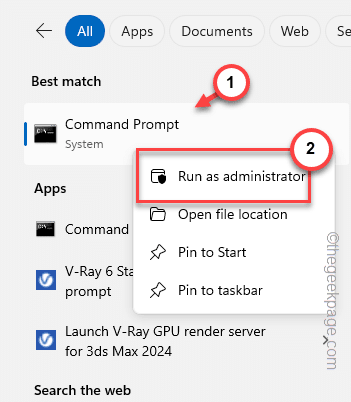
Step 2 – At first, hit the Windows button and search for “cmd“.
Step 3 – Next, right-tap the “Command Prompt” in the search results and tap “Run as administrator” option.
Step 4 – Then, use this command there in the command prompt panel, and hit Enter to use the mountvol command.
mountvol driveletter /d
[Replace the “driveletter” with the actual drive letter of the Recovery Partition in the code. Then, pass the command from the terminal.
Like, if the Recovery Partition is carrying the “L:” drive, the command will be –
mountvol l: /d
]
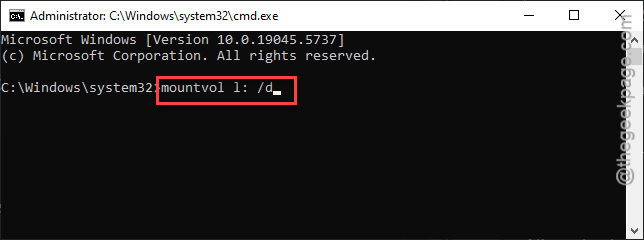
You won’t find the Recovery Partition as a drive in the File Explorer again. Use the next solution if this one doesn’t work.
Fix 3 – Force-remove the drive letter
You may identify and use the ‘remove’ function in the diskpart to delete the drive letter on the Recovery partition.
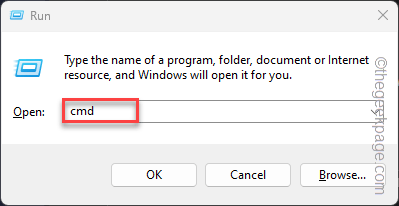
Step 1 – Open a Run window. Type “cmd” there.
Step 2 – Next, press the Ctrl+Shift+Enter keys together to open up an elevated command prompt panel.
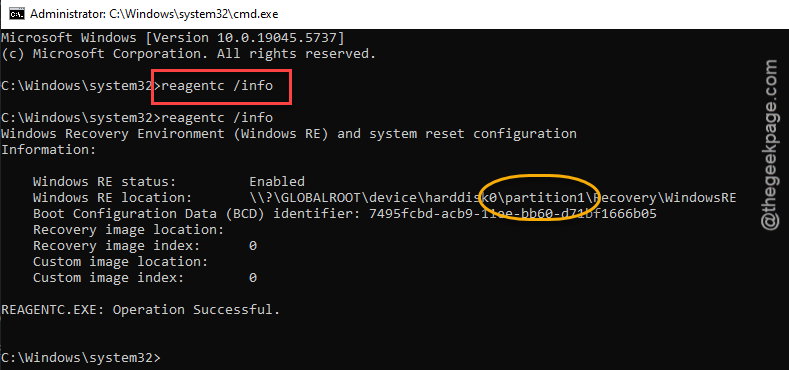
Step 3 – You have to use a certain command to know the certain aspects of the Recovery partition.
Step 4 – So, pass this command and note down the Recovery is in which partition.
reagentc /info
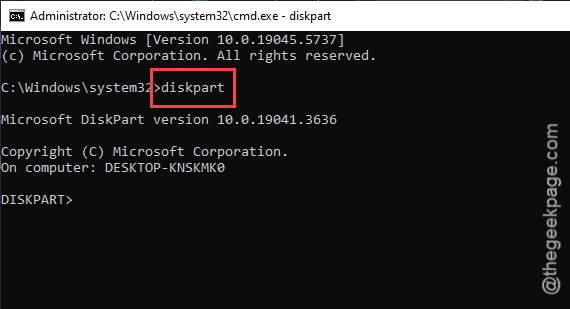
Step 5 – Now, you may use this command to load up the Disk management system.
diskpart
Step 6 – Use these commands to see and select the disk that is containing the Recovery partition. Recovery partition is the part of the C: drive. So, select that disk.
list disk
select disk
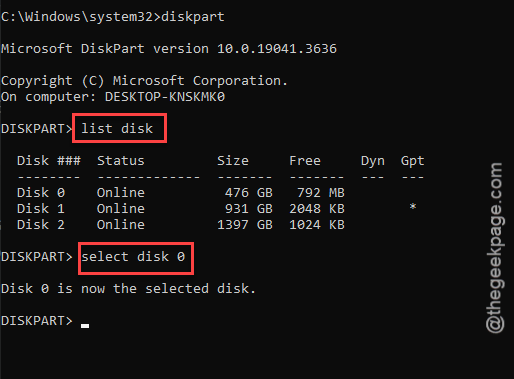
Step 7 – Now, select the partition from there and then, pass the ‘remove’ command to remove the drive letter from the recovery partition.
select partition z
remove
[Note – You can replace the partition number in the place of “z” in the code.
Example – The code in our case, as ‘partition 1’ is selected, you can use this –
select partition 1
]
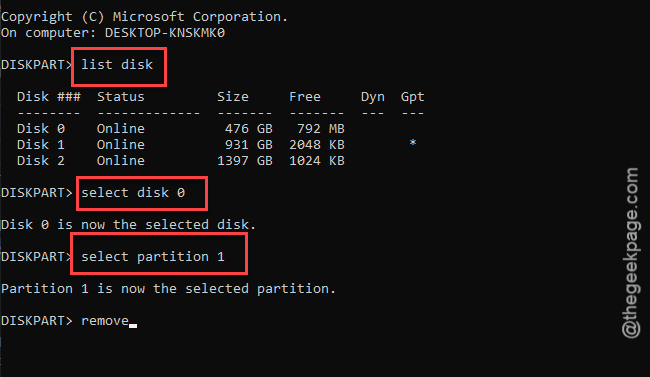
This should be enough to remove the drive letter from your Recovery partition on your File Explorer.
See if this works out or not.
Fix 4 – Use a partition ID for the Recovery drive
You can identify the partition ID directly and make sure to partition ID.
Step 1 – Open up an elevated CMD window, with administrative privileges.
Step 2 – Next, run this command to fetch information like partition number (you may skip these steps if you already know this).
reagentc /info
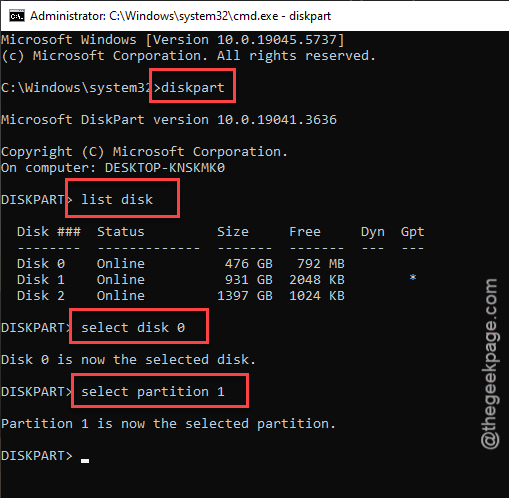
Step 3 – Now, select the disk and partition where the Recovery is located. Use these commands to do so –
diskpart
list disk
select disk y
select partition z
[Here, the “z” and “y” denotes the disk number and partition number, respectively, where the Windows RP is located.]
Step 4 – Once you have selected the recovery partition, run this code to set a Recovery Flag on this partition.
set id="de94bba4-06d1-4d40-a16a-bfd50179d6ac"
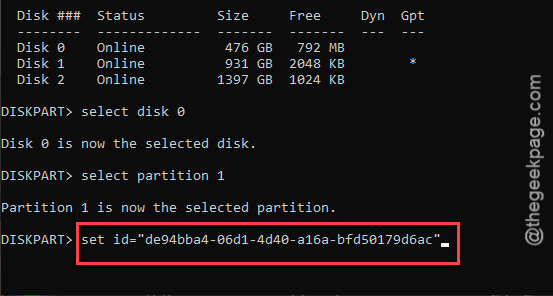
While this should be enough for the drive to be separated, you can go one step further.
Step 5 – Copy-paste this command, and hit Enter to prevent Windows from assigning a drive letter, along with setting it as an essential system partition.
gpt attributes=0x8000000000000001
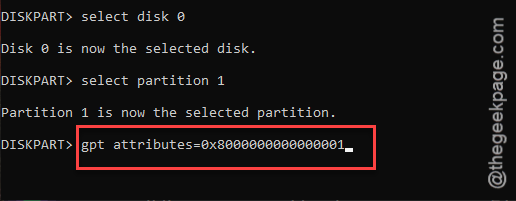
After this, quit the Command Prompt terminal.
Then, restart your computer and test it out. Check if this works out for you!