Your drive is mysteriously full. Hundreds of gigabytes just gone, and you didn’t download a thing.
Track it down and one weird system file is the culprit. Something called Capability Access Manager. And it’s ballooned to a size that makes no sense.
Why This Happens
Here’s the deal. Capability Access Manager is the part of Windows that tracks which apps use your camera, mic, and location. Small job. Should be a tiny file.
It keeps a scratch file while it works, called a write-ahead log — the .db-wal file. Normally Windows trims that back down to a few megabytes on its own.
But there’s a bug. On certain Windows 11 builds, the trimming step fails. So the log just keeps growing. And growing. Some people have watched it swallow 500GB.
Nothing warns you. Your free space quietly drains until something stops working.
Good news? Microsoft patched it, and you can reclaim the space by hand in the meantime. Let’s confirm it’s the problem first, then clear it.
Fix 1 – Confirm It’s Actually This Bug
No point deleting things blindly. This read-only check just measures the file — it changes nothing.
1 – Click Start, type cmd, right-click Command Prompt, and choose Run as administrator.
2 – Click Yes if Windows asks for permission.
3 – Paste this exactly and press Enter:
robocopy "C:\ProgramData\Microsoft\Windows\CapabilityAccessManager" "%TEMP%\CAMCheck" /L /B /R:0 /W:0 /BYTES /NP
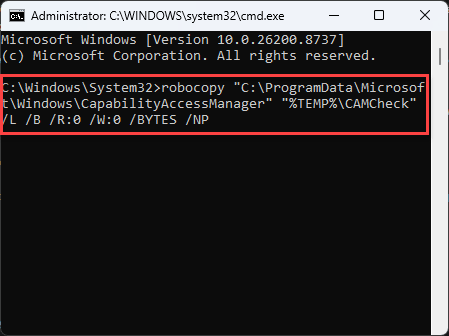
4 – Look at the size listed for CapabilityAccessManager.db-wal in the output.
A few megabytes? You’re fine, this isn’t your problem. Gigabytes? That’s the bug, and the file is eating your drive right now.
Fix 2 – See Where the Space Went
Quick sanity check.
1 – Open Settings with Windows + I to load up the Settings.
2 – Go to System, then Storage. Click Show more categories option.
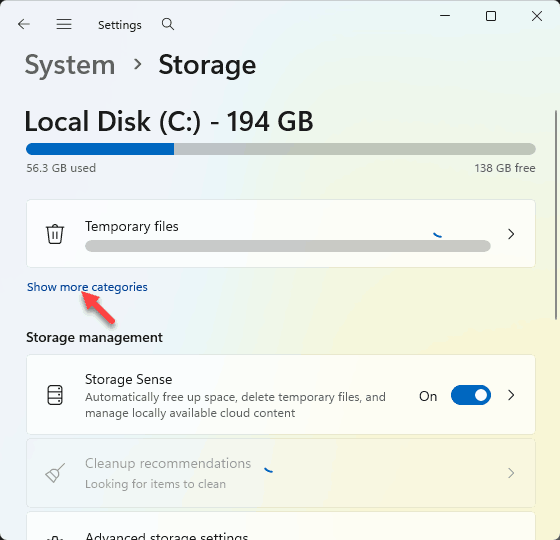
3 – Then, look at System & reserved.
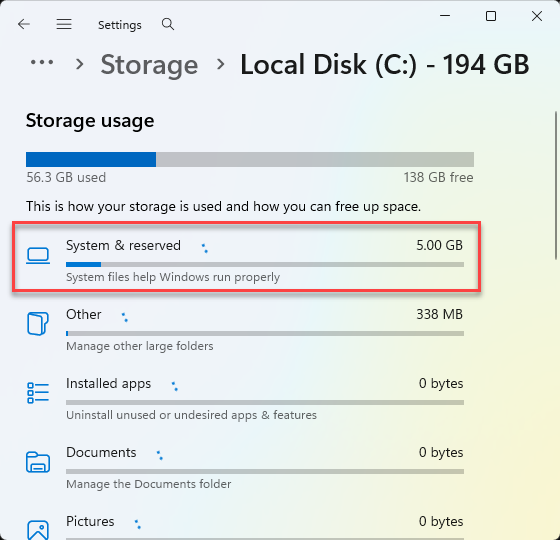
If that number is huge and matches your missing space, the bloated log is what’s dragging it up. Confirms you’re on the right track before you touch anything.
Fix 3 – Boot Into Safe Mode
You can’t delete the log file while Windows is running normally — the system keeps it locked and in use. Safe Mode loads a stripped-down Windows that leaves the file free.
1 – Hold the Shift key and click Restart from the Start menu’s power button.
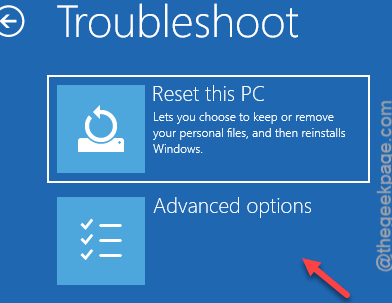
2 – On the recovery screen, click Troubleshoot.
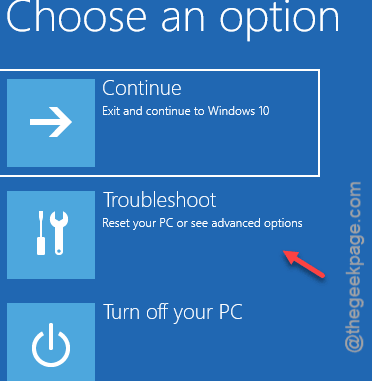
3 – Click Advanced options, then Startup Settings.
4 – Click Restart.
5 – When the numbered list appears, press 4 for Safe Mode.
Windows loads in a plain, low-detail mode. That’s expected. Stay here for the next step.
Fix 4 – Delete the Bloated Log File
Still in Safe Mode from Fix 3? Good. Now you can clear the file and get your space back instantly.
1 – At first, press the Windows + E to open File Explorer.
2 – Then, paste this path into the address bar at the top and press Enter:
C:\ProgramData\Microsoft\Windows\CapabilityAccessManager
3 – Find the file ending in .db-wal.
4 – Right-click it and choose Delete.
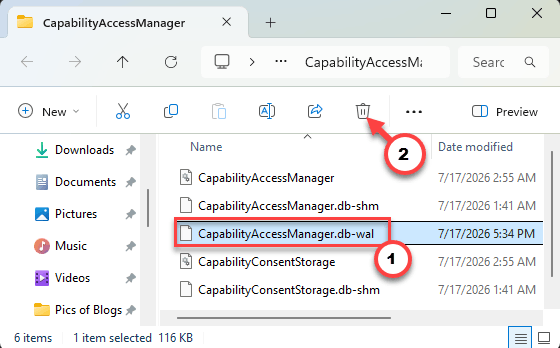
5 – Restart your PC normally.
Windows rebuilds a fresh, tiny log on the next boot. Your free space comes back right away — check Storage again to confirm.
Fix 5 – Install the Update That Fixes It for Good
Deleting the file reclaims your space today, but the bug can refill it. Microsoft’s patch stops the log from bloating again, so this is the one that actually ends it.
1 – Press Windows + I to open Settings.
2 – Click Windows Update.
3 – Click Advanced options.
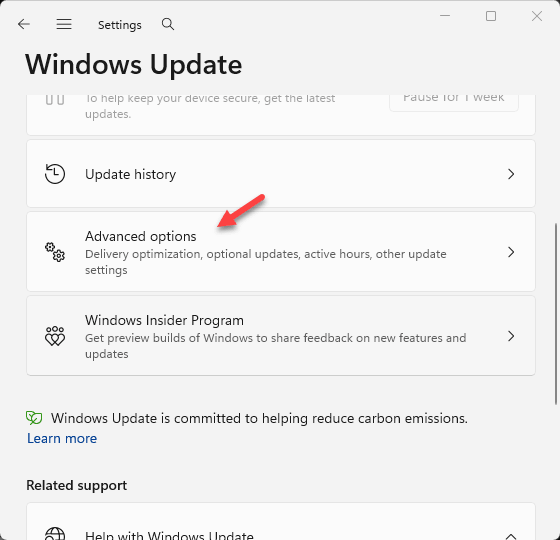
4 – Scroll down and click Optional updates.
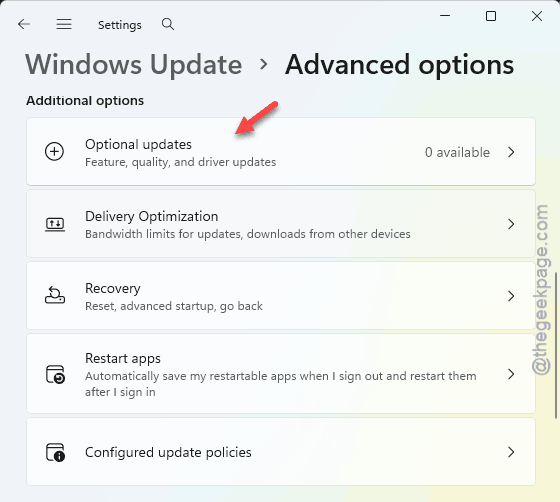
5 – Look for KB5095093 and install it.
6 – Restart when prompted.
Microsoft’s own patch notes tie this update to the compaction failure behind the bug. With it installed, the trimming step works again and the file stays small.
How to Prevent This
– Install KB5095093 or later. It’s the only real prevention — everything else just cleans up after the fact.
– Keep an eye on Settings > Storage now and then. Catching a swelling System & reserved number early saves you a panic later.
– Don’t delete the whole CapabilityAccessManager folder. Only the .db-wal file.
People Also Ask
Can I delete the CapabilityAccessManager db-wal file?
Yes, safely — but only in Safe Mode, since Windows locks it during normal use. Boot into Safe Mode, delete the .db-wal file, and restart. Windows builds a fresh, tiny one automatically. Leave the folder and the main .db file alone; just remove the bloated log.
Will deleting it break my camera or microphone permissions?
No. The .db-wal is only a temporary working log. Windows rebuilds it on the next boot, and your app permissions for camera, mic, and location stay intact. You’re clearing scratch data, not the actual permission settings.