You type sudo something. And Windows just shrugs. “sudo is not recognized” or “command not found” — take your pick. It worked last week. Now it doesn’t. Frustrating, especially mid-project.
Why This Happens
Sudo on Windows is a real built-in feature. It lets you run one command with admin rights straight from your normal terminal, no separate window needed. But it’s a setting you have to switch on. And Windows loves to switch it back off.
Here’s the usual culprit. A cumulative update rolls through and quietly flips the sudo feature to Off. No warning. You just find out next time you try to use it.
But that’s not the only cause. Sometimes the shortcut that points to sudo.exe gets unmapped. Sometimes the update strips the folder path Windows needs to find the program. And sometimes? You never needed sudo in the first place.
That last one trips up a lot of folks coming from Mac or Linux. Old habit. Windows package commands mostly don’t want it.
Fix 1 – Turn the Sudo Feature Back On
Start here. Nine times out of ten, an update just switched it off. Flipping it back on is the whole fix.
1 – Press Windows + I to open Settings.
2 – Click System in the left sidebar.
3 – Scroll down and click Advanced settings.
4 – Find Enable sudo and switch it On.
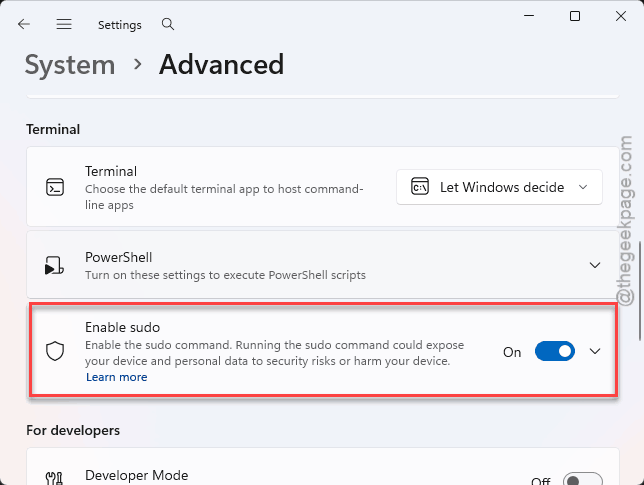
5 – Close your terminal and open a fresh one, so it picks up the change.
Now try your command again. If it runs, you’re done here.
Fix 2 – Check If You Even Need Sudo
Quick gut-check before you go deeper. A lot of the time, the command works fine without sudo — you’re just typing it out of habit from Mac or Linux. No fix needed.
Fix 3 – Reset the Sudo Shortcut
Windows uses a little internal shortcut, called an app execution alias, to know that typing “sudo” should launch sudo.exe. Updates can break that link.
1 – Press Windows + I to open Settings.
2 – Click Apps, then Advanced app settings.
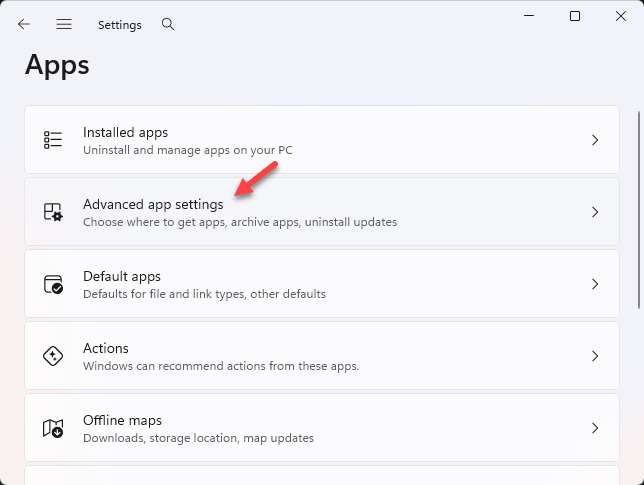
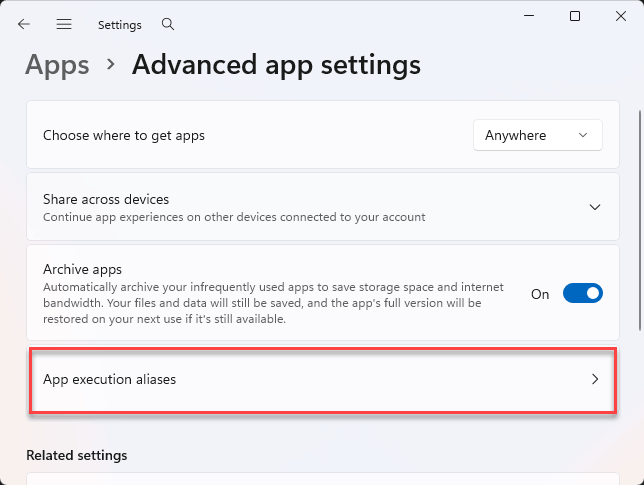
3 – Click App execution aliases.
4 – Find sudo.exe in the list. Switch it Off, wait a second, then switch it back On. This forces Windows to re-map it.
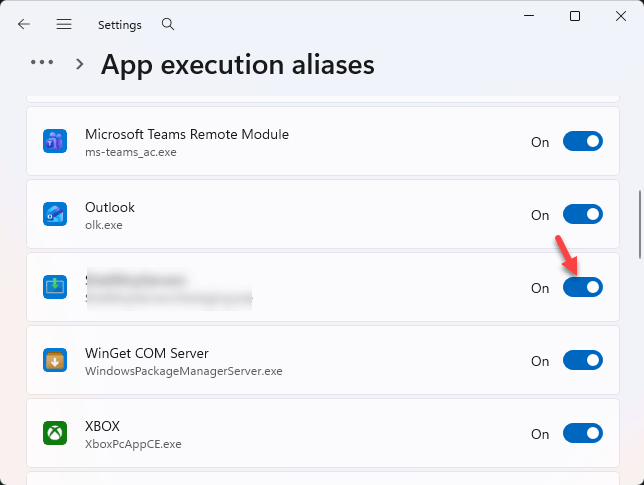
5 – Open a new terminal and test.
Fix 4 – Run Your Terminal as Administrator
Not a real fix, more of a workaround. But if you just need the command to run right now, this does it.
1 – Click Start and type Command Prompt (or PowerShell, whichever you use).
2 – Right-click it and choose Run as administrator.
3 – Now run your command without typing sudo.
The whole window already has admin rights, so sudo would be redundant anyway.
Fix 5 – Make Sure Windows Can Find the Program
Windows keeps a list of folders it searches when you type a command. It’s called the Path. If an update knocked the System32 folder off that list, sudo goes missing even when it’s installed. Here’s how to check.
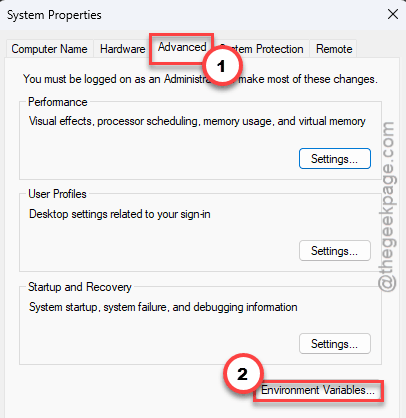
1 – Press Windows + R, type sysdm.cpl, and press Enter.
2 – Click the Advanced tab at the top.
3 – Click Environment Variables near the bottom.
4 – In the lower box labeled System variables, find Path and double-click it.
5 – Look for an entry that reads C:\Windows\System32. If it’s not there, click New and add it.
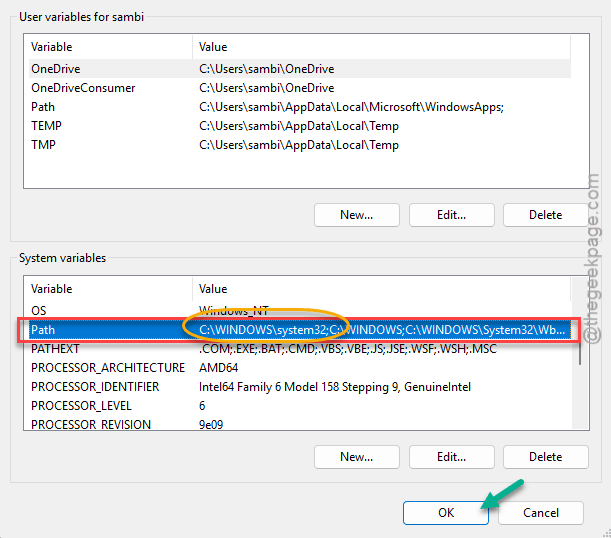
6 – Click OK on each window to save, then restart your terminal.
Fix 6 – Rewrite the Elevation Rule
Still no luck? Force Windows to rebuild sudo’s permission setup.
1 – Open Command Prompt as administrator.
2 – Then type this code there and press Enter.
sudo config --enable normal
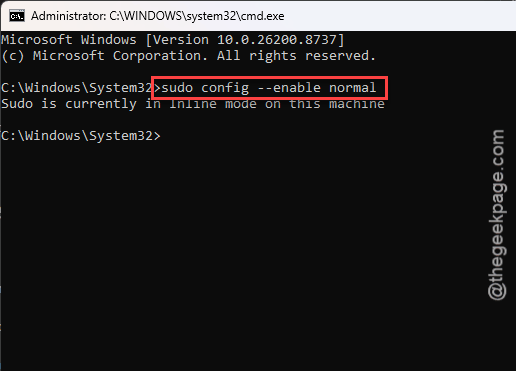
This rewrites the rule that controls how sudo elevates a command, which clears up broken permissions. Restart your terminal after.
How to Prevent This
– After a big Windows update, check that Enable sudo is still On. Updates flip it off more often than you’d expect.
– Don’t add sudo to Windows package commands out of habit. Half of them don’t want it, and it just causes noise.
– If you rely on sudo daily, keep a note of the For developers page. It’s the first place to look when things break.
– Leave System32 alone in your Path variable. Removing it breaks far more than just sudo.
People Also Ask
What to do if the sudo command is not found?
First, make sure the feature is even on. Go to Settings > System > For developers and switch Enable sudo to On. Then open a brand new terminal — an old one won’t see the change. If it still fails, reset the sudo.exe app execution alias under Apps > Advanced app settings.
How do I enable the sudo command in Windows?
It’s a toggle. Open Settings, go to System, then For developers, and turn on Enable sudo. That’s it. This feature ships with recent Windows 11 builds, so if you don’t see the option, run Windows Update first and check again.