You’ve got a shiny Intel BE200 card. Wi-Fi 7. Should be rock solid. And instead it drops out at random. A call freezes. A download dies. Then it reconnects like nothing happened. Over and over.
Why This Happens
Here’s the thing. The BE200 is fast, but Windows keeps trying to be clever with it. And clever is exactly what breaks it.
The most common cause? Power saving. Windows powers the Wi-Fi card down for tiny fractions of a second to save juice. On older cards you’d never notice. But Wi-Fi 7 needs constant timing to stay synced. So that micro-nap drops the whole connection.
Then there’s a feature called Multi-Link Operation, or MLO. It’s a Wi-Fi 7 trick that uses two frequency bands at once for speed. Cool in theory. But when Windows fumbles the switch between bands, the link just dies.
And sometimes it’s simpler than any of that. A stale saved network profile. Or a generic driver that Windows installed instead of Intel’s proper one. Both cause the exact same random drops.
Fix 1 – Stop Windows From Powering Down the Card
Start here. This is the single most common fix for BE200 drops.
1 – At first, right-click Start and choose Device Manager.
2 – Expand Network adapters.
3 – Double-click the Intel Wi-Fi 7 BE200 adapter.
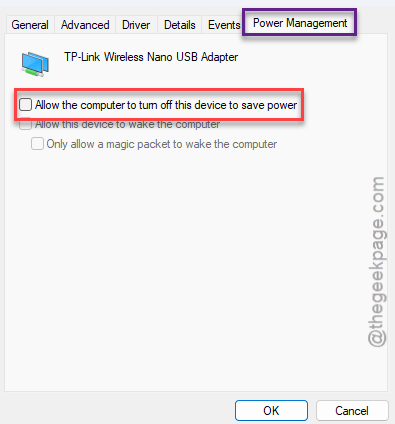
4 – Then, proceed to the Power Management tab at the top.
5 – Then, uncheck Allow the computer to turn off this device to save power.
6 – Click OK.
Check if this works.
Fix 2 – Turn Off PCI Express Power Saving
There’s a second, deeper power setting that does the same damage. It sits in your power plan, not the device. Worth switching off too.
1 – Click Start, type Control Panel, and open it.
2 – Go to Power Options.
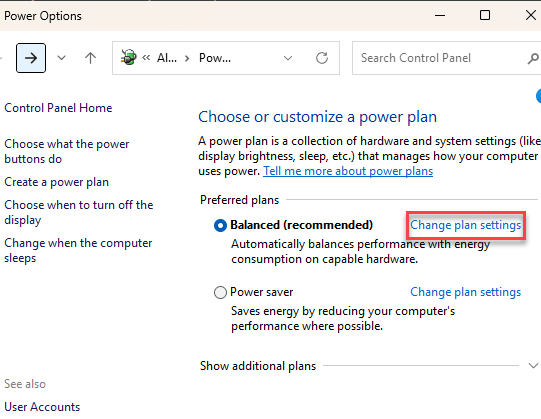
3 – Click Change plan settings next to your active plan.
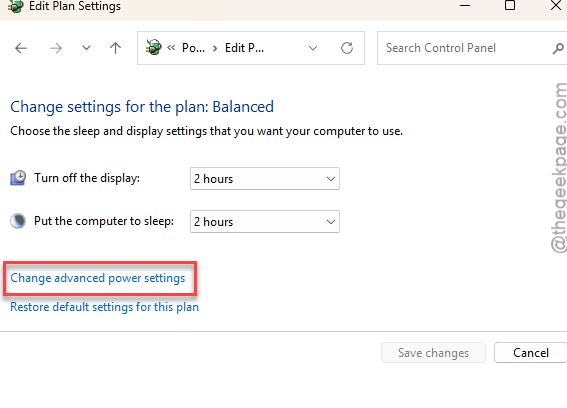
4 – Click Change advanced power settings. A small window pops up.
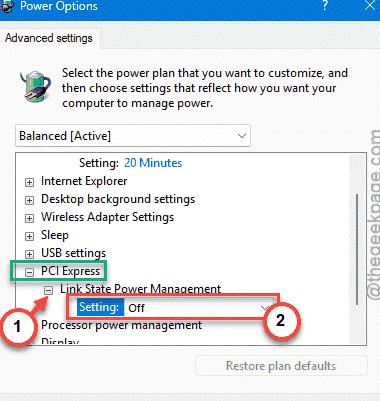
5 – Scroll to PCI Express and expand it. Then expand Link State Power Management.
6 – Set it to Off and click OK.
Check if this works.
Fix 3 – Disable Multi-Link Operation
If drops keep happening, MLO is a prime suspect. Forcing the card onto a single band stops it from stumbling during the band-switch.
1 – Back in Device Manager, double-click the Intel BE200 adapter.
2 – Click the Advanced tab.
3 – In the list on the left, find Multi-Link Operation.
4 – Set its value to Disabled on the right.
5 – Click OK. Your Wi-Fi may blink off and back on. That’s normal.
Fix 4 – Lock the Card to the 6GHz Band
Windows sometimes keeps hunting for a slower 5GHz network to fall back on, and that hunting causes ping spikes. Pinning it to 6GHz keeps things steady.
1 – In Device Manager, open the Intel BE200 properties.
2 – Click the Advanced tab.
3 – Find Preferred Band in the list.
4 – Set it to Prefer 6GHz band and click OK.
Fix 5 – Rebuild Your Saved Wi-Fi Profile
A corrupted saved profile carries broken settings that cause drops. Wiping it forces a clean one. Quick heads-up: you’ll need your Wi-Fi password to reconnect after, so have it handy.
1 – Open Command Prompt as administrator.
2 – Then run this, swapping in your actual network name:
netsh wlan delete profile name="YOUR_WIFI_NAME"
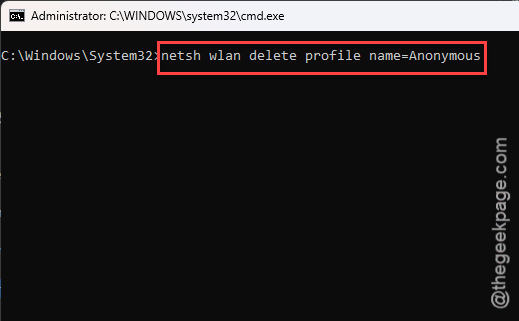
Then reconnect to your network from the taskbar and re-enter the password. Fresh profile, no broken leftovers.
Fix 6 – Install Intel’s Own Driver
Windows Update often installs a generic driver that doesn’t play nice with the BE200’s firmware. Replacing it with Intel’s real one fixes the handshake. This is the fix that finally sticks for a lot of people.
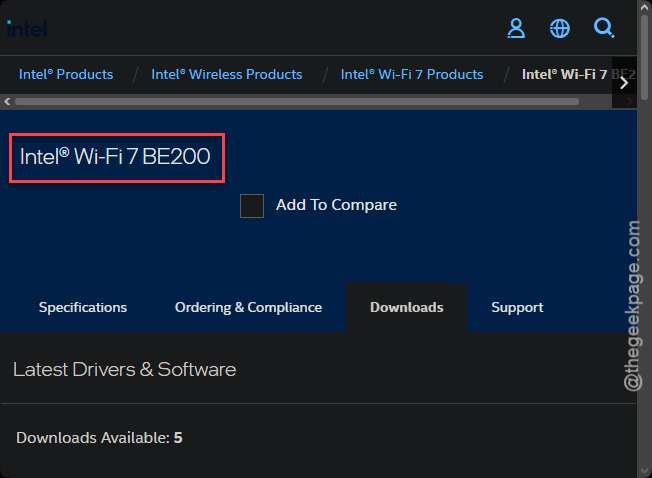
1 – Go to Intel’s official download site and grab the latest Wi-Fi 7 driver for the BE200.
2 – Run the installer.
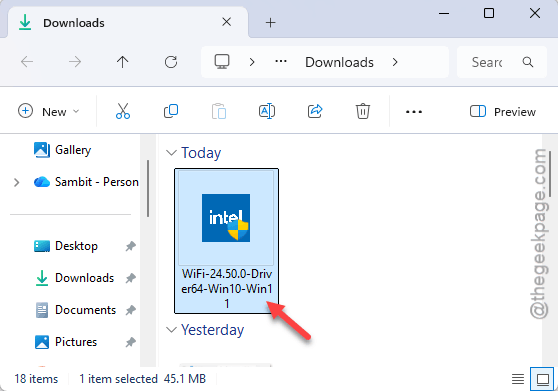
3 – When it offers a Clean Installation option, pick it. This wipes the old driver first instead of installing over it.
4 – Restart your PC when it finishes.
How to Prevent This
– Get BE200 drivers straight from Intel, not Windows Update. Intel’s build is the one that actually matches the hardware.
– Leave the card’s power management unchecked for good. Wi-Fi 7 and power napping don’t mix.
– If your router and card both support 6GHz, prefer that band. Less crowded, more stable.
– After a Windows feature update, recheck the power settings. Big updates like to reset them.
People Also Ask
Why won’t my laptop stay connected to Wi-Fi?
Nine times out of ten it’s power saving cutting the adapter off, or a bad saved network profile. Turn off the adapter’s power management first.
How do I fix an Intel wireless adapter that keeps disconnecting?
Download the latest driver directly from Intel and run a clean installation — this overwrites the generic Windows driver that usually causes trouble. Pair that with turning off power management for the adapter. Those two steps clear up the vast majority of Intel Wi-Fi disconnect problems.