Your Bluetooth headphones sound perfect. Music app, games, whatever. Rock solid.
But open a video in Chrome or Edge and it all falls apart. Choppy. Crackly. Cutting in and out. And you’re left wondering why only the browser does this.
Why This Happens
A recent Chromium update walled off the part that handles sound into its own locked box for security.
Good idea in theory. But Bluetooth already adds a little delay to everything. Pile that locked-off audio box on top? Now there’s a traffic jam. The sound packets can’t get through fast enough, and you hear it break up.
Windows makes it worse in two ways. It runs extra “enhancements” on your audio that add even more processing. And your headset splits its bandwidth to keep the microphone ready, even when you’re just listening.
So the stutter isn’t your headphones. It isn’t your Bluetooth either.
Fix 1 – Turn Off the Browser’s Audio Sandbox
Try disabling the browser audio service sandbox feature.
1 – Find your Chrome or Edge shortcut on the desktop.
2 – Right-click it and choose Properties.
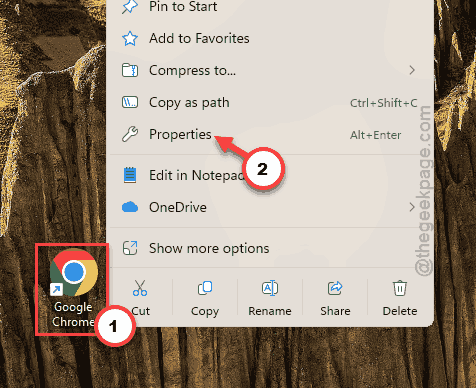
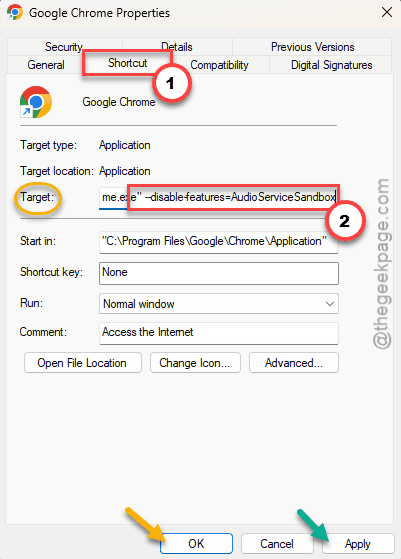
3 – Make sure you’re on the Shortcut tab.
4 – Click inside the Target box. Go to the end of the text.
5 – Press the spacebar once, then paste this exactly:
--disable-features=AudioServiceSandbox
6 – Click Apply, then OK.
7 – Close the browser completely, then open it again using that same shortcut. Not from the taskbar — the shortcut you just edited.
Check if this works.
Fix 2 – Disable Hardware Acceleration in the Browser
Sometimes the hardware acceleration is present in the browser.
1 – Open your browser’s Settings menu (the three dots ⋮ in the top right).
2 – Type Hardware acceleration in the settings search box at the top.
3 – Turn off the toggle for Use hardware acceleration when available.
4 – Click the Relaunch button that pops up.
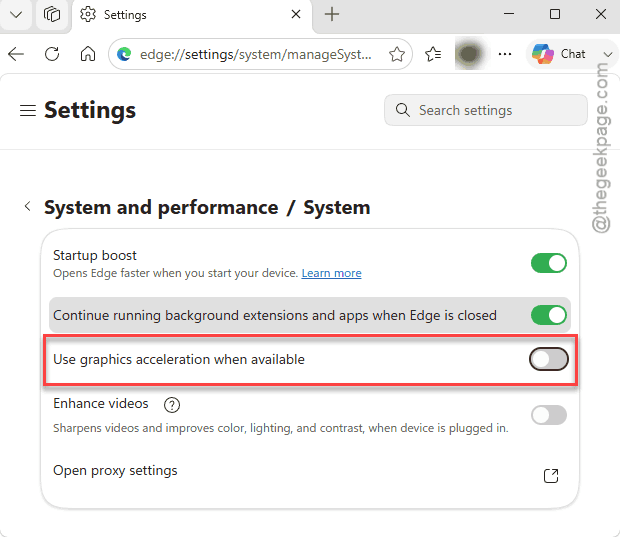
The browser restarts and reopens your tabs. Check a video again.
Fix 3 – Switch Off Audio Enhancements
Those extra sound effects Windows layers on top? They add processing that Bluetooth can’t always keep up with. Turning them off strips the audio back to raw and stable.
The newer way, through Settings:
1 – Press Windows + I to open Settings.
2 – Click System, then Sound.
3 – Click your Bluetooth headphones in the list.
4 – Set Audio enhancements to Off.
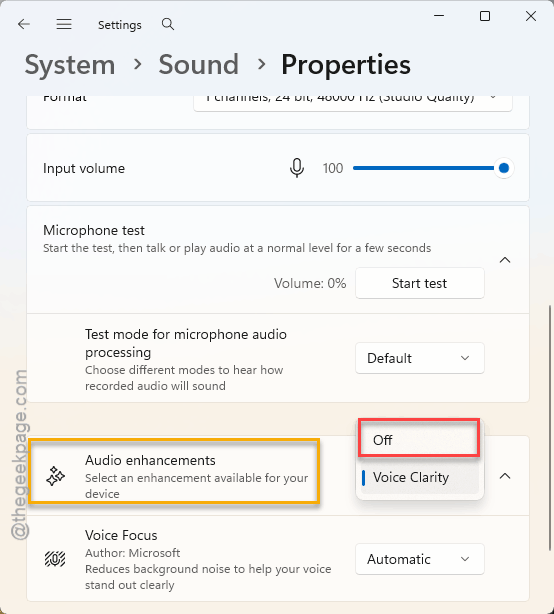
On some builds that option is missing. Use the old Sound panel instead.
1 –Press Windows + R keys at once. Then, type mmsys.cpl, and press Enter.
2 –On the Playback tab, right-click your headphones, choose Properties,
3 – Go to the Advanced tab. Then, uncheck Enable audio enhancements. Click Apply.
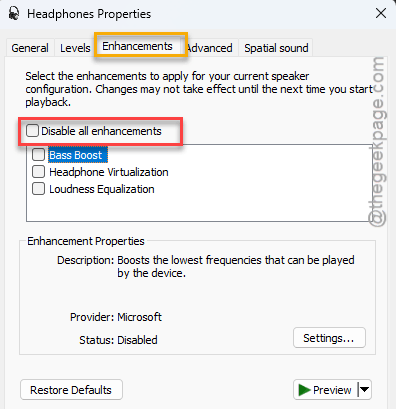
Check if this works.
Fix 4 – Kill Handsfree Telephony
If your headset has a mic, Windows keeps a channel open for it at all times. That eats into the bandwidth your music needs. Shut it off and the audio stream gets the whole pipe.
1 – Press Windows + R, type control printers, and press Enter.
2 – Find your headset in the Devices and Printers window. Right-click it and choose Properties.
3 – Click the Services tab at the top.
4 – Uncheck the box next to Handsfree Telephony.
5 – Click Apply, then OK.
Heads up: you won’t be able to use the headset’s microphone in calls after this. Fine for pure listening. If you need the mic back, just re-check the box.
Fix 5 – Disable Media Foundation in Browser Flags
Worth a shot if the stutter clings on.
1 – In the address bar, type chrome://flags (or edge://flags for Edge) and press Enter.
2 – Search Media Foundation in the box at the top.
3 – Set the matching flag to Disabled. Click Relaunch.
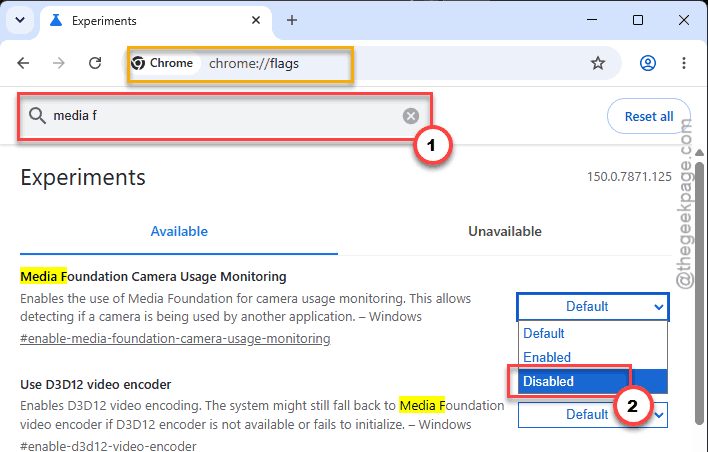
This forces the browser back to the older, steadier way of playing sound.
Fix 6 – Restart the Windows Audio Service
Sometimes the audio system just gums up with junk in its memory.
1 – At first, press Windows + R buttons together.
2 – Then, type services.msc, and press Enter.
3 – Scroll down to Windows Audio in the list.
4 – Right-click it and choose Restart.
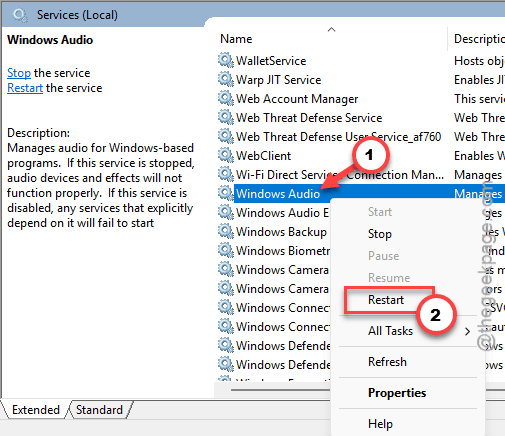
Check if this works.
How to Prevent This
– Keep that AudioServiceSandbox flag on your browser shortcut. It survives updates and saves you redoing this every month.
– Leave audio enhancements off for Bluetooth devices. They cause more grief than they’re worth on a wireless connection.
– Don’t sit at the very edge of your Bluetooth range. Distance adds latency, and latency is what starts the whole mess.
– Update Chrome or Edge when it asks. A few of these audio bugs have been patched in newer builds.
People Also Ask
How do I fix stuttering Bluetooth audio?
Start in the browser, since that’s usually where it shows up. Add the –disable-features=AudioServiceSandbox flag to your Chrome or Edge shortcut, then turn off hardware acceleration in the browser settings. Together those two fix most cases. If the stutter is system-wide, switch off Windows audio enhancements too.
Why is my Bluetooth audio choppy only in Chrome?
Chrome isolates its audio service in a sandbox for security, and that extra layer clashes with the delay Bluetooth already adds. The result is choppy sound in the browser but nowhere else. Disabling the audio sandbox through the shortcut target flag clears it in almost every case.
Does turning off audio enhancements hurt sound quality?
Not really. Enhancements add effects like bass boost or virtual surround, but on Bluetooth they mostly add lag and desync. You lose a bit of artificial polish and gain a stream that actually plays without breaking up. For most people that’s a clear win.