Can’t see the Calendar by tapping the date/time section on your Taskbar? The quickest way of accessing the system calendar on Windows is to just tap the date/time on the taskbar. But, some Windows 11 users have notified us about this particular incontinence where they can’t open the Calendar view directly from the date/time section of the Taskbar.
Initial Workarounds ~
1. Open the Calendar app, at least once, using the search box. Later, the Calendar should become visible and accessible from the taskbar.
2. Try rebooting the device and test if this is just an one-time occurence.
Fix 1 – Restart the File Explorer
Try restarting the File Explorer. If this is a one-time occurrence, rebooting the File Explorer should help you solve the issue.
Step 1 – At first, open the Task Manager console by pressing the Ctrl+Shift+Esc buttons together.
Step 2 – Locate the File Explorer process there. Then, right-click the process and tap Restart.
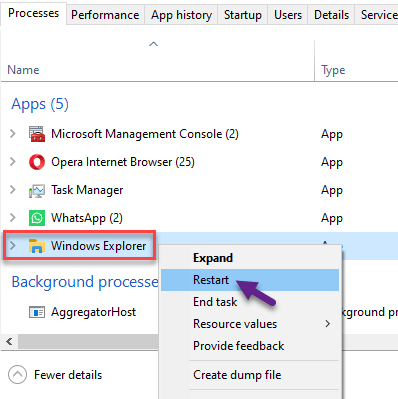
Once the File Explorer process restarts, check again. See if you can get access to the Calendar directly from the taskbar.
Fix 2 – Recreate wpndatabase
1 – Press Windows and R key together to open run
2 – Go to the path below
%LOCALAPPDATA%\Microsoft\Windows\Notifications
3 – delete wpndatabase.db, wpndatabase.db-shm and wpndatabase.db-wal files
4 – Restart PC, they will be created again
Fix 3 – Change the value of DisableNotificationCenter
Just change the DisableNotificationCenter value in your system registry to solve this issue.
NOTE – Before you proceed to the main part of the registry solution, you must create a registry backup. These steps will help create the backup.
Step 1 – At first, write registry in the search box. Later, open the Registry Editor console from there.
Step 2 – In the Registry Editor page, go to this particular location~
Computer\HKEY_CURRENT_USER\SOFTWARE\Policies\Microsoft\Windows\Explorer\
Step 3 – Then, find the DisableNotificationCenter dword value.
Step 4 – If you can’t find any such value, right-click the Explorer and tap New> and, finally, tap DWORD (32-bit) value.
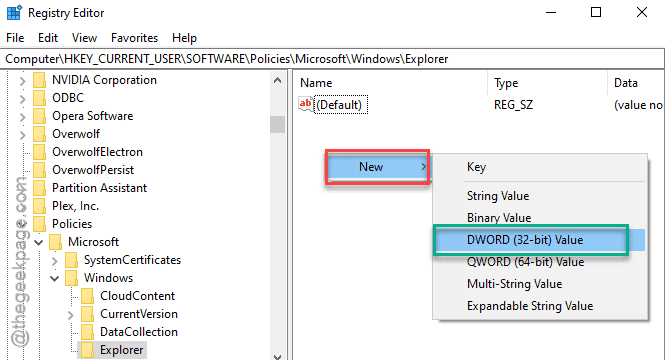
Step 5 – Double-tap the value there to modify it.
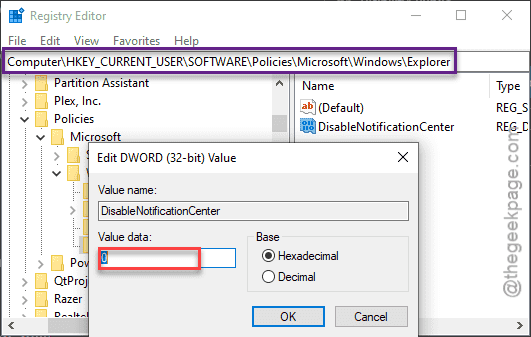
Step 6 – Make sure the value is set to 0. Click OK to save the modification.
Step 7 – Go to this location, next –
Computer\HKEY_LOCAL_MACHINE\SOFTWARE\Policies\Microsoft\Windows\Explorer\
Step 8 – Do the same thing that you have done before, i.e. ensure there is the DisableNotificationCenter dword value, and it is set to 0.
[NOTE – If you can’t find the Explorer key there, create a new sub-key under the Windows key.]
After this, close the Registry Editor. Later, restart your computer to let this change take its effect.
Fix 4 – Automate the Windows Push Notifications service
It seems that the issue has been originating from the Push Notifications service.
Step 1 – Search and open up the Services utility.
Step 2 – Next, look for the Windows Push Notifications System Service in there. Double-tap to open it up.
Step 3 – Switch the ‘Startup type:’ to Automatic mode from the drop-down list.
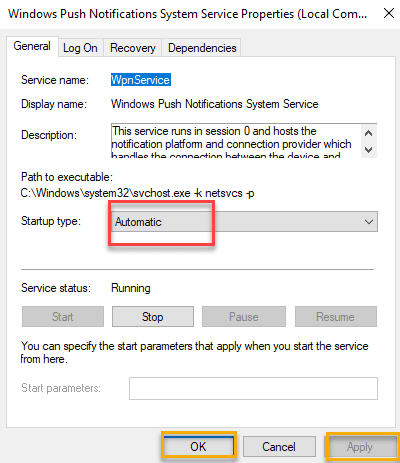
Step 4 – Save the changes there.
Just do a normal reboot of the device. This shall fix the Calendar view issue on the taskbar.
Hope these fixes have helped you solve the issue.