You rolled back to a restore point. It got to 40%, thought about it, and rebooted.
Now Windows won’t start at all. And it’s asking for a BitLocker key you’ve never seen. So the safety net broke the thing it was meant to save.
Why This Happens
A restore point isn’t a copy of your drive. It’s a list of changes, kept by a Windows service called Volume Shadow Copy.
To undo those changes, Windows has to rewrite system files while they’re in use. So it does the work at boot, before Windows properly loads. That’s a narrow, fragile window.
If it runs out of shadow copy storage halfway through — and the default allowance is small — it stops. Files are half old, half new. The boot loader doesn’t know which Windows it’s supposed to start, so it starts neither.
Then BitLocker joins in. Rolling back system files changes the boot measurements that BitLocker checks against your TPM chip. The numbers don’t match, BitLocker assumes someone is tampering with your PC, and it locks the drive.
Which is why you’re staring at a recovery key prompt for a feature you never turned on. Most Windows 11 laptops enable device encryption at setup and never mention it again.
Here’s the important bit though. Your files are almost always fine. The data is sitting there, unharmed. It’s the small boot partition that’s confused. Reinstalling Windows to fix a confused boot partition is like burning down a house to fix a doorbell.
Fix 1 – Get Your BitLocker Recovery Key First
Nothing else in this article works until you’re past that prompt. Do not skip ahead.
1 – On your phone or another computer, go to Microsoft account.
2 – Sign in with the Microsoft account you use on the broken PC.
3 – Find the PC in the list and click View BitLocker keys.
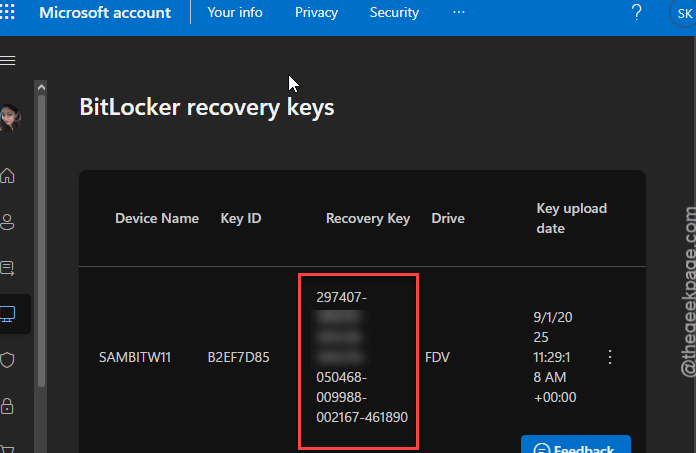
4 – Match the Key ID shown on screen to the one on your broken PC. There may be several.
5 – Type the 48-digit key at the prompt. It’s split into blocks of six. There’s no dash to type — it moves along on its own.
If the key isn’t there, check whether your work or school account manages the device. Your IT department has it. If nobody has it, and the drive is encrypted, the data is genuinely gone. That’s what encryption is for.
Fix 2 – Get Into the Recovery Environment
Every remaining fix starts here. WinRE is a small rescue copy of Windows that lives on your drive.
1 – Press the power button to start the PC.
2 – The moment you see the Windows logo or the manufacturer’s logo, hold the power button down until it switches off.
3 – Do that twice more.
4 – On the third start, Windows shows Preparing Automatic Repair and takes you to a blue recovery screen.
5 – Click Advanced options.
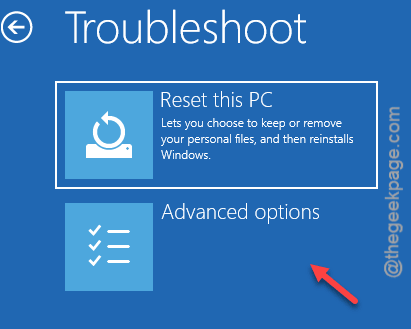
From that menu you’ll find Troubleshoot, and under it, Startup Repair and Command Prompt. Keep this page open in your head — the fixes below all begin here.
Fix 3 – Let Startup Repair Try
It’s free and it’s automatic, so try it before you type anything.
1 – From the recovery menu, click Troubleshoot.
2 – Then Advanced options.
3 – Go to the Startup Repair.
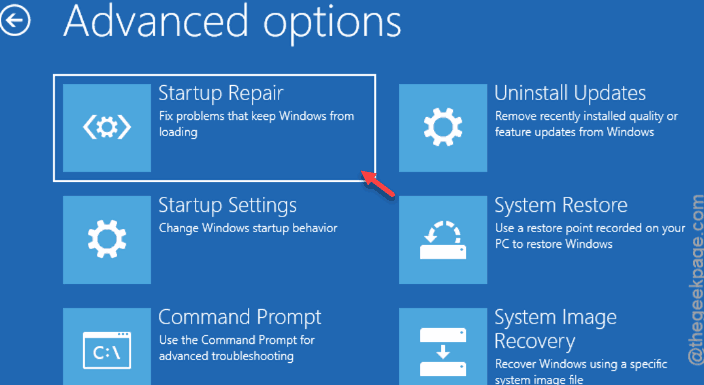
4 – Pick your account, enter your password, and wait.
It runs for five to fifteen minutes. It often says it couldn’t repair your PC even when it fixed something, so restart and check for yourself before believing it.
Fix 4 – Finish the Restore From Outside Windows
The restore stalled because it couldn’t touch files that were in use. From WinRE, nothing is in use. So it can finish the job properly.
1 – Get into the recovery menu as in Fix 2.
2 – Click Troubleshoot, then Advanced options, then Command Prompt.
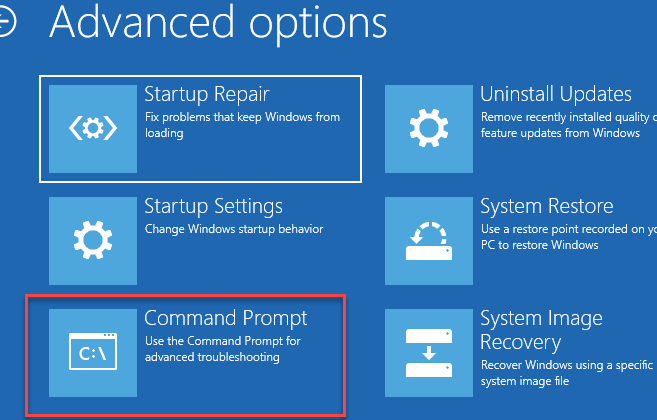
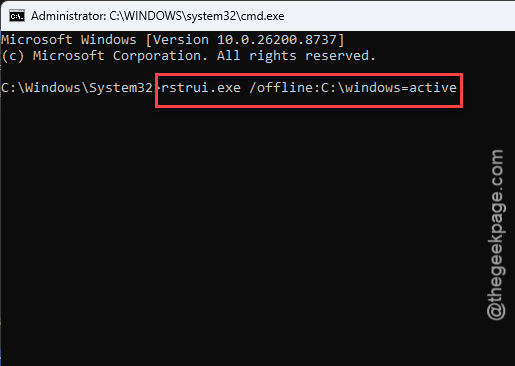
3 – Type this and press Enter:
rstrui.exe /offline:C:\windows=active
4 – The System Restore window appears. Pick the same restore point you tried before.
5 – Let it run. Half an hour is normal. Don’t touch anything.
6 – Restart.
One catch. In WinRE, your Windows drive is often not C: — it gets shuffled around. If the command complains, type notepad, use File then Open, and look through the drives until you find the one with your Users folder. Use that letter instead.
Fix 5 – If the Restore Keeps Failing at the Same Point
That usually means the shadow copy data itself is damaged. Throwing it away lets Windows boot normally, though you lose your restore points.
Read that again. You lose every restore point on the drive. If Fix 4 hasn’t been tried, try it first.
1 – Open Command Prompt from the recovery menu.
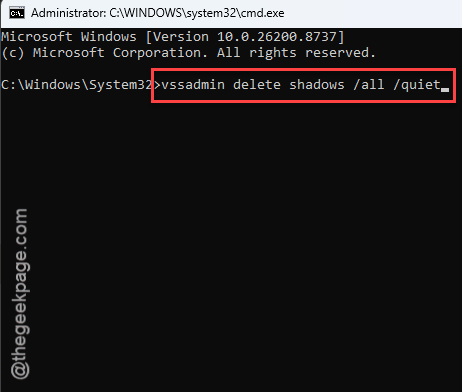
2 – Run this:
vssadmin delete shadows /all /quiet
3 – Restart.
Your personal files aren’t touched. Only the change history is.
Fix 6 – Rebuild the Boot Records
If Windows still won’t start, the boot configuration is the problem. This rewrites it.
1 – Open Command Prompt from the recovery menu.
2 – Run:
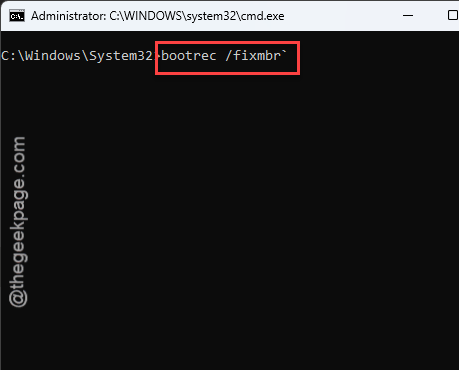
bootrec /fixmbr
3 – Run:
bootrec /fixboot
4 – Run:
bootrec /rebuildbcd
5 – When it asks whether to add an installation to the boot list, type Y and press Enter.
6 – Restart.
Expect fixboot to say “Access is denied” on a modern PC. That’s not a fault. Those first two commands were written for older machines that booted differently, and on a UEFI system they have nothing to do. Carry on to rebuildbcd, which is the one that counts. If rebuildbcd finds zero Windows installations, go to Fix 7.
Fix 7 – Rebuild the EFI Boot Partition
Last resort before a reinstall, and the only genuinely risky step here. You’re formatting a partition. Select the wrong one and you erase your data with no way back.
The partition you want is tiny — around 100MB — and formatted as FAT32. Your Windows drive is the enormous NTFS one. If you find yourself about to format a 500GB volume, stop.
1 – Open Command Prompt from the recovery menu.
2 – Type diskpart and press Enter.
3 – Type list vol and press Enter.
4 – Read the table. Find the row that is roughly 100MB and says FAT32. Note its volume number.
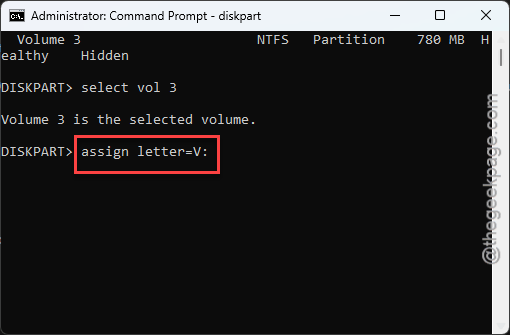
5 – Type select vol 3, using your own number.
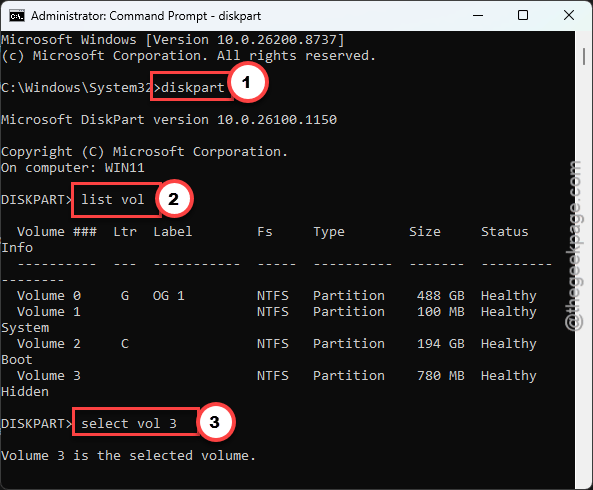
6 – Check the output says Volume 3 is the selected volume, and that it’s the small FAT32 one. Check it twice.
7 – Type assign letter=V: and press Enter.
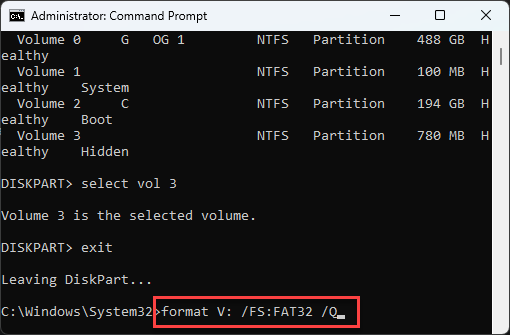
8 – Type exit to leave diskpart.
9 – Run this:
format V: /FS:FAT32 /Q
10 – Run this, replacing C: with your real Windows drive letter if it differs:
bcdboot C:\Windows /s V: /f UEFI
11 – Restart.
You can often skip the format entirely — running bcdboot alone rewrites the boot files over the top. Try that first. Only format if bcdboot reports a failure.
Fix 8 – Turn off Point In Time Restore
Windows booted. Good. Now deal with the cause, which was almost certainly a shadow storage limit that was too small.
1 – Press the Windows key, type cmd, right-click Command Prompt, choose Run as administrator.
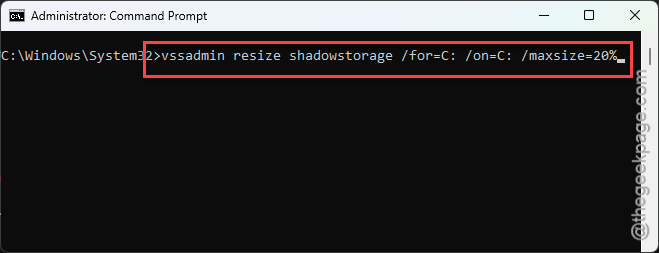
2 – Run this:
vssadmin resize shadowstorage /for=C: /on=C: /maxsize=20%
3 – Press Windows + I, click System, then Recovery.
4 – Find Point-in-time restore.
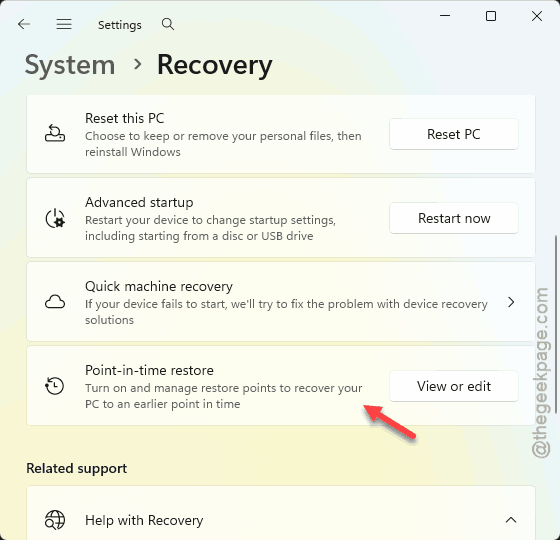
5 – Turn it off if you’d rather not risk this again.
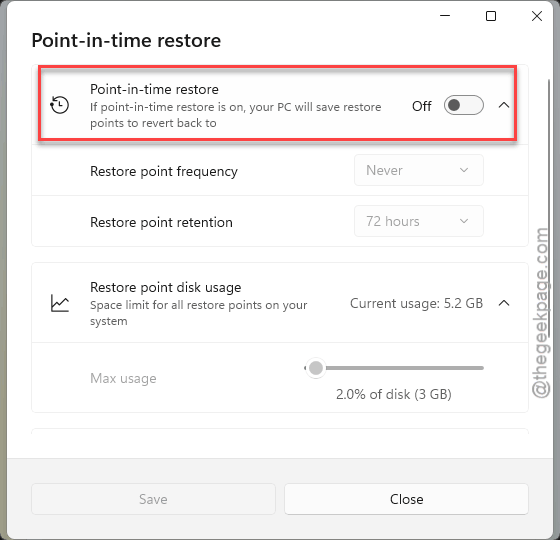
Turning it off is a real trade. You lose an easy undo button for bad driver installs. Plenty of people keep it on and just give it the 20% of disk space it actually needs.
How to Prevent This
– Save your BitLocker recovery key somewhere that isn’t the encrypted PC. Print it. Photograph it. Do it today, not the evening it breaks.
– Give shadow storage 15-20% of the drive. The default is stingy and a restore that runs out of room mid-write is exactly how you got here.
– Run a restore from inside Windows, plugged in, with nothing else open. Half these failures are a laptop dying at 60%.
– Keep real backups on a separate drive. Restore points aren’t backups — they live on the same disk and share its fate.
– Make a Windows recovery USB while your PC still works. Sixteen gigabytes and ten minutes, and it means you’re never locked out of WinRE.
People Also Ask
How to fix Windows 11 boot failure?
Force the PC off three times during boot and Windows opens its recovery menu on the fourth try. Run Startup Repair from Troubleshoot, then Advanced options. If that fails, open Command Prompt there and run bootrec /rebuildbcd. Have your BitLocker recovery key ready before you start, because you’ll be asked for it.
What is the point in time restore for Windows 11?
It’s the newer name for System Restore. Windows snapshots your system files and registry before updates and driver installs, so you can roll back if something breaks. It doesn’t back up your documents or photos, only system state. Find it under Settings, System, then Recovery.
How do I fix error code 0x8007045b?
That one means Windows was shutting down while an operation was still running — often a restore or update interrupted by a reboot. Restart cleanly, don’t touch anything, and retry. If it repeats, run sfc /scannow followed by DISM /Online /Cleanup-Image /RestoreHealth, then try the restore again.