You tap the taskbar to type. Nothing. The on-screen keyboard won’t show up. And search? Dead too.
It’s a nasty combo on the Snapdragon X Elite laptops. Two of the things you reach for most, both broken at once.
Why This Happens
Basically? These laptops run a special ARM version of Windows, and a recent update broke a couple of pieces of it.
The on-screen keyboard and Windows Search are each their own little app under the hood. TextInputHost runs the keyboard. SearchHost runs search. An update can knock loose the hooks that let Windows launch them.
And there’s a background service tangled up in it. The Touch Keyboard service. The update often leaves it hung or switched off, so the keyboard has nothing driving it.
Two specific patches are the usual suspects here — KB5087051 and KB5090935. They shipped the change that started all this.
So no, you don’t need to wipe your laptop. The pieces are still there. They just need re-hooking. Reset stays as an absolute last resort, and honestly most people never get near it.
Fix 1 – Force the Touch Keyboard to Show
Easiest first. The update sometimes just flips the keyboard’s visibility setting back to default.
1 – Press Windows + I to open Settings.
2 – Click Time & language, then Typing.
3 – Click Touch keyboard.
4 – Set Show the touch keyboard to Always.
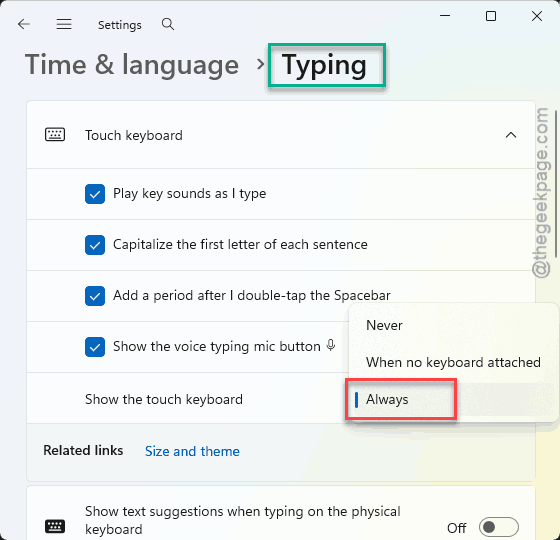
Tap a text field and see if it pops up now. If it does, that was the whole issue.
Fix 2 – Wake Up the Touch Keyboard Service
This service runs the on-screen keyboard, the emoji panel, and clipboard history. The update tends to leave it stuck. Cycling it off and on, then setting it to start automatically, clears the hang.
1 – Press Windows + R, type services.msc, and press Enter.
2 – Scroll down to Touch Keyboard and Handwriting Panel Service.
3 – Right-click it and choose Properties.
4 – Set Startup type to Automatic.
5 – If the service is running, click Stop, then click Start to cycle it clean. If it’s stopped, just click Start.
6 – Click Apply, then OK.
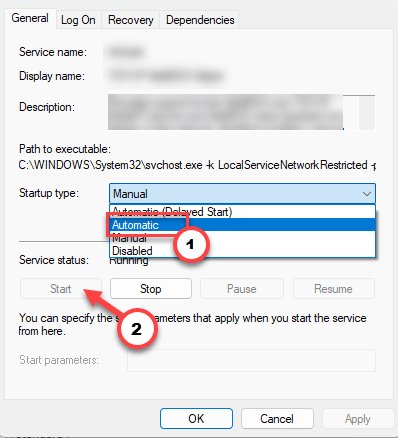
Check if this works.
Fix 3 – Re-Register the Keyboard and Search
This is the core fix. It rebuilds the hooks Windows uses to launch both the keyboard and search. If Fix 1 and 2 didn’t do it, this usually does.
1 – Right-click Start and choose Terminal (Admin). Click Yes if prompted.
2 – Paste this and press Enter:
Get-AppxPackage -AllUsers -Name Microsoft.Windows.ParentalControls | Foreach {Add-AppxPackage -DisableDevelopmentMode -Register "$($_.InstallLocation)\AppXManifest.xml" -ForceApplicationShutdown}
3 – Then paste this and press Enter:
Get-AppXPackage -AllUsers -Name Microsoft.Windows.Search | Foreach {Add-AppxPackage -DisableDevelopmentMode -Register "$($_.InstallLocation)\AppXManifest.xml" -ForceApplicationShutdown}
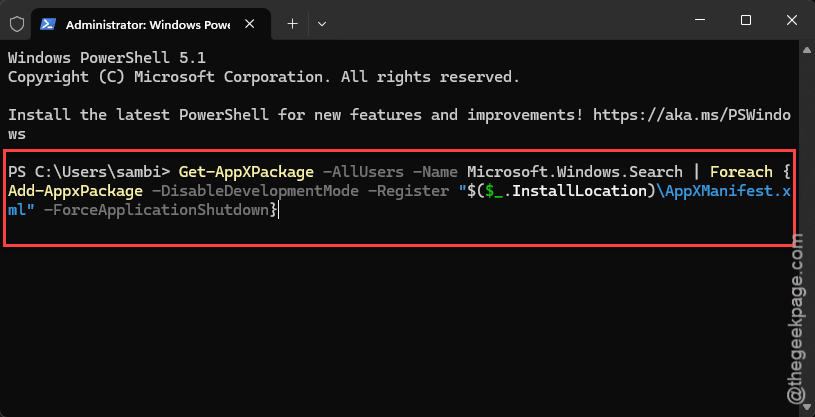
4 – Restart your PC.
Both should spring back to life after the reboot.
Fix 4 – Restart the Text Input Service
Try restarting the Text Input service on your system to fix the issue.
1 – Press Windows + R, type services.msc, and press Enter.
2– Find Text Input Management Service service in the list.
3 – Then, right-click it, and choose Restart.
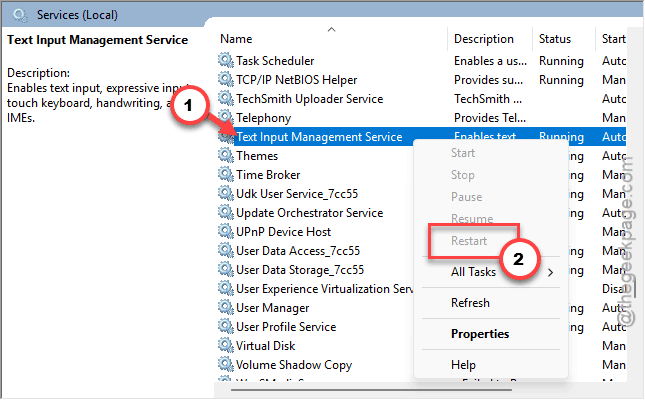
Takes two seconds. Sometimes that alone brings the keyboard back.
Fix 5 – If a Recent Update Started It
Traced it to right after an update? You can roll the two known troublemakers back and return the laptop to how it worked before.
1 – Press Windows + I to open Settings.
2 – Click Windows Update, then Update history.
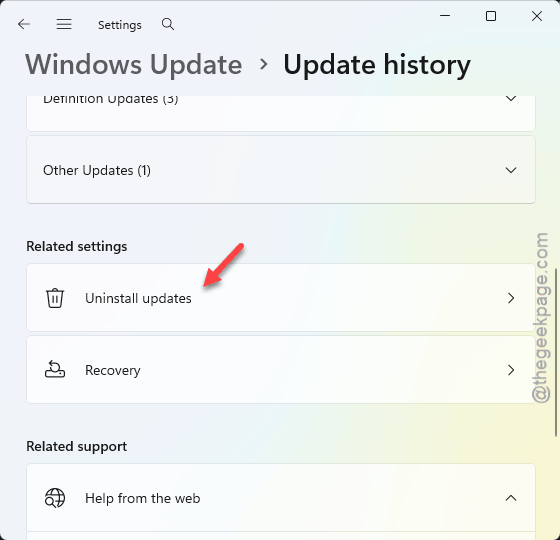
3 – Scroll to the bottom and click Uninstall updates.
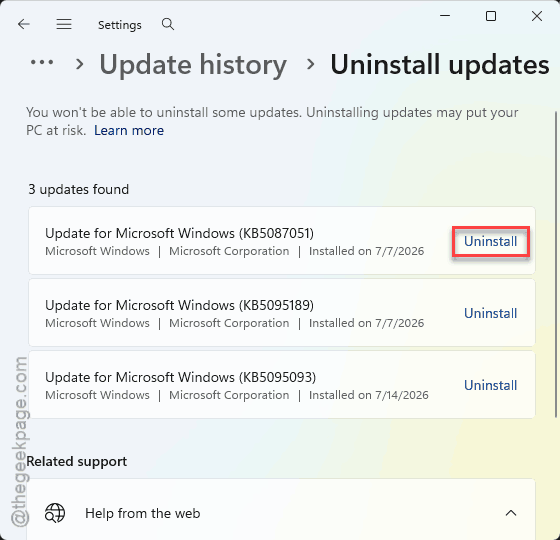
4 – Find KB5087051 and click Uninstall.
5 – Do the same for KB5090935.
6 – Restart your PC.
One catch: Windows may try to reinstall these later. If it does and the problem returns, pause updates for a few weeks until Microsoft ships a proper fix.
Fix 6 – Cloud Reset, and Only if Nothing Else Works
The title said don’t reset first — and you shouldn’t. But if every step above has failed, a cloud reset reinstalls the core input files while keeping your documents and photos.
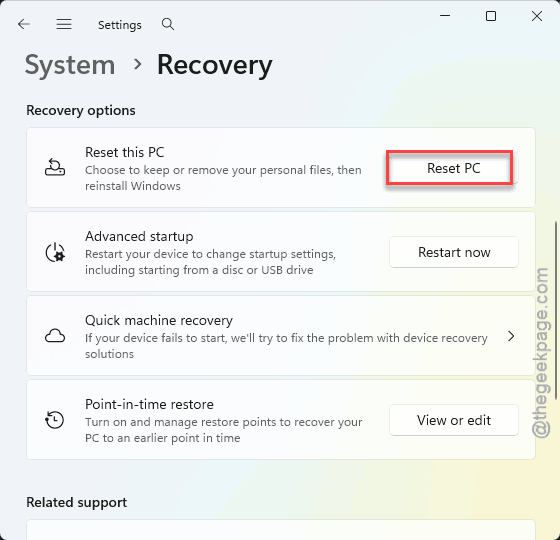
1 – Go to Settings, click System.
2 – Then Recovery. Then, use the Reset PC.
3 – Choose the Keep my files option, and pick Cloud download.
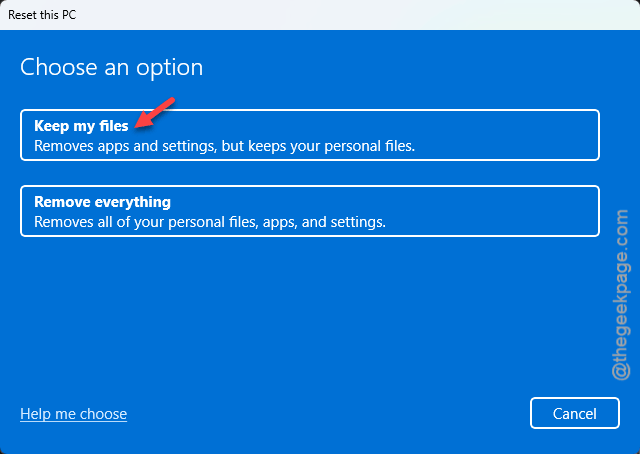
Your apps get removed, but your personal files stay. It’s a big step, so save it for genuine dead ends.
How to Prevent This
– Set the Touch Keyboard service to Automatic and leave it. A hung service is the most common trigger, and this heads it off.
– Hold off a week or two before installing big updates on a Snapdragon laptop. Let the early bugs surface on other people’s machines first.
– If an update breaks input, note the KB number before uninstalling. Makes it easy to block that exact one.
– Keep the re-register commands from Fix 3 handy. They’re the go-to whenever the keyboard or search vanishes again.
People Also Ask
How do I fix Windows Search not working on my ARM laptop?
Search runs as its own app, SearchHost, and it can lose its registration after an update. Re-register it by running the Microsoft.Windows.Search command in an admin Terminal, then restart.
Do I need to reset my PC to fix this?
Almost never. The keyboard and search files are still on your machine — they just need re-registering, which the PowerShell steps handle.