You bought the NVMe drive. The game says it supports DirectStorage. And your CPU is still pinned at 100% every time a new area loads.
Loading screens that were supposed to vanish. Still there. Annoying doesn’t quite cover it.
Why This Happens
Short version: DirectStorage has two halves, and people mix them up constantly.
The first half is GPU decompression. Game data arrives squashed, and instead of your CPU unpacking it, your graphics card does. The second half is BypassIO — a shortcut that sends data straight from the drive to the graphics card without stopping at the CPU’s file cache.
BypassIO is the fragile one. It only works if nothing else is watching your drive. And plenty of things watch your drive.
Antivirus. Anti-cheat. BitLocker encryption. Any of these installs what Windows calls a filter driver — a little program that inspects every read and write. One of those sitting in the path, and Windows quietly switches BypassIO off. No error. No notification. Your CPU just goes back to doing all the unpacking, and you never find out why.
So where does PCIe Gen 3 come in? Gen 3 drives have less bandwidth to spare than Gen 4 or Gen 5. On a fast drive you might not notice the fallback. On a Gen 3 drive, you feel every bit of it.
Fix 1 – Turn On Hardware-Accelerated GPU Scheduling
DirectStorage needs your graphics card to manage its own memory queue before it can accept data directly. That’s what this setting does. Without it, the whole pipeline stays on the CPU.
1 – Press Windows + I to open Settings.
2 – Click System in the left sidebar.
3 – Click Display.
4 – Scroll down to Graphics and click it.
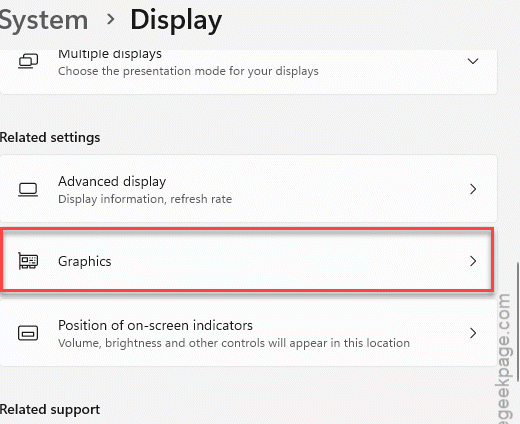
5 – Click Default graphics settings near the top.
6 – Turn on the toggle for Hardware-accelerated GPU scheduling.
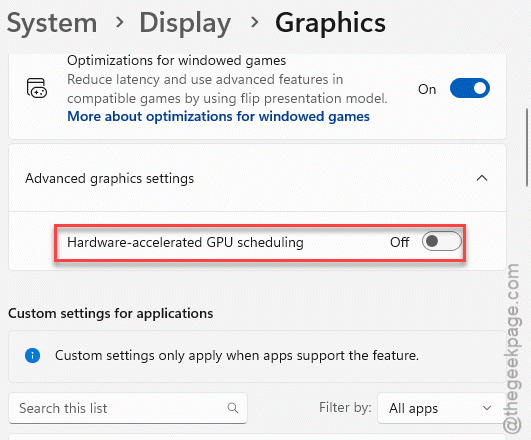
7 – Restart your PC. The setting does nothing until you do.
If you don’t see the toggle at all, your graphics driver is too old. Fix 5 handles that.
Fix 2 – Ask Windows Whether BypassIO Is Even On
This is the step everyone skips, and it’s the only one that tells you the truth. Windows will name the exact thing blocking you.
1 – Press the Windows key, type cmd, then right-click Command Prompt and choose Run as administrator.
2 – Type this and press Enter, replacing C: with the drive your games are on:
fsutil bypassIo state /v C:
3 – Read the output.
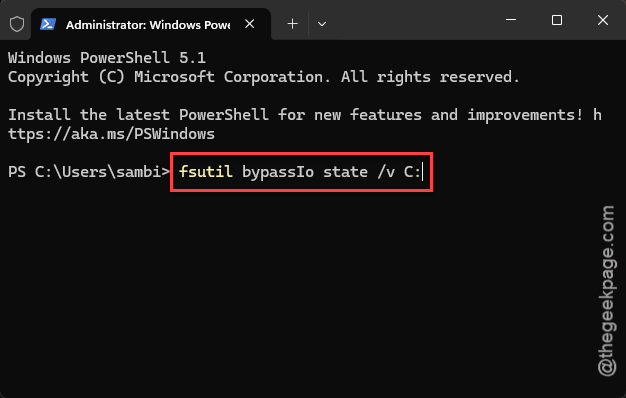
If it says BypassIo is currently supported, you’re fine — your problem is somewhere else in this list. If it says not supported, look at the lines underneath. Windows spells out the reason, usually naming a driver file. Write that name down. You’ll need it.
Fix 3 – Find the Driver That’s Getting in the Way
1 – In that same administrator Command Prompt, type:
fltmc filters
2 – Press Enter. A list of filter names appears with numbers next to them.
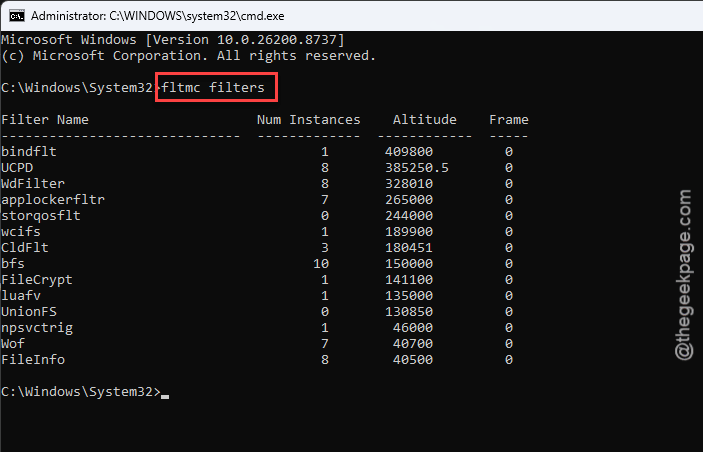
3 – Look for anything that isn’t Microsoft’s own. Third-party antivirus, disk monitoring tools, and anti-cheat services all show up here.
4 – Temporarily uninstall or pause the suspicious one.
5 – Run the command from Fix 2 again and see if the answer changed.
Some names are cryptic. If you’re staring at one you don’t recognize, search it — most have a well-documented owner. And leave anything named WdFilter alone. That’s Microsoft Defender, and it plays nicely with BypassIO.
Fix 4 – Check Whether BitLocker Is Encrypting the Drive
If Fix 2 mentioned fvevol, this is your answer. That’s BitLocker’s driver, and BitLocker and BypassIO cannot coexist. Every read has to be decrypted, so it can’t skip the CPU. There’s no clever workaround.
Most laptops sold with Windows 11 turn this on automatically. A lot of people have no idea it’s running.
1 – Press Windows + I to open Settings.
2 – Click Privacy & security in the left sidebar. Go to Windows Security.
3 – Click Device encryption, or BitLocker drive encryption if you have Windows 11 Pro.
4 – Look at the status for your games drive.
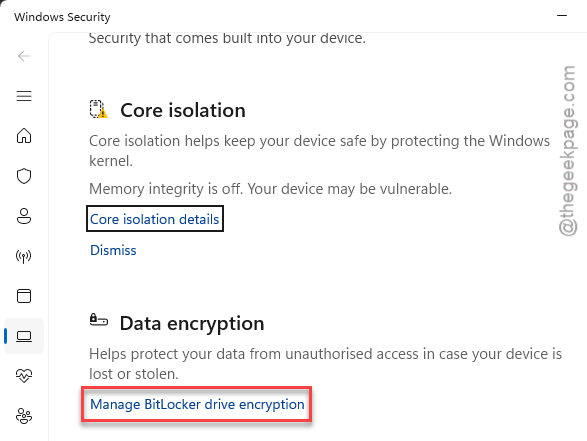
Now think before you act here. Turning encryption off gets you BypassIO, but it also means anyone who walks off with your laptop can read everything on it. On a desktop that never leaves the house, that trade is easy. On a work laptop, don’t do it.
A better option: keep your system drive encrypted and move your games to a second, unencrypted NVMe drive.
Fix 5 – Update the Graphics Driver
Quick one. GPU decompression is done by code that ships inside the graphics driver, not by Windows. An old driver means the game asks, the driver shrugs, and the CPU picks up the work.
Get it from the manufacturer directly — nvidia.com, amd.com, or intel.com. Not Windows Update.
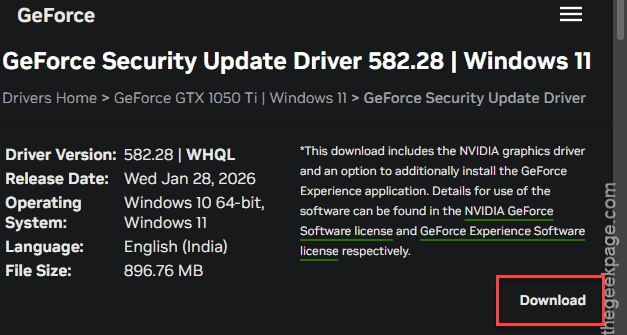
The version Windows hands you is often months behind.
Fix 6 – Make Sure the Game Is Actually on the NVMe Drive
It sounds obvious. But if you have more than one drive, Steam may well have installed the game on the slow one, and DirectStorage needs NVMe. A SATA SSD won’t do it. A mechanical hard drive definitely won’t.
1 – Open Steam and click Library.
2 – Right-click the game and choose Properties.

3 – Click Installed Files on the left.
4 – Look at the install location listed at the top.
5 – If it’s the wrong drive, click Move install folder and pick your NVMe.
6 – Wait for the move to finish. On a large game this can take twenty minutes or more.
Not sure which of your drives is the NVMe? Press Ctrl + Shift + Esc, open Task Manager, click Performance, and each drive is labelled NVMe or SSD or HDD right there.
Fix 7 – Give Windows a Bigger File Cache
Windows caps how much memory NTFS uses for buffering reads. On older PCIe slots that cap chops DirectStorage requests into pieces small enough that the CPU steps in to handle them anyway. Raising it helps.
Back up your registry before you touch it. In Registry Editor, click File, then Export, and save a copy somewhere safe.
1 – Press Windows + R, type regedit, and press Enter.
2 – Paste this into the address bar at the top and press Enter:
HKEY_LOCAL_MACHINE\SYSTEM\CurrentControlSet\Control\FileSystem
3 – Right-click any empty space in the right-hand pane.
4 – Choose New, then DWORD (32-bit) Value.
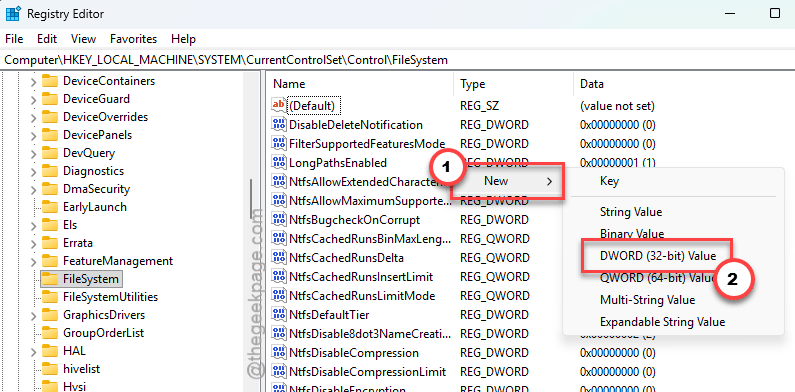
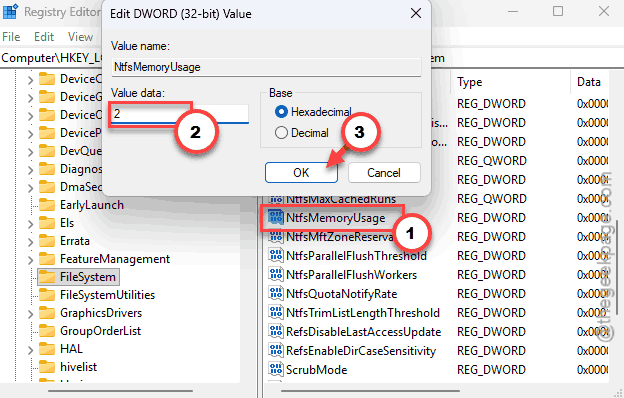
5 – Name it NtfsMemoryUsage.
6 – Double-click it and set the value data to 2.
7 – Click OK and restart your PC.
This one is a nudge, not a cure. If Fix 2 told you a driver was blocking BypassIO, no registry value on earth will fix that.
How to Prevent This
– Keep your games on a drive with no encryption on it. BitLocker kills BypassIO. Every time.
– Stick with Microsoft Defender for antivirus if you game a lot. Third-party suites bolt filter drivers onto your storage and most of them break the pipeline.
– Update your GPU driver from the manufacturer’s site, not Windows Update. Takes five minutes.
– Run fsutil bypassIo state /v after installing any new security or disk utility. It’s the fastest way to catch something that just broke your loading times.
– Leave Hardware-accelerated GPU scheduling on and stop thinking about it.
People Also Ask
Will DirectStorage work with PCIe Gen 3?
Yes. Any NVMe drive works, Gen 3 included. Microsoft’s own requirements ask for NVMe, not a specific generation. You’ll get GPU decompression and shorter loads. Gen 4 moves data faster, so the gains are bigger there. But Gen 3 with DirectStorage still beats Gen 3 without it, comfortably.
Does DirectStorage affect CPU usage?
That’s the whole point of it. Unpacking game data normally eats several CPU cores. DirectStorage hands that job to your graphics card instead, so your processor is free for physics and AI. But if BypassIO silently falls back, the work lands right back on the CPU and usage spikes again.
Will DirectStorage improve my FPS?
Not directly, no. It shortens loading screens and reduces the stutter you get when a game streams in new textures. Frame rate during steady play is mostly down to your graphics card. That said, freeing up CPU cores does help in games that were bottlenecked by the processor.