Having problems with the Face ID on your iPhone? A set of iPhone users, specially the iPhone 13 users, have resorted to various forums for help as they are having issues with the Face ID. For a device that’s entire security structure is build around the Face ID, Apple device owners are bound to run into further issues if the Face ID tech stops working. These solutions can help you resolve the issue.
Useful workarounds ~
1. Face ID uses a bunch of camera systems. Sometimes on the older devices, the camera system can come loose. Use your knuckles to gently tap on the notch portion of the display and check.
2. Restart the device normally and check again.
Fix 1 – Force restart the device
Just force-restarting the iPhone can fix the issue with the Face ID.
Step 1 – To do this, you must press and release the Volume + button.
Step 2 – Next, tap and release the Volume – button once.
Step 3 – Finally, press-hold the Power button on the iPhone until the iPhone screen completely turns off and the Apple Logo shows up on the screen.
Once you have force rebooted the iPhone, unlock the device using the passcode. Later, try to use the Face ID and check.
Fix 2 – Update the device software
This can be a bug that is causing this problem on your device. So, update the iPhone to the latest version to put an end to this.
Step 1 – at first, open up iPhone Settings on your device.
Step 2 – On the next step, proceed to the General settings. Find the Software update section and open it up from there.
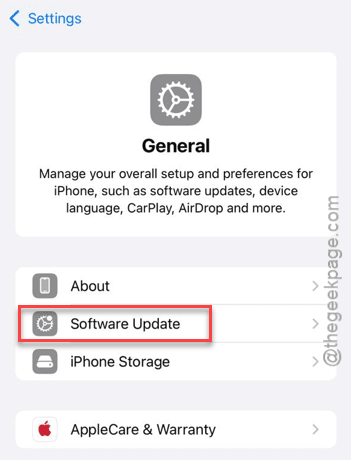
If you have not updated the iOS recently, there will be an update ready for you to install.
Step 3 – Tap the Update now button to install the update immediately. A force reboot of the device is mandatory what’s the update to be complete.
This won’t require your face ID verification.
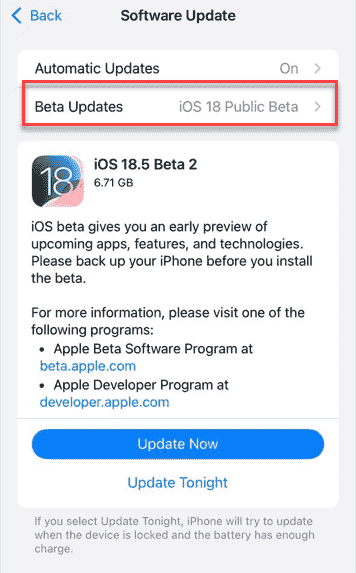
Once you have updated, the problem with the face ID will be gone for sure.
Fix 3 – Disable the stolen device protection and reset Face ID
You can’t reset the face ID on your iPhone unless you have disabled the Stolen Device Protection system first.
Step 1 – At first, load up the iPhone Settings console. Once you are there, load up the Face ID & Passcode settings.
Step 2 – Next, go to the Stolen device protection settings.
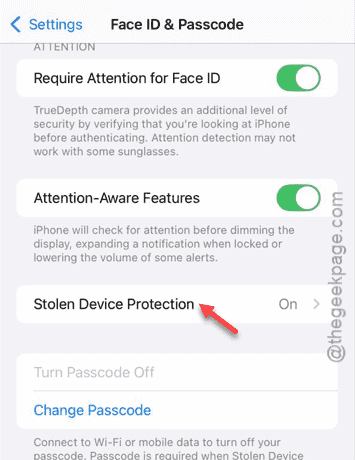
Step 3 – Turn off the Stolen device protection. It will demand for the Face ID for verification. But, instead of using the Face ID, you are using the passcode.
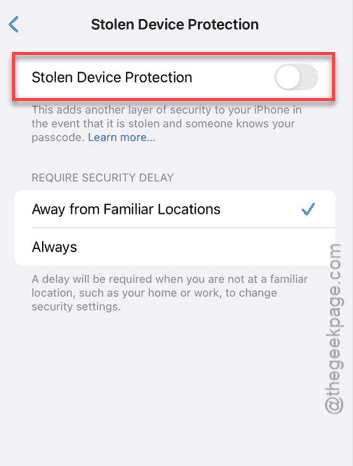
After turning off the stolen protection, return to the main Face ID & Passcode page.
Step 4 – Use the Reset Face ID option there to reset the device Face ID.
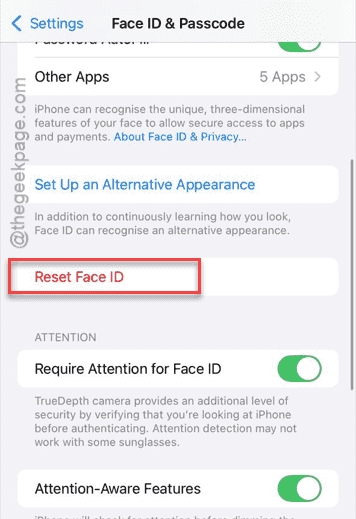
The process of resetting the Face ID will require you to put the Apple passcode or your main Apple ID password. This can fix the Face ID problem.
Fix 4 – Reset all the settings
Check whether if by resetting all the settings can solve your issue.
Step 1 – Start by opening up the Settings console on your iPhone. Next, go to the General part of settings.
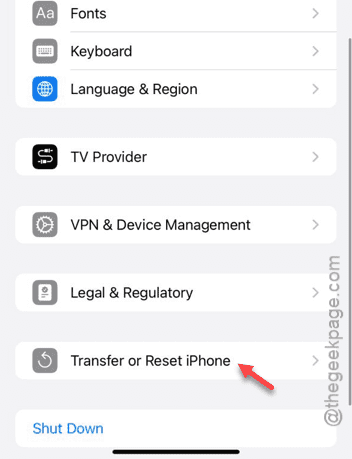
Step 2 – Then, open the Transfer or reset iPhone option in there.
Step 3 – Later, tap the Reset option. There, you see the Reset All Settings utility at the top.
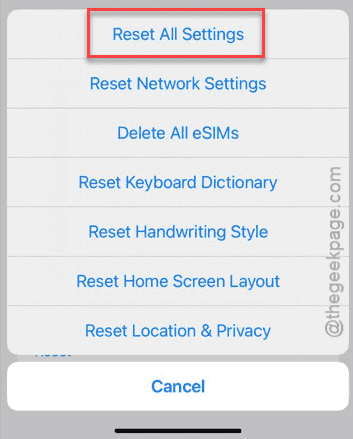
Step 4 – Tap it once and, click the Reset option once again to confirm resetting all the settings.
You will need your passcode to do this.
Once you have reset all iPhone settings, check the status of the face ID on the device.
Fix 5 – Contact Apple Support
If the Face ID on your iPhone is still not working, you must take it up with the Apple Support for a resolution. The Face ID consists of many intricate parts. So, there is a chance that some of those have gone out of order. You can easily get it repaired from an Apple authorized service center.
Hope these fixes have helped you sort this out!