Double-click a folder. A window opens. It’s white, and empty, and it stays that way.
No files. No sidebar. Sometimes not even the ribbon along the top. The window is real enough — you can drag it around — but there’s nothing inside it.
Why This Happens
File Explorer stopped being one program a while ago.
The window frame is old Windows code, decades old. The contents are drawn by a newer toolkit called Windows App Runtime. Two different systems, stitched together, and the update in question broke the stitching.
So the frame draws instantly. The contents wait for a runtime that never answers. You get a white rectangle.
The Home view makes it worse. That’s the default page now, and it reaches out to OneDrive and your recent cloud files before it shows you anything. If the network is slow — or your OneDrive is in a sulk — Explorer sits there waiting rather than admitting defeat.
And the history file. Explorer keeps a list of every folder you’ve visited, and it’s a well-known source of this exact blankness once it grows large or gets corrupted. Clearing it is thirty seconds of work.
Fix 1 – Restart Explorer
Cheapest thing you can try.
1 – Press Ctrl + Shift + Esc togeyther.
2 – Find the Windows Explorer in the list of processes. Then, right-click it, and choose Restart.
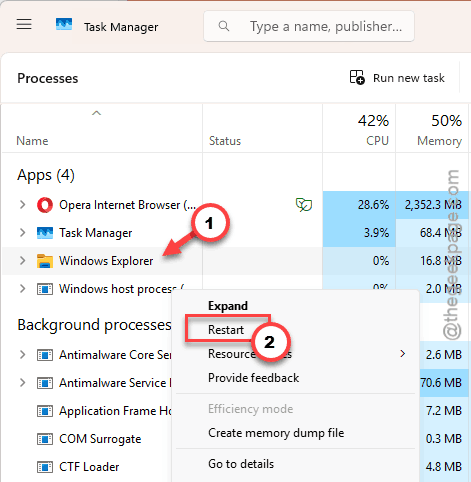
The taskbar vanishes and comes back. Open a folder. Fixed? Then it was a one-off crash and you can stop reading. Back to blank tomorrow morning? Carry on.
Fix 2 – Clear the History and Skip the Home Page
Two changes in one window, and between them they fix most blank Explorer windows.
You need one working Explorer window to get here. If you can’t open any, press Windows + E and use whatever appears, blank or not — the menu still works.
1 – Click the three dots (⋯) in the toolbar at the top of the window.
2 – Click Options. The Folder Options box opens on its General tab.
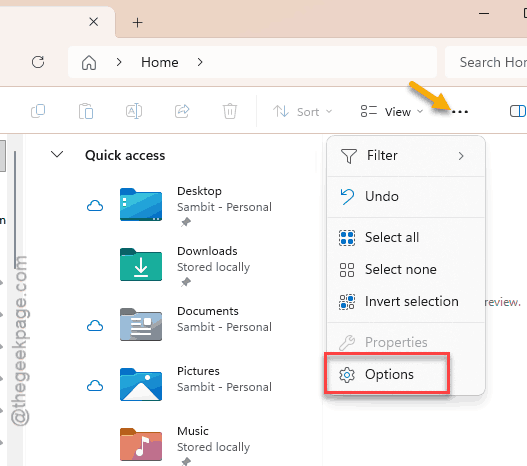
3 – At the top, change Open File Explorer to from Home to This PC.
4 – Near the bottom, next to Clear File Explorer history, click Clear.
5 – Click Apply, then OK.
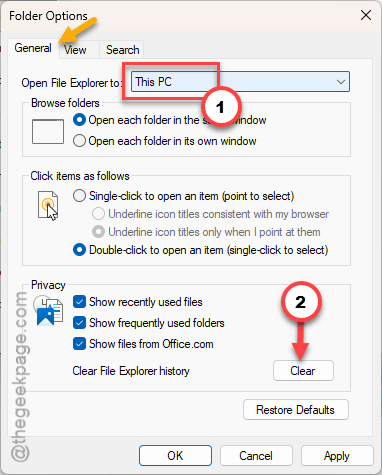
6 – Restart Explorer as in Fix 1.
Setting it to This PC means Explorer shows your drives immediately instead of waiting on OneDrive to answer. Many people prefer it anyway.
Fix 3 – Turn Off Separate Process Launching
1 – Open Options again, as in Fix 2.
2 – Click the View tab at the top.
3 – Scroll down the long list of checkboxes to find Launch folder windows in a separate process.
4 – Untick it.
5 – Click Apply, then OK.
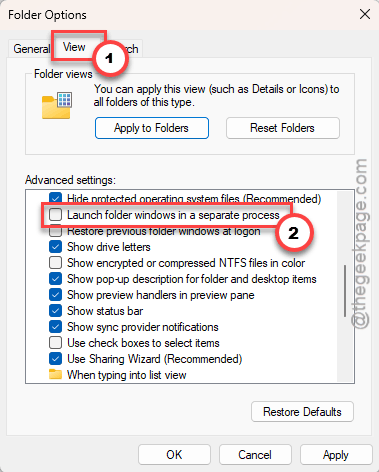
6 – Restart your PC.
With it ticked, each window loads its own copy of the runtime, and after this update that’s where the loading gets stuck. Untick it and windows share one copy that’s already running.
Fix 4 – Restart the Search Service
Explorer asks Windows Search to fill in the file list. If that service has crashed, Explorer waits politely forever.
1 –Press Windows + R to open up a Run panel.
2 – Type services.msc there, press Enter.
3 – Scroll down to Windows Search service.,
4 – Then, right-click that service, choose Restart.
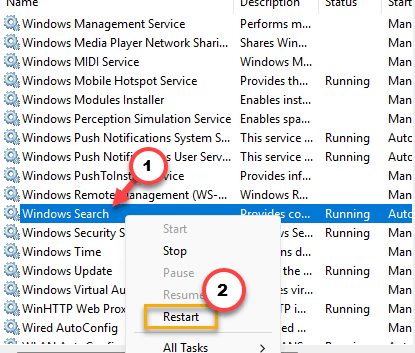
Wait about ten seconds, then open a folder.
Fix 5 – Re-Register the App Runtime
This is the direct fix for the actual bug. You’re telling Windows to register the runtime package again, from files already on your disk.
1 – Right-click the Start button and choose Terminal (Admin).
2 – Click Yes on the prompt.
3 – Paste this in as one line and press Enter:
Get-AppXPackage -AllUsers -Name Microsoft.WindowsAppRuntime* | Foreach {Add-AppxPackage -DisableDevelopmentMode -Register "$($_.InstallLocation)\AppXManifest.xml" -ForceApplicationShutdown}
4 – Wait for the progress bar. Under a minute, usually.
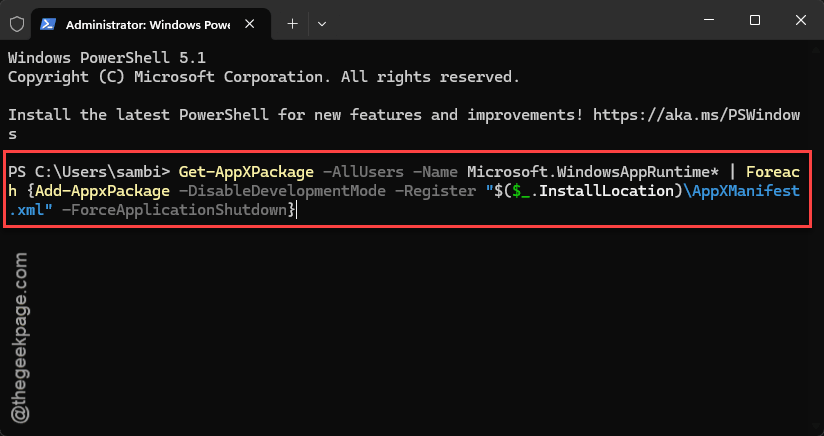
5 – Restart your PC.
Red text appears on most machines. As long as it isn’t red for every single package, it worked. Nothing was downloaded and nothing was deleted.
Fix 6 – Remove the Update
If the blank windows started the day KB5095093 arrived, and nothing above has helped, take it back out.
1 – Press Windows + I to open Settings.
2 – Click Windows Update at the bottom of the left sidebar.
3 – Click Update history.
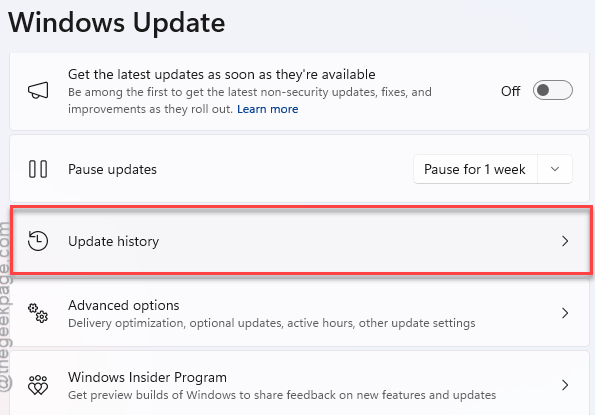
4 – Scroll right down and click Uninstall updates.
5 – Find KB5095093, click Uninstall, and confirm.
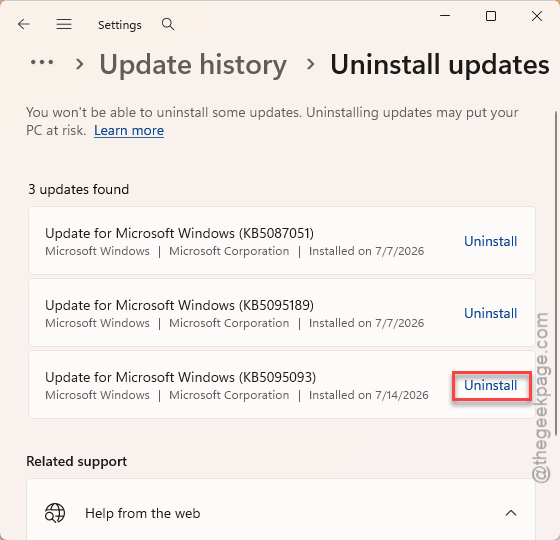
6 – Restart when it asks.
Now pause updates for a few weeks, or it comes straight back. That’s in Settings, then Windows Update, under Pause updates. You are giving up security patches to keep a working file manager, which is a real cost — check back in a month and see whether Microsoft has fixed it.
Fix 7 – Repair the System Files
1 – Open Terminal (Admin) from the Start button’s right-click menu.
2 – Run this and let it finish:
DISM /Online /Cleanup-Image /RestoreHealth
3 – Then run:
sfc /scannow
4 – Restart.
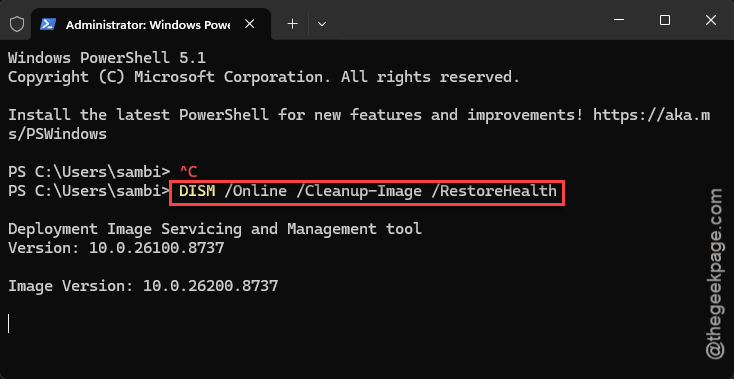
Set aside half an hour for the pair. DISM looks frozen at 20% for a long stretch. It isn’t.
How to Prevent This
– Set File Explorer to open on This PC, not Home. Faster, and it stops depending on a cloud service to show you your own hard drive.
– Clear the Explorer history every few months. It bloats, and a bloated history file causes exactly this.
– Pause updates for two weeks after they release. Microsoft usually finds the Explorer bugs before you do.
– Keep OneDrive signed in and healthy, or sign out of it entirely. Half-connected is the worst state for Explorer.
– Learn Windows + E. When a folder window is blank, a fresh one from the shortcut often loads properly, and that’s a useful signal about which part is broken.
People Also Ask
How to fix corrupted File Explorer Windows 11?
Restart Windows Explorer in Task Manager first. Then open the three-dot menu, click Options, and clear your File Explorer history. If windows still open blank, re-register the Windows App Runtime through an admin PowerShell window and reboot. That’s the package the recent updates broke.
Why does Windows 11 randomly open File Explorer?
Different problem, and usually a stuck keyboard. The Windows key jammed down, or a wireless keyboard sending phantom presses, fires Windows + E over and over. Unplug the keyboard for a minute and see if it stops. Some backup and sync tools also open Explorer windows when they finish a job.
How can I fix the blank File Explorer menu bar on Windows 11?
That’s the App Runtime failing to load, since the toolbar is drawn separately from the window. Untick Launch folder windows in a separate process under Options, View tab. Then re-register the runtime with the Get-AppXPackage command and restart. Removing KB5095093 works too, if you’d rather wait for a proper patch.