Is the “Time to leave” feature is not working or greyed out completely, there are some steps you may follow to fix it. The origin of this problem is the location services, and you have to take care of this manually. Simply, follow the step-by-step solutions to fix the problem.
Why the ‘Time to leave’ is showing up greyed out?
The Time to Leave is part of a feature of the iPhone calendar. It allows the iPhone to alert you of your departure time for any particular event. This helps you to manage multiple events on a busy day, even if some of the events get past your mind.
So, the ‘Time to Leave’ feature works like a reminder. But, in some cases, this won’t be available for your use. It needs your location permission to manage its functionality (the reminder of leaving the event). So, if the location services are not available or denied access to the same, ‘Time to Leave’ option would appear greyed out.
Fix 1 – Turn on the Location based alerts
The ‘Time to Leave’ feature is a ‘Location Based Alert’. So, you must enable such updates from the iPhone Settings.
Step 1 – So, you must reach the Settings page, first.
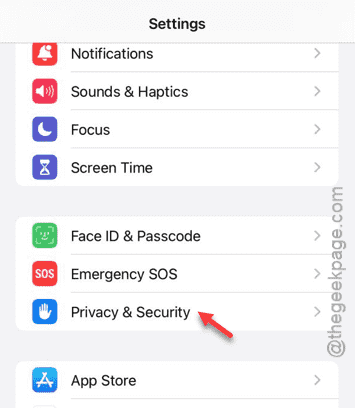
Step 2 – Open the “Privacy & Security” features list, next.
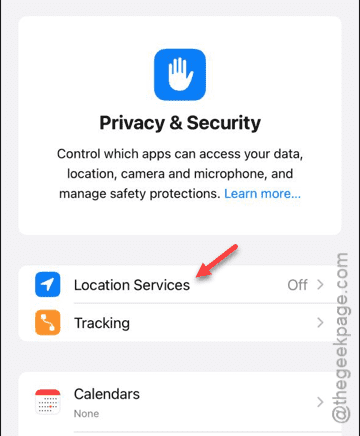
Step 3 – Open the “Location Services” option there.
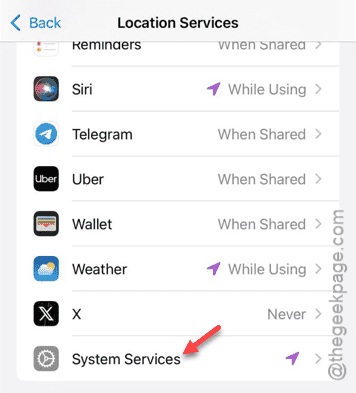
Step 4 – Load up the “System Services” option there.
Step 5 – Turn on the “Location-Based Alerts” from there.
[If you can’t find it there, enabling the “Alerts & Shortcuts Automation” should do the job.]
Step 6 – The same goes for the “Share My Location” settings as well. All the location settings that you see in the list, you must turn on all of them.
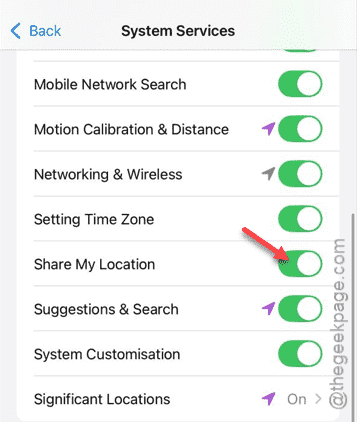
Once you are done, go back and check the status of the ‘Time to Leave’ settings on your iPhone.
If you still find it greyed out, the problem might be related to the carrier settings.
Fix 2 – Turn on the mobile network
Even while you are connected to a Wi-Fi, having a proper cellular connection can help you set up the ‘Time to Leave’ properly.
Step 1 – In that case, check the status bar on your iPhone.
Step 2 – See whether you can notice the carrier networks there.
Step 3 – If you can see any bars in the network settings, take a SIM ejector pin and eject the SIM card slot from the iPhone.

Step 4 – Then, wait for some time, and re-insert the SIM to the slot properly.
Within a few seconds of doing this, the network signal should be restored on the device. So, take a look at the ‘Time to Leave’ feature now. See, if it is still greyed out.
Fix 3 – Provide the location permission to Calendar
Finally, if the ‘Time to Leave’ is still not available, the Calendar app must be lacking proper location permission.
Step 1 – After opening the Settings, go to the “Privacy & Security” settings.
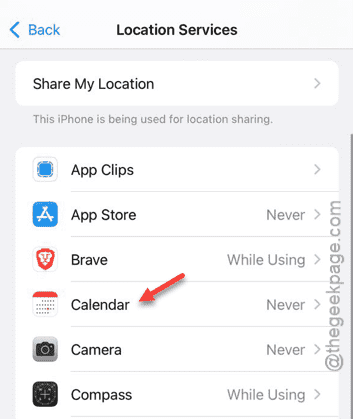
Step 2 – Open the “Location Services” part.
Step 3 – Later, find the “Calendar” app in the list and open that up.
[If you can’t see the app there, just open the Calendar app once on your iPhone. Then, return to the Location Services page, and you should find it there.]
Step 4 – Set this to “While using the App” option.
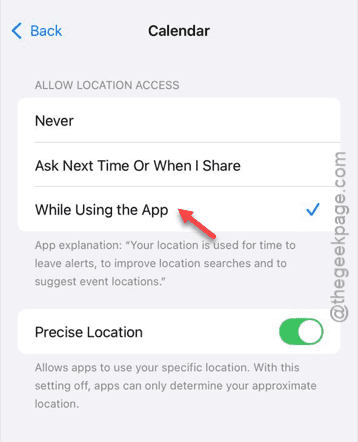
After this, the ‘Time To Leave’ feature won’t get greyed out again. Check if this works out for you!