The AirPods Case Battery Drain issue is not a new trend of problem that Apple users have noticed recently. If your AirPods are losing more than 1-2% of battery while you are not using any of them, that is known as a classic case of AirPods case battery issue. But, don’t worry. There is possibly nothing wrong with the AirPods itself, and you can troubleshoot the problem surprisingly easily.
Fix 1 – Reset your AirPods
Resetting the AirPods have solved this problem for many users.
Step 1 – Before you can reset the AirPods, you must unpair it first. To do that, go to Settings page. Open up the Bluetooth settings there.
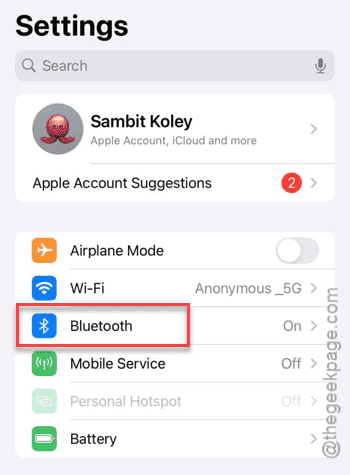
Step 2 – Next, open the AirPods settings from there.
Step 3 – Tap Forget this Device to delete the pairing for the device.

After disabling the pairing, it is now time to reset the AirPods.
Step 4 – Now, open up the AirPods case but don’t take out any of the earpieces from the case.
Step 5 – Next, look for the setup button on the backside of the AirPods case.
Step 6 – Press and hold that setup button for 15 seconds. You will see a white led blinking just above the setup button, and wait for it to turn amber for a few seconds and then back to the white blinking mode.
This entire resetting process takes about 15 seconds to complete.
Once you have done this, it will fix the case battery drain problem that you are experiencing.
Fix 2 – Do a full drain and then charge
There is a fix that have helped some users solve the problem.
Step 1 – You must completely drain out the battery of the AirPods. Just open the AirPods and leave it open to drain out the battery.
Step 2 – Otherwise, you can just connect it to your iPhone, MacBook and stream some music through it continuously until the AirPods battery drains out completely.
Step 3 – Now, once the battery marker on both the AirPods earpiece and case hits zero, charge the AirPods to 100%.
It is now ready for use, and you will no longer face the AirPods Case Battery drain problem.
Fix 3 – Reset the network settings on iPhone
Sometimes, resetting and repairing the AirPods might not do the work for you. Instead, you should reset the entire iPhone’s network settings.
NOTE – Resetting the network settings will remove all the saved network settings, like paired Bluetooth connections, stored network credentials, etc.
Step 1 – On your iPhone, go to the Settings page. Then, go this way –
General > Transfer or Reset iPhone
Step 2 – Next, tap the Reset option.
Step 3 – Then, click the Reset Network settings.
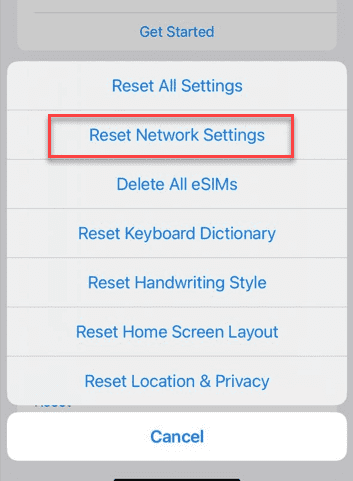
Once you have reset the network settings, you can reconnect the AirPods.
Fix 4 – Get your AirPods checked
If you are still having this problem with the AirPods, you should get them checked at your nearest Apple Service Center. Experiencing this problem on a brand-new set of AirPods? Depending upon your location and service availability, your purchase maybe eligible for a return. In that case, you can just return the faulty pair of AirPods and get a new one. But make sure to check whether your purchase supports Apple’s return and refund policy, as this is subject to availability and region based policies.