While logging into the Zoom app, some users have experienced a weird bug on their system. The error message “Zoom.exe Entry Point Not Found” origins from the incompatibility or missing of a particular dll file. Zoom, the popular video conferencing app, use several dynamic link library (DLL) files components to function properly. This is a serious problem that you should not ignore any further.
Fix 1 – Uninstall and reinstall the Zoom app
Corruption in the current version of the Zoom app may lead to this issue. Uninstall the Zoom app, remove all the Zoom local files and reinstall it.
Step 1 – Open the Settings on the Windows machine.
Step 2 – Next, go this way –
Apps > Installed apps
Step 3 – Search for the Zoom app. Tap the three-button next to the Zoom app and tap Uninstall.
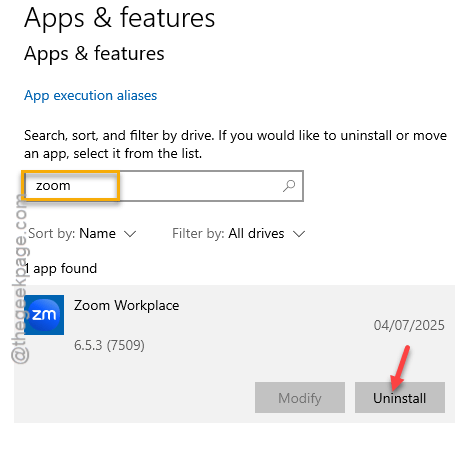
Wait for the Zoom app to get offloaded from the device.
Next, you must clear up the leftover Zoom cache files from the local files.
Step 4 – To do that, load up a Run panel.
Step 5 – Paste this pathway there and hit Enter to reach the Zoom folder –
%appdata%/Zoom
Step 6 – Delete everything from that folder.
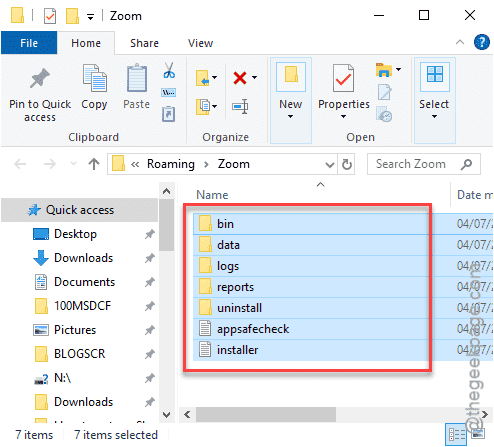
Step 7 – Now, get the Zoom installer for your Windows machine. Use the installer to set up Zoom on your system.
Once you have installed the Zoom app again, it should be ready for your use.
Fix 2 – Uninstall and reinstall older version of the Zoom app
The incompatibility between the existing version of the Zoom application (6.5.1) and the OS is causing this problem. Uninstalling the Zoom app and reinstalling an older version (6.4.3 or 6.4.12) should help you fix the issue.
Step 1 – At first, call up a Run dialogue box. Then, paste this there and hit Enter.
appwiz.cpl
Step 2 – Wait until this takes you to the Programs & Features tab. Then, find the “Zoom” app in there.
Step 3 – Later, right-click the “Zoom” app and, tap the “Uninstall” button to uninstall the Zoom app from the device.
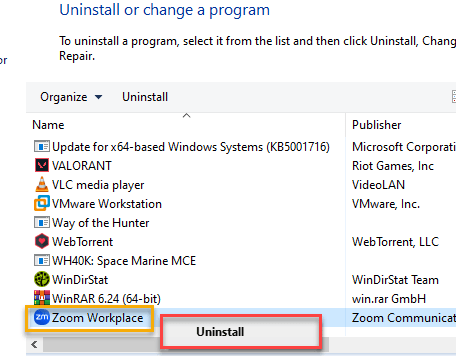
Follow the on-screen steps to completely uninstall Zoom from your machine.
Now, once you have uninstalled the Zoom app from the device, you must not install the same version of the Zoom app again. Otherwise, the error will return along with it.
Step 4 – Instead of it, you must get an older version of the Zoom app. This website contains all the iterations of the Zoom app.
Step 5 – Download the executable file for any of the earlier versions.
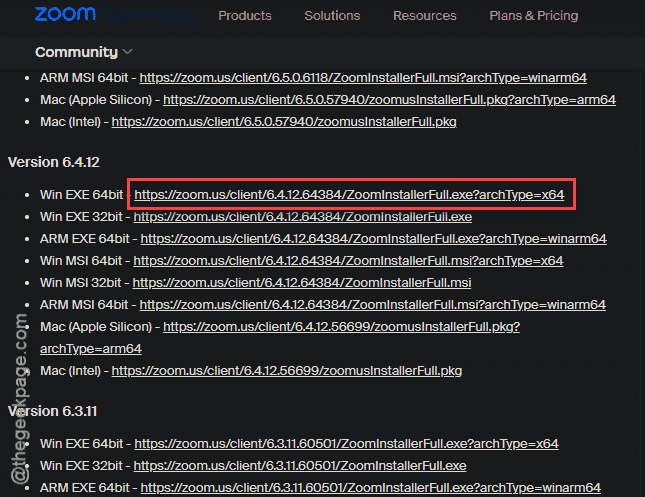
Step 6 – Run the installer for that particular version and install the Zoom app.
After you reinstalled the app, it will be operational once again.
Fix 3 – Repair the MS Visual C++ Redistributable
You have to repair Microsoft C++ redistributable packages on your computer.
Step 1 – To do this, use the Win+R buttons together to load up a Run box.
Step 2 – Then, input this there and hit Enter.
appwiz.cpl
You must repair all the redistributable packages one-by-one.
Step 3 – Look for the Microsoft C++ Redistributable package there.
Step 4 – Right-click the package file and use the Change function to repair it.
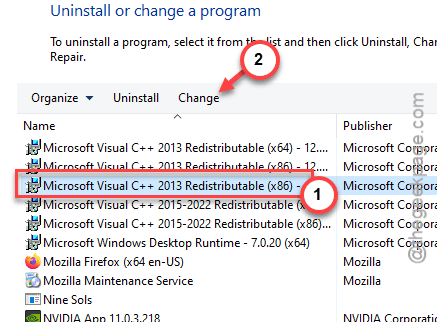
Step 5 – Do the same thing for all the redistributable files there.
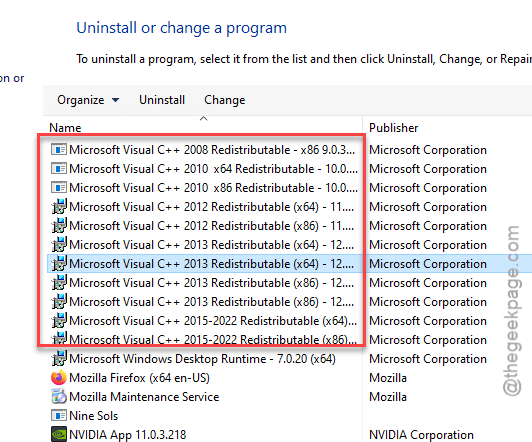
Once you are done, you should restart the system and that should fix the problem with the Zoom app.
NOTE – It is possible that you may not be able to repair some of these redistributable package files. So, you can just uninstall them, download them from the official Microsoft repository and reinstall them on the system.
This particular all in one list for all the Microsoft Visual C++ Redistributable Packages should help you in this process.
Fix 4 – Update the Zoom app
Some users have solved the issue simply updating the Zoom app on the machine.
Step 1 – Load up the Zoom app on your machine.
Step 2 – Next, tap your profile button there and click the Check for updates option to check for the Zoom updates.
If there is a pending update for the Zoom app, it will be updated to the latest version. After you have updated it, the problem will be solved.