Does your MS Word client change the font size while typing or making list entries? If Microsoft Word is jumping from one text size to another, that means there is an issue with the Direct Formatting or a Style settings in Word. If you ever find yourself in such situations, you can follow these fixes to solve this problem.
| Issue | Recommend Fix |
| Size jumps when hitting Enter | Update Normal Style |
| Size alters only in the Lists | Uncheck Set indent with tabs feature |
| Entire document changes size at once | Disable the Automatically Update feature in Style |
Fix 1 – Update Style to Match Selection
If you have manually altered the font size but have not modified the style, Word will automatically change it.
Step 1 – At first, select the erroneous text.
Step 2 – Go to the Home tab. Then, right-click the Normal style in Style Gallery.
Step 3 – Select the Update Normal to Match Selection feature.
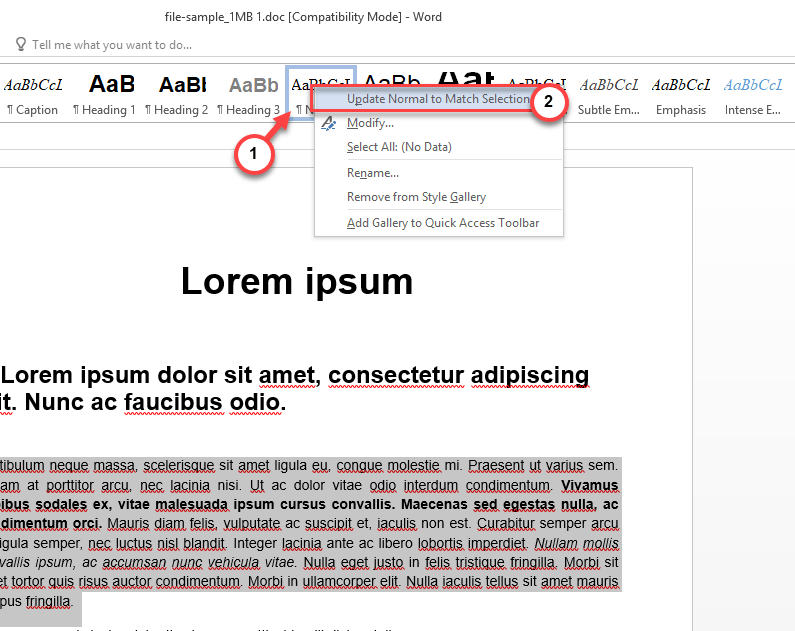
After this, MS Word will automatically fix the font style issue.
Fix 2 – Disable Define Styles Based on Your Formatting
Microsoft Word can sometimes create or modify the styles in the document.
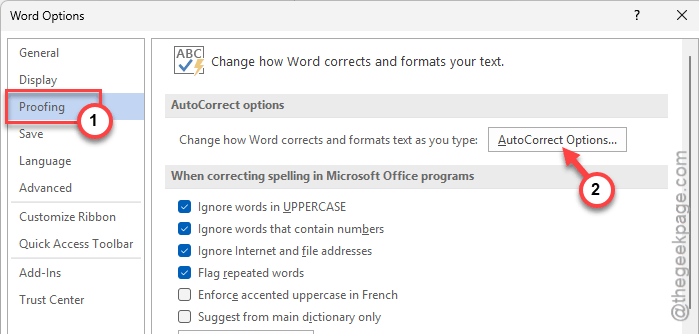
Step 1 – Go to the File tab in MS Word. Then, go to the Options tab.
Step 2 – Go to the Proofing tab. Click the AutoCorrect Options panel.
Step 3 – Visit the AutoFormat As You Type tab, and uncheck the Define styles based on your formatting box.
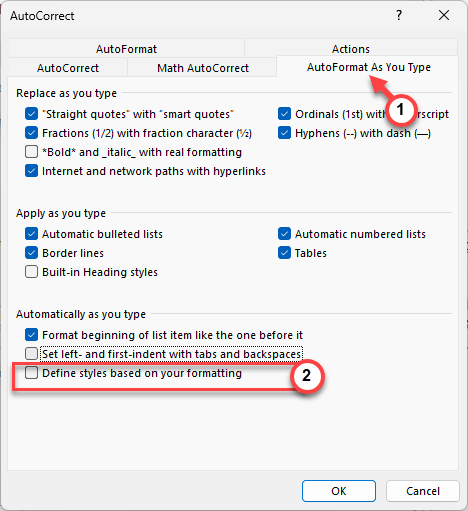
After tweaking these changes, this issue will be fixed.
Fix 3 – Clear the Normal.dotm Corruption
If every new document has wrong font or style, there is a possible corruption in the global template.
Step 1 – Close the Microsoft Word application.
Step 2 – Then, hit the Win+R buttons together to pull up a Run box. Paste this there, and click OK.
%apddata%\Microsoft\Templates
Step 3 – Rename the normal.dotm to Normal.old.
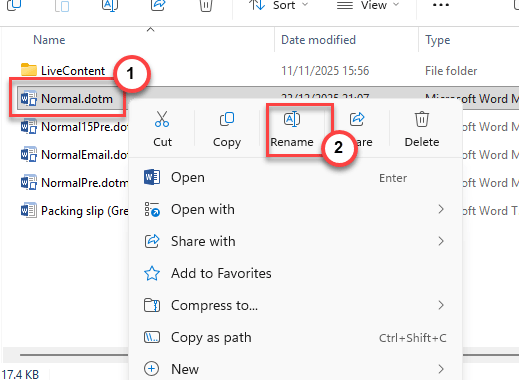
Step 4 – Then, relaunch the Word client.
This way, Word will regenerate a fresh new template, which won’t have any corruption.
Fix 4 – Disable Set Left and First Indent Settings
If the heading size is all mixing up as soon as you enter the Tab key, you should disable preset indent settings in the document.
Step 1 – Go to the File tab in MS Word. Then, go to the Options tab.
Step 2 – Go to the Proofing tab. Click the AutoCorrect Options panel.
Step 3 – In the main AutoFormat As You Type tab, uncheck the Set left and first-indent with tabs and backspaces option.
Step 4 – Save the changes in Word.
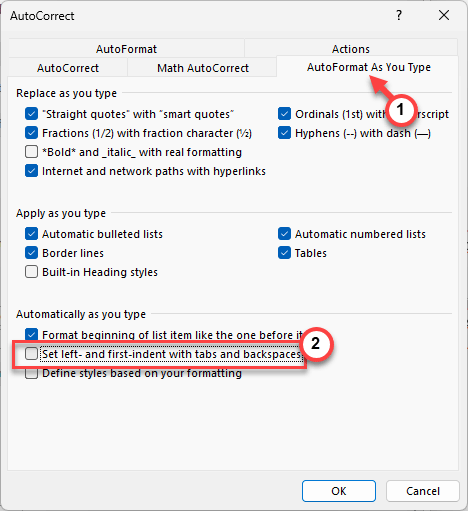
This automatically separates indents from your styling. There won’t be any sudden jump to the larger font size in the document.
Fix 5 – Disable Automatically Update mode in Paragraph Settings
On Microsoft Word, some of the styles does automatically update to match up with the rest of the document. This can cause such issues in MS Word.
Step 1 – Go to the Home tab. Then, right-click the Normal style, and tap the Modify button.
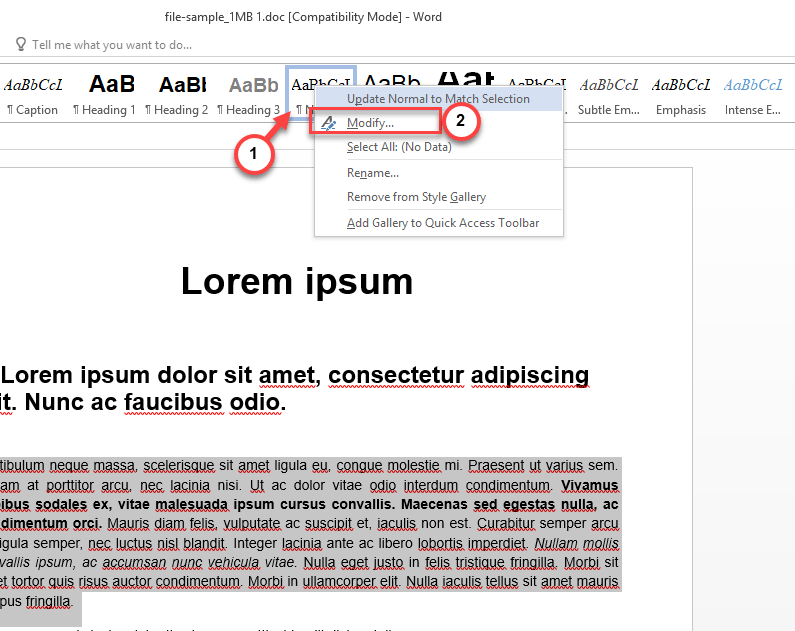
Step 2 – Uncheck the Automatically update option there.
Once you apply this change, the manual changes to a particular paragraph won’t affect the style of the entire document.
Hope these fixes have helped you fix the issue!