Does the Microsoft Teams account trying to log in to an older account by default. This phenomenon has been witnessed by multiple Microsoft Teams users, where Ms. teams is trying to log in the users using the outdated credentials that no longer the user use. The solution to this problem ranges from deleting the older credentials from the credential manager utility to resetting Microsoft Teams settings.
Fix 1 – Clean up the MS Teams cache and retry
Even if you have already logged out of your account, Microsoft Teams is still using the older credentials saved in the Credential Manager on your system.
Step 1 – Close the MS Teams app completely. Make sure to close the Teams app from the taskbar as well.
Step 2 – Then wait for few a second and next, open up a Run box. Use the Win+R keys together to do that.
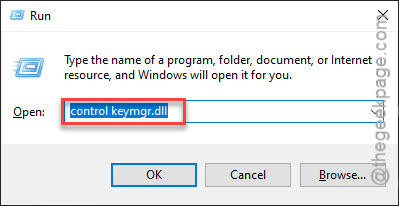
Step 2 – Then, input this directly in the box and, click OK.
control keymgr.dll
Step 3 – Once you are in the Credential Manager tab, you will find Web Credentials and Windows Credentials.
Step 4 – Look for any Microsoft Teams related credentials in there.
Step 5 – If you can find any search Microsoft Teams credentials in there, expand it and tap Remove to delete it from your computer.
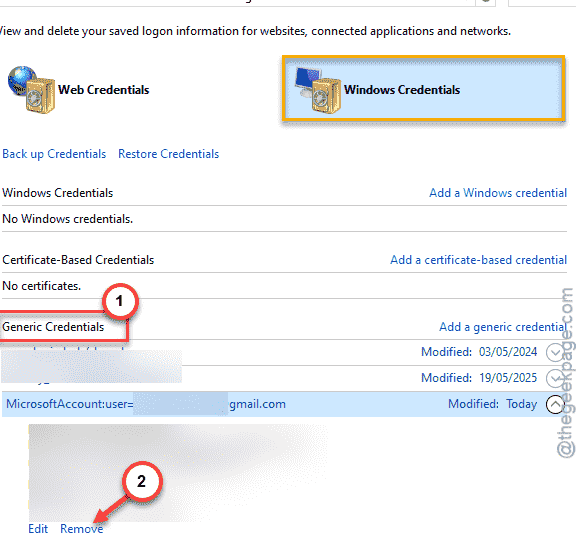
Go through the entire list of credentials and make sure there are no older teams credentials left.
Step 6 – Open a Run box. Paste this there and tap OK.
%localappdata%\Packages\MSTeams_8wekyb3d8bbwe\LocalCache
Step 7 – Once you are there, clear all the contents out of there.
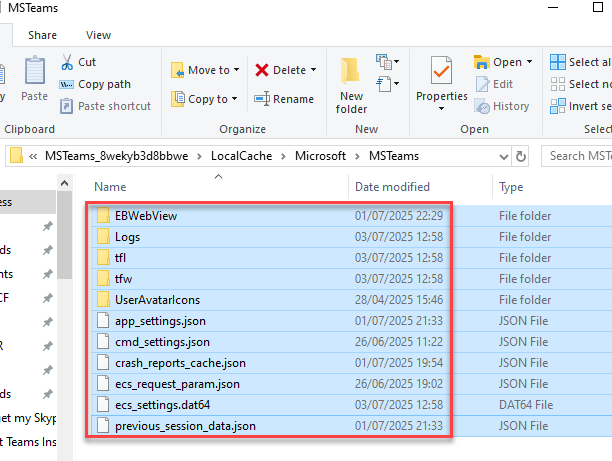
Clearing the Teams cache folder should remove all the stored up Teams local files from your device.
Now, launch the Microsoft Teams app and then log in using the proper credentials. See if this helps or not.
Fix 2 – Sideload the new account on MS Teams
The latest version of the MS Teams does support multiple accounts. So, check which account you are using and log in using the other account.
Step 1 – Load up the Microsoft Teams app on your device.
Step 2 – Next, tap the three-dot button there, and click the Settings button there to explore the Teams settings console.
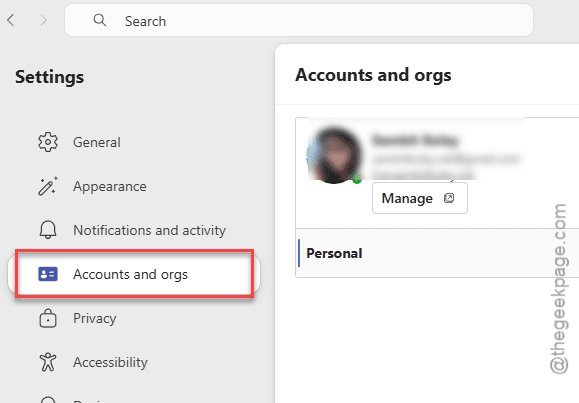
Step 3 – Next, go to the Accounts and Orgs section.
If that is not the account that you were trying to use, you can add the additional account.
Step 4 – Then, tap the profile icon on the Teams app and further use the Sign out feature to sign out from there.
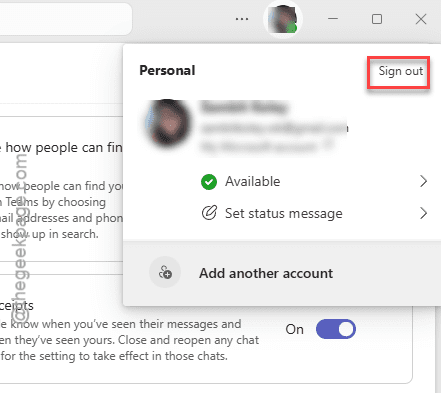
Step 5 – Use the Add another account option there to add your new account on the Teams app.
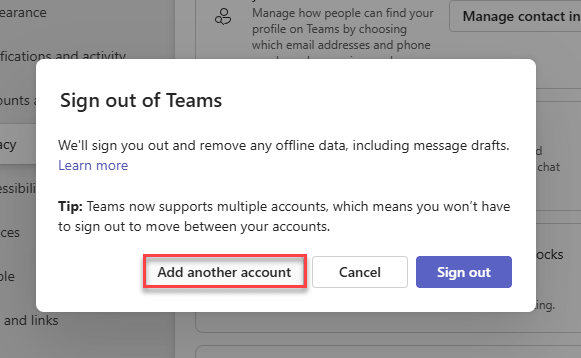
Now, just input your account credentials there in the following step and complete the sign-in process.
This way, you can easily switch between the account, even if the MS Teams logs you into the older account.
Fix 3 – Use MS Teams in an incognito tab
This is the best alternative workaround that will be useful if you need emergency access to your Teams account.
Step 1 – Whether you are using Google Chrome or Microsoft Edge, open up an incognito tab or a private window.
Step 2 – You can do that using the context buttons on both the browser or using the Ctrl+Shift+N buttons together.
Step 3 – Open up the MS Teams on web.
Step 4 – Log in using your proper account credentials.
This time, you won’t have to bother about the automatic signing in problem that you were having before. Though this is not a permanent solution, it can be useful for you.
Fix 4 – Try using Teams on web
Unlike the MS Teams desktop client, the web iteration of the Microsoft Teams will not sign you in using the older credentials. Microsoft Teams on web lets you access all the features of the Teams on web. Just make sure to log in with the proper credentials and you should be good to go.