You open an Excel file and get hit with “We found a problem with some content.” Then it asks if you want to repair. You click yes. Sometimes it works. Sometimes it does not.
This error means Excel detected corruption in the file. Could be a broken formula, a damaged sheet, or a messed-up XML structure. Here is how to get your data back.
Why This Happens
File corruption in Excel that you are experiencing happens usually when you try to save the file. In case if the save process is interrupted any how, the file can end up broken. The file is being uploaded and edited at the same time, and something goes sideways. Add-ins can also corrupt files silently in the background. And sometimes it is just a bug in Excel itself. Microsoft has acknowledged several corruption-related bugs in recent 365 builds.
Fix 1 – Use Excel’s Built-In Open and Repair
Excel has a repair tool built right into the Open dialog. Most people do not know it exists.
1 – Open Excel. Click File > Open > Browse.
2 – Find the corrupted file. Select it but do NOT double-click it.
3 – Look at the Open button at the bottom right. There is a small dropdown arrow next to it. Click that arrow.
4 – Select Open and Repair.
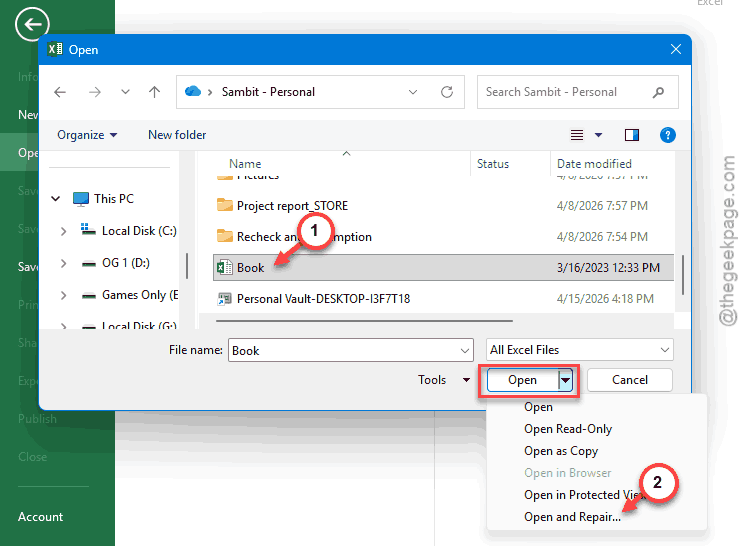
5 – Click Repair first. If that does not work, try Extract Data to pull out just the values and formulas.
This is the go-to solution for most of the users. Opt for the next one, if this one does not work.
Fix 2 – Empty the Excel AppData Folder (Local Solution)
Excel stores temporary data that can interfere with file opening. Clearing it sometimes resolves persistent errors.
1 – Close Excel completely.
2 – Open File Explorer. Put this in the address bar:
%appdata%\Microsoft\Excel
3 – Locate the XLSTART folder. Create a backup of this XLSTART folder to play safe.
4 – Make the folder empty.
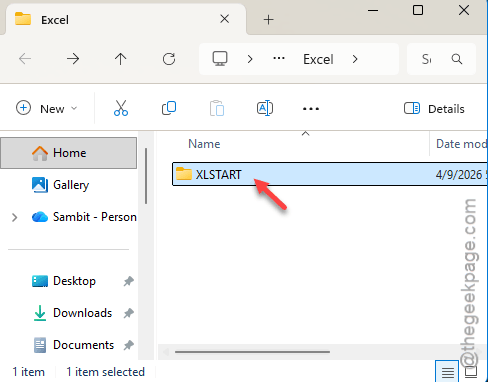
Go and open up that file again.
If the file opens without error, something in that folder was causing the problem. Weird, but it works.
Fix 3 – Launch Excel in Safe Mode
Safe Mode usually turns off all add-ins during your Excel startup. You can narrow down the culprit add-in, if it is causing this problem.
1 – Press Windows + R to open the Run dialog.
2 – Type excel /safe and press Enter.
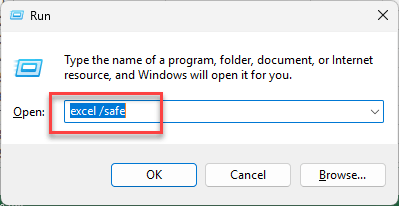
3 – Excel opens in Safe Mode. Try opening your file from here.
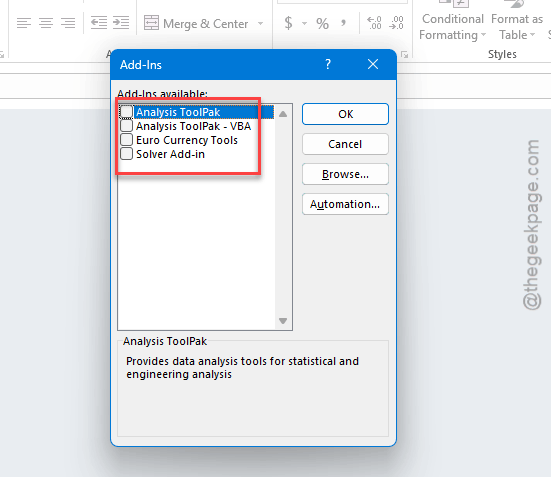
Now, you have to turn off the listed add-ins one by one to find the culprit (go to File > Options > Add-ins).
Fix 4 – Repair Microsoft Office
The possible corruption in the Office installation may cause this issue.
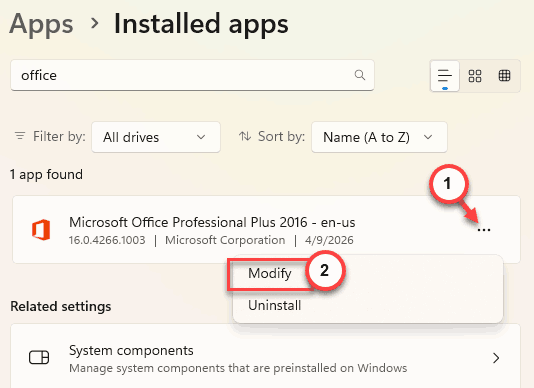
1 – Go to Windows Settings > Apps > Installed apps.
2 – Try to find the Microsoft Office or Microsoft 365, use the search box, if needed.
3 – Once you have seen it in the Settings page, click the three dots next to it.
4 – Select Modify.
5 – Then choose Online Repair.
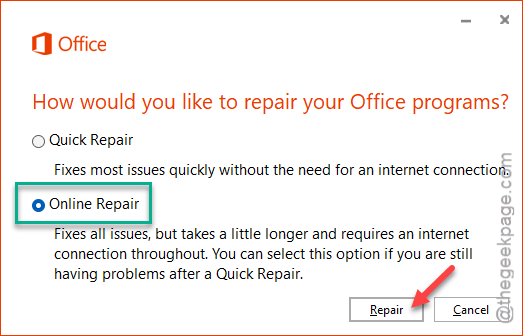
5 – Let it run. It will take a while because it redownloads Office components.
6 – Restart your computer when it finishes.
Online Repair is the heavy option. Takes forever, but it is thorough.
Fix 5 – Copy Data to a New Workbook
If the file opens but keeps showing errors, the corruption might be in the file structure rather than the data. Just move the data out.
1 – Open the corrupted file (click Repair when prompted).
2 – Create a new blank workbook.
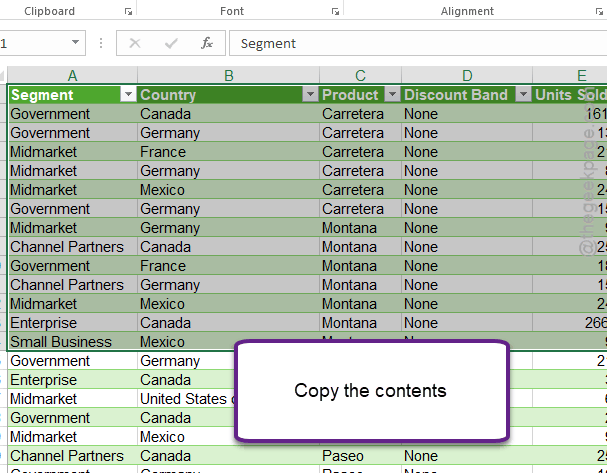
3 – Now, select the cells in the workbook and press Ctrl + C.
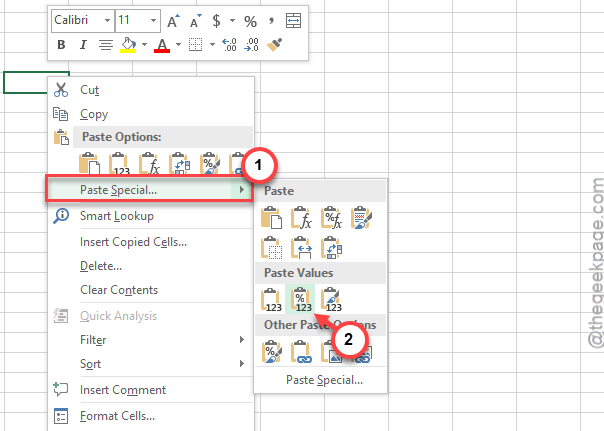
4 – Now, right-click in any of the empty space and tap Paste Sepcial. Choose the Paste Values, according to the preference.
This strips out any corrupted formatting or formulas.
5 – Save the new workbook with a fresh name.
You lose formatting and formulas, but you keep the data. Better than nothing.
Fix 6 – Find Your XLSTART Path and Clean It
If you can’t find the XLSTART folder manually, here is how to locate it.
1 – Open Excel. Press Alt + F11 to open the VBA editor.
2 – If the Immediate Window is not visible, press Ctrl + G.
3 – Type ? application.StartupPath and press Enter.
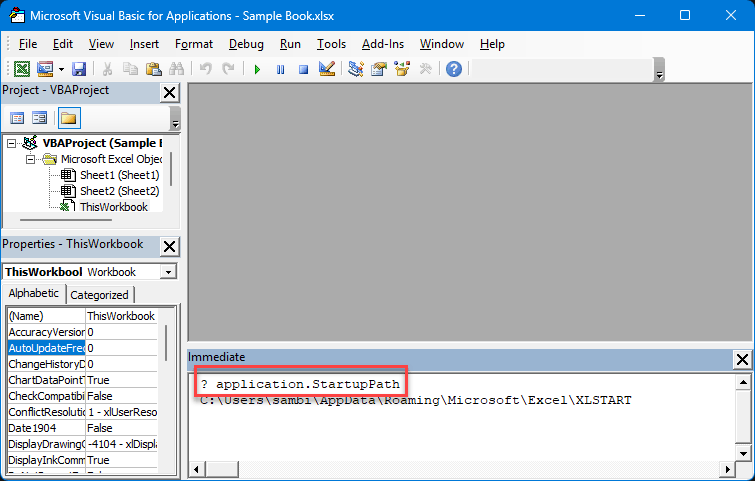
4 – The path appears below. Go to that folder and clear out anything suspicious.
This is the folder Excel loads from every time it starts. If something corrupt lives here, every file you open will have issues.
How to Prevent This
– Save files locally before uploading to OneDrive. Having rocky connection? Don’t edit the file directly on the cloud.
– Do not foce close the Excel app during saving. Wait for the save to finish.
– Keep backups. You can easily recover files from the Version History in case of any corruption.
People Also Ask
How to fix Excel error “we found a problem with some content”?
Open Excel. Go to File > Open > Browse. Select the file. Click the dropdown on the Open button and pick Open and Repair. Try Repair first.
How to fix “Excel found unreadable content” error?
Same approach. Use Open and Repair first. Then try clearing the %appdata%\Microsoft\Excel folder. And try opening the file in Safe Mode. The OneDrive files usually have a version history record; you can recover the file from there.
Can a corrupted Excel file be recovered?
The Open and Repair feature works more often than you would expect. If that fails, you can still extract raw data. And OneDrive version history can roll back to a working version. So do not panic yet.