You double-click a ZIP file. Hit Extract All. And nothing happens. Or the extracted folder shows up empty.
Frustrating. Especially when the file clearly has stuff in it.
Why This Happens
Basically? Windows 11’s built-in ZIP handler is fragile. More fragile than people realize.
A few things cause this. Sometimes the archive uses an unusual compression method. Sometimes File Explorer crashes silently mid-extraction. And sometimes — this one’s weird — your antivirus deletes the files the second they hit disk because it doesn’t like what’s inside.
SentinelOne does this. So do a few corporate security tools. Files appear for half a second, then vanish. No popup. No warning. Just gone.
And sometimes it’s a File Explorer process thing. Windows runs Explorer as one big process by default. If it gets stuck, your extraction goes with it.
Fix 1 – Use Extract All the Right Way
Sounds obvious. But people miss the small details and blame Windows.
1 – Load up the File Explorer and go to the folder with your ZIP file.
2 – Right-click the ZIP file.
3 – Click Extract All…. It’s near the top of the context menu.
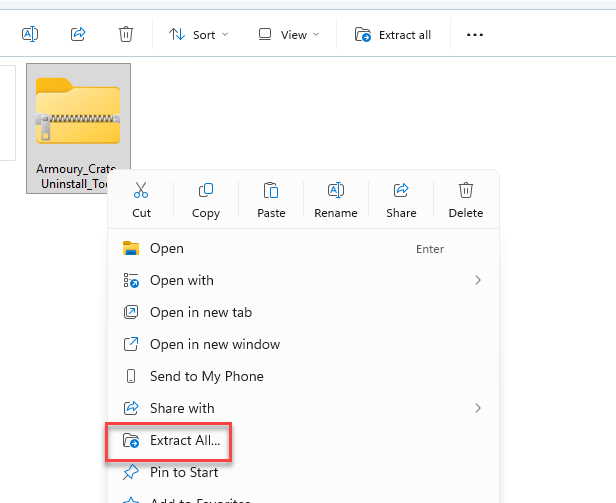
4 – In the dialog, pick a destination folder. Default is fine.
5 – Click Extract.
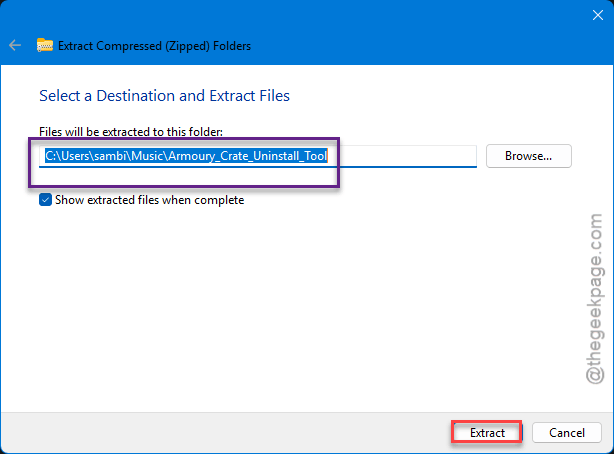
Wait until the progress bar finishes. Don’t open the folder mid-extraction.
Fix 2 – Check if Your Antivirus Is Eating the Files
Windows Security or any other antivirus program, equipped with the Real Time scanning process can hijack suspicious files even when they are extracting. You see a flash of files. Then nothing.
1 – Open your antivirus app. The icon’s usually in the system tray at the bottom-right corner of the taskbar.
2 – Look for a Quarantine or Threats log.
3 – See if your extracted files are listed there.
4 – If yes — restore them. Or add the source folder as an exception.
For corporate machines? Ping IT. You probably can’t override it yourself.
Fix 3 – Use 7-Zip Instead
Free, lightweight, and handles archives Windows chokes on. 7-Zip is what every IT person installs the moment Windows ZIP fails.
1 – Go to the official site at 7-zip.org and download the installer.
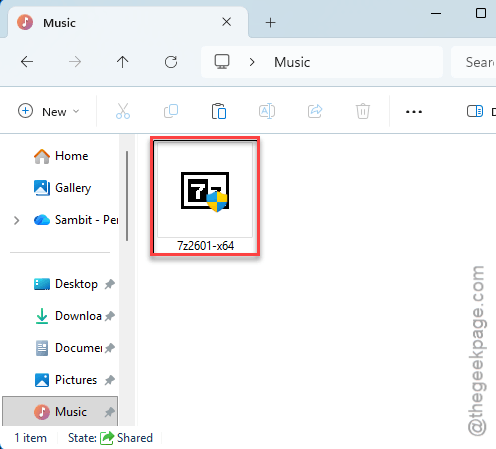
2 – Install it. Defaults are fine.
3 – Right-click your ZIP file.
4 – Click Show more options at the bottom (Windows 11 hides 7-Zip behind this — annoying).
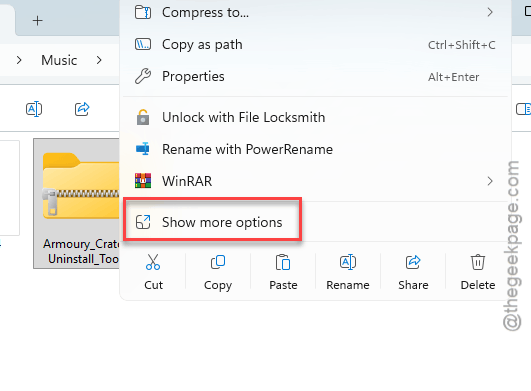
5 – Hover over 7-Zip in the menu.
6 – Click Extract to “foldername\”. This creates a new folder with the contents.
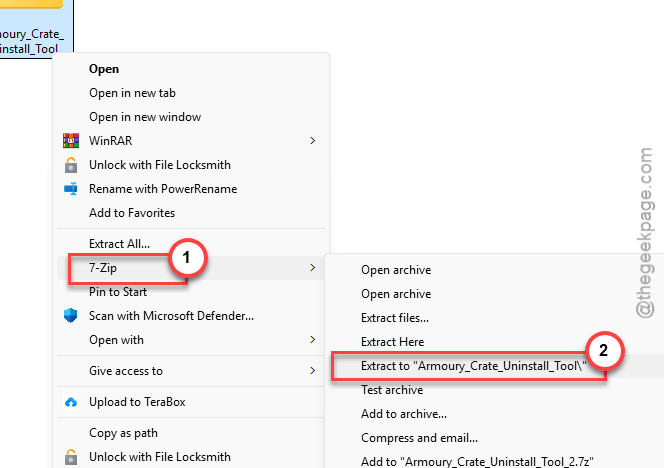
Worked? Great. If 7-Zip can extract it but Windows can’t, the file’s fine — Windows is the problem.
Fix 4 – Turn On “Launch Folder Windows in a Separate Process”
Weird setting. But it fixes ZIP extraction for a surprising number of people.
1 – Open File Explorer.
2 – Click the three dots (⋯) at the top of the window.
3 – Click Options. A small dialog opens.
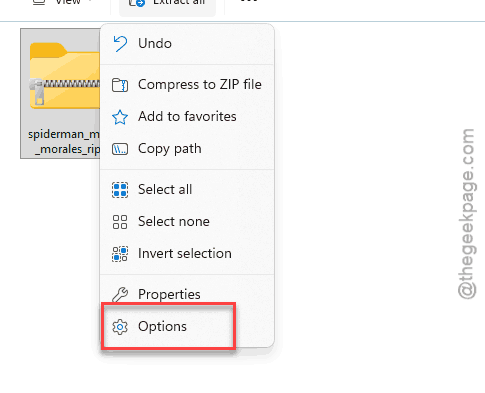
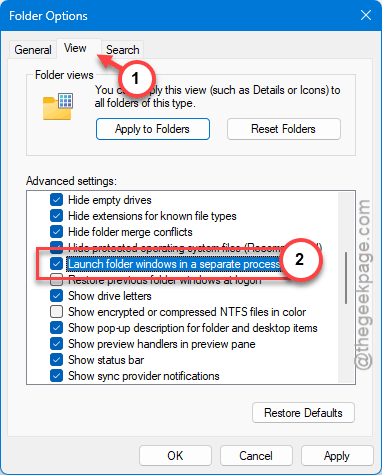
4 – Click the View tab.
5 – Scroll down through the long list. Find Launch folder windows in a separate process.
6 – Check the box.
7 – Click Apply and OK.
8 – Restart File Explorer. Or just sign out and back in. Then try extracting again.
No idea why this works. But it does, weirdly often.
Fix 5 – Check for Hidden Files
Quick check. Sometimes the files extract fine but they’re flagged as hidden, so your extracted folder looks empty.
1 – Open the destination folder.
2 – Click View at the top.
3 – Hover over Show.
4 – Click Hidden items. A checkmark appears next to it.
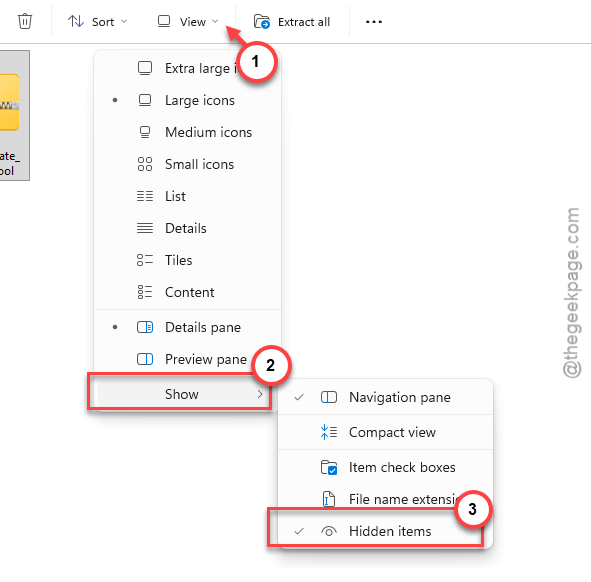
5 – Files might suddenly appear. Greyed out, but there.
If they’re there — right-click, Properties, uncheck Hidden. Done.
Fix 6 – Try WinRAR
Last option if 7-Zip didn’t work either. WinRAR handles certain compression methods that even 7-Zip struggles with.
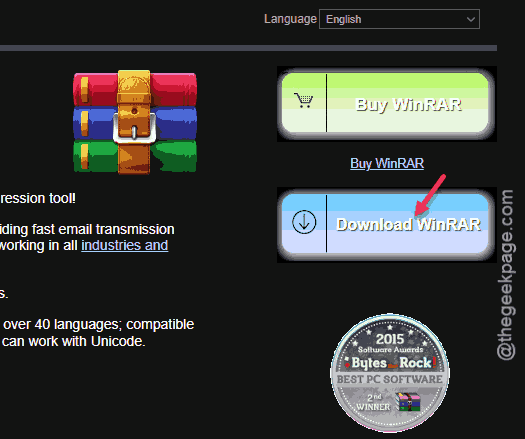
1 – Go to WinRAR and grab the installer. Free for 40 days. Realistically? Forever.
2 – Install it.
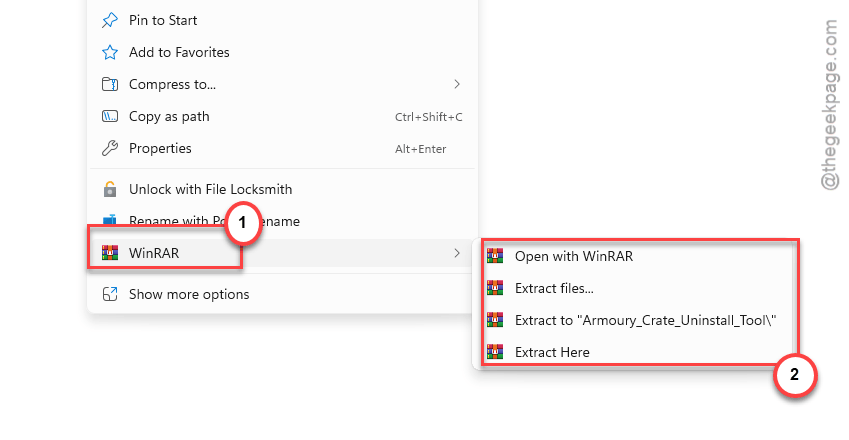
3 – Right-click the ZIP file.
4 – Click Extract Here or Extract files… if you want to pick a destination.
If even WinRAR can’t extract it, the file’s actually broken. Re-download it from the source.
How to Prevent This
- Install 7-Zip and use it by default. Windows ZIP is unreliable. Period.
- Extract ZIPs to an empty folder, not your Downloads pile. Easier to see what’s actually there.
- Add a folder exception in your antivirus for the place you extract files. Stops the silent quarantine problem.
- Keep Launch folder windows in a separate process on. Costs nothing. Saves headaches later.
People Also Ask
Why won’t Windows 11 extract ZIP files?
Two main reasons. Either your antivirus is silently deleting the files mid-extraction, or File Explorer is choking on the archive itself. Try 7-Zip — if it can extract the same file, you know Windows is the issue. Then check your antivirus quarantine.
How to fix ZIP file not extracting?
Start with the obvious. Right-click, Extract All, pick a destination. If that fails, install 7-Zip and try again. Still failing? Check antivirus quarantine and turn on “Launch folder windows in a separate process” in File Explorer options. One of those usually does it.
Why is my ZIP file empty after extracting?
Usually antivirus. Your security software grabs the files the second they extract and yanks them into quarantine. Sometimes it’s hidden files — turn on View > Show > Hidden items in the folder. And sometimes the archive itself is corrupted. Re-download it from the source and try again.