You right-click a folder in Quick Access. Click Unpin from Quick Access. And it just… stays there. Mocking you.
Or you remove a recent file and it pops right back. The list won’t update. Stubborn and annoying. Here’s how to force it.
Why This Happens
Here’s the thing. Quick Access doesn’t store your pins in some neat little setting. It writes them to hidden data files buried deep in your user folder.
And when one of those files gets corrupted? The whole list freezes. You click unpin, Windows tries to rewrite the file, fails, and nothing changes.
But sometimes it’s not corruption at all. It’s a third-party app butting in. OneDrive, Dropbox, your antivirus — they all hook into File Explorer. And if one of them holds onto the refresh, your changes never show. So yeah. Two very different causes.
Fix 1 – Restart Windows Explorer First
Always start here. Takes two seconds.
Press Ctrl + Shift + Esc to open Task Manager. Find Windows Explorer. Right-click it. Click Restart.
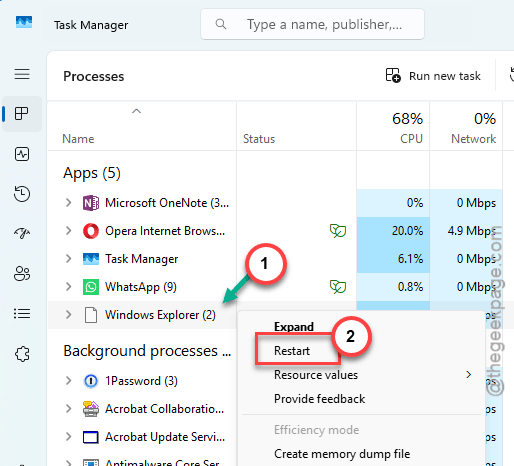
Now try unpinning again. Sometimes the change was made — the list just never refreshed to show it. A restart forces the refresh. Worked? Done.
Fix 2 – Clear File Explorer History and Restore Defaults
Wiping the Quick Access history clears simple visual hangs. This is the gentle option — try it before the command-line stuff.
1 – Right-click the Start button and click File Explorer. Or just press Windows + E.
2 – Next, tap the (⋯) button on the top menu bar.
3 – Click Options. The Folder Options window opens.
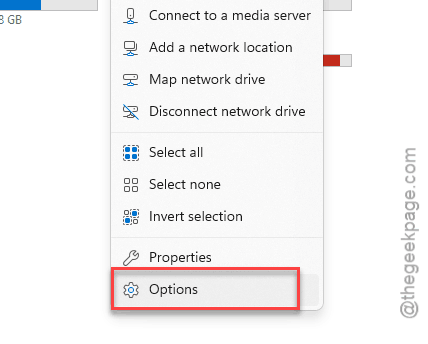
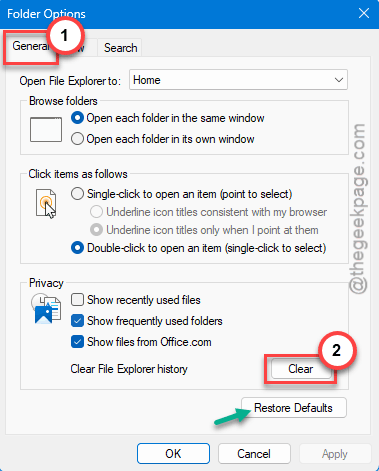
4 – Make sure you’re on the General tab.
5 – Look at the Privacy section near the bottom. Click the Clear button.
6 – Right below that, click Restore Defaults.
7 – Click Apply, then OK.
Now try pinning and unpinning a folder. If the list finally responds — you’re done.
Fix 3 – Force Reset Quick Access From Command Prompt
If clearing the history didn’t take, the hidden data files are corrupted. You have to purge them by hand.
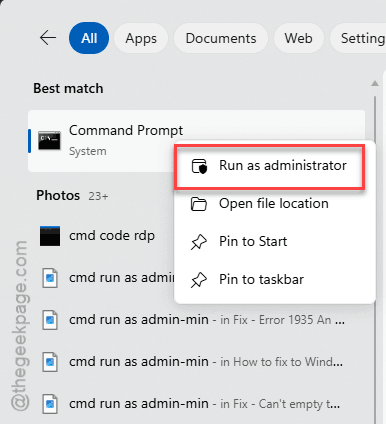
1 – Press the Start button, type CMD, and right-click Command Prompt.
2 – Click Run as administrator.
3 – Copy-paste this line from here, then press Enter:
del %appdata%\microsoft\windows\recent\automaticdestinations\*
4 – Now paste this second line and press Enter:
del %appdata%\microsoft\windows\recent\customdestinations\*
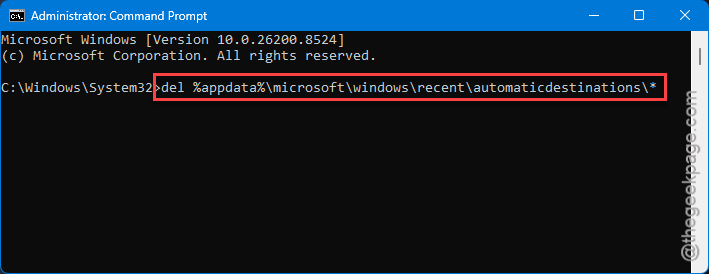
5 – Close the window. Restart your PC.
When it boots back up, Quick Access will be empty.
Fix 4 – Delete Just the Quick Access Pin File
Don’t want to wipe everything? There’s one specific file that holds the pinned items.
1 – Open Command Prompt as administrator (Fix 3, steps 1-2).
2 – Paste this exact line and press Enter:
del /f /s /q /a "%AppData%\Microsoft\Windows\Recent\AutomaticDestinations\f01b4d95cf55d32a.automaticDestinations-ms"
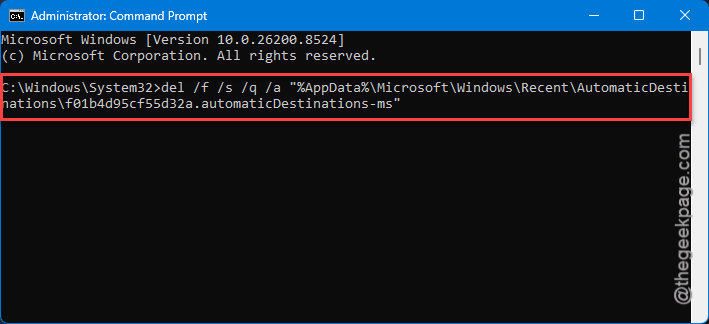
3 – Close the window.
That file (the long f01b4d95 one) is the Quick Access pin list specifically. Deleting it forces Windows to build a clean one. More surgical than Fix 3.
Fix 5 – Disable Third-Party Shell Extensions
Still stuck? Then something is intercepting File Explorer. Cloud apps and antivirus are the usual offenders. A free Microsoft tool lets you switch them off temporarily to test.
1 – Go to AutoRuns and download the Autoruns tool.
2 – Then, extract the zip. Right-click the Autoruns.exe, and tap Run as administrator.
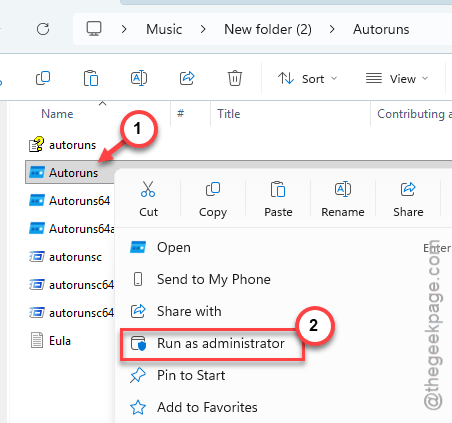
3 – Go to the Explorer tab at the top.
4 – Find for non-Microsoft entries — especially OneDrive, Dropbox, or your antivirus.
5 – Untick the box next to each one to disable it. (You can re-check them later.)
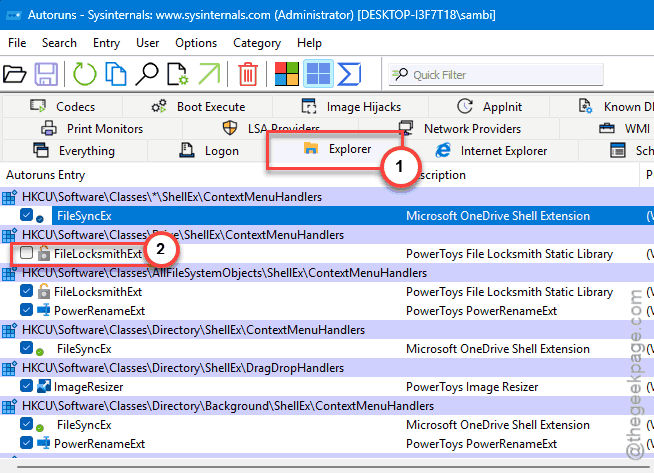
6 – Restart Windows Explorer through Task Manager.
Test Quick Access now.
How to Prevent This
– Don’t pin folders that live on a slow or disconnected drive. Quick Access waits on them and gums up the whole list.
– Keep OneDrive and Dropbox updated. Their File Explorer hooks cause most of the “won’t refresh” issues, and updates fix a lot of it.
– Clear File Explorer history every so often. Stops the cache from bloating in the first place.
– Restart Explorer instead of force-rebooting when the list acts up. Faster, and usually enough.
People Also Ask
Why can’t I unpin a folder from Quick Access?
The pin data file is probably corrupted, so Windows can’t rewrite it when you click unpin. Restart File Explorer first. If that fails, open Command Prompt as admin and delete the AutomaticDestinations files — that resets the pin list and the unpin will finally stick.
How do I fix Quick Access in File Explorer?
Start gentle: open Folder Options, go to the General tab, and use Clear plus Restore Defaults under Privacy. If Quick Access is still frozen, force a reset from Command Prompt by deleting the hidden destination files. Reboot, and Windows rebuilds a clean list.
Will resetting Quick Access delete my files?
No. Resetting only clears the pins and the recent-items list — the shortcuts, basically. Your actual folders and documents stay exactly where they are. After the reset, Quick Access just starts empty, and you re-pin whatever you want.