Does the File Explorer crash instantly trying to load up the items of the Quick Access? Some users have experienced the same scenario where the whenever they are trying to access the Quick Access, it is crashing the entire File Explorer. Here are the solutions that will help you fix the quick access crashing issue.
Fix 1 – Clean up the Quick Access Cache Files
Sometimes corrupted Quick Access cache files can lead to this issue.
Step 1 – Press Win+R buttons to load up a Run box.
Step 2 – Input this address there, and click OK.
%AppData%\Microsoft\Windows\Recent\AutomaticDestinations
Step 3 – Delete all the cached contents of that folder.
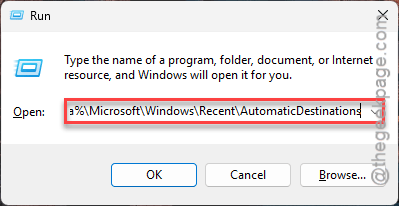
This should fix the issue that you are having with the Quick Access utility.
Fix 2 – Clear the File Explorer History and Restart it
Remove the File Explorer history and, restart the File Explorer process.
Step 1 – Open the File Explorer but don’t go to the Quick Access tab, yet.
Step 2 – Next, tap the three-dot button in the menu bar and choose Options.
Step 3 – In the Folder Options page, go to the General tab.
Step 4 – Next, tap the Clear button next to the Clear File Explorer history to clear the explorer history.
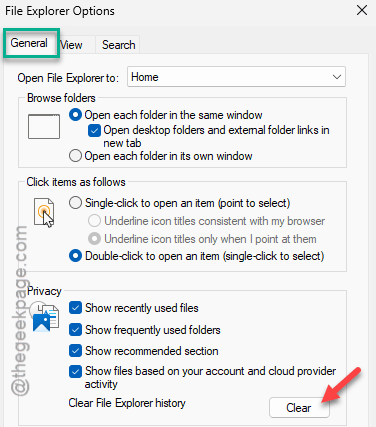
Step 5 – After clearing the cached folder, press the Ctrl+Shift+Esc buttons together to open the Task Manager.
Step 6 – Find the File Explorer process. Next, right-tap that, and tap Restart to reboot the process.
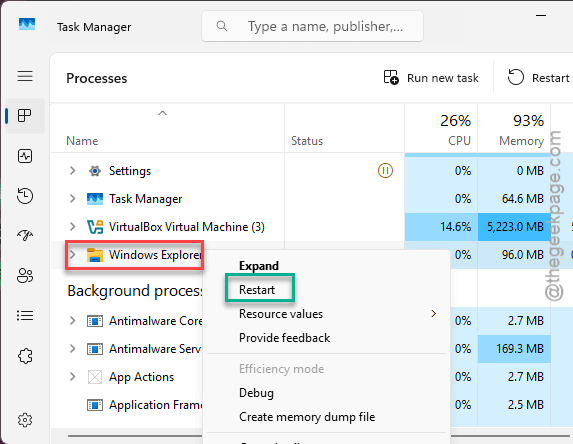
As soon as the File Explorer is accessible, load up the Quick Access tab and check again.
Fix 3 – Run SFC, DISM scans
Sometimes, a system file corruption may lead to such problem with the Quick Access. This will definitely fix your issue.
Step 1 – At first, type cmd in the Windows search box.
Step 2 – Next, right-click the Command Prompt in there, and tap Run as administrator.
Step 3 – Then, copy-paste these codes one-by-one in the CMD terminal. Then, hit Enter to run the scans.
Dism /Online /Cleanup-Image /RestoreHealth
sfc /scannow
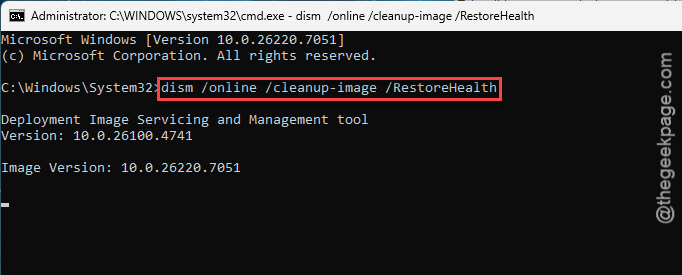
After running both these scans, reboot the device once. Later, check on with the
Fix 4 – Disable the Recent Files in Quick Access settings
You can disable the recently used files and frequently used files from appearing in the Quick Access tab.
Step 1 – Load up a Run box using Win+R shortcut.
Step 2 – Then, put this in there and hit Enter to load up the Folder Options.
control folders
Step 3 – Make sure in the General tab.
Step 4 – Reach the privacy section there and uncheck these two items there.
Show recently used files
Show frequently used folders
Show files from Office.com
Show files based on your account and cloud provider activity
Step 5 – Finally, tap the Apply and OK buttons consecutively to save the changes.
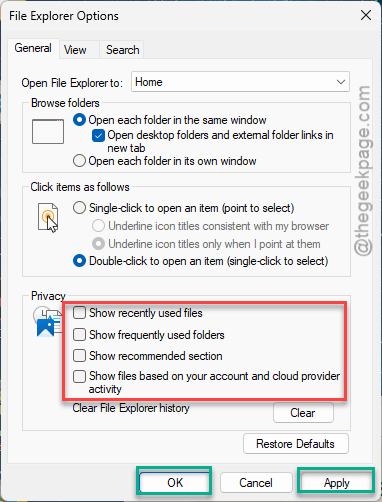
Once you have applied this changes, return to the quick access tab in the File Explorer, to check whether it is crashing or not.
How to fix Quick Access in Windows 11
If the File Explorer on your Windows 11 machine, you can follow these steps –
1. Open the File Explorer. Tap the three-dot button, and tap the Options.
2. In the Folder Options panel, check the Show recently used files and Show frequently used folders feature.
3. Apply and Save the changes, and you will find the Quick Access working in the File Explorer.
Why the File Explorer keeps crashing in Windows 11?
The reason behind the File Explorer crashing can be anything between corrupted system files to corrupted file packages you have on your sytem. Restarting the File Explorer from the Task Manager should resolve the issue. However, if that does not fix the issue, running the SFC, DISM scan should fix the problem.