You hit the Web Clipper icon. It spins forever. Or it loads, but the sign-in screen never appears. Sometimes it just goes blank.
You’re trying to clip an article in five seconds. Now it’s been five minutes. Frustrating.
Why This Happens
Basically? OneNote Web Clipper is an extension that needs to talk to Microsoft’s servers through your browser. And modern browsers are increasingly hostile to extensions doing that.
A few things break it. Third-party cookies blocked by default. Strict tracking prevention. Site permissions reset after an update. Conflicting extensions stomping on each other.
And InPrivate or Incognito mode? Forget it. The clipper needs persistent cookies to stay signed in. Private browsing kills those by design.
Sometimes the OneNote service itself is down. Less common, but it happens. Worth checking before you tear apart your browser settings.
Fix 1 – Allow Third-Party Cookies for OneNote
The most common cause. Browsers block third-party cookies by default now. OneNote Web Clipper needs them. Has to be done.
1 – Open Chrome (these steps are similar on Edge — same engine).
2 – Click the three dots (⋯) in the top-right corner.
3 – Click Settings.
4 – Click Privacy and security in the left sidebar.
5 – Click Third-party cookies.
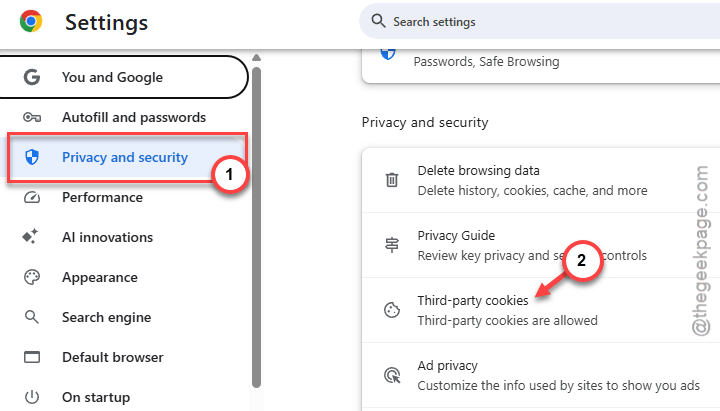
6 – Under Sites allowed to use third-party cookies, click Add.
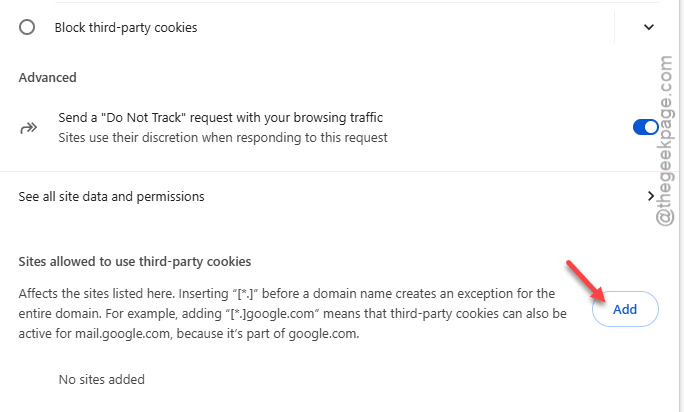
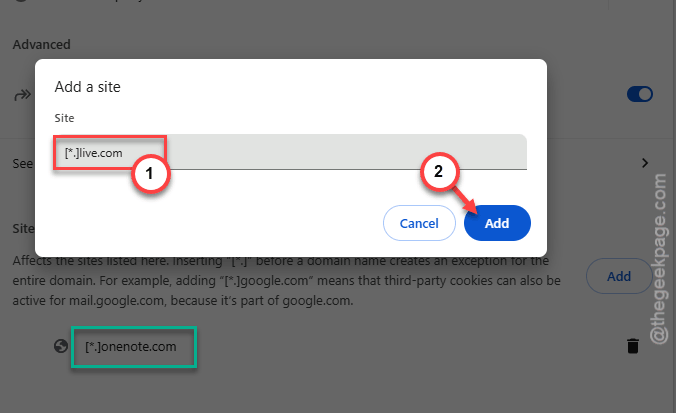
7 – Type [*.]onenote.com and click Add.
8 – Click Add again. Type [*.]live.com. Click Add.
9 – Restart your browser.
Try the clipper now. Most people are done at this step.
Fix 2 – Check the Extension’s Site Permissions
Browsers sometimes restrict what sites extensions can run on. Web Clipper needs access to every site you might want to clip from.
1 – Open Chrome.
2 – Click the three dots (⋯) > Extensions > Manage extensions.
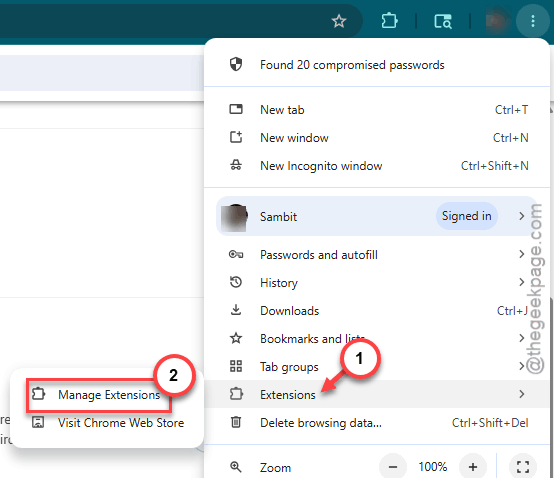
3 – Find OneNote Web Clipper in the list.
4 – Click Details.
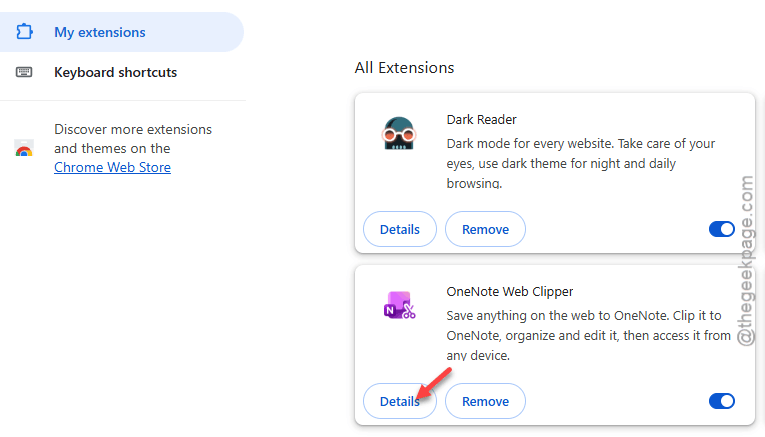
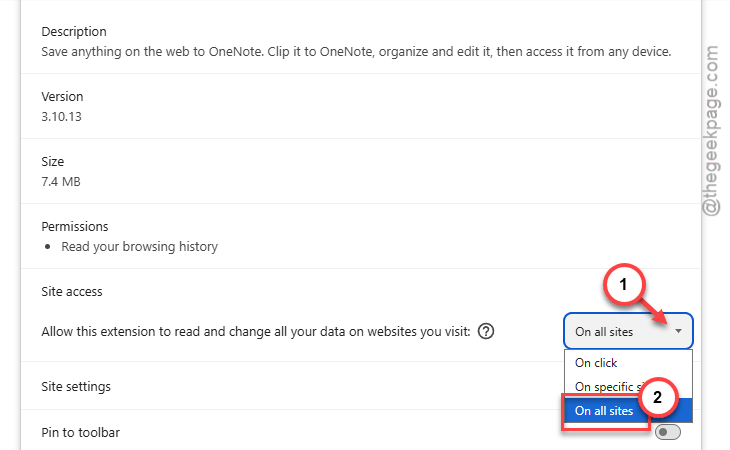
5 – Scroll down to Site access.
6 – Set it to On all sites.
7 – Restart the browser.
Lower-access modes (“On click” / “On specific sites”) break Web Clipper on most pages. Has to be “On all sites.”
Fix 3 – Disable Other Extensions Temporarily
Quick test. Some extensions — ad blockers, privacy tools, password managers — interfere with Web Clipper. Disable them one at a time to find the culprit.
1 – Open Chrome.
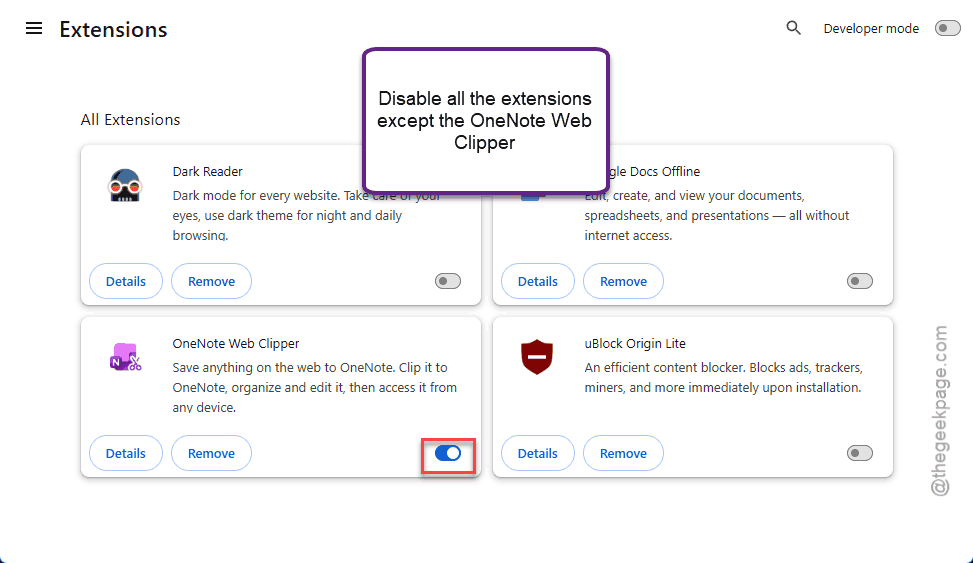
2 – Click three dots (⋯) > Extensions > Manage extensions.
3 – Toggle every extension except OneNote Web Clipper to Off.
4 – Restart the browser.
5 – Try the clipper. Works now? Re-enable extensions one at a time until something breaks it.
Tedious. But the only way to find a conflicting extension. Usually it’s an ad blocker or privacy guard.
Fix 4 – Turn Off Strict Tracking Prevention
Edge and Brave especially. They block third-party tracking by default — and Web Clipper looks like tracking to them.
On Edge:
1 – Open Edge.
2 – Click the three dots (⋯) in the top-right.
3 – Click Settings.
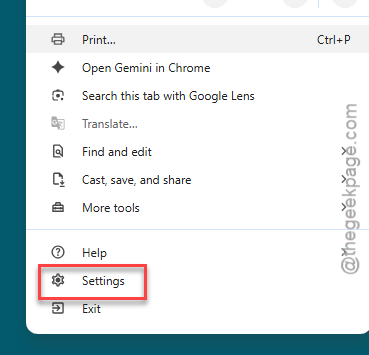
4 – Click Privacy, search, and services in the sidebar.
5 – Under Tracking prevention, switch from Strict to Balanced.
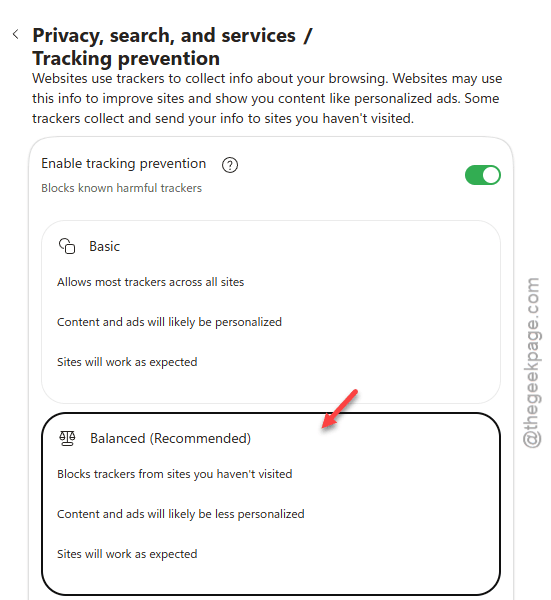
6 – Restart the browser.
Now try the clipper. If it works, you’ve found the issue. You can flip tracking prevention back to Strict later — just add onenote.com as an exception.
Fix 5 – Clear Cache and Cookies
If permissions are right but Web Clipper still acts up, stale browser data is probably to blame. Cookies expire. Cache files get corrupted. Wipe and refresh.
1 – Open Chrome.
2 – Press Ctrl + Shift + Delete. A clearing dialog opens.
3 – Set Time range to All time.
4 – Check Cookies and other site data and Cached images and files.
5 – Click Clear data.
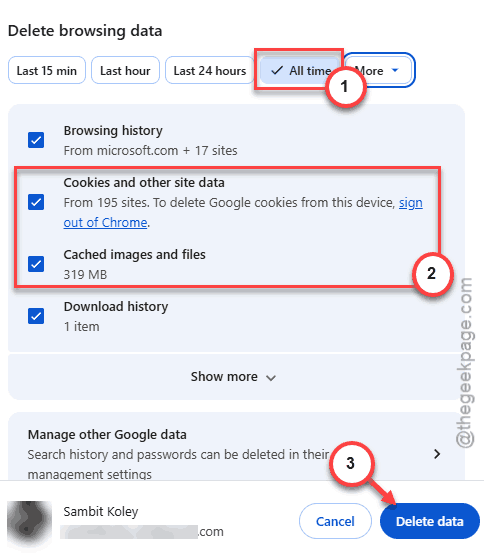
6 – Restart the browser. Sign back into OneNote and try the clipper.
You’ll be logged out of every site. Annoying. But it works.
Fix 6 – Use the Screen Clip Shortcut Instead
Workaround for the truly stuck. If Web Clipper just won’t cooperate, Windows has a built-in screenshot tool that talks to OneNote.
1 – Open the article or page you want to clip.
2 – Press Shift + Windows + S. The screen dims.
3 – Drag a box around what you want to clip.
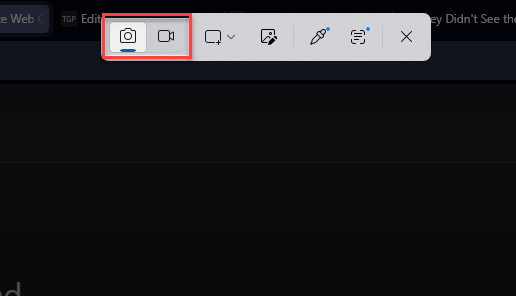
4 – The clip goes to your clipboard.
5 – Open OneNote. Pick the page where you want the clip.
6 – Press Ctrl + V. Done.
Not the prettiest workaround. But it gets the job done for full articles too — use the Print feature, pick OneNote as the printer, and the whole page lands in your notebook.
How to Prevent This
- Keep OneNote Web Clipper on On all sites permissions. Lower access modes break it constantly.
- Allow third-party cookies for onenote.com and live.com. Don’t make these one-time exceptions — make them permanent.
- Use a normal browser tab. Not Incognito. Not InPrivate. The clipper needs persistent cookies.
- Set the screen clip shortcut (Shift + Win + S) as a backup. It works when the clipper doesn’t.
People Also Ask
Is OneNote having issues right now?
Do test whether the Microsoft’s service status page at Service Health. If OneNote or OneDrive is listed as having an active incident, that’s your answer. Most clipper failures aren’t outages though — they’re cookie or extension permission problems on your end.
How do I enable screen clipping in OneNote?
Just press Shift + Windows + S anywhere in Windows. Drag a box around what you want. The clip goes to your clipboard. Then paste it into OneNote with Ctrl + V. Works even when Web Clipper is broken.