The Quick Assist is Microsoft’s own remote management utility that users can use to access their relative’s PCs remotely. But, some of the users have recently complained of the Quick Assist being too slow to use it effectively. Smooth performance in Quick Assist primarily requires having proper network connection on the both the devices. But, if it satisfies that requirement and the Quick Assist still lagging, these solutions will help you resolve the issue.
Fix 1 – Check the network on both connected devices
The remote management of a device needs a high quality, stable network connection to work properly. Both the host and guest device for the seamless connection and control. If any of the device is connected to a poor network with low bandwidth, they will experience lags in the remote sessions managed in Quick Assist.
Fix 2 – Repair or Reset the Quick Assist
If you are still facing lag while establishing a remote connection via Quick Assist, try to repair or reset it.
Step 1 – At first, open Windows Settings and load up the Apps tab.
Step 2 – Next, load up the Installed Apps tab.
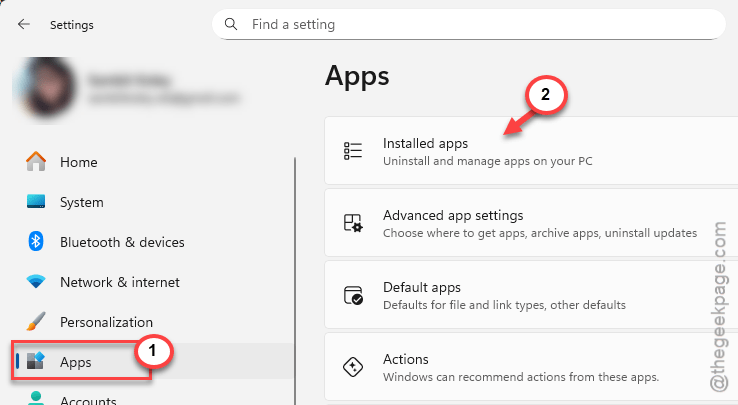
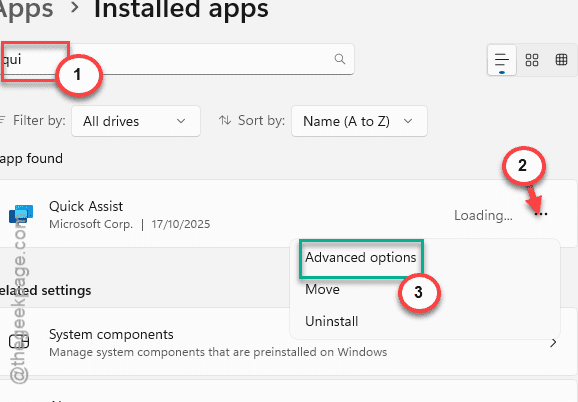
Step 3 – Then, search for Quick Assist and locate the app there.
Step 4 – Finally, once you have found the app, tap the three-dot button next to it, and tap Advanced options.
Step 5 – Now, use the Repair function there to repair the app first.
After repairing the app, retry setting up a connection with the other system remotely.
Step 6 – If it still doesn’t work, tap the Reset option to reset the Quick Assist feature.
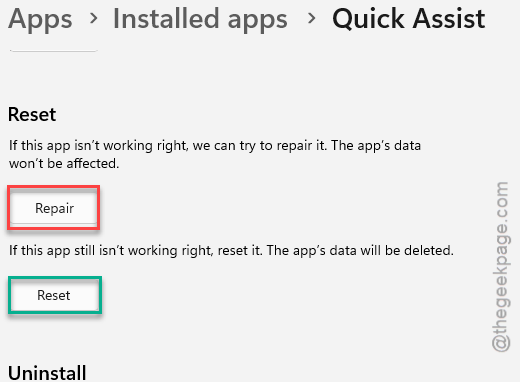
This should reset the Quick Assist to system default. Load up the app and sign in normally.
Fix 3 – Uninstall and reinstall Quick Assist
You can uninstall the Quick Assist app or tool from your system, and later, reinstall the app.
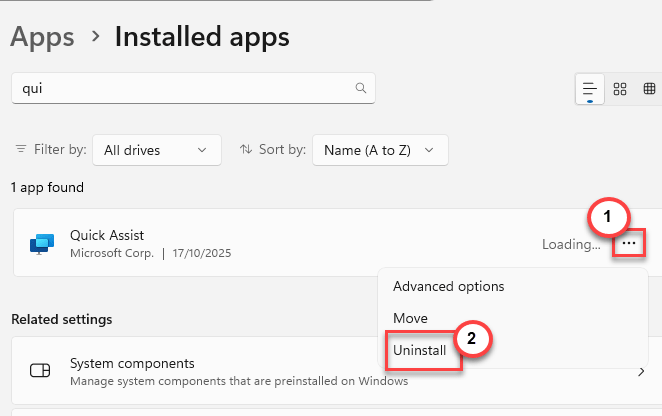
Step 1 – Go to the Apps tab in Windows Settings. Later, reach the Installed Apps section.
Step 2 – Search for the Quick Assist app from there.
Step 3 – Now, tap the three-dot button next to the Quick Assist app, and tap Uninstall to uninstall the app.
Step 4 – Once you have uninstalled it, proceed to the Microsoft Store.
Step 5 – You can search and reinstall the Quick Assist app directly from there.
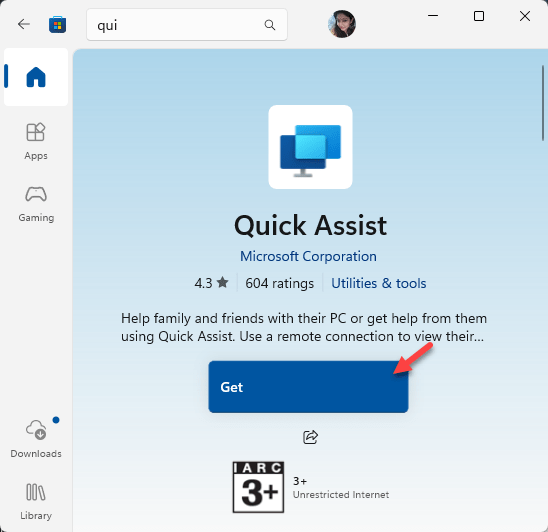
Use the Quick Assist app now, and try to set up the remote connection.
Fix 4 – Use Free Third-party solutions
If the Quick Assist utility is still giving you a hard time, you should look at other free alternative remote management utilities. Here is the list of available remote management utilities –
Chrome Remote Desktop – You can connect to and manage other PCs remotely directly from Chrome browser.
Microsoft Remote Desktop – Microsoft’s another remote desktop utility that works similar to Quick Assist.
RustDesk – Open-source, free and fast utility and widely used by users.
These are three free, safe and widely popular remote management tools that can easily take the place of Quick Assist on your desktop.
What is Quick Assist for Windows and Do I need it?
Quick Assist is a built-in Windows utility that lets you connect to friend’s or relatives computers or, let you, share your own PC with others. This remote management utility comes pre-installed on many Windows device. However, users can install the Quick Assist from the Microsoft Store.
Is it okay to uninstall Quick Assist?
Yes. Quick Assist is not an essential feature on Windows. It does let you connect to your friends or other PCs, or let you share your system with your closed ones, this is an optional feature. If you don’t need it, you may uninstall it from your Windows machine. You can reinstall the Quick Assist directly from Microsoft Store any time you want.