You double-click a ZIP file. Nothing happens. Or worse — Windows throws some weird error about “compressed (zipped) folder is invalid.” Annoying. And it always seems to happen with the file you actually need right now.
Why This Happens
A few things cause this. The download was incomplete — you lost connection halfway. Or, a different compression system was used by a third-party tool to create this zipped file.
And sometimes it’s not even the ZIP. Your antivirus is blocking the extraction. Or your drive is too full.
But the good news? Most of these are fixable in under a minute. Try them in order.
Fix 1 – Try 7-Zip Instead of Windows
This fixes more cases than anything else. Windows’ built-in ZIP tool is pretty basic. Files made with WinRAR, 7-Zip, or anything fancy often won’t extract through it. 7-Zip handles them no problem.
1 – Open your browser and go to 7-zip.
2 – Download the 64-bit Windows installer. It’s the second link on the page.
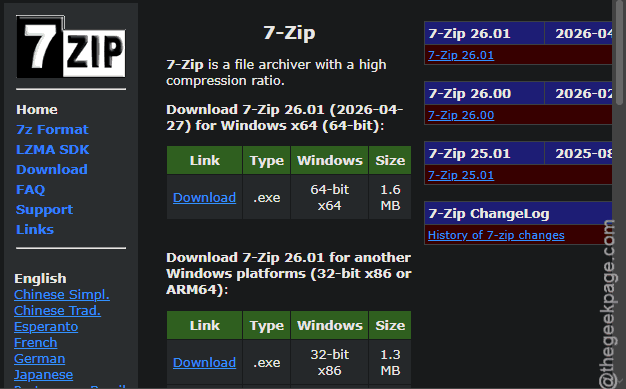
3 – Run the installer. Click Install, then Close. Takes 10 seconds.
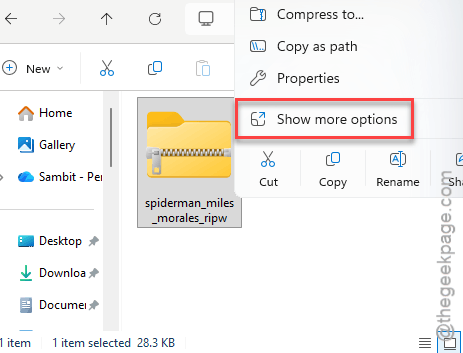
4 – Right-click your stubborn ZIP file in File Explorer.
5 – On Windows 11, click Show more options first. Then hover over 7-Zip.
6 – Click Extract Here or Extract to [folder name].
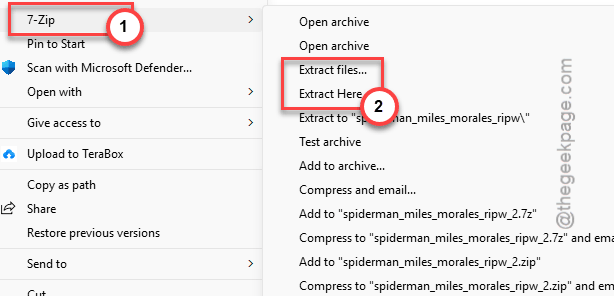
Done. 7-Zip is more forgiving and reads more formats than Windows ever will.
Fix 2 – Move the File Off OneDrive First
If your ZIP is sitting in a OneDrive folder, this might be your whole problem. Files On-Demand keeps them as cloud-only. Windows tries to extract a placeholder. Fails.
1 – Go to the ZIP file in your OneDrive folder.
2 – Right-click it.
3 – Click Always keep on this device. Wait for the green checkmark to appear.
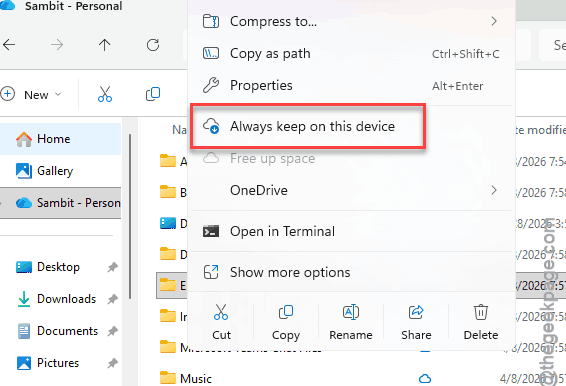
4 – Or just drag it out of OneDrive entirely. Move it to your Desktop or Downloads folder.
5 – Now try extracting it again.
Fix 3 – Use Extract All, Not Double-Click
A lot of people just double-click a ZIP and treat it like a normal folder. That’s not extracting — it’s previewing. The actual files never get unpacked.
1 – Right-click the ZIP file in File Explorer.
2 – Click Extract All… from the menu.
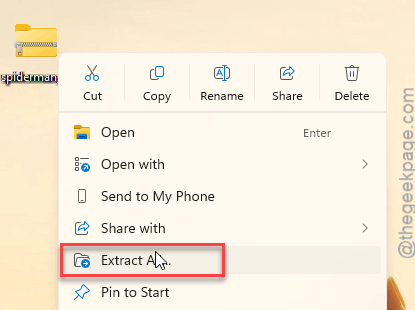
3 – A window opens. Pick where you want the files to go.
4 – Tick Show extracted files when complete if you want.
5 – Click Extract.
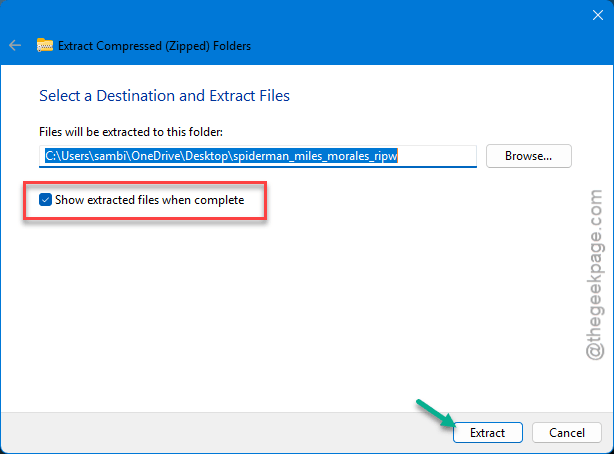
Now you have actual files instead of a fake “folder.”
Fix 4 – Free Up Some Disk Space
Quick check. ZIP files can be tiny but unzip into massive amounts of data. If your drive is nearly full? Extraction silently fails. Press Windows + E, click This PC, look at your C: drive bar. Red? You need space. Empty Recycle Bin, run Disk Cleanup, uninstall stuff you don’t use.
Fix 5 – Re-download the File
If the ZIP came from the internet and broke during download, you’ve got a corrupted file. No fix beats just grabbing it again.
1 – Delete the bad ZIP. Don’t keep it around.
2 – Open your browser and download it again. From the same source.
3 – Use a stable connection. Not flaky public Wi-Fi.
4 – If the download has a checksum or hash listed on the source page, verify it. PowerShell command:
Get-FileHash -Path "C:\path\to\file.zip" -Algorithm SHA256
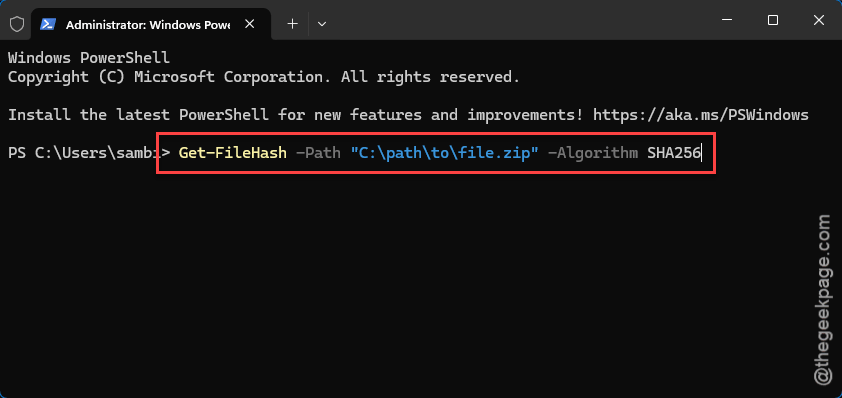
5 – Compare the hash to what’s on the website. Match? Good file. Different? Download corrupted. Try again.
Fix 6 – Repair the ZIP With WinRAR
If you can’t re-download — say it’s the only copy you have — try repairing it. WinRAR has a built-in repair function that fixes a lot of common ZIP damage.
1 – Download WinRAR from win-rar.com if you don’t have it.
2 – Install it. Default options are fine.
3 – Open WinRAR from the Start menu.
4 – Browse to your broken ZIP file using the address bar at the top.
5 – Click the ZIP once to select it.
6 – In the top toolbar, click Tools.
7 – Click Repair archive. Or press Alt + R.
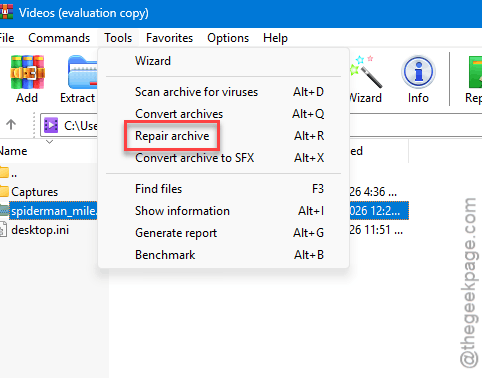
8 – Pick a destination folder for the repaired file.
9 – Tick Treat the corrupt archive as ZIP.
10 – Click OK. Wait for it.
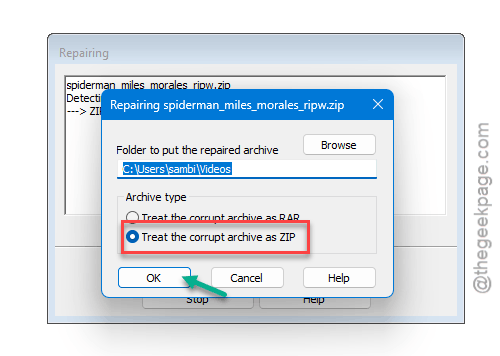
You’ll get a new file called rebuilt.[name].zip. Try extracting that one. Sometimes you only get partial recovery, but partial is better than nothing.
Fix 7 – Pause Your Antivirus Briefly
Some antivirus tools — especially aggressive ones — block ZIP extraction if anything inside looks remotely suspicious. False positives happen. A lot.
1 – Find your antivirus icon in the taskbar. Usually near the clock.
2 – Right-click it and look for Pause protection or similar wording.
3 – Pause it for 10–15 minutes. Don’t go longer.
4 – Try extracting your ZIP again.
5 – Re-enable protection immediately after. Don’t forget. Seriously.
If extraction worked with antivirus paused, the file’s likely fine — your security software is just trigger-happy. Add the folder to your antivirus exclusions if you trust the source.
How to Prevent This
- Install 7-Zip and use it as your default. Way more reliable than Windows. Free, no ads, handles every format.
- Don’t extract files directly from OneDrive folders. Move them out first. Trust me on this one.
- If you’re downloading large ZIPs, use a download manager. They auto-resume on broken connections. Saves you from corrupt files.
- Keep at least 10–15 GB free on your C: drive. Tight on space causes weird failures everywhere.
People Also Ask
Why won’t my ZIP file extract on Windows 11?
Probably one of three things. The file is corrupted from a bad download. It was created with a third-party tool Windows can’t read. Or your ZIP is sitting in OneDrive as a cloud-only placeholder. Try 7-Zip first — it fixes most of these without you even thinking about it.
Why does Windows say my ZIP file is invalid?
Windows is strict about ZIP format. Files compressed with non-standard methods or encryption will throw that error even when 7-Zip opens them fine. Skip Windows entirely. Use 7-Zip or WinRAR. Both handle a much wider range of ZIP variants.