Snipping Tool just won’t close. You hit X. Nothing happens. You try Alt + F4. Still there. The thing keeps popping back up on its own. Annoying.
Why This Happens
Short version? The Print Screen key is the culprit nine times out of ten. Windows 11 mapped it to launch Snipping Tool by default. So every stray keystroke (a stuck keyboard, a phantom press from a flaky driver) re-opens the app over and over.
But it’s not just the key. A glitchy update can leave the tool hanging in the background. The window disappears. The process doesn’t. And then it keeps re-spawning for no clear reason.
Older builds had a memory leak too. The app refused to release after a snip. Weird.
Fix 1 – Turn Off the Print Screen Shortcut
This is the big one. Disable it and most people’s problem just… goes away.
1 – Press Windows + I to open Settings. Way faster than clicking through Start.
2 – Click Bluetooth & devices on the left sidebar.
3 – Scroll down and click Keyboard.
4 – Find the option Use the Print Screen key to open screen capture.
5 – Toggle it Off.
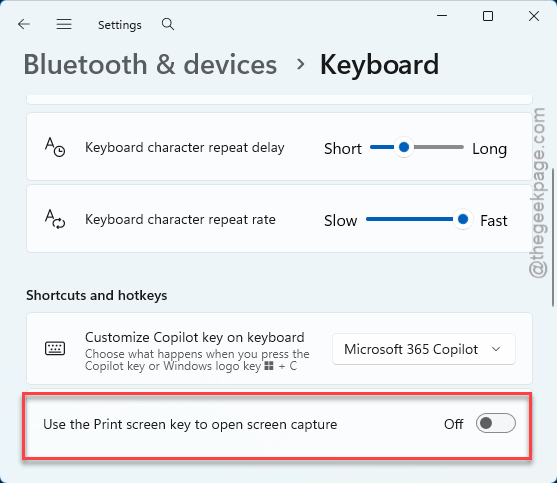
And restart your PC. The shortcut won’t trigger Snipping Tool anymore. You can still open the app from Search whenever you actually need it.
Fix 2 – Edit the Registry
Nuclear option for the Print Screen shortcut. Only do this if Fix 1 didn’t stick or the toggle was greyed out.
1 – Press Windows + R to open Run.
2 – Type regedit and press Enter.
3 – Paste this into the address bar at the top:
HKEY_CURRENT_USER\Control Panel\Keyboard
4 – On the right pane, find PrintScreenKeyForSnippingEnabled.
5 – Double-click it. Change Value data from 1 to 0.
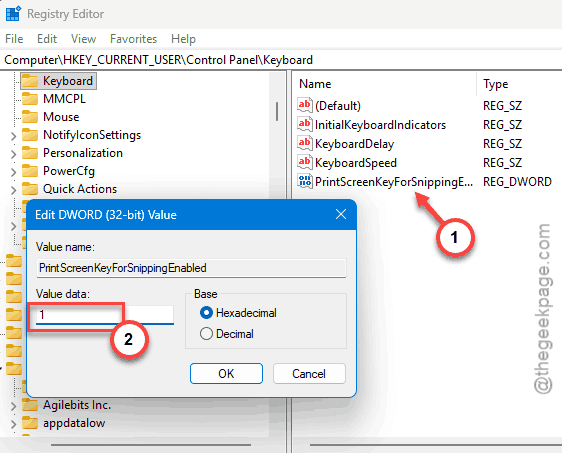
6 – Click OK and restart your PC.
If the key isn’t there? Skip this fix.
Fix 3 – Kill It From Game Bar
Quick one. Sounds weird. Works.
1 – Press Windows + G to open Game Bar.
2 – Click the widget menu icon at the top.
3 – Click Resources (yes, Game Bar has its own mini Task Manager built in).
4 – Scroll the running app list to find Snipping Tool.
5 – Click End task.
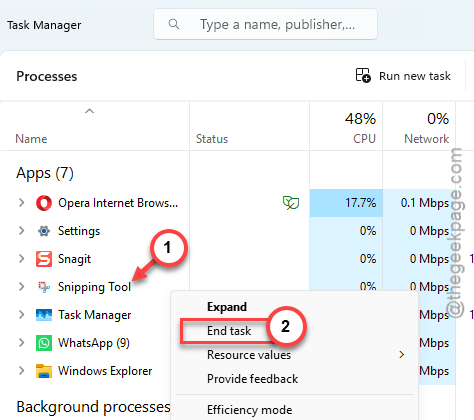
Done. Handy when regular Task Manager isn’t cooperating either.
Fix 4 – Repair or Reset the App
If Snipping Tool itself is the problem, Windows can fix it without a full reinstall.
1 – Press the Windows key and type Snipping Tool.
2 – Right-click the result and click App settings.
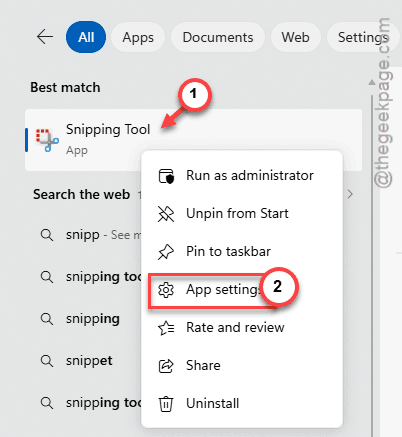
3 – Scroll down to the Terminate button. Click it. This kills every background instance of the app.
4 – Click Repair. Try opening and closing the tool again
5 – If that didn’t help, click Reset instead. This wipes the app’s internal data (not your saved screenshots).
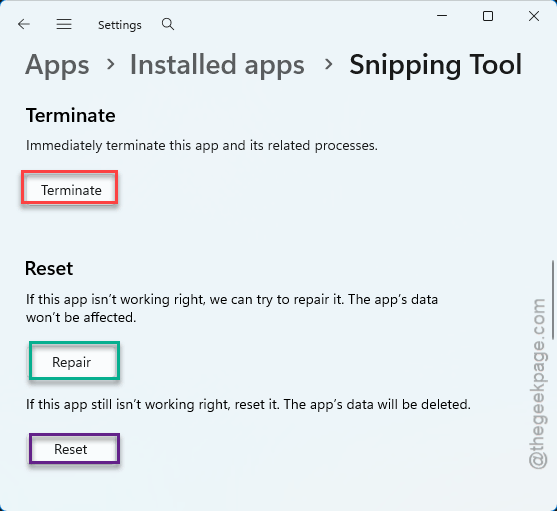
Repair first. Reset only if Repair fails. Order matters.
Fix 5 – The Shutdown-Cancel Trick
Weirdly effective. Sounds dumb.
Tap the the Start menu, and click Power. After this, tap the Shut down. Just the moment the shutdown process starts, click Cancel or press Escape to close that panel. Windows aborts the shutdown — and Snipping Tool gets killed along the way because shutdown forces non-document apps to close.
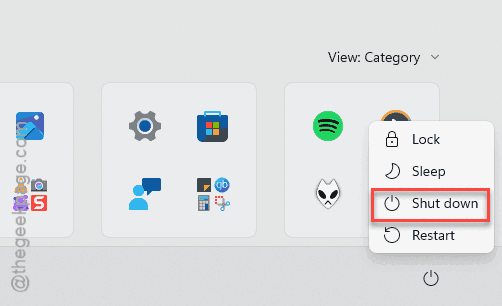
Not permanent. Just buys you peace until a real fix sticks.
Fix 6 – Clear Startup Entries
Sometimes Snipping Tool sneaks into your startup folder. Then it auto-launches every reboot and refuses to die.
1 – Press Windows + R.
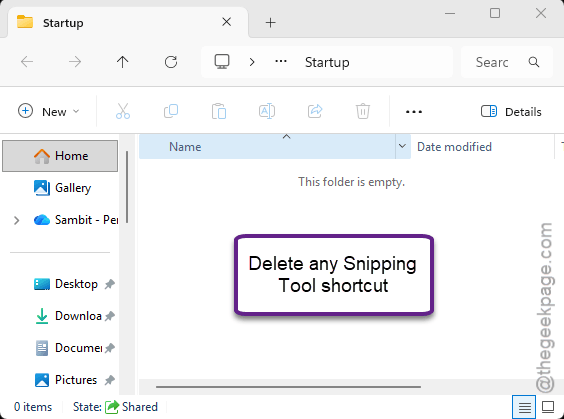
2 – Type shell:startup and press Enter. This opens your personal Startup folder.
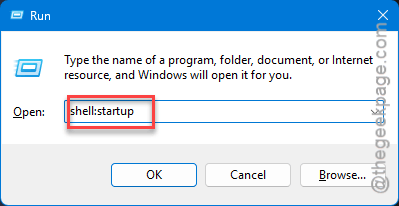
3 – Look for any Snipping Tool shortcut. Delete it.
4 – Open Task Manager with Ctrl + Shift + Esc.
5 – Click the Startup apps tab on the left.
6 – If Snipping Tool is listed and enabled, right-click and click Disable.
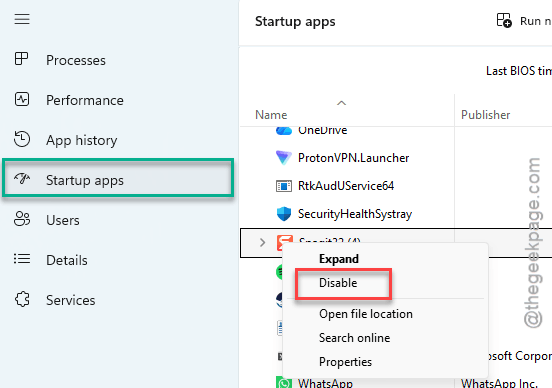
Restart. It shouldn’t load on boot anymore.
Fix 7 – Reinstall Snipping Tool
Last resort before going nuclear on Windows itself.
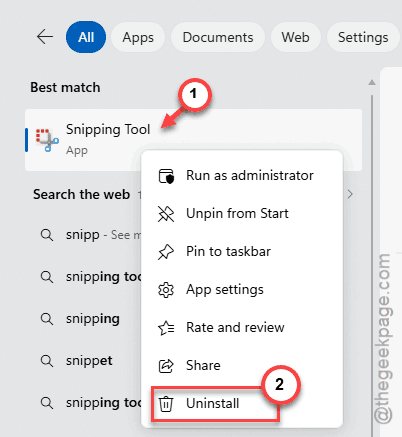
1 – Press Windows, type Snipping Tool, right-click the result, and click Uninstall.
2 – Open Microsoft Store.
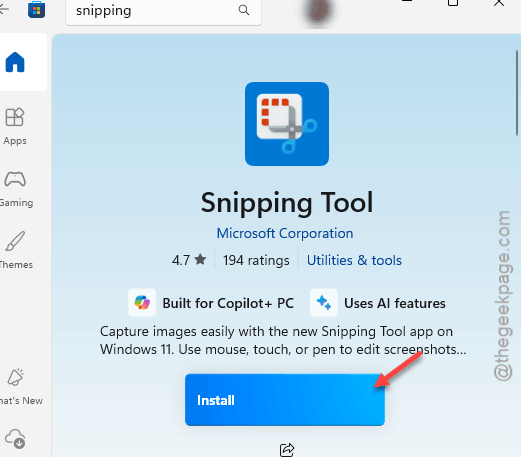
3 – Search for Snipping Tool.
4 – Click Get or Install.
5 – Restart your PC.
Fresh install. Fresh start. Usually solves the lingering issues.
How to Prevent This
- Keep Snipping Tool updated through Microsoft Store. Most “won’t close” bugs get patched fast.
- Don’t enable the Print Screen shortcut unless you actually use it. Single biggest cause of this whole mess.
- Skip third-party screenshot tools that hook into the same keys. They fight Snipping Tool for control. Bad time.
- Restart your PC after big Windows updates. Half the weird app glitches just disappear after one reboot.
People Also Ask
Why can’t I close the Snipping Tool?
Usually the Print Screen key keeps relaunching it in the background. Or the app crashed and won’t release the process. Try End task in Task Manager first. If it keeps coming back? Disable the Print Screen shortcut from Accessibility settings.
Why is Ctrl+Shift+S not working?
A pending Windows update sometimes breaks the shortcut. A third-party screenshot app might be stealing it. Or your Snipping Tool install is corrupted. Run Repair from App settings first. Then check if Snip & Sketch is still installed — uninstall it if so. The two apps clash.