You tick the grayscale box. Hit print. And out comes a full-color page. Or worse — nothing prints at all. Just queue errors.
Annoying. Especially when you’re trying to save ink.
Why This Happens
Short version? Grayscale settings live in three different places. Windows. The printer driver. And the app you’re printing from. Any one of them can override the others. Confusing, I know.
And Windows 11 made it worse. The Settings app and Control Panel show different controls. Some printer options only appear in the old Control Panel. Some only in the new app. So you toggle grayscale in one place and the other place silently ignores it.
Then there’s drivers. Bad printer drivers cause this constantly. Especially after a Windows update. And if your color cartridges are empty? Some printers refuse to print at all — even in grayscale. Yes, really.
Fix 1 – Set Grayscale in Printer Properties (Control Panel)
This is the main control. Not the Settings app. The old-school Control Panel one.
1 – Press Windows + R to open the Run dialog.
2 – Type control and press Enter.
3 – Change View by (top right) to Small icons.
4 – Click Devices and Printers.
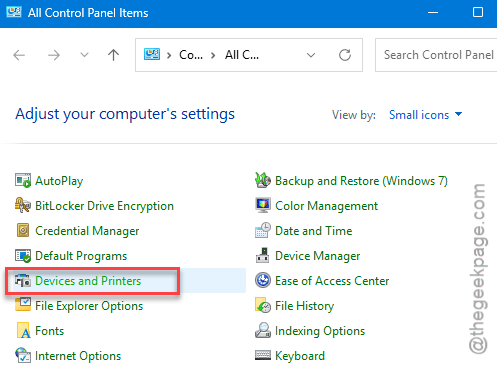
5 – Right-click your printer or open the printer.
6 – Click Printing preferences.
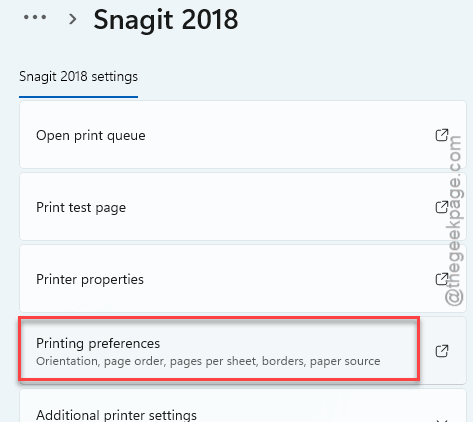
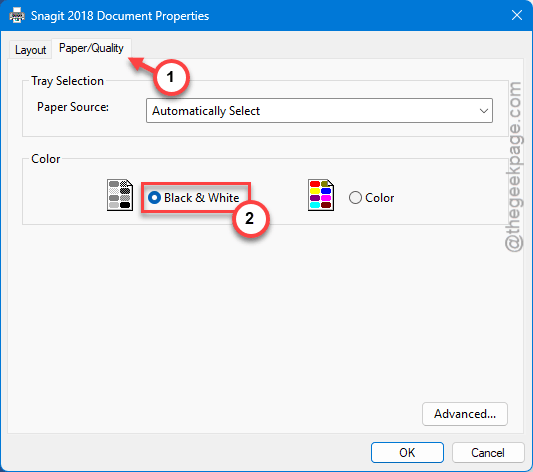
7 – Look for a Color tab or a Paper/Quality tab. (It varies by brand.)
8 – Tick Print in Grayscale or Black ink only.
9 – Click Apply, then OK.
Try printing again. Most of the time? Fixed.
Fix 2 – Override Inside the App You’re Printing From
The app you’re printing from has its own settings. And they override Windows. So even if grayscale is on system-wide, Word or Chrome might be sending color anyway.
In Word:
1 – Click File > Print.
2 – Pick your printer.
3 – Click Printer Properties (small link under the printer name).
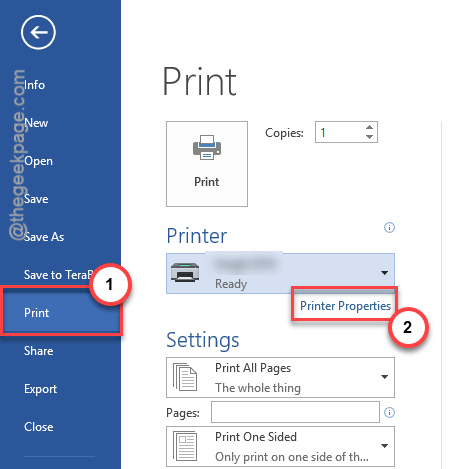
4 – Go to the Main tab.
5 – Tick Grayscale Printing.
6 – Click OK, then Print.
In Chrome or Edge:
Press Ctrl + P. Click More settings. Under Color, pick Black and white. Print.
Done.
Fix 3 – Check Your Ink Levels (Yes, Really)
This one is dumb. But it catches a lot of people.
Some printers — especially HP and Canon — refuse to print at all if ANY cartridge is empty. Even if you’re trying to print in grayscale. The logic? They use color cartridges to mix richer blacks. Empty color cartridge = no printing.
So check your ink.
1 – Load up the printer app (like – HP Smart, Canon IJ, Epson Smart, etc.).
2 – Look at the ink level dashboard.
3 – If any color is empty? Replace it. Even if you only need black.
Stupid design. But there it is.
Fix 4 – Reinstall the Printer (Quick Method)
When a Windows update breaks the printer driver, a clean reinstall fixes it. Here’s the quick version.
1 – Open Control Panel.
2 – Click Devices and Printers.
3 – Open the printer.
4 – Click Remove.
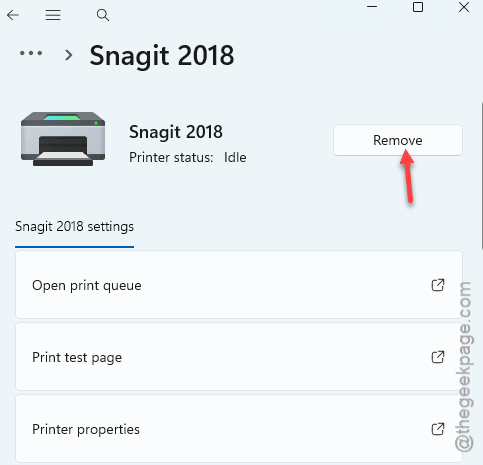
5 – Confirm. Wait a few seconds.
6 – Click Add a printer at the top.
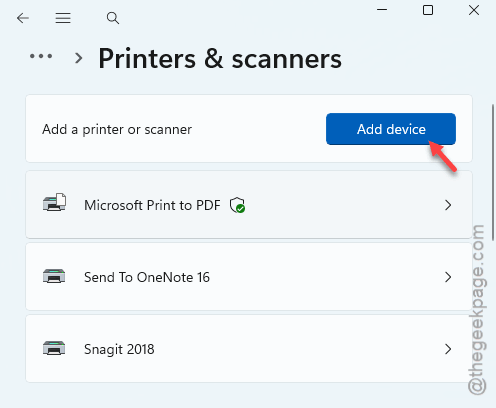
7 – If your printer shows up — pick it.
8 – If it doesn’t, click The printer that I want isn’t listed.
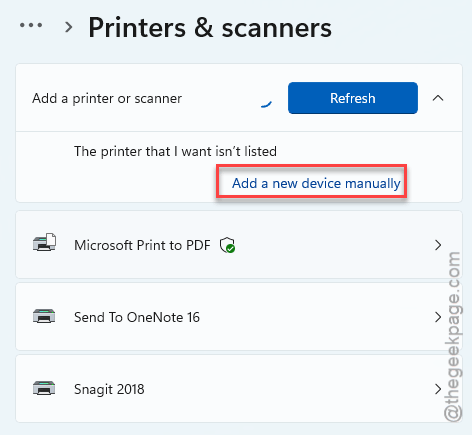
9 – Pick the option for adding an older printer manually.
10 – When prompted, choose Replace the current driver.
Reboot. Try grayscale again.
Fix 5 – Nuclear Reinstall (For Stubborn Drivers)
If the quick reinstall didn’t take, you’ve got driver gunk left over. Time to clean it out properly.
1 – Press Windows + I to open Settings.
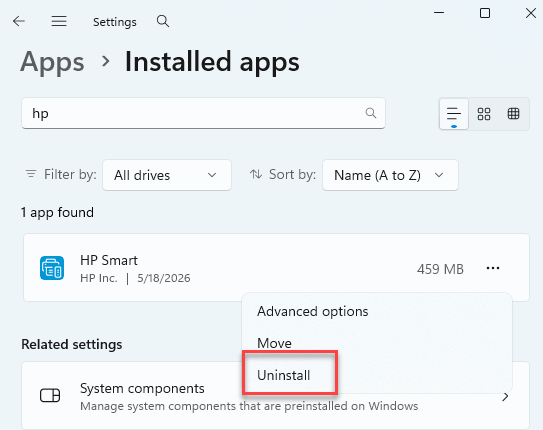
2 – Click Apps > Installed apps.
3 – Search for your printer brand (HP, Canon, Brother, Epson).
4 – Uninstall every related app and driver utility.
5 – Right-click the Start button.
6 – Click Device Manager.
7 – Expand Print queues.
8 – Right-click your printer.
9 – Click Uninstall device.
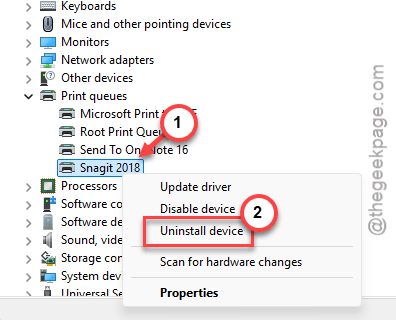
10 – Tick Attempt to remove the driver if it appears.
11 – Reboot.
12 – Download the latest driver from your printer maker’s website (not Windows Update — manufacturer site).
13 – Install. Reconnect the printer.
Takes 15 minutes. But fixes the worst driver issues.
Fix 6 – Set Grayscale as the Default
Tired of ticking the box every time? Make grayscale the default. Once. Done forever.
1 – Open Control Panel > Devices and Printers.
2 – Right-click your printer.
3 – Click or open the Printing preferences.
4 – Tick Print in Grayscale.
5 – Click Apply.
6 – Click OK.
Now every print job defaults to grayscale. Until you change it. Saves ink. Saves time.
How to Prevent This
- Set grayscale as the default in printer preferences.
- Don’t let color cartridges run completely empty even if you only print black. Some printers refuse to work otherwise.
- After a big Windows update, test print one page right away. Catches driver problems before you actually need to print.
People Also Ask
How to fix grayscale on Windows 11?
Three things to check. First, the printer properties in Control Panel. Second, the app you’re printing from — Word and browsers have their own toggles. Third, your ink levels. Some printers refuse to print grayscale if any color cartridge is empty. Weird but true.
Why is my printer printing in grayscale not color?
Opposite problem, same root cause. Grayscale is probably set as the default somewhere. Open Printing preferences in Control Panel and untick Print in Grayscale. Also check the app you’re printing from — that’s usually where the toggle is hiding.