You open Settings. The window appears. And it’s just… empty. No sidebar. No options. White space.
Or worse — half the options are gone. Display settings won’t open. Personalization throws errors. Annoying as hell.
Good news? It’s almost always fixable without losing anything. Here’s how.
Why This Happens
Here’s the deal. Windows 11 Settings isn’t one app. It’s a bunch of small modules glued together. When one breaks — like Display or Personalization — it can take the whole window down with it.
And Fast Startup makes things worse. It doesn’t really shut your PC down. It just freezes the state. Corrupted Settings cache? It stays corrupted across reboots. Not ideal.
Sometimes a Windows update is the culprit. Files get overwritten halfway. The Settings app tries to load components that don’t exist anymore. Just blank. No error.
Fix 1 – Do a Full Shutdown (Not a Restart)
Quick one. And way more effective than people realize.
Click Start. Click the power icon. Hold the Shift key — keep it pressed — and click Shut down.
Wait a full minute. Then turn the PC back on. This forces a complete shutdown, not the fake one Fast Startup gives you. Clears the Settings cache from memory. Try opening Settings again.
Worked for a lot of people. Worth trying before anything bigger.
Fix 2 – Power Cycle the Hardware
Power Cycling your device can come in handy in this type of situations. Forces a true reset.
1 – Shut down Windows the normal way.
2 – Unplug the power adapter. If you are doing this on your laptop, don’t forget to remove the battery.
3 – Now, press and hold the power button down for 30 seconds or so. Yes, even with no power.
4 – Next, wait for 2-3 minutes.
5 – Plug everything back in order.
6 – Turn the PC on. Open Settings.
Sounds dramatic. But sometimes hardware components — including the ones that talk to Settings — get stuck in a weird state. This unsticks them.
Fix 3 – Re-register the Settings App via PowerShell
Try re-registering the Settings app.
1 – Press Windows + X.
2 – Click Terminal (Admin) or PowerShell (Admin) from the menu.
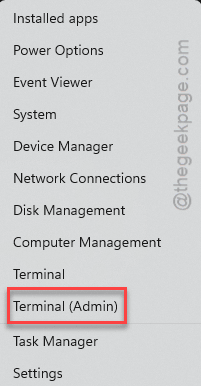
3 – Click Yes when Windows asks for permission.
4 – Paste this command exactly:
Get-AppxPackage *windows.immersivecontrolpanel* | Reset-AppxPackage
5 – Press Enter.
6 – Wait for it to finish. No output usually means it worked.
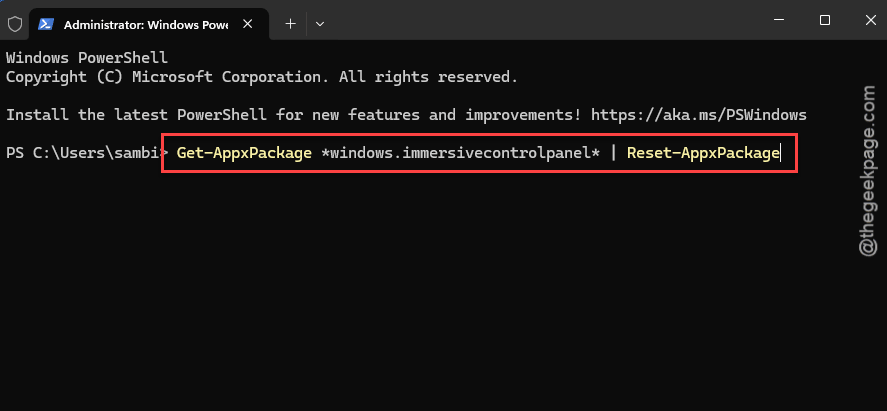
7 – Close the terminal. Open Settings again.
Quick fix. No restart needed.
Fix 4 – Force Recovery Environment and Uninstall Updates
If you are still having the issue, you should revert the recent Windows Updates.
1 – Hold the power button until the PC shuts off completely.
2 – Turn it back on. As soon as you see the Windows logo, hold the power button again to force another shutdown.
3 – Repeat this 2-3 times. Windows will boot into the Windows Recovery Environment automatically. It thinks something’s wrong (which, fair).
4 – Click Troubleshoot.
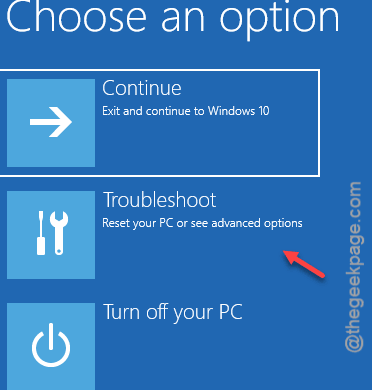
5 – Click Advanced options.
6 – Click Uninstall Updates.
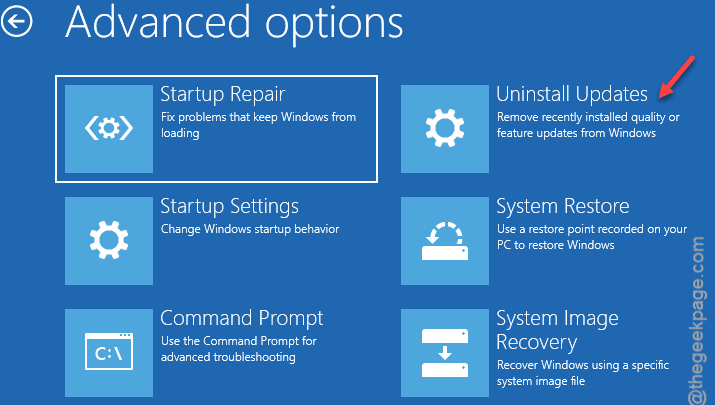
7 – Choose Uninstall latest quality update first. The smaller one.
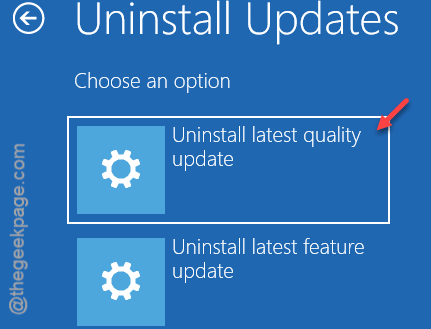
8 – If that doesn’t fix it, repeat and try Uninstall latest feature update.
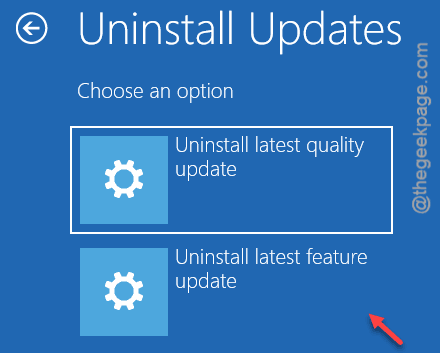
9 – Restart and check Settings.
Nuclear-adjacent option. But targeted. You’re only undoing what broke Settings, not your whole system.
Fix 5 – Run Startup Repair From Recovery
While you’re in the Recovery Environment from Fix 4, Startup Repair is worth a try. Sometimes it catches the broken bits.
1 – Get into Recovery the same way (force shutdown 2-3 times).
2 – Click Troubleshoot.
3 – Click Advanced options.
4 – Click Startup Repair.
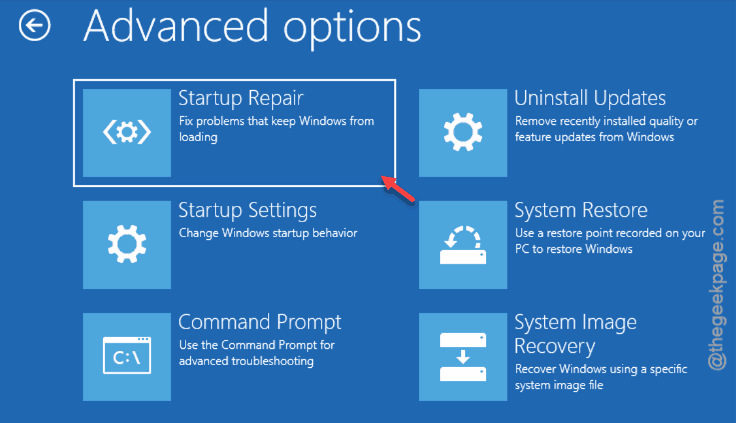
5 – Pick your account. Enter your password.
6 – Wait.
Sometimes it finds nothing. Sometimes it silently fixes the issue. Worth a shot before anything bigger.
Fix 6 – Repair Install Windows 11 (Keep Your Data)
Last resort. But, repairing the Windows with an ISO always works.
Before you start — disable any third-party antivirus. Suspend BitLocker if you have it on. You have to download a Windows 11 ISO from the official site.
1 – Double-click the ISO once to mount it. Or plug in a USB if you made one.
2 – Open the mounted drive and run setup.exe.
3 – Click Yes for the permission prompt.
4 – Click Change how Setup downloads updates. Select Not right now. Click Next.
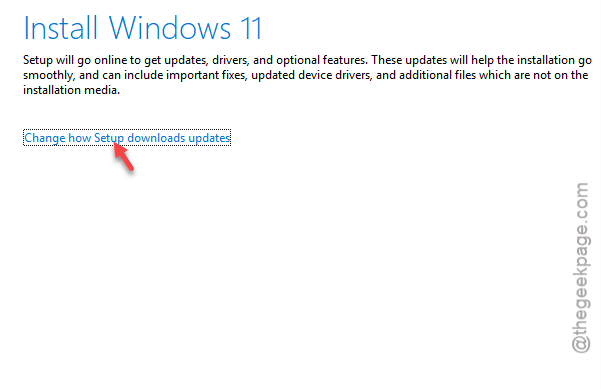
5 – Accept the license terms.
6 – Click Change what to keep. Critical step.
7 – Select Keep personal files and apps. Click Next.
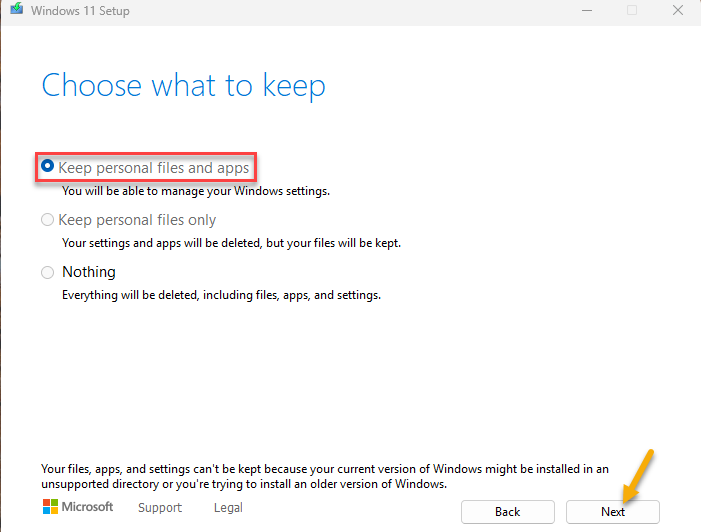
8 – If this option is grayed out — your ISO doesn’t match your system. Stop. Get the right ISO.
9 – Click Install. Walk away. The PC will reboot several times.
10 – Sign in normally when it’s done. Re-enable antivirus and BitLocker.
Takes an hour or so. But Settings will be brand new.
How to Prevent This
– You should disable Fast Startup.
– Refrain from updating your Windows immediately. Wait a week. Let Microsoft find the bugs first.
– Keep a Windows 11 ISO on a spare USB. So you’re not scrambling for one when Settings dies.
People Also Ask
How to fix corrupted settings in Windows 11?
First — do a full shutdown with Shift held while clicking Shut down. Then try re-registering the Settings app via PowerShell. If those don’t work, uninstall the latest update through Recovery Environment. Repair install is the last resort.
Is TPM 2.0 not needed anymore?
Still needed. Windows 11 requires TPM 2.0 for installation and updates. Microsoft hasn’t relaxed that. Some workarounds let you bypass it during install, but you’ll miss security updates and feature updates down the line. Not worth it.