Why does a polished HoYoverse game throw a raw Unity error box at startup? It is the renderer trouble in the most cases. The game asks DirectX 12 to start, but the DirectX 12 fails on your hardware, and the whole engine folds before the logo. And it happens every launch. Here are some solutions that may help you.
What’s Actually Going On
Unity is the engine underneath Zenless Zone Zero, and the error box is Unity dying, not the game’s own code. The DirectX 12 startup failure is the top cause on older Intel graphics especially.
But it’s not the only one. The HoYoPlay launcher has a permissions bug that blocks the game from reading its own runtime files. Corrupted leftovers from the download hang the engine too. And overlay apps — Discord, Xbox Game Bar — inject themselves into the executable and knock it over.
Six fixes below. Cheapest first.
Fix 1 – Force DirectX 11 With a Shortcut
One launch flag makes the engine skip DirectX 12 entirely.
1 – Open the folder where the game is installed — usually
C:\Program Files\HoYoPlay\games\ZenlessZoneZero Game
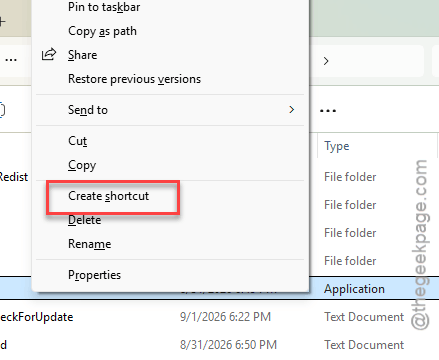
2 – Right-click ZenlessZoneZero.exe and tap Show more options, and select Create shortcut. Move the shortcut to your desktop.
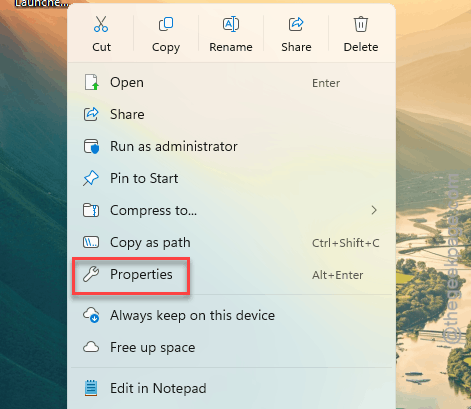
3 – Right-click the shortcut and select Properties.
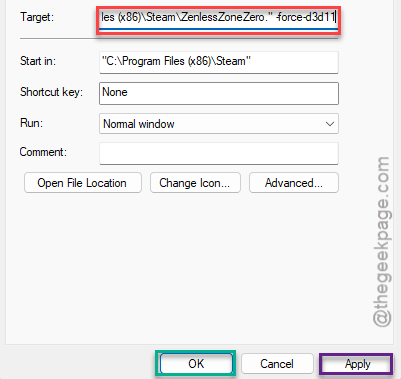
4 – Click at the very end of the Target field, add one space, then type:
-force-d3d11
5 – Click Apply, then launch the game from this shortcut.
And launch from the shortcut every time from now on. The launcher’s own button still uses DirectX 12.
Fix 2 – Run the Game as Administrator
The launcher’s permission bug keeps the game from reading essential Unity files. Admin rights walk right past it.
1 – Close the HoYoPlay launcher completely.
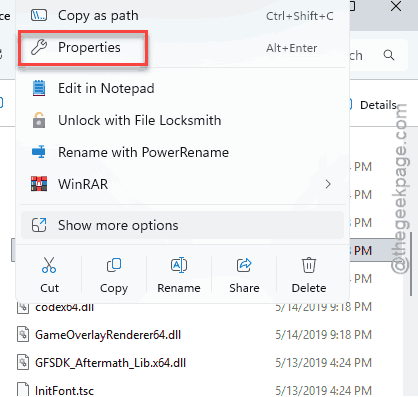
2 – Right-click ZenlessZoneZero.exe in the same folder as before and select Properties.
3 – Open the Compatibility tab.
4 – Check Run this program as an administrator and click Apply.
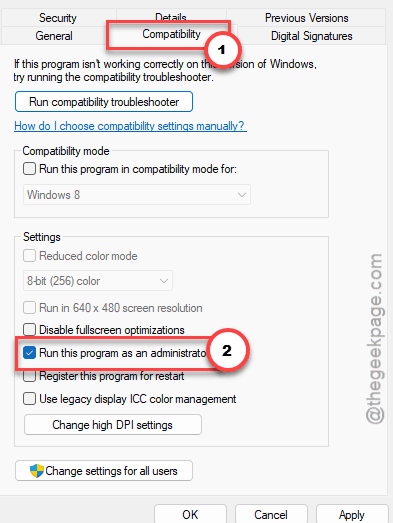
The checkbox sticks. One-time setup.
Fix 3 – Delete the Temp Folder Leftovers
Corrupted scraps from the download can hang the engine on every launch until someone clears them. That someone is you.
1 – Press Windows + R, type %temp%, and press Enter.
2 – Find the folder named HoYoverse or ZenlessZoneZero in the list.
3 – Delete the whole folder.
4 – Restart the launcher.
And it’s safe to do — everything in %temp% is disposable by design (the game rebuilds what it needs).
Fix 4 – Kill the Overlays
Unity-based HoYoverse games and overlay hooks do not get along. Discord and Xbox Game Bar are the usual offenders.
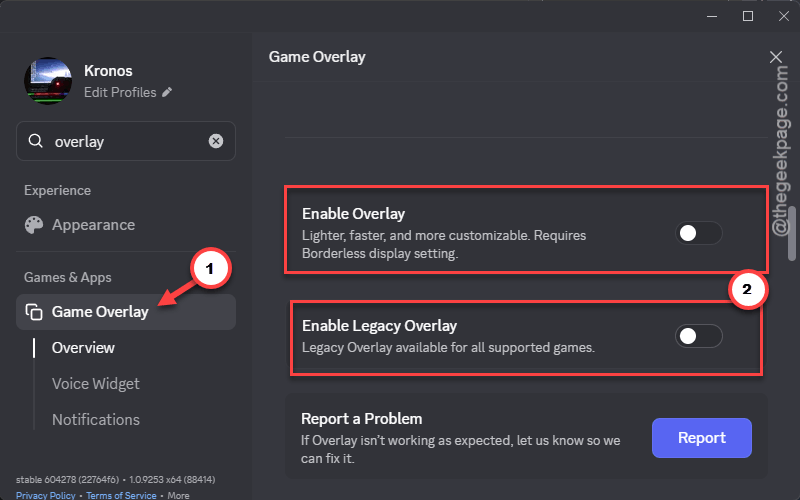
1 – Open Discord, click the gear icon at the bottom left, and go to the Games & Apps. Select the Game Overlay tab.
2 – Toggle the Enable overlay off.
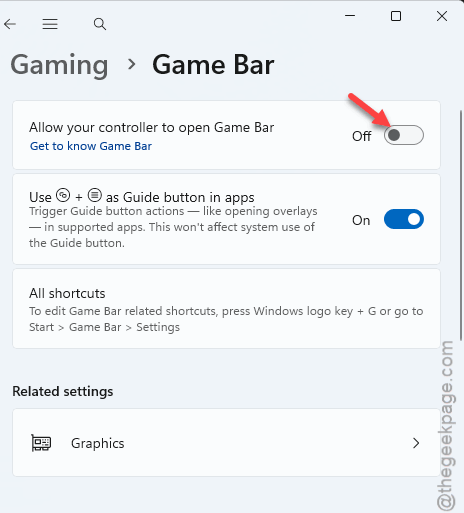
3 – Press Windows + I to open Settings, go to Gaming, then Xbox Game Bar.
4 – Toggle it off too.
But anything else with an overlay running (GeForce, Medal, whatever)? Turn it off as well, at least for testing.
Fix 5 – Raise the Nvidia Shader Cache Limit
Crashing at loading screens instead of launch? That’s shader compiling hitting the cache ceiling and timing out.
1 – Right-click your desktop and open Nvidia Control Panel.
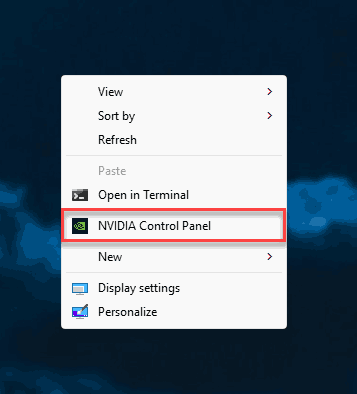
2 – Go to Manage 3D settings, then the Global Settings tab.
3 – Scroll down to Shader Cache Size.
4 – Change it from the default to 10 GB (or 100 GB if your drive has room to spare).
5 – Click Apply and restart your PC.
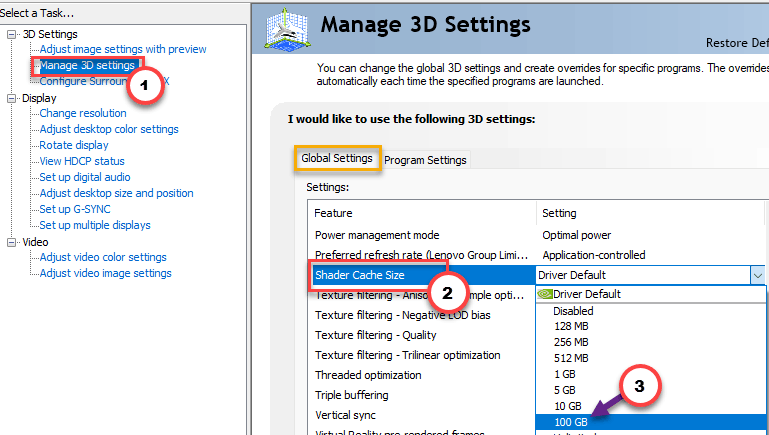
The next launch compiles shaders in full. And that first load will feel slow — let it finish once and it stays fixed.
Fix 6 – Cap the Frame Rate at 60
Menus render uncapped, spike into the hundreds of frames, and the engine sometimes times out and dies. So cap it.
1 – Open the in-game Settings menu (assuming a fix above got you in).
2 – Go to the Graphics tab.
3 – Find FPS Limit and change it from Unlimited to 60.
4 – Apply.
Check if this works.
Avoiding This Next Time
- Keep launching from the DirectX 11 shortcut. It costs nothing and skips the crashiest code path.
- Leave the admin checkbox set. Launcher updates don’t clear it.
- New overlay app installed? That’s the first suspect if crashes come back.
- After big game updates, clear the %temp% leftovers again before panicking. Thirty seconds.
Quick Answers
What is the ZZZ Unity crash and how can I fix it?
It’s the game’s Unity engine failing before the game itself loads — usually because DirectX 12 can’t initialize on your hardware. Launch through a shortcut with -force-d3d11 added to the Target line, and the engine starts in DirectX 11 instead.
Why does Zenless Zone Zero crash when I start it?
Four common causes: the DirectX 12 renderer failing, the HoYoPlay launcher’s permission bug, corrupted temp files from the download, or overlay apps hooking into the game. Run the exe as administrator and clear the HoYoverse folder in %temp% first.
Why are my Unity games crashing on startup?
Unity games share an engine, so one broken layer breaks several games the same way. Outdated graphics drivers, overlay injections, and DirectX 12 quirks top the list. Forcing DirectX 11 with -force-d3d11 works as a test in most Unity titles.
Does switching to DirectX 11 lower my graphics?
Visually, you’ll struggle to spot a difference — same assets, same effects. DirectX 12 mainly changes how work is fed to the GPU, and Zenless Zone Zero runs happily on 11. A stable game at slightly older plumbing beats a crashing one every time.