New patch, new zone, same old story: you cross into the Lairs and the game faceplants. Crash to desktop, or a disconnect the second the subzone loads. Patch 12.1 shipped with some rough edges, and this zone collects all of them. The fixes are mundane — and they work.
What’s Breaking, Exactly
A stack of separate 12.1 problems, all meeting in one zone.
The renderer chokes for some players under DirectX 12, and forcing the older DX11 mode is the single most reliable fix going around. Map addons like TomTom and Mapster haven’t caught up with the new subzone layout, so they crash you right at the border. The Lair areas also leak memory through ground clutter. So long sessions swell until something pops.
And two of the causes are pure server-side phasing: Warmode, and joining a cross-realm group before you’re inside. Both confuse the handoff at the subzone line. Instant disconnect.
Fix 1 – Force DirectX 11
The main fix, straight from the community.
1 – Open the Battle.net desktop app and select World of Warcraft.
2 – Click Options (next to the Play button).
3 – Select Game Settings.
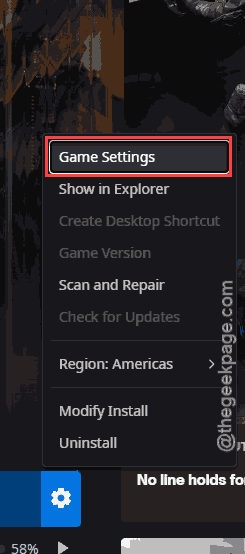
4 – Find WoW in the list and check the box for Additional command line arguments.
5 – In the text box that appears, type:
-d3d11
6 – Click Done to save.
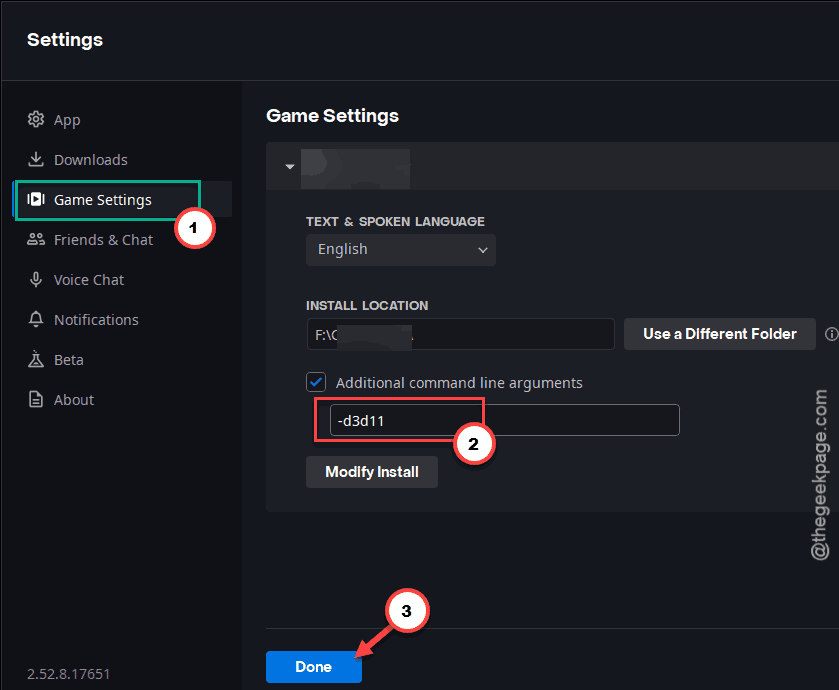
Launch the game — it now runs the DirectX 11 renderer. You lose a little of DX12’s performance headroom. You gain a zone that doesn’t crash. Take the trade.
Fix 2 – Disable Your Map Addons
TomTom, Mapster, anything that redraws coordinates or the world map. They haven’t updated for the new subzone layout yet.
1 – Log out to the character select screen.
2 – Click the AddOns button (bottom left corner).
3 – Uncheck every map or coordinate addon.
4 – Log back in and enter the Lairs.
Zone loads fine now? One of those addons was your crasher. Re-enable them one at a time as updates land — each addon’s changelog will say when 12.1 support arrives.
Fix 3 – Turn Off Warmode
Warmode phases you onto a different server shard. And the Lairs handoff can’t handle it — instant disconnect at the border for a lot of players.
1 – Travel to Valdrakken or your faction’s capital city (Warmode can only be toggled there).
2 – Open your talent pane.
3 – Click the Warmode toggle to switch it off.
4 – Head back to the Lairs.
PvP bonuses can wait. Being able to enter the zone can’t.
Fix 4 – Drop Environmental Detail to 1
The new areas leak memory through ground clutter density. The longer you play, the fatter the leak — until the crash.
1 – Press Esc and open System Settings.
2 – Click Graphics.
3 – Find Environmental Detail and drag the slider down to 1.
4 – Apply.
The zone looks a bit barer. It also stops eating your RAM. And raise it again once a hotfix mentions the leak.
Fix 5 – Enter First, Group Second
Cross-realm invites accepted outside the zone cause a phase crash at the border. The order matters, weirdly.
1 – Run into the Lairs zone on your own.
2 – Wait for the subzone name to appear on your screen.
3 – Now accept the group invite.
Backwards from how everyone naturally plays? Completely. But grouping from inside the zone works. And doing it at the border doesn’t.
Fix 6 – Clear the PTR Cache
Only relevant if you’ve played PTR builds (the public test realm) on this install. Leftover test files clash with the new boss placements.
1 – Close the game fully.
2 – Open your World of Warcraft folder in File Explorer.
3 – Open the _ptr_ folder.
4 – Delete the Cache folder inside it.
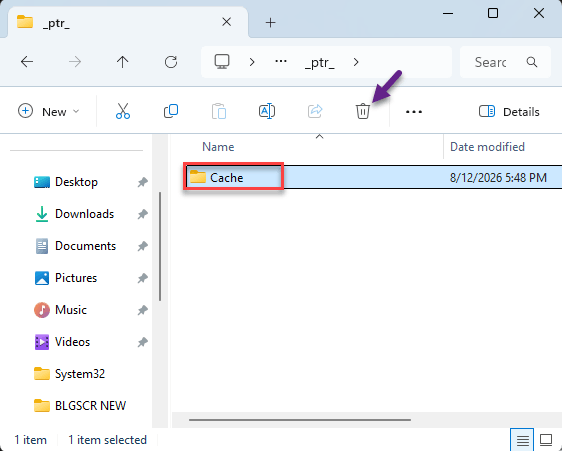
5 – Relaunch. The cache rebuilds itself.
Never touched the PTR? Then skip this — you won’t even have the folder.
People Also Ask
Why does WoW keep crashing in the new Lairs zone?
Patch 12.1’s DirectX 12 renderer misbehaves for some setups, outdated map addons crash at the new subzone border, and the zone leaks memory through ground clutter. Add -d3d11 to your Battle.net launch arguments first — it’s the most reliable single fix — then disable map addons.
How do I run WoW in DirectX 11?
In the Battle.net app, select World of Warcraft, click Options > Game Settings, tick “Additional command line arguments” for WoW, and enter -d3d11 in the box. Click Done and launch. The game starts on the DX11 renderer until you remove the argument.
Will disabling my addons delete their settings?
No. Unchecking an addon on the character select screen just stops it from loading — its saved settings stay on disk untouched. Re-enable it later and everything comes back exactly as you left it. Waypoints, profiles, all of it.