Another big update for a big game, another anti-cheat that treats your PC like a suspect. Battlefield 6 either crashes to the desktop with no error at all, or it refuses to launch and blames Secure Boot for some players. Sometimes both in one evening. But, you will glad to know that you’re not alone, and your PC is probably fine. But EA’s anti-cheat has a list of demands. Meet them and the game runs. And miss one? It folds without telling you which.
Why This Happens
EA’s anti-cheat (it’s called Javelin) runs at the kernel level. That’s the deepest layer of Windows. And it refuses to start unless Secure Boot is on, because Secure Boot is how it proves nothing shady loaded before it did. No Secure Boot? The game crashes before you see a menu.
But here’s the part EA doesn’t shout about. Windows has its own security layer called Exploit Protection, and it’s on by default. It sees the anti-cheat doing kernel-level things and clamps down. So the game freezes mid-match, over and over, with nothing useful in the error logs. Two security tools fighting over one PC. You lose.
Then there’s the EA app itself. Its overlay hooks into the DirectX 12 pipeline (the part of Windows that draws each frame), and the Frostbite engine hates that. Instant crash to desktop. Corrupted anti-cheat certificates from silent background updates do the same thing. Of course they do.
And a few crashes are not EA’s fault at all. An unstable memory overclock or a page file that’s too small will knock Frostbite over just as fast.
Fix 1 – Turn On Secure Boot (and Convert to GPT If It Won’t)
Do this first. Without Secure Boot, nothing else matters. And the anti-cheat will kill the game every single time.
Check whether it’s already on before you go digging. Press Windows + R, type msinfo32, press Enter, and look for Secure Boot State in the list on the right. Says On? Skip to Fix 2.
1 – Restart your PC.
2 – Tap F2 or Delete as it starts up, before the Windows logo appears. Some boards use a different key, and the first screen usually tells you which one.
3 – Find the Boot or Security section. Layouts differ by brand, so look through the tabs along the top.
4 – Set Secure Boot to Enabled.
5 – Save and exit. That’s usually F10.
6 – Let Windows start and launch the game.
Windows won’t boot after that, or the BIOS greys the option out? Your Windows drive is using the old MBR layout, and Secure Boot needs GPT. Microsoft ships a tool called MBR2GPT that converts the drive without wiping it. Back your files up first anyway (I’ve watched it go fine a hundred times, and I still back up).
1 – Turn Secure Boot back off so Windows starts.
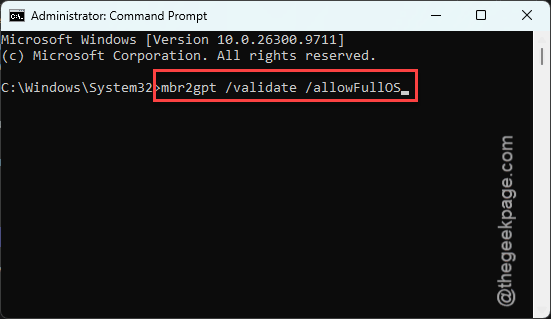
2 – Then open Command Prompt as administrator. Run:
mbr2gpt /validate /allowFullOS
3 – If it says validation completed, run
mbr2gpt /convert /allowFullOS
Restart, go back into the BIOS, set the boot mode to UEFI, and turn Secure Boot on again.
Validation failed? Stop there and use a tool like EaseUS Partition Master instead, which does the same job with a friendlier window.
Fix 2 – Tell Exploit Protection to Leave the Anti-Cheat Alone
This is the freeze fix. Game runs, then locks up mid-match? Windows’ Exploit Protection is strangling the anti-cheat service. And it is not Defender. It’s a separate thing, on by default, and almost nobody knows it exists.
1 – Click Start and type exploit protection.
2 – Open the result. It lands you in Windows Security.
3 – Click the Program settings tab.
4 – Click Add program to customize and pick the option to choose an exact file path.
5 – Go to C:\Program Files\EA\AC and select eaanticheat.gameservice.exe.
6 – Scroll down the list that opens. For every setting that shows On, tick Override system settings.
7 – Flip each of those switches to Off.
8 – Click Apply.
9 – Do the same for the updater file sitting in that same folder, if you want to be thorough.
10 – Restart your PC.
Yes, it’s tedious. There are a dozen or so settings to flip. But the player who posted this on the EA forums went from freezing every match to zero freezes, and the thread filled up with people saying the same.
Fix 3 – Reinstall the Anti-Cheat
Crashing with no error before the game even draws a frame? That’s the anti-cheat bootstrapper dying on a bad certificate. EA updates it silently in the background. And sometimes the update lands half-finished.
1 – Close the EA app completely.
2 – Press Ctrl + Shift + Esc to open Task Manager and end anything with EA in the name.
3 – Open File Explorer and go to your game folder. By default that’s
C:\Program Files\EA Games\Battlefield 6
4 – Open __Installer, then EAAntiCheat.
5 – Right-click EAAntiCheat.Installer.exe and pick Run as administrator.
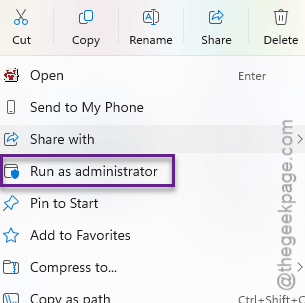
6 – Choose Battlefield 6 from the dropdown.
7 – Click Uninstall and wait for it to confirm.
8 – Click Install and wait for the word Success.
9 – Restart your PC.
Takes about two minutes, not counting the restart.
Fix 4 – Kill the EA Overlay (Properly)
The overlay is the DirectX crash. Turning it off in settings should be enough. Should be. But for some people the hook loads anyway. So there’s a second part that stops it for good.
1 – Open the EA app.
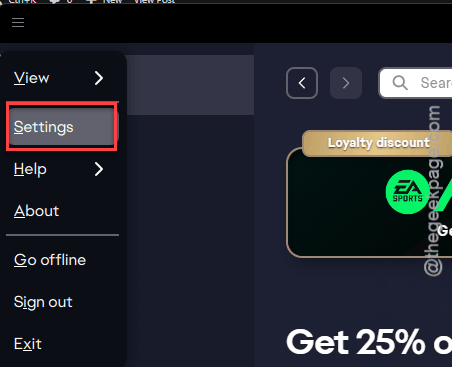
2 – Click the three horizontal lines in the top left.
3 – Click Settings, then Application.
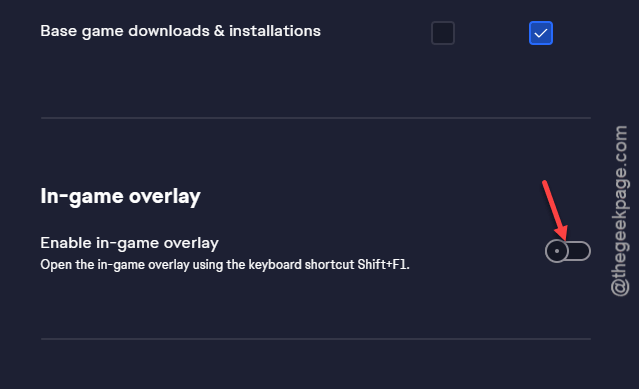
4 – Switch In-game overlay to Off.
Still crashing? Then rename the overlay file so it can’t load at all.
5 – Close the EA app.
6 – In File Explorer, go to C:\Program Files\Electronic Arts\EA Desktop\EA Desktop.
7 – Click View at the top, then Show, then tick File name extensions. You need to see the file endings for the next step.
8 – Find IGO64.dll.
9 – Right-click it, pick Rename, and change it to IGO64.dll.bak.
10 – Launch the game.
Want the overlay back someday? Rename it back. Nothing gets deleted.
Fix 5 – Repair the Game and Clear Old Cache
Half-written cache files make Frostbite crash at random moments. The EA app has a repair button most people never notice, and it does not touch your settings or progress.
1 – Open the EA app and go to your Library.
2 – Hover over Battlefield 6.
3 – Click More Options (the three dots).
4 – Click Repair.
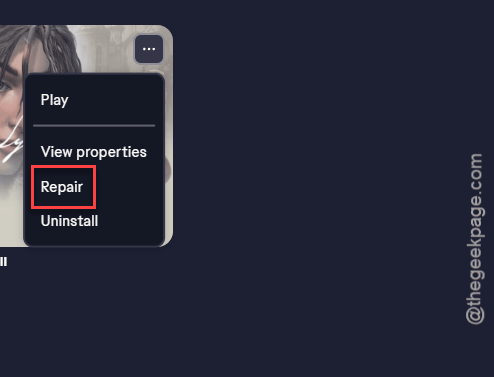
It rechecks every file, so it takes a while on an install this size. Then clear what the repair doesn’t reach. Open C:\Program Files\EA Games\Battlefield 6 and delete any folder with cache in the name. Do the same inside Documents\Battlefield 6. The game rebuilds them on the next launch.
Fix 6 – Turn Off XMP
Frostbite is brutal on unstable memory. An XMP profile (the one-click RAM overclock in your BIOS) that’s rock solid in every other game can crash this one. So test with it off.
Get into the BIOS like in Fix 1.
Find XMP in the memory or overclocking section (AMD boards call it EXPO or DOCP) and set it to Disabled.
Save and restart.
One player on Reddit said they had not crashed once since. Your RAM runs a bit slower, and in a shooter you will not feel it.
Fix 7 – Give Windows a Bigger Page File
Last one. Frostbite streams a huge amount of data, and when Windows manages the page file (the overflow space on your drive for when RAM fills up), it sometimes sizes it too small. One player fixed their crashes by setting it by hand.
1 – Click Start, type advanced system settings, and open View advanced system settings.
2 – On the Advanced tab, click Settings under Performance.
3 – Click the Advanced tab in the new window.
4 – Under Virtual memory, click Change.
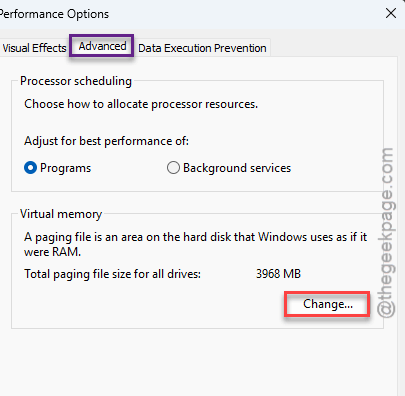
5 – Untick Automatically manage paging file size for all drives.
6 – Select your Windows drive and pick Custom size.
7 – Type 30000 in both boxes.
8 – Click Set, then OK.
9 – Restart your PC.
That’s about 30 GB of drive space, so make sure you have it free. Sounds like a lot. It is. But it’s cheaper than a crash on the last objective.
How to Prevent This
- Leave Secure Boot on. Every anti-cheat from here on will want it, not just EA’s.
- Keep the EA overlay off. And be honest, you weren’t using it anyway.
- After each big EA app update, check that the Exploit Protection exclusion is still there. Updates have a habit of resetting things.
- Test memory overclocks in this game before you trust them. Frostbite finds problems other games never show.
- Repair the game after every major patch. A few minutes now saves an evening later.
People Also Ask
How do I fix the Battlefield 6 Secure Boot error?
Turn Secure Boot on in your BIOS. Restart, tap F2 or Delete during startup, find the Boot or Security section, and set Secure Boot to Enabled. If Windows then refuses to start, your drive uses MBR and needs converting to GPT with Microsoft’s MBR2GPT tool first. Back up before converting.
Why is Battlefield 6 crashing without an error message?
Usually the anti-cheat. EA’s Javelin anti-cheat dies silently when Secure Boot is off. It also dies when a background update corrupts its certificates, or when Windows Exploit Protection clamps down on it. The EA overlay crashes the game the same way. Reinstall the anti-cheat and turn the overlay off first.
Does Battlefield 6 require Secure Boot?
Yes, on PC. The anti-cheat will not start without it, so the game crashes or refuses to launch. Most PCs from recent years support it, but it’s often off by default. Turn it on in the BIOS, and if your Windows drive is MBR, convert it to GPT first.