You click Play. The inZOI logo flashes past. Then a white screen. And it stays white. After five minutes, ten minutes, nothing happens. Here’s what’s going on. The September patch changed how the engine loads its files. Anything built for the old loader (mods, custom textures, saves from before April) now trips it up. The game doesn’t crash. It just sits there, waiting on data it can’t read. For a lot of players, switching it off was the whole fix.
Fix 1 – Turn Off Smart Zoi
Start here. It’s the quickest one, and it cleared the white screen for a surprising number of people on the forums.
1 – Launch inZOI and wait for the main menu.
2 – Open Settings.
3 – Look through the tabs for the Smart Zoi option and switch it off.
4 – Quit the game fully and launch it again.
Can’t reach the menu because the white screen hits first? Skip to Fix 2 and come back to this afterward.
Fix 2 – Pull Your Mods Out
The patch broke a lot of mods. So the game loads them, hits something it can’t read, and freezes. Custom textures are the worst offenders.
1 – Close the game.
2 – Open the folder you put your mods in.
3 – Make a new folder on your desktop and name it inZOI mods backup.
4 – Move everything from the mods folder into that backup folder.
5 – Launch the game.
Move, do not delete. Loads fine now? One of those mods is the problem. Add them back a few at a time until the white screen returns. And then you know which one to drop (or check for an updated version).
Fix 3 – Start a Fresh Save
The patch notes called this one out. Saves from before April use an older structure, and the new engine soft-locks on them. That means it freezes without ever crashing. Your save is not gone. But it can’t load right now.
1 – Close the game.
2 – Open your inZOI save folder. Not sure where it is? Type inZOI into the search box at the top of File Explorer and look for a folder holding save files.
3 – Move the old saves into a backup folder, same as you did with the mods in Fix 2.
4 – Launch the game and start a new save.
If the new save loads, the old files were the blocker. Keep them anyway. A future patch may fix the loader, and then you can drop them back in.
Fix 4 – Verify the Game Files in Steam
Quick one. The patch can leave a few game files missing or half-written (the big packed Unreal Engine 5 archives the game pulls its art from, mostly). So let Steam check every file and re-download anything that’s off. This will not touch your saves.
1 – Open Steam.
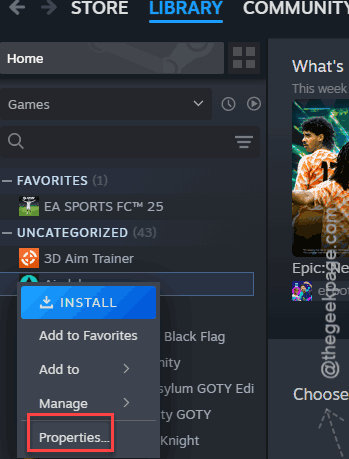
2 – Right-click inZOI in your Library and pick Properties.
3 – Click Installed Files in the left menu.
4 – Click Verify integrity of game files.
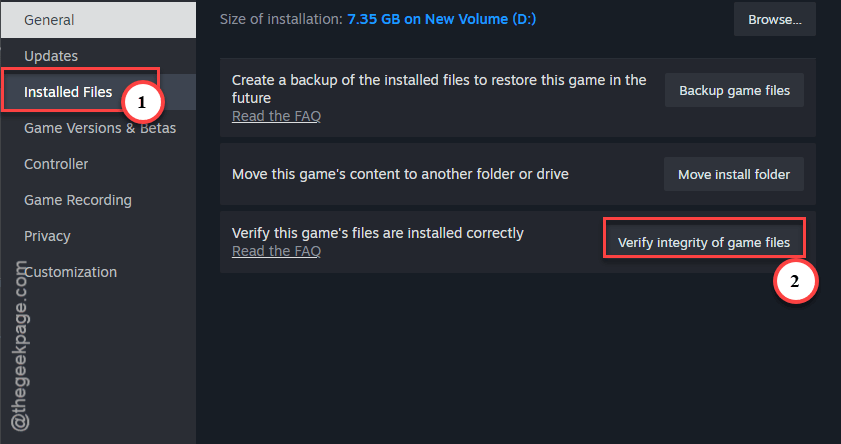
Takes a few minutes. Wait for the message saying all files validated. Then launch.
Fix 5 – Run It as Administrator
Windows 11 sometimes blocks the game from writing where it needs to. No error. And no crash. The game just stalls.
1 – Right-click the inZOI executable (or its desktop shortcut).
2 – Click Properties.
3 – Open the Compatibility tab.
4 – Tick Run this program as an administrator.
5 – Click OK.
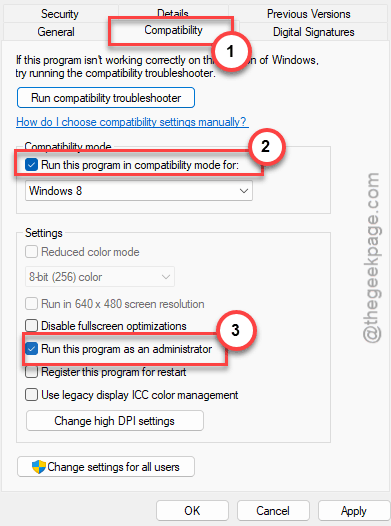
Launch the game normally after that. The setting sticks.
Fix 6 – Clear the Cache
Last resort, but it worked for some. The game keeps temporary files in a cache folder. And a stale cache from before the patch can hang the loader.
Close the game. Open the folder where it keeps its data and look for a folder named Cache. Delete it. Nothing in there is yours, so there’s nothing to lose. Launch, and the game rebuilds it. That first run takes a bit longer.
Nvidia card? Open the Nvidia app and let it optimize inZOI too. A graphics setting your card can’t handle gives the same white screen.
Keep It From Coming Back
- After every patch, pull your mods out before you launch. Then add them back. Boring, but it beats a white screen.
- Keep your old saves in a backup folder. Patches broke saves once. So they’ll do it again.
- Verify game files once a month or so. Takes a few minutes and catches damaged files early.
- Leave Smart Zoi off if turning it off fixed you. Always.
People Also Ask
Why is inZOI loading forever?
Almost always it’s old data the September patch can’t read. Mods and custom textures are the usual cause, and saves made before April come next. Pull the mods out, start a fresh save, and verify your files in Steam. If that fails, turn off Smart Zoi and try again.
Will I lose my saves if I delete inZOI files?
Not if you move them instead. Copy your save folder somewhere safe before you touch anything, then delete or verify as needed. Steam’s verify tool only replaces game files, never your saves. Mods and cache files are safe to remove too, since the game rebuilds the cache on launch.