While setting up the iPhone’s time and timezone settings, you may get stuck with this ‘The time zone cannot be set manually due to device restrictions‘ message. There are two distinctive reasons behind this error, one of them is the Screen Time Passcode, and the other is a security restriction imposed by the corporate profile installed on the device. Here are the fixes that you can apply to address this problem.
Fix 1 – Turn off Screen Time Passcode
If the Screen Time Passcode is enabled on your iPhone, it can restrict you from changing the modification in time zone settings.
Step 1 – Open the iPhone Settings. Go to the Screen Time settings.
Step 2 – In the Screen Time page, tap the Change Screen Time Passcode settings.
Step 3 – Then, tap the Turn Off Screen Time Passcode option.
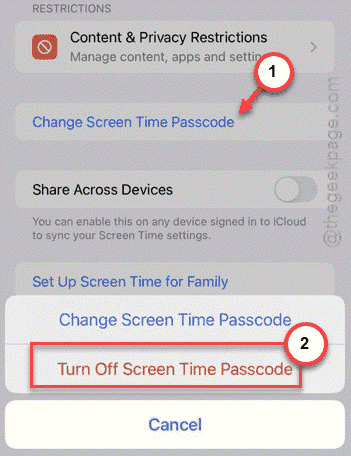
Step 4 – You have to input the current screen time passcode to disable it.
Once you have disabled the screen time passcode, try to change the time zone settings.
Fix 2 – Disable or Remove Device Management tool (MDM)
If your iPhone has a corporate profile (Mobile Device Management or MDM) installed, you can not change the time zone settings without the administrative approvals. You can view
Step 1 – To do this, load up the Settings console on the iPhone.
Step 2 – Then, go to the General section. Load up the VPN & Device Management settings.
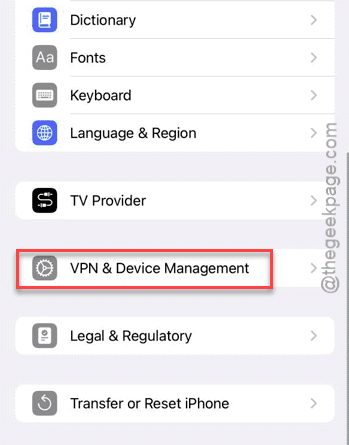
Step 3 – You will find the profile that has management control over the device.
Step 4 – Tap to open that profile and delete that profile from there.
You may need proper approval to do this.
After deleting this device management tool, you can change the timezone yourself. It won’t be greyed out or show you ‘The time zone cannot be set manually due to device restrictions’ message any more.
Fix 3 – Turn off the Location Services or Setting Time Zone
The Setting Time Zone utility is part of the system services that control the timezone settings based on your iPhone’s location. You can either disable the location services entirely, or, just the setting time zone.
Step 1 – On your iPhone Settings console, open the Privacy & Security console.
Step 2 – Next, go to the Location Services console.
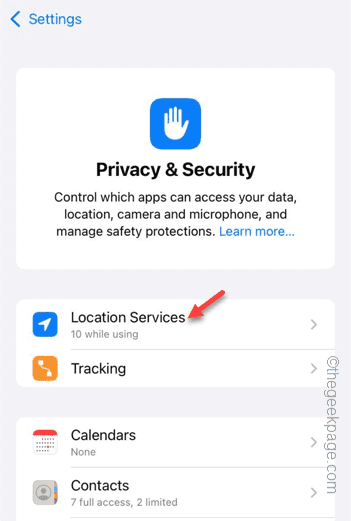
Step 3 – If you want you disable the Location Services completely. But, that is not recommended as many other major services may still be needs location services.
Step 4 – So, go to System Services panel.
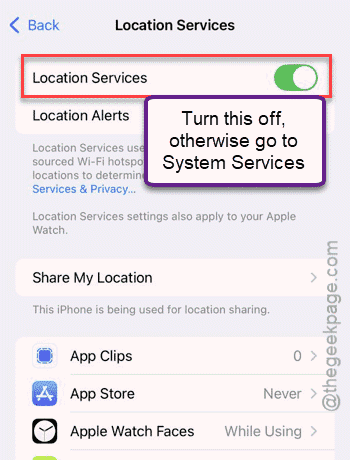
Step 5 – Turn off the Setting Time Zone setting on the iPhone.
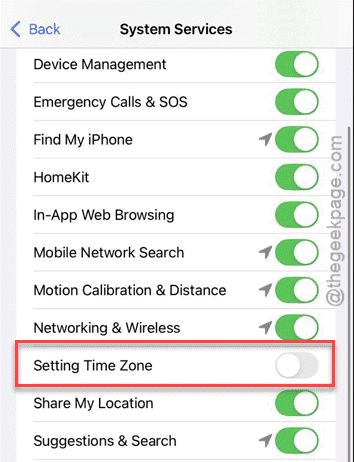
After disabling the setting, you can make the changes in the time zone setting, as it won’t be set to automatic due to location-based timezone selection.
Fix 4 – Turn off Screen Time Sharing Across your Devices
The Screen Time settings are synced across your Apple devices using iCloud. So, the restrictions on other devices may be applied on your iPhone.
Step 1 – Open the Screen Time settings on your iPhone.
Step 2 – In the Screen Time settings console, turn off the Share Across Devices option.
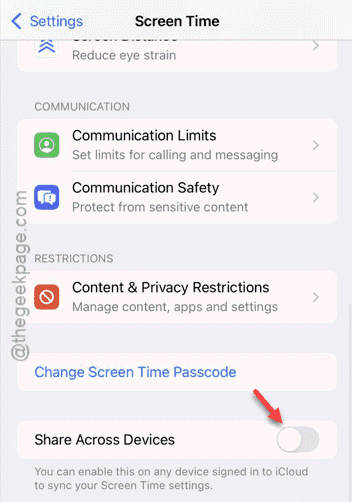
After disabling this feature, there won’t be any further problems changing the sharing
NOTE – The ‘Set Automatically’ option can be disabled due to network providers restrictions based on regions and countries. In that case, you have to contact the network provider for further support.
Why can’t I manually change the time zone on my iPhone?
The time Zone setting is often influenced by the location of your iPhone. Disabling the location services should let you set the timezone manually. However, if you have a corporate profile installed by a Device Management system, it can restrict the time zone settings. You can
How do I unrestrict the time zone on my iPhone?
You can easily change the time zone settings on the iPhone from here – iPhone Settings ⇾ General ⇾ Date & time. Here, turn off the Set Automatically option. This will allow you to change the time zone settings manually.