You click into the address bar in File Explorer. The suggestions list drops down. And then it never goes away. You click somewhere else. It is still there. You open a second window, and it’s floating over that one too, a little grey ghost of folder paths you typed last week.
The Short Version
The 24H2 update rebuilt File Explorer’s top bar. New look, new code, same old autosuggest feature bolted onto it. And the two don’t always talk properly. So the dropdown opens, Explorer forgets it opened, and nothing ever tells it to close.
Leftover junk from Internet Explorer makes it worse. Yes, Internet Explorer. The address bar still reads toolbar settings from a registry corner IE used to own, and stale entries there confuse the new shell. Why is a browser from 2001 still steering File Explorer in 2026? Nobody at Microsoft seems to know either.
Corrupted cache files do the rest. Explorer stores the state of its menus in small cache files, and when one of those goes bad the dropdown gets stuck in the open position. Annoying, but at least it’s fixable.
Fix 1 – Knock It Closed With the Keyboard
Quick one, and it’s a workaround, not a cure. But when the dropdown is hovering over your spreadsheet right now, you want it gone right now.
1 – Click into the File Explorer window with the stuck dropdown.
2 – Press Ctrl + L. The address bar highlights.
3 – Press Enter. The dropdown closes.
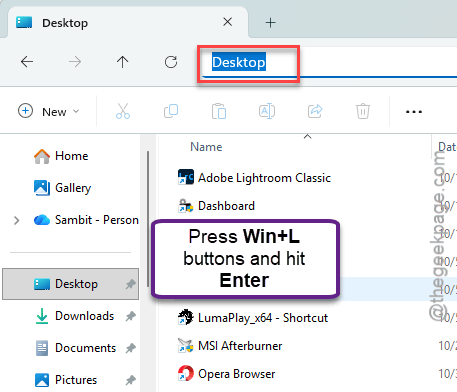
Didn’t budge? Press Esc.
Test if this works.
Fix 2 – Turn Off the Autosuggest Dropdown in the Registry
Here’s the one that actually ends it. If the dropdown can’t open, it can’t get stuck. This registry edit tells Explorer to stop suggesting paths in the address bar. And you lose the suggestions. Honestly? You will not miss them.
A word before you start. The registry is where Windows keeps its settings, and typos there cause real problems. Follow the names exactly.
1 – Click Start, type regedit, and press Enter.
2 – Click the address bar at the top of Registry Editor, paste, and press Enter.
HKEY_CURRENT_USER\SOFTWARE\Microsoft\Windows\CurrentVersion\Explorer
3 – Right-click the Explorer folder in the left pane, pick New, then Key.
4 – Name the new key Autocomplete and press Enter.
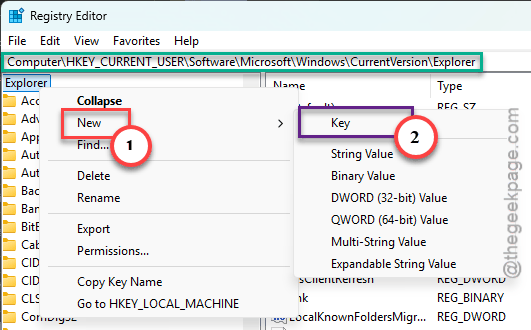
5 – With Autocomplete selected, right-click the empty space in the right pane, pick New, then String Value.
6 – Name it AutoSuggest and press Enter.
7 – Double-click AutoSuggest, type no in the Value data box, and click OK.
8 – Close Registry Editor and restart Explorer like in Fix 2.
Open a folder and click into the address bar. No dropdown. To get the suggestions back one day, change that value from no to yes and restart Explorer again.
Fix 3 – Restart Windows Explorer
Explorer lost track of its own dropdown. So reset the whole thing.
1 – Start by hitting Ctrl + Shift + Esc to open Task Manager.
2 – Find Windows Explorer in the list. Type explorer in the search box at the top if you don’t see it.
3 – Then, right-click it and pick Restart.
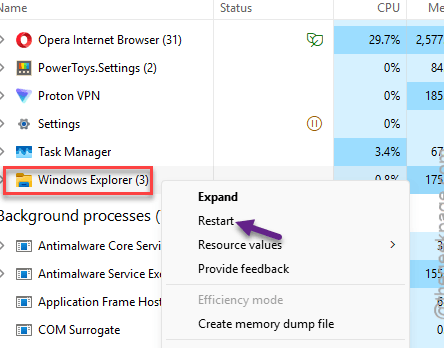
Any folder windows you had open closes. So finish what you were doing first.
Fix 4 – Clear Explorer’s Cache Files
Still sticking even with suggestions off? Then a corrupted cache file is holding the dropdown in its open state. Clearing them is safe.
1 – Click Start, type cmd, and pick Run as administrator on the right.
2 – Paste this line and press Enter:
del /f /s /q %localappdata%\Microsoft\Windows\Explorer\*.cache
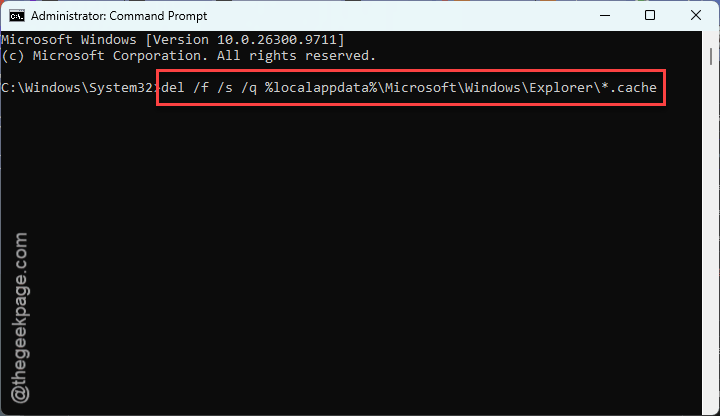
3 – Restart Explorer like in Fix 2.
A few files may refuse to delete because Explorer is using them. That’s fine.
And do this after each big Windows update. Feature updates like 24H2 are exactly when these files go stale.
Fix 5 – Swap the Navigation Bar With Windhawk
Last resort, and it is a bit of a workaround too. Windhawk is a free tool that installs small mods for Windows, and one of them replaces the new 24H2 navigation bar with the classic one. Old bar, no bug.
1 – Download Windhawk from its official website and install it.
2 – Open Windhawk and use the search box to find the Classic Explorer navigation bar mod.
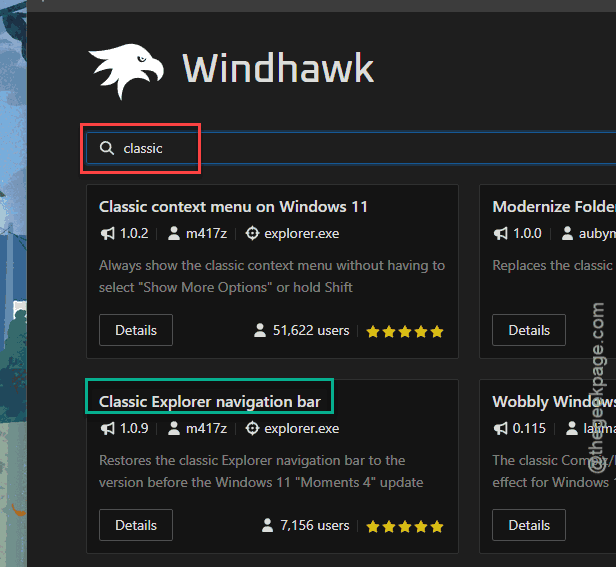
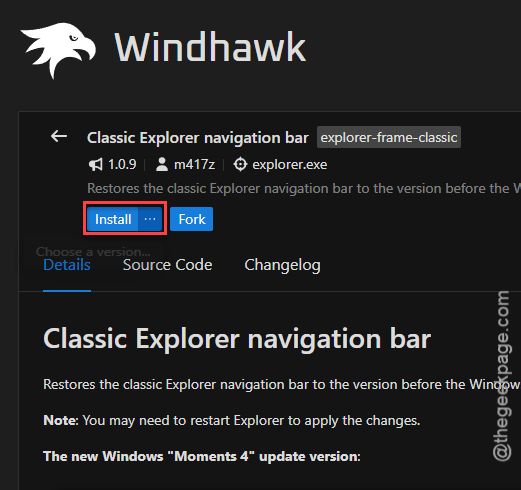
3 – Click Details, then Install.
4 – In the mod’s settings, choose the Classic or Windows 10 style, whichever you like the look of.
5 – Open a File Explorer window and test the address bar.
If Microsoft ever patches the bug properly, uninstall the mod (or Windhawk altogether) and restart your PC. Explorer goes back to the stock bar.
People Also Ask
Why is my File Explorer address bar dropdown stuck?
The 24H2 update rebuilt File Explorer’s top bar, and the old autosuggest list doesn’t always get told to close. Stale Internet Explorer settings and corrupted cache files make it worse. Press Ctrl + L then Enter to close it for now. Turn off AutoSuggest in the registry to end it.