Patch 1.3.1 for Silent Hill Townfall shipped with a broken upscaler file. That’s the real reason your game has tarted stuttering and crashing to the desktop 10 to 30 minutes into a session. It used to run fine before the update. And then it didn’t. The good news? You do not need to wait for Konami. Every fix below is something you can do yourself in a few minutes (some in under one).
What Patch 1.3.1 Broke
Short version: the patch bundled an old, buggy copy of the DLSS file (nvngx_dlss.dll, the bit of Nvidia code that handles upscaling). It leaks memory. So every minute you play, it eats a little more of your graphics card’s memory and never gives it back. Frame pacing goes ragged first. Then the card runs dry and the game falls over.
Ray tracing has the same problem in this build. Why both at once? No idea. But turn ray tracing on with the bad DLSS file and you can set a timer for the crash.
And there’s a third thing players keep hitting. Nvidia Reflex (the low-latency setting) causes stutter for some people in this patch. On AMD cards, it’s the card running flat out at its top clock that trips the crash. Not great, any of it.
Fix 1 – Turn Off Ray Tracing
Start with the toggle. It takes ten seconds, and for a lot of players it was enough on its own.
1 – Open the game and go to Settings.
2 – Open the Graphics tab.
3 – Find Ray Tracing and set it to Off.
4 – Apply the change and restart the game.
Yes, the puddles look a little less pretty. It’s a horror game. You’re not looking at the puddles. Play for half an hour and see if the crash comes back. If it does, the DLSS file is the other leak, and Fix 2 handles it.
Fix 2 – Swap in a Fresh DLSS File
This is the fix that goes to the root. Sounds scary (you’re replacing a game file), but it is a copy-and-paste job. Here’s the whole thing, one step at a time.
AMD card? You’ll grab the latest FSR file instead. Same steps, different file name.
1 – Go to TechPowerUp’s website and download the latest nvngx_dlss.dll. It comes as a zip file.
2 – Close the game.
3 – Open File Explorer and go to your Steam folder.
4 – Open steamapps, then common, then Silent Hill Townfall.
5 – Keep going down through these folders in order:
Engine > Plugins > Runtime> Nvidia > DLSS > Binaries > ThirdParty > Win64
6 – Right-click the nvngx_dlss.dll sitting in that last folder and copy it to your desktop. That’s your backup.
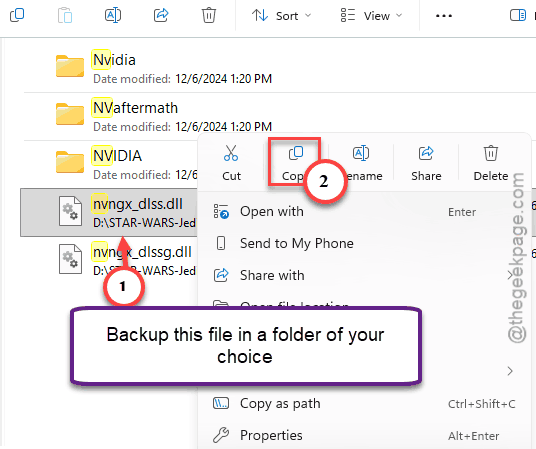
7 – Unzip the file you downloaded and drag the new nvngx_dlss.dll into the Win64 folder.
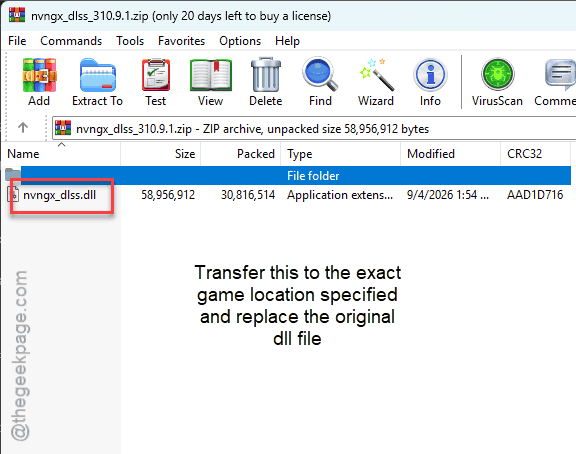
8 – Click Replace the file in the destination when Windows asks.
9 – Launch the game.
Deep folder tree, I know. But the stutter should be gone from the first minute, because the new file stops hogging your card’s memory. Prefer a tool? DLSS Swapper does steps 1 through 8 for you with one click.
And keep that backup copy on your desktop. The next patch may quietly put the old file back, and you’ll want to compare.
Fix 3 – Switch the Upscaler to TSR and Turn Off V-Sync
Don’t want to touch game files at all? Then stop using DLSS or FSR entirely. Unreal Engine has its own upscaler built in, called TSR. The bad file can’t affect it.
1 – Open the graphics settings like in Fix 1.
2 – Find the Upscaling option.
3 – Change it from DLSS or FSR to TSR.
4 – Find V-Sync and turn it off.
5 – Apply and restart the game.
But don’t skip the V-Sync part. In this patch it fights the frame pacing and makes the hitching worse. Picture tearing a bit without it? Most people don’t notice in a game this dark.
Fix 4 – Turn Off Nvidia Reflex
Quick one.
1 – In the graphics settings, find Nvidia Reflex (the low-latency option) and set it to Off.
2 – Restart the game.
One player on the subreddit said this alone cured their stutter, so test it even if the earlier fixes helped.
Fix 5 – AMD Cards: Cap the GPU Clock at 90%
On AMD, the crash comes when the card is pinned at its top clock. So cap it a little. You lose maybe a few frames, and the game stops dying.
1 – Open AMD Software: Adrenalin Edition.
2 – Find Silent Hill Townfall in your games list and click it.
3 – Click Tune Game Performance.
4 – Set Tuning Control to Custom.
5 – Turn on GPU Tuning.
6 – Lower Max Frequency to 90%.
7 – Apply, then launch the game.
This only touches this one game (that’s the point of doing it per game instead of for everything). Your other games run at full speed. Nvidia card? Skip this fix, it will not apply to you.
Fix 6 – Verify the Game Files
Still crashing in the same spot every time? Players report crashes at one particular doorway (the emergency room threshold) after the patch. That points to damaged level data rather than a settings problem. Steam can check for it.
1 – In Steam, right-click the game, click Properties,
2 – then Installed Files, then Verify integrity of game files.
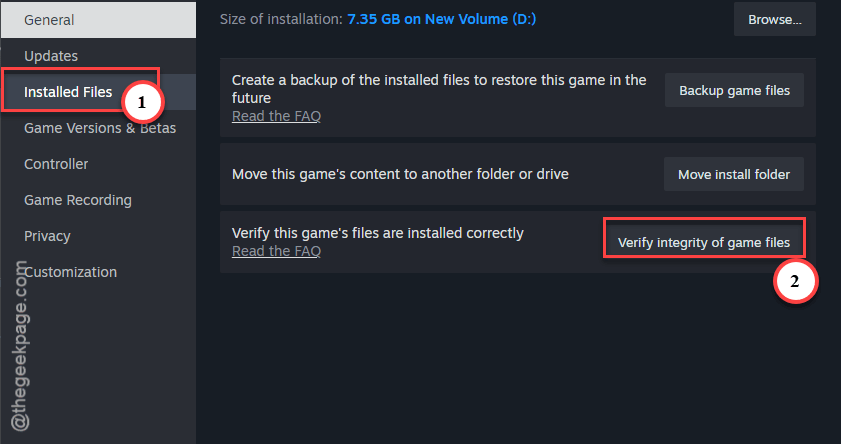
3 – Wait for it to finish, which takes a few minutes. It replaces anything damaged and leaves your saves alone.
Do this after every patch, by the way. Patches are the moment files get mangled.
People Also Ask
Why does Silent Hill Townfall keep crashing after 10 minutes?
Memory leaks. Patch 1.3.1 shipped a buggy DLSS file, and ray tracing in this build leaks too. Both eat VRAM slowly until the game falls over, usually between 10 and 30 minutes in. Replace the DLSS file with the latest version and turn ray tracing off. The crashes stop.
Is it safe to replace the DLSS DLL in a game?
Yes, as long as you back up the original first. The DLSS file is a standalone piece of Nvidia code that games load at startup, and newer versions are made to drop in. Many players do this with DLSS Swapper. If anything looks wrong, paste your backup copy back in.
Does turning off ray tracing fix Silent Hill Townfall stuttering?
For a lot of people, yes. Ray tracing in patch 1.3.1 leaks memory, so turning it off removes one of the two leaks. But if the stutter stays, the DLSS file is the other one. Swap it for the latest version, or switch the upscaler to TSR instead.