An hour in, Ghost of Tsushima starts hiccuping. Two hours in, the frames does start to crawl. Then the game suddenly crashes — sometimes clean to desktop, sometimes the whole PC reboots itself. If you are stuck in such a situation, a restart may fix that. This is a memory leak issue. The port’s very high texture setting ignores VRAM limits and keeps stacking textures it never unloads, and frame generation piles a second leak on top of the first. Your hardware is fine. The settings are the problem, and five changes stop it for the whole session.
Fix 1 – Drop Texture Quality One Notch
Very High is the leak. Not “contributes to” — it ignores the normal VRAM cap outright and bloats the memory pool until something gives. Why does one texture notch matter so much? Because Very High doesn’t budget — it hoards. One notch down ends it, and mid-game you’ll barely tell the difference.
1 – Launch the game and open the Options menu.
2 – Go to the Graphics tab.
3 – Scroll down to Texture Quality.
4 – Change it from Very High to High (or Medium on cards with 8GB of VRAM or less).
5 – Apply the changes.
Applying forces the engine to flush its video memory cache, so the effect kicks in right away. No restart needed. Keep an eye on a long session afterward — steady frames at hour three is how you know this was the one.
Fix 2 – Turn Off Frame Generation and Dynamic Resolution
The game ships with FSR 3.1 frame generation, and its backend currently leaks memory. And it’s worst on Nvidia cards, of all things. Combine it with Dynamic Resolution Scaling and you get freezes and random crashes to desktop. Both go off.
1 – Open the Graphics settings — you can do this from the game’s Steam launcher window before the game even starts.
2 – Find Frame Generation and make sure it’s completely disabled.
3 – Turn off Dynamic Resolution Scaling too.
4 – Keep a standard FSR or DLSS quality preset instead — those are stable.
5 – Launch the game.
Dynamic Resolution Scaling, if you haven’t met it, lowers the rendering resolution on the fly to hold a frame-rate target. Useful tech in most games. Here it fights the frame generator, and the two corrupt the render pipeline between them.
Losing the frame-gen numbers hurts, sure. But a smooth 80 FPS that lasts all evening beats a boosted 120 that dies at the hour mark.
Fix 3 – Switch to Exclusive Fullscreen
Borderless Windowed sounds harmless. But not here — it makes Windows’ Desktop Window Manager keep a second copy of the frame buffer, which doubles down on the VRAM squeeze.
1 – Open the Display settings in-game.
2 – Change Window Mode to Exclusive Fullscreen.
3 – Apply.
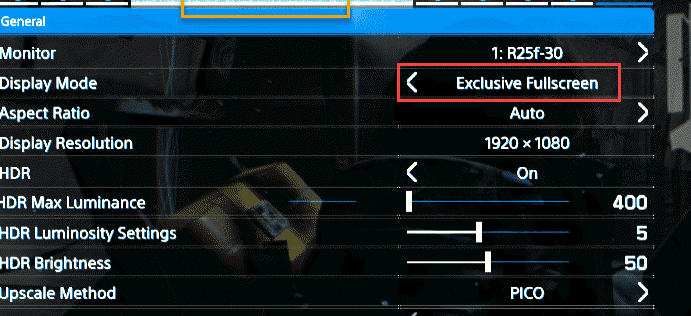
The screen flickers black for a second as the mode switches. That’s the handoff working, not a crash.
And while you’re in this mode, stay out of the desktop. Alt-tabbing mid-session invites the exact buffer juggling you just turned off.
Fix 4 – Turn Off Hardware-Accelerated GPU Scheduling
This Windows feature hands scheduling work to the GPU. And with this port, that combination produces driver timeouts — the crashes that take the whole PC down with them. Off it goes.
1 – Right-click the Start button and select Settings.
2 – Go to System, then Display.
3 – Scroll down and click Graphics.
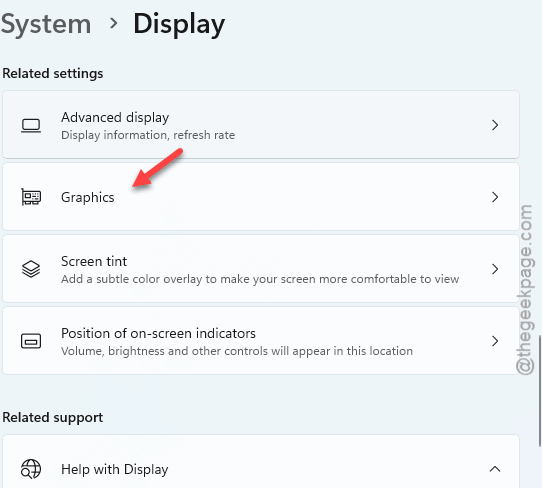
4 – Click Change default graphics settings.
5 – Toggle off Hardware-accelerated GPU scheduling.
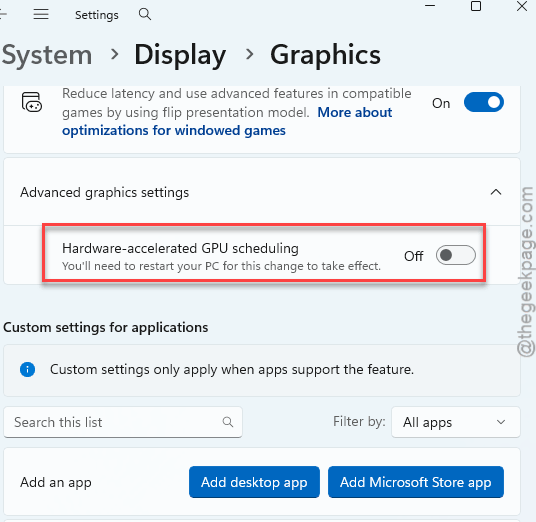
6 – Restart your PC — the setting only applies after a reboot.
If your crashes were the full-reboot kind, test a long session now. This fix owns that symptom.
Fix 5 – Pause Antivirus Scanning While You Play
Tsushima streams huge texture packages from disk nonstop. And your antivirus, trying to be helpful, scans each one in real time — locking memory allocations mid-stream until the game falls over.
1 – Open Windows Security (press the Windows key and type “security”) or your third-party antivirus.
2 – Go to Virus & threat protection.
3 – Open the protection settings and toggle Real-time protection to Off for your play session.
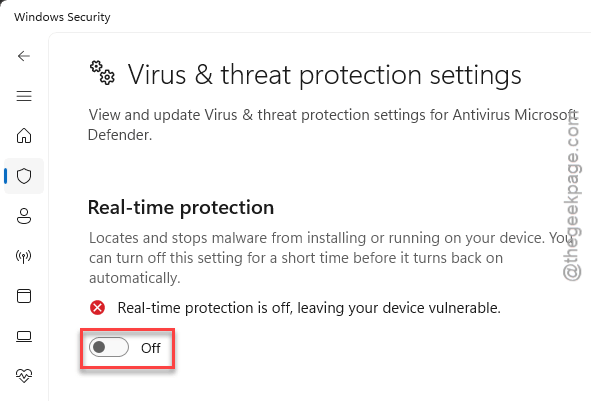
Real-time protection is the piece that scans files as they’re opened — the rest of your antivirus stays put, and scheduled scans still run. Windows also quietly turns the toggle back on by itself after a while, which for once is a feature. But flip it back manually anyway when you’re done playing — gaming with it off is fine, browsing with it off is not.
Keep It From Coming Back
- Leave textures on High until the patch notes say the Very High leak is fixed. Then test, don’t assume.
- Restart the game between marathon sessions. A fresh process starts with a clean memory pool — cheap insurance.
- Resist the alt-tab habit in Exclusive Fullscreen. Check your phone instead.
- Game updates sometimes re-enable Frame Generation. Worth a five-second glance at the graphics menu after each patch.
People Also Ask
Is Ghost of Tsushima CPU or GPU heavy?
GPU heavy, and specifically VRAM hungry on PC — the texture streaming is what strains systems, which is exactly where the leak lives. The CPU side is modest for a modern port. An 8GB card runs it well once textures sit on High instead of Very High.
Is a memory leak a RAM issue?
No — it’s a software bug, not broken hardware. A leaking program keeps claiming memory and never gives it back, so the pool fills no matter how much you have. In Ghost of Tsushima it’s mostly video memory. Buying more RAM wouldn’t change a thing.