Another Patch Tuesday, another thing broken. This time it’s sound. You hit play in a movie app, or load a game with surround sound, and the app just closes. Here’s what happened. The September-October update (KB5124010) changed the AC-3 decoder, which is the bit of Windows that unpacks Dolby Digital audio. And it changed it badly. Now any app that sends a Dolby stream to your speakers trips over it and crashes. Why only some apps? Plain stereo never touches that decoder. That’s why your music player is fine and your movie app isn’t. Microsoft is on it. But you need sound today, so here’s what actually works.
Fix 1 – Switch Your Speakers to a PCM Format
Try switching to your speakers to a PCM format.
1 – Press Windows + R.
2 – Type mmsys.cpl and press Enter. The old Sound window opens, the one with the tabs across the top.
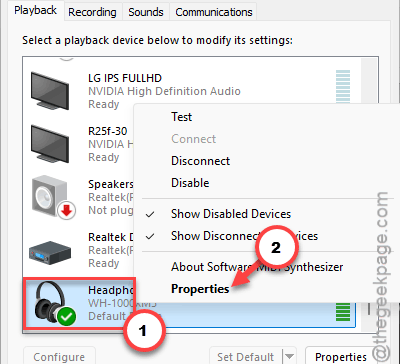
3 – On the Playback tab, right-click the device with the green checkmark and pick Properties.
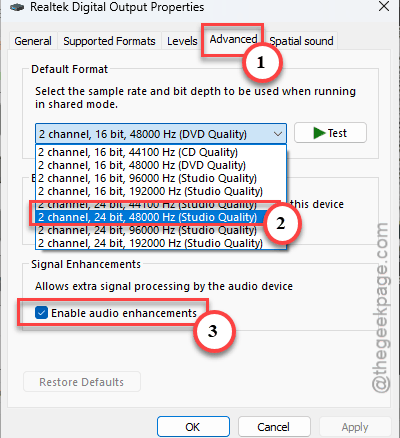
4 – Go to the Advanced tab.
5 – Find the Default Format, pick a PCM option. Find the 24 bit, 48000 Hz (Studio Quality). Anything that doesn’t say Dolby or AC-3.
6 – Later, click Apply, then OK.
Now, just try again. Check whether Dolby Atmos or Dolby Digital in that list? Leave them alone for now. That’s the exact part that’s broken, and picking it puts you right back where you started.
Fix 2 – Uninstall KB5124010
Microsoft shipped the bug in the October cumulative update. Of course they did. So pull that update off and the decoder goes back to the version that worked for years.
1 – Press Windows + I to open Settings.
2 – Click Windows Update at the bottom of the left sidebar.
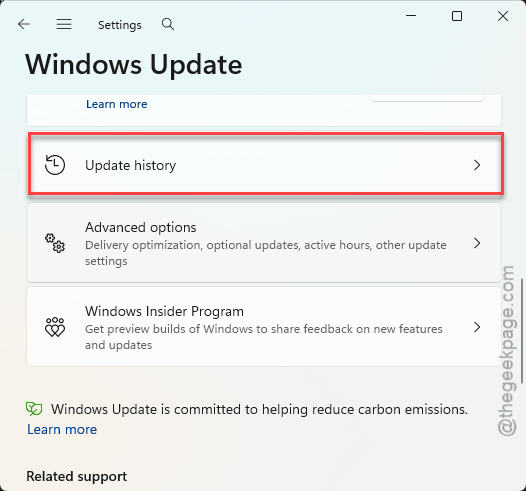
3 – Click Update history.
4 – Scroll to the bottom and click Uninstall updates.
5 – Find KB5124010 in the list and click Uninstall next to it.
6 – Click Uninstall again to confirm, then restart when Windows asks.

And the restart takes longer than normal, with a percentage counter on a blue screen for a few minutes. Don’t panic. That’s the update being peeled off.
Not in the list? Some updates can’t be removed once a newer one lands on top. So Fix 1 becomes your answer until Microsoft fixes the decoder for real.
Fix 3 – Pause Updates So It Doesn’t Come Straight Back
Uninstalling does nothing if Windows reinstalls the same update tonight. And it will. So pause updates for a bit.
1 – Open Settings and click Windows Update, like in Fix 2.
2 – Next to Pause updates, open the dropdown and pick the longest option. It goes up to five weeks.
Check back in a couple of weeks. Once Microsoft marks the audio crash as fixed on its release health page, click Resume updates and let the new one through. Pausing forever is not a plan (you’d miss real security fixes).
Fix 4 – Ask IT for the Known Issue Rollback
On a work laptop you probably can’t uninstall updates at all. IT locked it down, for good reason. But Microsoft publishes a Known Issue Rollback for this bug (KIR for short, a tiny Group Policy package that switches off the broken change without removing the whole update).
Home PC? Microsoft pushes the same rollback quietly in the background. A couple of restarts over a few days usually picks it up. Nothing for you to click.
Keep It From Coming Back
- Before a big monthly update, skim Microsoft’s release health page. It lists known problems.
- Got a Dolby receiver? Switch the format back only after the fix lands, and test one app first. If that one survives, the rest will.