You double-click the Resolve icon. The splash screen flashes up for a second. Then it’s just gone from there. There is no error or any crash report. Just your desktop staring back at you. Maybe Resolve opens fine, but the moment you pick your project, it falls over. Either way, 21.1 is being painfully unhelpful about it. Don’t panic about your edits yet. They’re almost certainly still there.
Where the Crash Comes From
Resolve does a lot of checking before it shows you anything. It scans every plugin you have installed. It loads your saved window layout. Your audio system gets hooked in too. And if any one of those pieces misbehaves, 21.1 just quits. Silently.
Why no error message? Because the crash happens so early that the part of Resolve that reports errors hasn’t even started yet. Annoying, but that’s how it is.
The project-level crash is a different story. That one usually traces back to iPhone HEVC clips with Dolby Vision (the HDR flavor Apple uses) and a render cache that went bad. Resolve trips while unpacking them. Every time.
So the first three fixes are for Resolve dying on launch. Fixes 4 through 7 are for one project taking it down.
Fix 1 – Move Your Plugins Out of the Way
Wondering why a plugin you haven’t touched in months would matter? Resolve 21.1 scans every OpenFX and VST3 plugin on startup. And one outdated plugin is enough to kill the whole app. No warning (it never even gets that far).
1 – Close Resolve if it’s somehow still open.
2 – Open File Explorer and go to C:\Program Files\Common Files\OFX\Plugins.
3 – Now, select everything inside and move it to a new folder on your desktop. Do not delete anything yet.
4 – Now go to C:\Program Files\Common Files\VST3 and move all the .vst3 files into that same desktop folder.
5 – Open Resolve.
Next time, update your plugins before you update Resolve. Saves a lot of this.
Fix 2 – Reset the Saved Window Layout
You should reset the saved window layout on the app.
1 – Press Ctrl + Shift + Esc to open Task Manager.
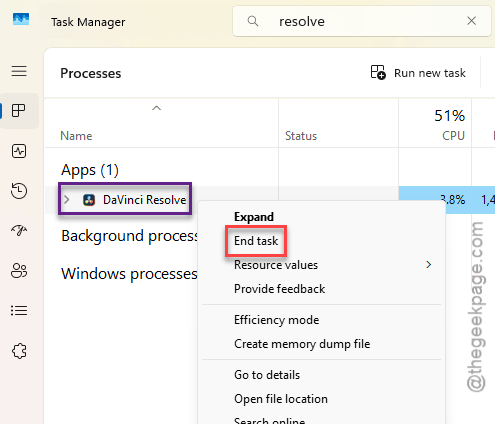
2 – Write down Resolve in the search box at the top and end any Resolve.exe or DPDecoder.exe you find (right-click, then End task).
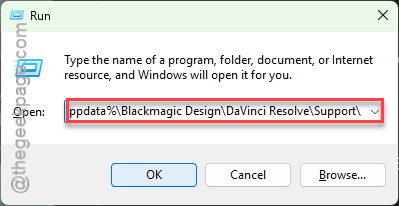
3 – Press Windows + R, paste this address there, and press Enter.
%appdata%\Blackmagic Design\DaVinci Resolve\Support\
4 – Open the profiles folder, then the folder inside it (usually guest).
5 – Find config.dat and rename it to config.dat.bak.
6 – Open Resolve.
Your layout goes back to default. Your projects will not change at all (the layout file and your project database are separate things).
Fix 3 – Turn Off Nahimic and Other Audio Add-Ons
You shold disable any default sound system that came with your laptop.
1 – At first, hit the Windows + R keys at once.
2 – Later, type services.msc and press Enter.
2 – Now, find the Nahimic service, Sonic Studio, or anything related services.
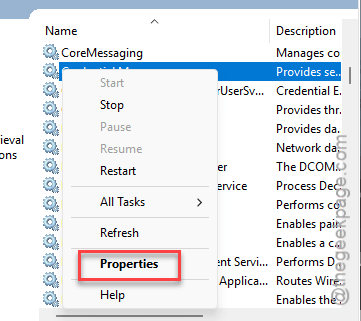
3 – If you can see any such services, right-click each one and choose Properties.
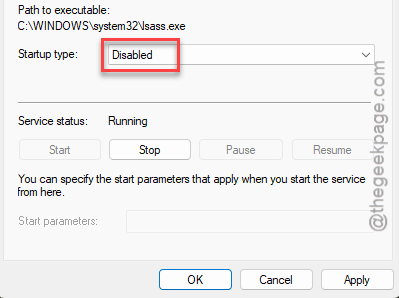
4 – After this, toggle the Startup type to Disabled.
5 – Click Stop, then OK.
6 – Open Task Manager.
7 – End any virtual audio tools still running, such as VoiceMeeter or a virtual cable app.
Open Resolve. If you never use that bundled audio software, uninstall it completely.
Fix 4 – Open the Project Read-Only and Switch Off Dolby Vision
If Resolve itself opens but your project crashes it, start here. Read-only mode skips the part that keeps crashing, so you can get in and change the setting behind it.
1 – Open Resolve and stop at the Project Manager window. Don’t open the project yet.
2 – Then, right-click the project and choose, the Open in Read-Only Mode feature.
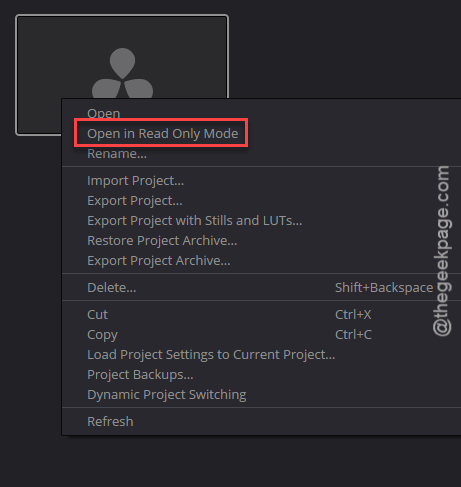
3 – Once it loads, open Project Settings (the gear icon in the bottom right corner).

4 – Click Color Management in the left list.
5 – Uncheck the Dolby Vision processing option.
6 – Click Save.
The Dolby Vision step won’t run now. Close the project and open it again without read-only to check.
Fix 5 – Delete the Project’s Render Cache Folder
Still crashing on that project? The cached render frames are probably corrupted. They live in a folder called CacheClip. But deleting it is safe, since Resolve just makes new ones.
1 – Close Resolve.
2 – Open File Explorer and find your CacheClip folder. Type CacheClip in the search box at the top right if you don’t know where it is.
3 – Inside it, find the folder with your project’s name.
4 – Delete that folder.
5 – Open Resolve and open the project.
Wait for a few minutes, if needed.
Fix 6 – Export the Project and Bring It Back In
Exporting the project should resolve the issue.
1 – Open Resolve and stop at the Project Manager.
2 – At first, right-click the project, and choose Export Project.
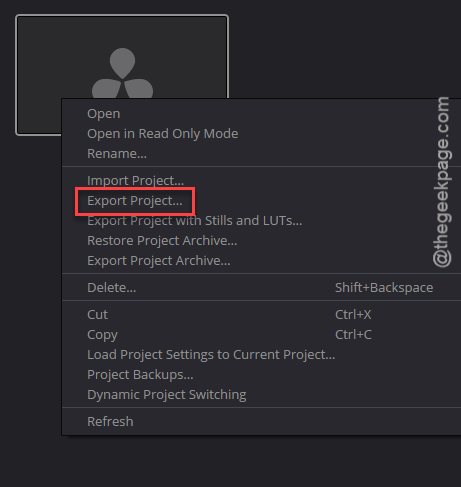
3 – Then, save the .drp somewhere easy to find, like your desktop.
4 – Right-click an empty space in the Project Manager and choose Import Project.
5 – Pick the .drp you just saved. It comes in as a new project.
6 – Open the new one.
Export a .drp every week or so anyway. It is a two-click backup.
Fix 7 – Convert the iPhone Clips Before Resolve Sees Them
Try converting the iPhnone clips with Shutter Encoder app.
1 – Close Resolve.
2 – Move the original iPhone clips to a new folder. That makes Resolve mark them as Offline instead of crashing on them.
3 – Download Shutter Encoder (it’s free) and open it.
4 – Drag the iPhone clips in and choose ProRes or DNxHR as the output.
5 – Click Start function and wait.
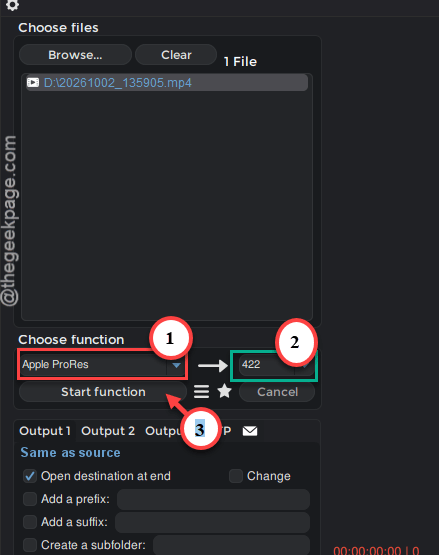
6 – Then, open your project in Resolve.
7 – Finally, right-click the offline clips in the Media Pool, and choose Relink Selected Clips.
7 – Point it at the folder with the converted files.
Going forward, convert phone footage before you import it. Takes longer up front. But it’s a lot less painful than this.
People Also Ask
Why does my DaVinci Resolve project keep crashing when I open it?
Open the project in Read-Only Mode from the Project Manager, turn off Dolby Vision processing in Color Management, and delete the project’s CacheClip folder. Exporting and re-importing the .drp also breaks the loop.
Is DaVinci Resolve CPU or GPU heavy?
Both, but the GPU does most of the heavy lifting. Color grading runs on the graphics card. So do noise reduction and most effects.
Why does DaVinci Resolve keep crashing when exporting?
A few things do this. Third-party OFX plugins are the usual suspect. A corrupted render cache is next. And sometimes Timeline Playback Resolution is still sitting at Half or Quarter from editing. Set it back to Full under the Playback menu, clear the cache, and try the export again.