While changing the time zone settings on your iPhone, you may face the following error message “The time zone cannot be set manually due to device restrictions” on your screen. It seems that Screen Time restrictions are the reason why you are getting this error. Revoking the screen time settings should fix the issue on the iPhone.
Fix 1 – Turn off the Screen Time Passcode
This problem originates from the Screen Time restrictions placed on your device. You can’t change the Timezone settings on your device unless you revoke the restrictions.
Step 1 – At first, you must go to the Settings page.
Step 2 – Next, load up the “Screen Time” settings.
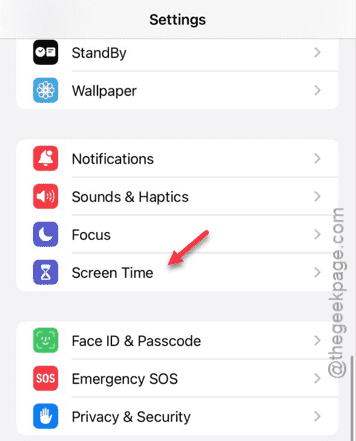
Step 3 – After opening the Screen Time settings, use the “Turn off Screen Time” option there.
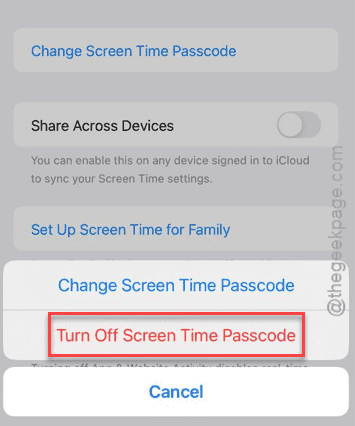
You can turn off the Screen Time after you verify your access. In this case, you have to input your current screen time passcode to verify that.
Once you have revoked the Screen Time settings, there won’t be any problem changing the screen time settings.
NOTE – If you are doing this on your kid’s iPhone, you must disable the Screen Time restriction on the parent device. Apple does incorporate these restrictions across the connected devices. So, make sure to turn it off on the main device as well.
Fix 2 – Turn on the location services
Active location services helps the iPhone identify the actual location of the device and set the time zone accordingly.
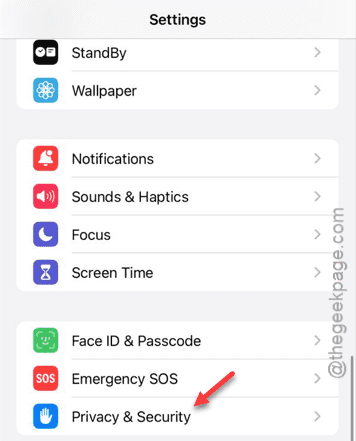
Step 1 – Go to the device settings and reach the “Privacy & Security” feature.
Step 2 – In there, open up the “Location Services” tab.
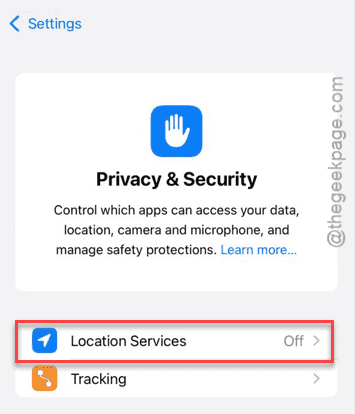
Step 3 – Make sure to turn on the “Location Services” mode.
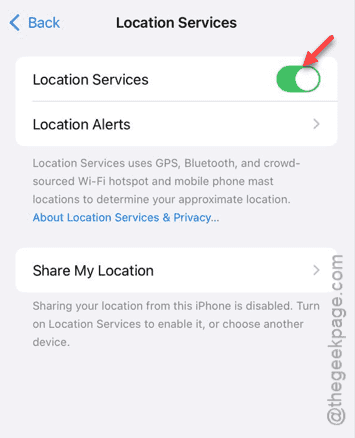
After you have turned this on, return to the Time Zone settings page. Check whether this works on your.
Fix 3 – Change the timezone manually
If you still can’t do this, you can change the date and time settings manually. Though this is a workaround, you can get the correct date and time settings.
Step 1 – Go to the “General” tab one more time.
Step 2 – This time, open up the “Date & Time” settings.
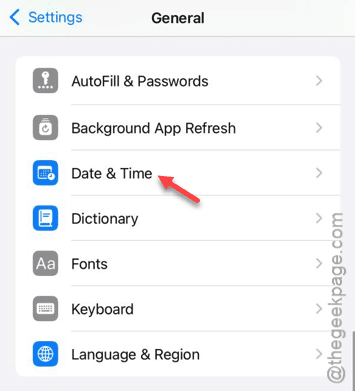
Step 3 – Disable the “Set Automatically” option to off mode.
If the city part of the Timezone is disabled or greyed out, tap that once.
Step 4 – Next, you can toggle the date and time settings on your own. Switch these according to your preference.
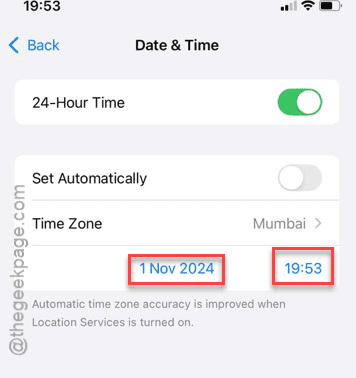
After this, check whether this works or not.