Another Windows update, another thing that quietly broke. This time it’s Notepad. You left six tabs open yesterday, full of notes you never bothered to save (because Notepad promised to keep them). But, suddenly can’t find any of them today! Microsoft has shipped this tab-restore feature for a couple of years now. And it still sometimes falls over. But there is a silver lightning, It’s fixable in a few minutes, and it mostly comes down to one hidden folder. Some of your lost text may even be recoverable.
Why This Happens
Short version: Notepad doesn’t keep your unsaved tabs anywhere you’d think to look. It stashes them in a hidden folder called TabState, deep inside your AppData folder. Every tab gets its own little file there (a .bin file, if you ever go looking). Close Notepad, and it writes the lot. Open it, and it reads them back.
But that only works when Notepad can write to the folder. And for some reason, a permission lock on its config file or a bit of corrupted session data breaks that completely. A forced shutdown can leave a 0 KB file in the index, too. Notepad tries to read the session. The read fails. No error, no warning. It just hands you a fresh window instead.
There’s a second culprit that nobody suspects. Cleaner apps. CCleaner, BleachBit, even Windows’ own Storage Sense treat that TabState folder as disposable cache. So they wipe it. Your tabs weren’t lost. They were cleaned.
Fix 1 – Flip the Startup Setting Off and Back On
Sounds too easy. But it forces Notepad to rewrite its config file, and that rewrite often clears the permission lock. Two minutes, no risk.
1 – Open Notepad.
2 – Click the Settings gear in the top right corner.
3 – Find the When Notepad starts option.
4 – Change it to Open a new window.
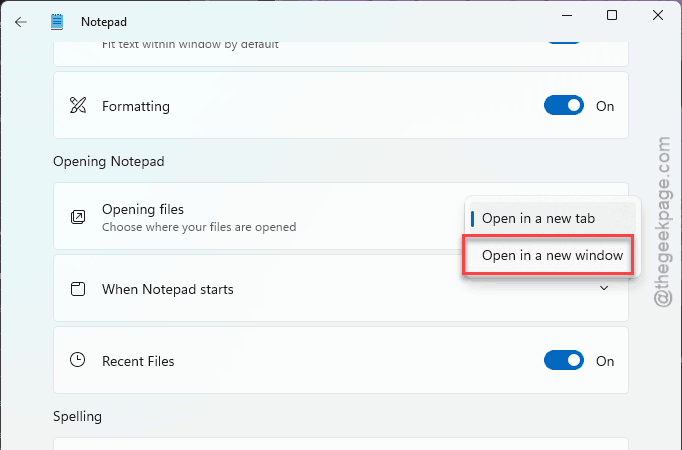
5 – Close Notepad completely.
6 – Open Notepad again and go back to the same setting.
7 – Change it back to Continue previous session.
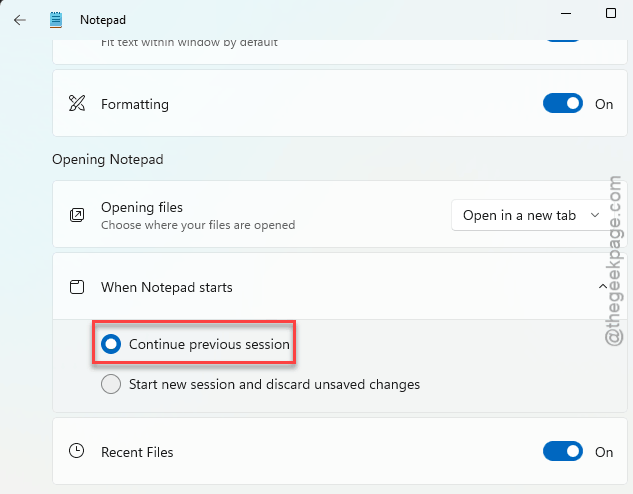
Now test it.
Fix 2 – Rescue the Text From the Old Tab Files
Try to recover the text.
First, the easy route.
1 – At first, open Notepad and click the ≡ menu in the top left corner.
2 – If you see Recover Unsaved Tabs, click it and pick the tab you want.
Not every version shows that option, so don’t panic if it isn’t there.
No luck? Go digging by hand.
1 – Close every Notepad window.
2 – Press Windows + R.
3 – Paste this into the box and press Enter:
%localappdata%\Packages\Microsoft.WindowsNotepad_8wekyb3d8bbwe\LocalState\TabState
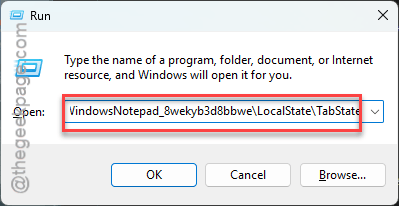
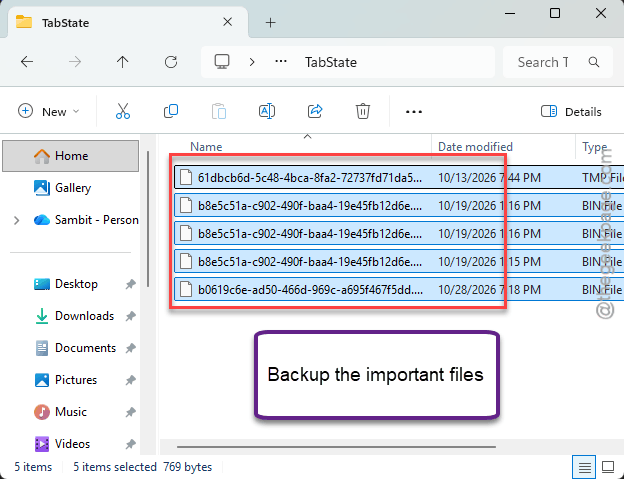
4 – Now, copy the whole TabState folder to your desktop as a backup.
5 – Look at the file sizes in the original folder. You may Skip the tiny ones named 0.bin or 1.bin (those are just the index).
6 – Drag one of the bigger .bin files into Notepad++ or VS Code.
Your text shows up inside a wrapper of odd characters. Ugly, yes. But readable. You can copy what you need from there.
Check if this helps.
Fix 3 – Delete the TabState Folder
Try deleting the TabState folder from your system.
So pull out anything you still want from those .bin files first, like in Fix 2. This step wipes whatever’s left of your unsaved tabs.
1 – Close Notepad.
2 – Load the LocalState folder again.
3 – Hit the Windows + R keys. Reach this address from there –
%localappdata%\Packages\Microsoft.WindowsNotepad_8wekyb3d8bbwe\LocalState\
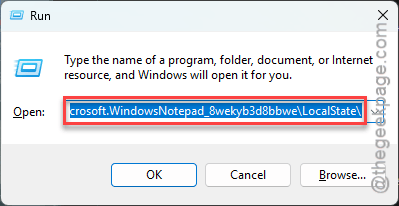
3 – Right-click or select the TabState folder and pick Delete.
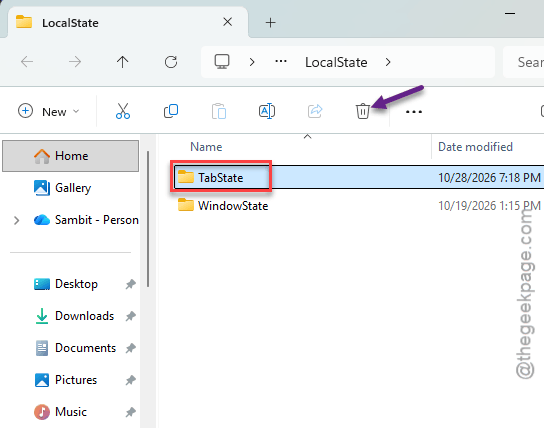
4 – Open Notepad.
A fresh TabState folder appears the moment Notepad starts. And from here on, closing with unsaved tabs should bring them straight back.
Fix 4 – Reset the Notepad App
If deleting the folder didn’t stick, the package itself is probably in bad shape.
1 – Press Windows + I to open Settings.
2 – Click Apps in the left sidebar, then Installed apps.
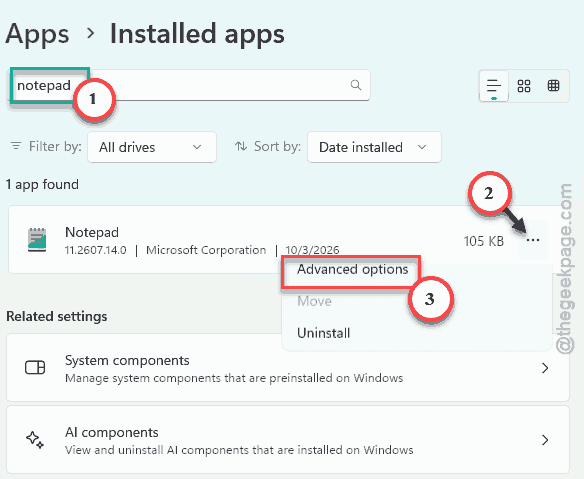
3 – Type Notepad in the search box at the top. Faster than scrolling.
4 – Click the three dots (⋯) next to Notepad and pick Advanced options.
5 – Scroll down to the Reset section and click Reset.
6 – Click Reset again when it asks you to confirm.
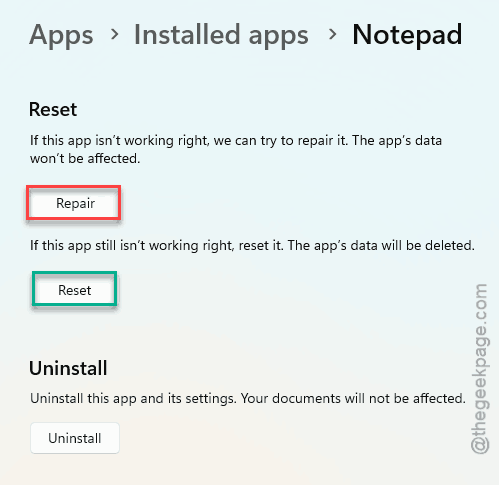
A checkmark shows up next to the button when it’s finished. Takes about ten seconds.
1 – Then open Notepad.
2 – Go to it’s Settings.
3 – check that When Notepad starts is still set to Continue previous session.
A reset puts everything back to defaults, so it should be. Worth a glance.
Fix 5 – Re-register Notepad With PowerShell
Last resort for the corruption side of things. And honestly, Microsoft shouldn’t make anyone type a PowerShell command to fix a text editor. But here we are.
The command repairs the link between the app package and the file system. It is the same thing Reset does, just deeper.
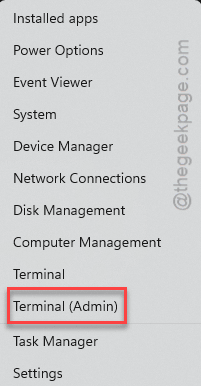
1 – Right-click the Start button and pick Terminal (Admin). That opens PowerShell with admin rights.
2 – Click Yes when Windows asks for permission.
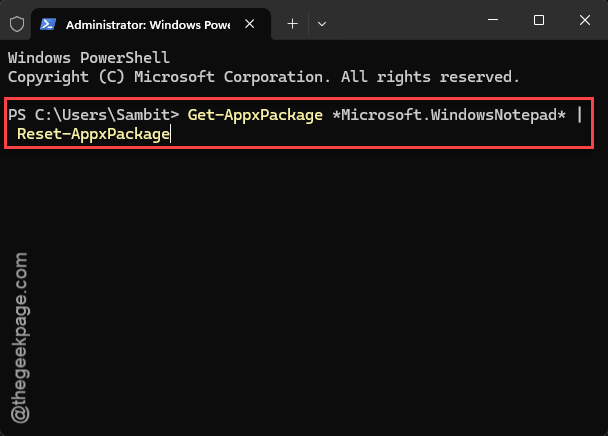
3 – Type this command and press Enter:
Get-AppxPackage *Microsoft.WindowsNotepad* | Reset-AppxPackage
4 – Wait for the prompt to come back. There’s no success message, just a new blank line.
5 – Close the window and open Notepad.
If PowerShell throws red text saying the package wasn’t found, Notepad on your PC didn’t come from the Store, and this fix doesn’t apply. Fix 4 is as far as you can go.
Fix 6 – Stop Your Cleaner App From Wiping the Tabs
Do your tabs vanish on a schedule? Like, every Sunday night? Then nothing is corrupted.
If you run CCleaner or BleachBit:
1 – Open the cleaner and go to Options.
2 – Click Exclude, then Add, then Folder.
3 – Paste in this path, swapping in your own username:
C:\Users\YourUsername\AppData\Local\Packages\Microsoft.WindowsNotepad_8wekyb3d8bbwe\LocalState\*
4 – Go to the Applications tab and untick Windows Notepad or MS Store Apps Cache, whichever one your cleaner lists.
Windows has its own cleaner too, and it’s on by default on a lot of PCs.
1 – Press Windows + I.
2 – click System, then Storage.
3 – then Storage Sense.
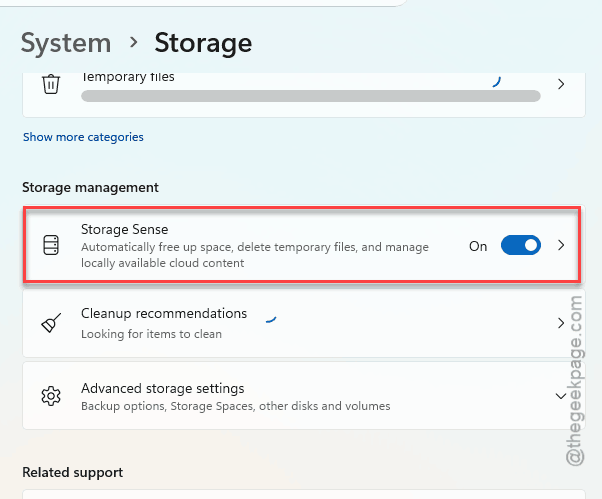
Make sure it is not set to clear temporary app files every day.
Weekly or monthly is fine. Daily is what eats tabs.
How to Prevent This
- Save anything that matters. Yes, the tab restore is handy. But it’s a convenience, not a backup, and this whole article is proof.
- Close Notepad before you install a big Windows update. Updates that touch Store apps are a common moment for session data to get mangled.
- After any update, glance at the startup setting. Two seconds, and it’s the first thing to check if tabs vanish again.
- Add the TabState folder to your cleaner’s exclusions the day you install the cleaner. Not after it has eaten a week of notes.
- Keep Notepad updated through the Store. Microsoft patches this feature often. Quietly, of course.