Why does a game with modest system requirements such as Gray Zone, keep killing your graphics driver? Some of the user reports indicate . Usually. The “GPU Crash Dump Triggered” popup looks like a hardware failure. And it’s not.
Why This Happens
Hardware-accelerated GPU scheduling (HAGS, a Windows feature that lets the graphics card manage its own memory queue) is buggy with this game right now (especially on RTX 20 and 30 series cards). The driver times out, Windows resets it, and Unreal Engine 5 dumps a crash log.
But that’s not the only trigger. AMD frame generation falls over when you pan the camera fast. Lumen lighting spikes the card to 100 percent the moment the sun shifts outdoors. And old shader files left behind by the previous patch break rendering on the new one.
Fix 1 – Turn Off Hardware-Accelerated GPU Scheduling
Do this first. One player on the Steam forums went from constant crashes to zero after this alone.
1 – Right-click an empty spot on the desktop.
2 – Click Display settings.
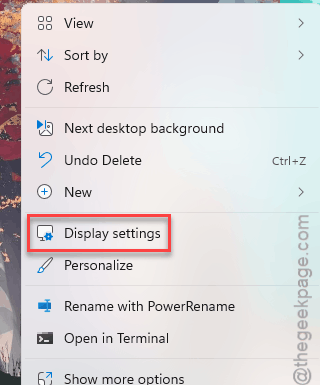
3 – Scroll down and click Graphics.
4 – Click Change default graphics settings.
5 – Switch Hardware-accelerated GPU scheduling to Off.
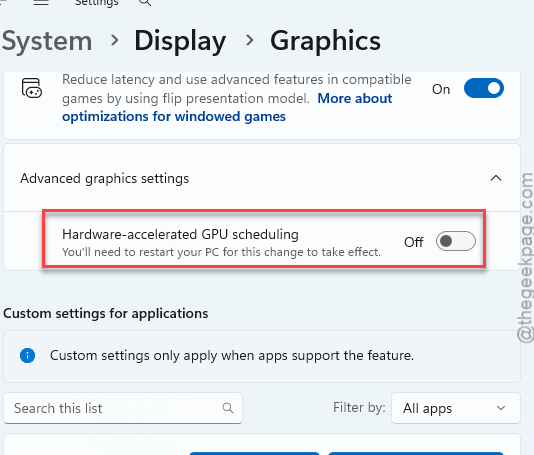
6 – Restart the PC. And the change does nothing until you do.
Check if this works.
Fix 2 – Switch Off FSR Frame Generation
Frame generation invents extra frames between the real ones. Nice idea. But in this patch it dumps the driver the second you whip the camera around.
1 – Launch Gray Zone Warfare.
2 – Open Settings, then Graphics.
3 – Scroll down to the Anti-Aliasing/Upscaling section.
4 – Set FidelityFX Frame Generation to Off.
5 – Quit and relaunch the game so the setting takes hold properly.
Can’t even reach the menu? Fix 4 wipes the config file, which resets frame generation for you.
Fix 3 – Drop Global Illumination to Low
Lumen (Unreal’s fancy real-time lighting) is the heaviest thing in the game.
1 – Go the same Graphics menu from Fix 2.
2 – Then, find the Global Illumination slider and set it to Low.
Shadows look a little flatter, but frames get smoother. Check if this works.
Fix 4 – Delete the Old Shader Cache
Leftover shaders from the last patch. They don’t match the new build, and the engine falls apart trying to use them (this also resets your graphics settings, so redo Fix 2 and 3 afterward).
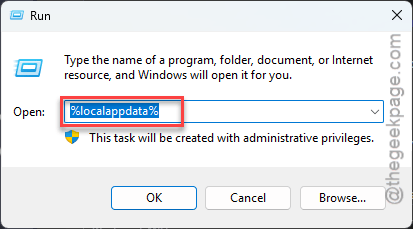
1 – Press Windows + R.
2 – Type %localappdata% and press Enter.
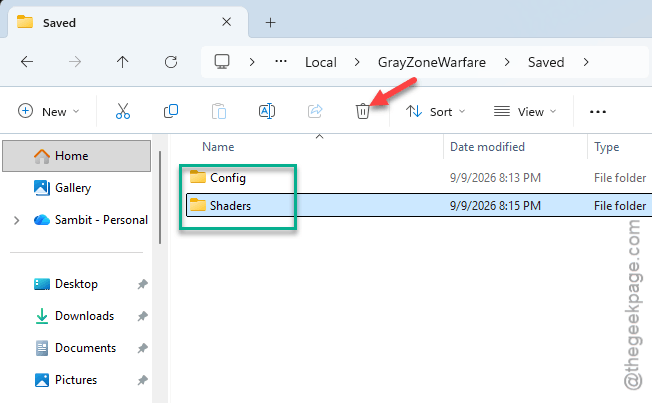
3 – Open the folder named GZW or GrayZoneWarfare, whichever one you have.
4 – Open the Saved folder.
5 – Delete the Config folder and the Shaders folder.
6 – Launch the game. It rebuilds both folders fresh, so the first load takes a couple of minutes longer than usual.
Fix 5 – Verify the Game Files
Still crashing? Let Steam check for damaged files.
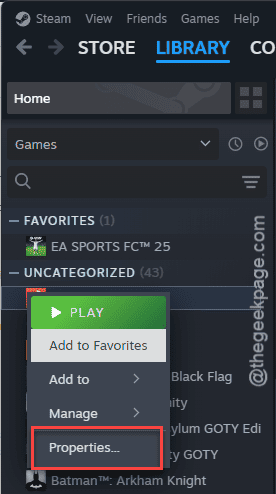
1 – Open Steam and go to your Library.
2 – Right-click Gray Zone Warfare.
3 – Click Properties.
4 – Click Installed Files in the left sidebar.
5 – Click Verify integrity of game files.
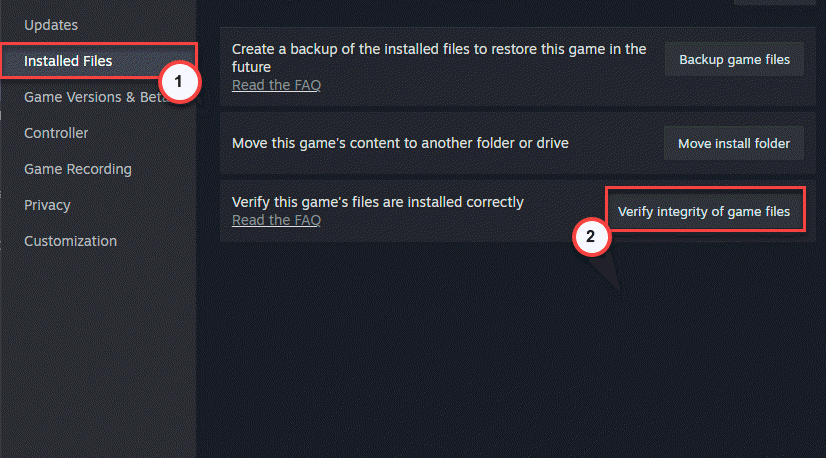
Takes five to ten minutes. And anything broken gets re-downloaded automatically.
How to Prevent This
- Leave HAGS off until the devs say it’s safe. But Windows updates sometimes turn it back on, so check it after a big one.
- Skip frame generation in early-access games. Period. It’s the first thing to break after every patch.
- And clear the Shaders folder after each major update. Two minutes of work, saves a night of crashes.
People Also Ask
How do I fix a GPU crash dump error?
Turn off Hardware-accelerated GPU scheduling in Windows Display settings, under Graphics, and restart. That clears most cases in Gray Zone Warfare. Then disable frame generation and set Global Illumination to Low inside the game. If it keeps happening, delete the Shaders folder in %localappdata% and verify the files in Steam.
Why does Gray Zone Warfare keep crashing?
The game is in early access, and each patch shifts what works. Right now HAGS on RTX 20 and 30 series cards, AMD frame generation, and Lumen lighting cause the most driver crashes. Stale shader caches from older patches pile on. Turn those features off and clear the cache, and it settles down.