You hit Play. Steam flashes for a second. And then… nothing. Or worse, the Unreal crash reporter pops up before the title screen even loads. Palworld ran fine for months. Then 1.0 lands and it won’t start at all. The culprit is almost never the game itself.
Why This Happens
Mods. It’s nearly always mods. Version 1.0 changed enough under the hood that every old mod loader and map pack became a landmine.
And here’s the part that catches everyone: uninstalling through Steam doesn’t remove them. Those files just sit in the game folder, ready to crash the fresh install too. Why doesn’t Steam clean them out? No idea. It never has.
Never modded? Then it’s probably a backup tool locking your save folder mid-write. OneDrive does it. Adobe Creative Cloud does it too, weirdly. The game hits a locked file and dies.
Fix 1 – Clear Out the Mod Loader
Start here if you’ve ever installed a single mod.
1 – Right-click Palworld in your Steam library.
2 – Click Manage, then Browse local files.
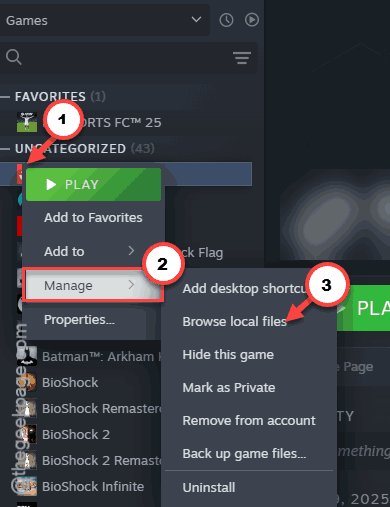
3 – In the window that opens, go into Pal, then Binaries, then Win64.
4 – Delete any mod loader files sitting in there. UE4SS is the big one — remove everything that belongs to it.
UE4SS is a mod loader, a tool that injects mods into Unreal Engine games. And 1.0 absolutely hates leftover copies of it.
Fix 2 – Delete Old Mod .pak Files
Same window, different folder.
1 – Go back to the Pal folder, then into Content, then Paks.
2 – Look for .pak or .ucas files that came from mods — anything you or a mod manager added.
3 – Delete them.
Not sure which files are original? Delete generously. Fix 4 re-downloads anything the game actually needs.
Fix 3 – Reset the Config Folder (Saves Stay Safe)
1 – Press Windows + R.
2 – Type %localappdata%\Pal\Saved and press Enter.
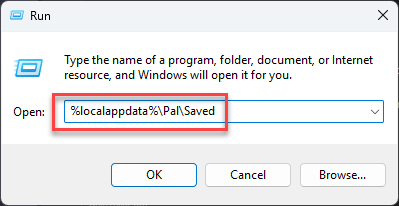
3 – Right-click the Config folder and rename it to Config_Backup.
4 – Do not touch the SaveGames folder. That’s your worlds and your Pals.
The game rebuilds a clean Config on the next launch. Your graphics settings reset. Your saves don’t.
Fix 4 – Verify the Game Files in Steam
Do this after the deletions above, not before. Verification only fills in missing files — it never removes extra ones, which is why it can’t fix a mod crash on its own.
1 – Right-click Palworld in Steam and pick Properties.
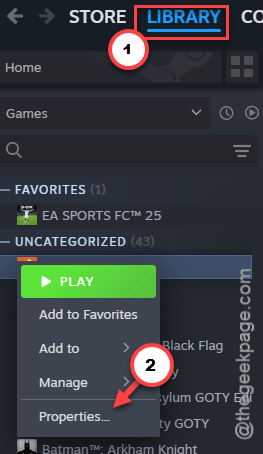
2 – Click Installed Files in the left sidebar.
3 – Click Verify integrity of game files.
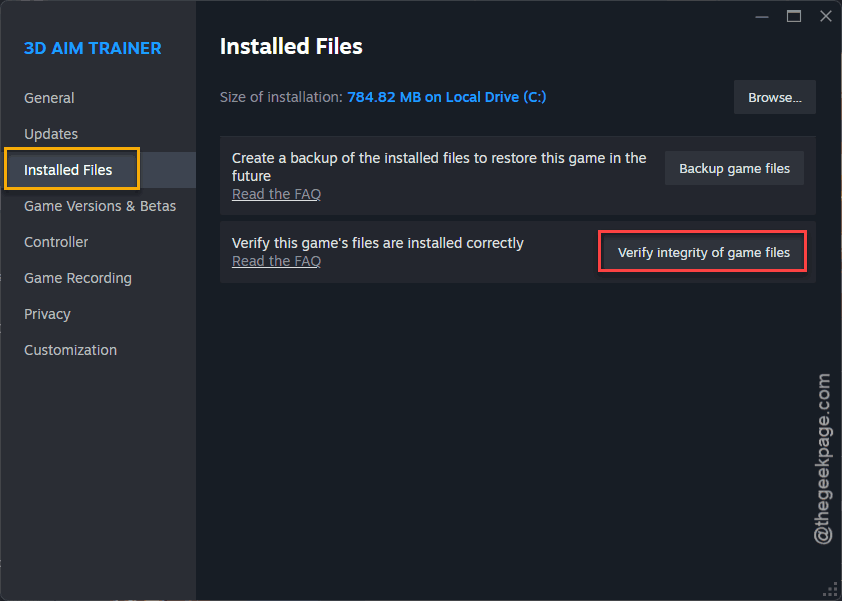
4 – Wait for the check to finish. Takes a few minutes, and it’ll re-download whatever you deleted.
Fix 5 – Uninstall, Then Delete the Leftovers
Still crashing? Burn it down properly this time. Steam’s uninstall leaves mod remnants behind — of course it does — so you’ll finish the job by hand.
1 – Right-click Palworld, click Manage, then Uninstall.
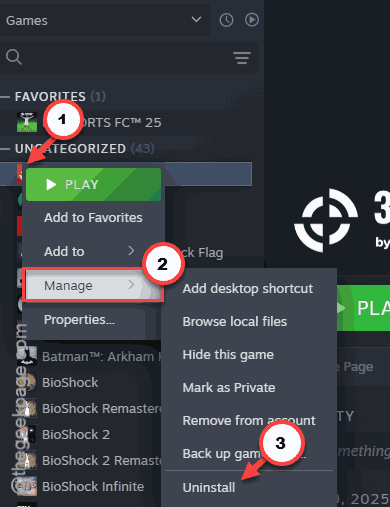
2 – Right-click it again, click Manage, then Browse local files. This drops you into whatever survived.
3 – Delete every file and folder left in that Palworld directory.
4 – Reinstall the game through Steam.
Old base-expansion mods are the classic killer here. They crash 1.0 the instant it boots.
Fix 6 – Stop Backup Tools From Locking Your Saves
Sync programs grab the save folder for a moment while uploading. The game tries to write at that exact moment, and down it goes — sometimes with a “Could not save” error first.
1 – Press Ctrl + Shift + Esc to open Task Manager.
2 – Close any cloud backup or syncing apps that are running — OneDrive, Adobe Creative Cloud, whatever you’ve got.
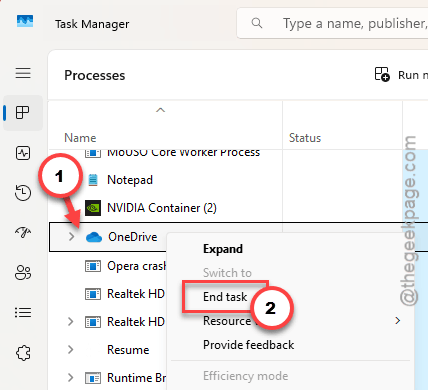
3 – Open your backup software’s settings and add an exclusion for this path:
C:\Users\[your username]\AppData\Local\Pal\Saved
4 – Launch Palworld and play for a bit to test.
The exclusion is the permanent part. Closing the apps just proves the diagnosis.
Fix 7 – Clear the Shader Cache
Game launches now, but everything looks like wet clay? That’s the 1.0 muddy-texture bug, and it lives in your graphics card’s shader cache (pre-cooked graphics data the driver saves to speed things up).
1 – Click Start, type “Disk Cleanup”, and open it.
2 – Tick the box for DirectX Shader Cache in the list.
3 – Click OK, then Delete Files.
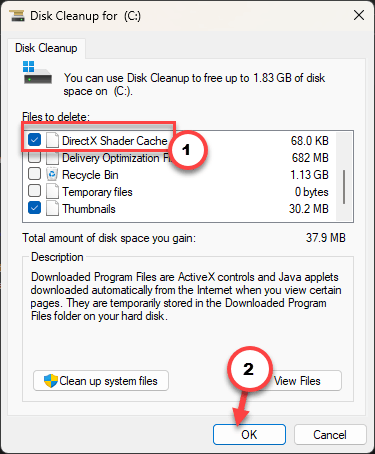
4 – Restart your PC.
First launch afterward stutters a little while the cache rebuilds. Normal. It smooths out fast, and the textures come back sharp.
How to Prevent This
– Strip your mods out before every major game update. Big patches and old mods do not mix. Ever.
– Install mods through a mod manager so you actually know what’s on disk. Manual installs get forgotten, and forgotten mods become crashes.
– Keep game save folders excluded from sync tools from day one.
– After a big patch, wait a day or two before re-modding. Let the mod authors catch up first.
People Also Ask
Why does Palworld crash on startup after the 1.0 update?
Leftover mods, almost every time. Old mod loaders like UE4SS and outdated .pak files aren’t compatible with 1.0, and Steam’s uninstall doesn’t remove them. Deleting them from Pal\Binaries\Win64 and Pal\Content\Paks, then verifying files, fixes most crashes.
Will verifying game files remove my Palworld mods?
No — and that’s the trap. Verification downloads missing or changed official files, but it ignores extra files completely. Mods stay right where they are. You have to delete mod files by hand first, then run the verification to patch the gaps.
Does reinstalling Palworld delete my saved worlds?
No. Saves live in %localappdata%\Pal\Saved\SaveGames, outside the game’s install folder, so uninstalling and reinstalling leaves them alone. Just never delete the SaveGames folder itself when you’re cleaning out configs or mod files nearby.